Menu Close

Author: Bobby Travis (page 31 of 51)

Bobby isn't 40-something, but is a strong supporter of the Grown-up Geek kind. He's a loving husband and father first, but is also a freelance writer, productivity nut, operatically trained singer, and (not-so) closet geek.

Check out his random thoughts, wackiness, and Instagram pics on Tumblr, Twitter, or Google+-- or just head over to bobby-travis.com.

Techies Think 7 Inches of Samsung Will Work Just Fine

Samsung Galaxy Tab | 40Tech

The tech community seems to be almost overwhelmingly positive about the new Samsung Galaxy Tab. Some of that is because the tech community tends to love the openness of Android, and some of that is because the Tab is a shiny new toy — but much of it appears to be because Samsung’s new tablet is actually pretty cool.

Check out the video, below, from Stuff.tv. It’s one of many reviews and unboxings that I’ve come across that sings a balanced tune about the Tab’s goodness. Some highlights are as follows:

  • The smaller size of the Tab is a good thing, as it can fit in a (large) pocket and is easier to type on than an iPad (for people focused on thumb-typing).
  • Having Flash on a tablet is awesome and it appears to work pretty well, even on 3G.
  • Samsung and Carriers have pre-loaded “helpful” software (or bloatware) onto the device.
  • The interface, while infinitely more configurable, is not a slick as the iPad — but it does the job.
  • People will like it, no matter what Steve Jobs thinks.

My last two highlight points, above, were mentioned in every single positive review I read, watched, or skimmed, and though there are a few negative reviews out there, many of them come of as Apple fanboys doing what Apple fanboys love to do: trashing things that are not Apple. There are a some reasonable points to take away from the negative reviews, however, such as the difficulty that first time users of the Tab can have with finding the “on” button, and the fact that Android 2.2 was simply not built for tablets (just like Google said it wasn’t) and that leads to the occasional performance hiccup.

Overall, it seems that the Samsung Galaxy Tab will be a reasonable alternative to the iPad, even if it will never quite achieve the elitist notoriety of an Apple product. What do you think?

Samsung Galaxy Tab Video Review [Stuff.tv]


Find Lost Gadgets… With This Gadget

Find Lost Gadgets with Zomm | 40Tech

Zomm is one of those neat little gadgets that I’m not sure I would ever buy, might raise an eyebrow at if given it for a gift, but would probably find ridiculously useful if I had one. It does three things:

  1. Helps you never forget your phone (or other bluetooth-enabled device you’ve paired to it) by sounding an alarm if you start to walk away from it.
  2. Answers phone calls with the touch of a button, improving driving/cell-phone safety.
  3. Acts as a personal security alarm that will even dial 911 for you.

The Zomm, which won Best of Innovations at 2010’s CES (Consumer Electronics Show), is keychain-sized, comes in white or black with blue accents, and will fit in the palm of your hand. It costs about $80.00.

Check out the video post on the Zomm below. It’s by super-geek Chris Pirillo, and will, at the very least, remind you of exactly what level of geek you are by comparison. If five minutes of Chris is too much for you to handle, go one video down and check out the Zomm commercial – Chris is funnier, though. Enjoy, and have a fantastic weekend!


Who’s getting the Zomm on your Christmas shopping list?

How Do You Find Lost Gadgets [Lockergnome]


How to Search By Tag in Evernote for iPhone

How to Search By Tag in Evernote for iPhone | 40Tech

For long-time Evernote for iPhone users, searching your notes by tag is probably not an issue. However, the email I received last night from one of our own Grown-up Geeks made me realize that new users to the iPhone version of Evernote might be in for a bit of frustration. In light of this, I decided to put together a quick how-to post based on the email response I sent our reader. Check it out below.

In order to browse by tag in Evernote for iPhone, you just need to follow these steps:

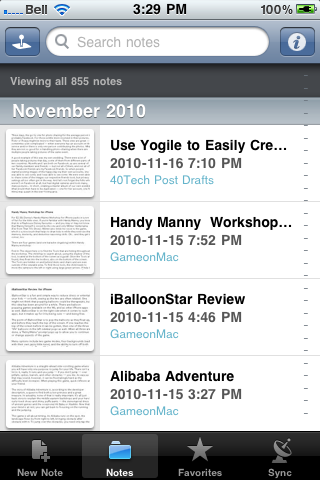
Open Evernote and tap Notes from the bottom menu

IMG_1751


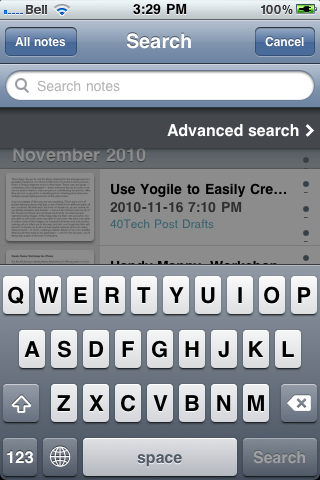
Tap the search bar up top (where it says Search Notes)

IMG_1752


As the search bar is activated, it will expand and just below it you see “Advanced search” — tap that

IMG_1753


In the next screen, you will see the Tags button — tap it

Note: You can add several other search filters from this screen, as well!

IMG_1754


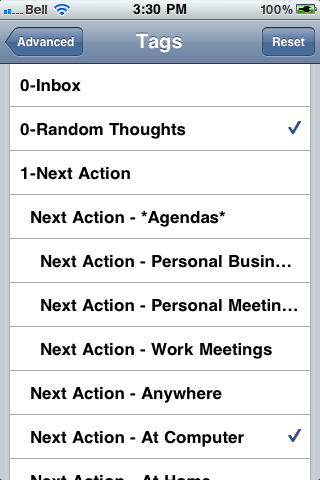
Tap the tag you want to sort by

Once selected the tag will have a checkmark. To search within multiple tag, select more than one.

IMG_1755 IMG_1756


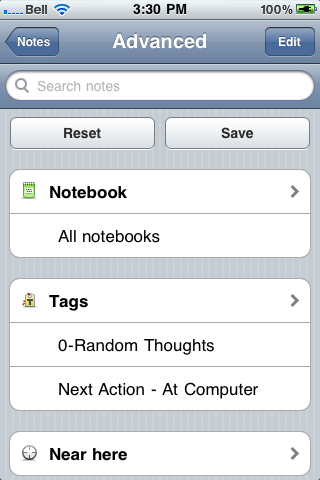
Tap “Advanced” in the top left corner, to go back to the advanced menu

You will be able to see a list of the tags and other search criteria you chose here.

IMG_1757


Tap “Notes” in the top left corner, to go back to the notes list

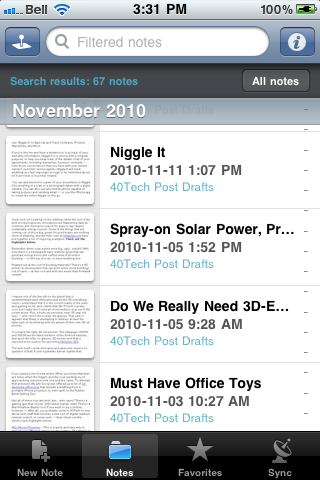
Your notes will now be sorted by the selected tags — to get back to general note view, tap the “All notes” button.

IMG_1758


Hopefully, this post will help some iPhone Evernote newbies out. If you’re reading this and it seems too convoluted to you — and you haven’t bought an iPhone yet — you might want to consider Evernote for Android. The new version puts tags right upfront – and there are a few other Android-only features that kick the iPhone’s Evernote squarely in the pants.

Evernote 2.0 for Android Screenshot

Have other Evernote questions? Post them in the comments, and we’ll do our best to answer them.


Use Yogile to Easily Create Group Photo Albums

Use Yogile to Easily Create Group Photo Albums | 40Tech

These days, the go-to site for photo sharing for the average person is probably Facebook. For those a little more involved in their pictures, Flickr or Picasa might be more to their taste. These sites are great — if sometimes a bit complicated — when everyone has an account on the service and/or there is only one person contributing the photos. What they are not so good for is handling photo-sharing when there are multiple people taking pictures of the same event.

A good example of this was my own wedding. There were a lot of people taking pictures that day, some of them from different parts of two countries. My wife and I are both on Facebook, as are several of our family members and friends — but not all of them, and not all of her Facebook friends are my Facebook friends. So when people started posting images of the happy day via their own accounts, she was able to see some, and I was able to see some. We were even able to share some of the images our respective friends took, but privacy settings all too often got in the way. And let’s not forget the folks who weren’t on Facebook at all, but had digital cameras and took many, many pictures… In short, creating a master album of our own wedding (that would then have to be duplicated — one for her account, one for mine) was a pain in the ever-loving arse.

Yogile offers a dead-simple solution to this kind of problem. All you need is the one account, and to pass around an album’s email address to everyone involved. Photos can then be sent in to that album as email attachments. It’s that easy — and you can also upload photos via the website, if need be. Send a link to the photo album to whomever you want to view the files, add a password if you want, or set the entire thing as public and go to. Twitter, Facebook and email sharing of an album’s link are also possible.

Yogile Easy Photo Sharing for Groups | 40Tech

Yogile isn’t complicated by an extensive feature-set, and doesn’t require everyone to register (unless they want to comment). It costs nothing up to 100 MB/month, and can go unlimited for $24.95/year. You can even download an entire album in a handy zip file.

Like I said… easy.

What do you use to corral and share event photos?

Easily Create and Share Photo Albums with Yogile [Digitizd]


Get Creative Date Ideas with DateBank

Get Creative Date Ideas with DateBank for iPhone | 40Tech

Whether you are single and dating or have been married for years, it is always a challenge to come up with interesting date ideas. Sometimes “dinner and a movie” just isn’t enough, you know? Thankfully, some folks up in Canada — in the Greater Vancouver area, just like l’il ol’ me — have taken the time to create an iPhone app that helps solve that problem.

DateBank is a simple, slot-machine style app. There is a slot for Style, one for Budget, and one fore Time of day. Select from a range of style entries like Playful, Chatty, Artsy and, Outdoorsy, pick a price range and a time of day, hit “Show Results” and voila! A list of interesting date options will appear, each with a fun description and some tips on how to take it up a notch. If you’re unsure of what to select from the slots, there is an option for that, as well, along with some tips, a ranking/sharing element, and the ability to submit your own ideas for inclusion.

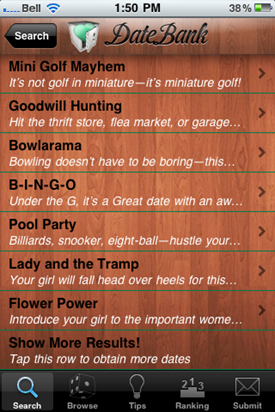
Here are a few results from a search for Playful/$20-60/Afternoon, as well as the top-ranked dates on the app, currently:

Some Date Ideas form DateBank for iPhone | 40TechTop-Ranked Date Ideas from DateBank for iPhone | 40Tech

DateBank costs $0.99 and is a fun and useful app. There are a few things I hope to see in the near future, however, such as a local component (which ought to work well with the suggestions area), and the “shake for a random idea” function to start working. Other mobile apps and a web app for the mobile-impaired would also be useful, as would a social element that allows people to give a brief description of how the date went.

In fact, I think it would be very cool if some of you grown up geeks out there were to try DateBank and let us know how it worked out for you! I’ll show you mine, if you show me yours…