Menu Close

Author: Bobby Travis (page 24 of 51)

Bobby isn't 40-something, but is a strong supporter of the Grown-up Geek kind. He's a loving husband and father first, but is also a freelance writer, productivity nut, operatically trained singer, and (not-so) closet geek.

Check out his random thoughts, wackiness, and Instagram pics on Tumblr, Twitter, or Google+-- or just head over to bobby-travis.com.

Access SkyDrive’s 25 GB of Storage on Android with Sorami

Access SkyDrive's 25 GB of Storage on Android with Sorami | 40Tech

Microsoft’s Windows Live SkyDrive may come with caveats relating to filesize and the like — it’s certainly no Dropbox — but any way you slice it, it is still hard to argue with 25 GB of free cloud storage. Now all of that space is accessible on your Android device with a simple app called Sorami.

Sorami allows you to use your Android device to dip into your SkyDrive and view, download, or share files, and even whole folders. You can also send files to SkyDrive from your phone’s SD card. The interface is pretty straightforward, even a bit Spartan, but it does the trick — but it should be mentioned and remembered that the app is still in beta. There are a few things to watch out for:

  • Authorization may fail with your current Windows Live account. The developer advises that you should create a new account to connect to Sorami if that happens.
  • SkyDrive’s [Photos] and [Favorites] folders cannot be accessed. Put the files you wish to access in the [My Documents] folder.
  • Apparently, putting your file in the root directory of SkyDrive is bad — don’t do it.

If you have an Android device and need 25 GB of storage space for files that are no larger than 50 MB, give Sorami a try. Let us know in the comments how it works out for you.

Sorami Opens Up SkyDrive’s 25 GB Cloud Storage to Your Android [Lifehacker via @edbott]


How to Back Up Your Gmail Account for Free

Gmail Meltdown | 40Tech

When thousands of Gmail users opened their inboxes last weekend and discovered, to their horror, that even the servers at the Great and Powerful Google are fallible, the word “backup” started flying around like a hummingbird drunk on one too many cups of coffee. We all know that we should regularly back up our Gmail — or anything that contains important information — but I have to wonder how many of us heard the news of the big disaster that might have been (if Google had been unable to restore the accounts) and quietly thanked our makers when we found that it hadn’t hit us. I suspect that the count in favour would be high, and that many of that group might like to take a moment to do that backup in case it happens again.

What’s the best way to back up your Gmail, though? Can it be done for free? Yep! Read on for two methods, below.

Desktop Email Clients

Using a desktop email client is one of the best ways to get a backup of your Gmail account that you control. It is fairly straightforward to set up either POP or IMAP access to a webmail account in any of them, but if you are set on free and don’t have Outlook already, then download and install Thunderbird or Windows Live Mail for Windows users, or use Apple Mail on OS X. Linux users can also install Thunderbird or use one of the other Linux email clients. If you plan on using the client for all of your email needs, then you should connect via IMAP, but if you want it only for backup purposes, POP will do just fine. Setting these email clients up with Gmail is fairly intuitive, but Google has extensive tutorials on both IMAP and POP setup and troubleshooting if you run into problems.

Once you have your entire Gmail account downloaded to the desktop client of your choice, don’t stop there. Look under file to see if there is an Export option. Exporting your email to .eml format and then backing it up on a separate hard drive or three is the next logical step in a true backup process. You can also export your Contacts from the desktop client, or right from the Gmail/Contacts interface. Set a reminder series on your calendar, and do the “physical” backup regularly. If you need some tips on good file backup services, check out Evan’s post on a comprehensive backup solution.

Hotmail

If you don’t want to go through the hassle of periodically opening up a desktop client just to download your Gmail messages, or are just looking for yet another backup channel, then take advantage of the war for your services that Microsoft and Google are engaged in. Why shouldn’t you benefit from their attempts to draw you in? That’s the core of capitalism and free enterprise, right?

Open up a Hotmail account and and then set it up to import all of your Gmail messages. This is more than just forwarding, this is the inclusion of all of your archives, done with TrueSwitch for Hotmail. The unfortunate thing is that it stops after it imports what is in your Gmail, with no facility to continue drawing in your messages after the fact. In order to do that, you will need to open up your Gmail settings and click on “Forwarding and IMAP”. Once in there, you can set up your Hotmail as a forwarding address, and choose the option to “keep Gmail’s copy in the Inbox.” Don’t forget to schedule yourself to login to that new Hotmail address once per month, just to make sure that everything is going well, and that Hotmail doesn’t shut it down on you.

This method is also a great way to clear space in your Gmail account if you happen to (somehow) be running low on your 7+GB. The only downside is that you are backing up one cloud service to another, but the likelihood of both Hotmail and Gmail going down at the same time is not very high — chances are if it does happen, you will be worried about more important things than a few emails. Like survival — or the freezing cold suddenly emanating up from the depths of Hell.


Both of these methods are easy to implement and require very little maintenance on your part. If you are looking for even less hassle, though, and want to put your backups in the hands of someone who does such things for a living, check out Backupify (we covered it here). Backupify gives you 2GB of backup storage for free, and has paid plans besides. It can also backup many of your other services, like Facebook, Twitter, Flickr, and more, and is compatible with Google Apps.

Your turn! What methods do you use to backup your Gmail account?


Access Your eBook Library On Multiple Computers with Calibre and Dropbox

Access Your eBook Library On Multiple Computers with Calibre and Dropbox | 40Tech

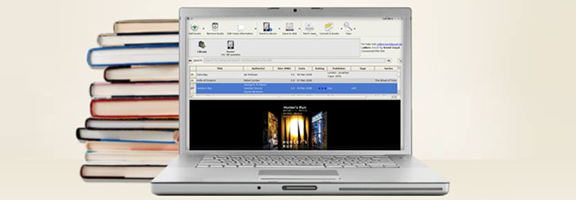
Calibre is, hands down, the best eBook manager out there. It can help you organize your entire library across devices, convert books from one format to another as needed or desired, and even use the built in server for over-the-air access to your books, from anywhere. In theory, anyway. In practise, there are many things that will get in the way of the “anywhere” part. Software and router firewalls, for example, may prove too complicated to overcome easily, leaving over-the-air book transfer dreams confined within the walls of home networks.

An easy way to mitigate these problems is to set up your Calibre library to be accessible from multiple computers — and the best way to do that is with Dropbox.

You will need:

  • At least two separate installations of Calibre eBook Manager
  • At least one Dropbox Account (free should be fine, but you can upgrade to a paid plan if you need more space)

Setting Up Your Library in Dropbox

In order to use Calibre with Dropbox, you first need to either start or move the library folder into your computer’s Dropbox folder. This can be accomplished by clicking on the Library button (it looks like a small shelf of five books) and selecting the new location. If you are starting anew library, select “Create an empty library at the new location.” If you are moving your current library, select “Move current library to new location.” Continue forward and wait for the library to be created/books transferred.

Connecting Your Library to Another Computer

Once your library is set up in Dropbox, install Calibre and Dropbox on a second computer. When Dropbox is installed, login and wait for the library folder you installed to sync fully over to the new computer. Soon there should be green checkmark icons all ’round and indicating readiness. Uthe Library button on this computer’s Calibre installation to once again set the location of your Calibre library in your Dropbox folder. This is the same as before, but this time you will need to select “Use existing library at the new location.” Again, wait until the folder is completely synced, otherwise you may get an error.

That’s it. You’re done! You should now have full access to your eBook library on two computers — more, if you were so inclined as to repeat the last steps a few times. Any changes you make in any of your Calibre installations (or in Dropbox itself) should be reflected in all, and you will be able to use the server for local WiFi transfers to your devices (if supported), without having to worry about complications that may cause you to pull your hair out.

If you happen to have been wondering, the answer is yes: you can also use this method across multiple Dropbox accounts using shared folders. This can be handy when you are using separate accounts among family computers or for work. I’m sure it could be used for other things as well, but we obviously don’t condone that at 40Tech.

Things to Remember

As you are working with the same library across multiple installations, it is a good idea to only work in Calibre on one computer at a time as doing otherwise may cause problems with the database.

It is possible that using this method across different operating systems (Windows, Mac, Linux) will cause issues with case-sensitivity in filenames and metadata. As I understand it, this is due to more to how Dropbox must interact with the host OS’s file system. Recent versions of Calibre attempt to mitigate this problem, but according to the creator of the software, it does not solve it. In a thread about this on the mobilereads forum he says: “If you have multiple books by the same author and you change the case of the author name for one of the books on a case insensitive filesystem, then on a case sensitive filesystem, calibre will lose track of the other books.” Bottom line? Be careful changing information when working across OS’s.


So far, this method has proven to be a very effective way to manage and access an eBook library from multiple computers and locations. As an added bonus, you will have access to your eBooks from any computer or device capable of accessing Dropbox, even when Calibre is not present. On the Dropbox iPhone app, for example, you can find the book file you want and open it directly in an eReader application, including iBooks and Stanza, allowing you to bypass Calibre transfers altogether. As long as you have an internet connection, your library is with you — even when space on your device is at a premium.

How do you manage your eBooks?


How to Drive a Car With Your Brain

How to Drive a Car With Your Brain | 40Tech

While the post title may inspire commentary about the relative brain power of many drivers on the road these days, the video below actually does show a car — a Volkswagen Passat — being steered by only the mind of its driver. No hands, no special voice commands… just brain power.

BrainDriver is a is the mad scheme of Raul Rojas and his colleagues at the Free University of Berlin. It is not intended to be a technology used in general vehicle production, but is more of a proof of concept experiment to show that we can marry the human mind to machines (or to computers that are attached to machines) and control those machines with our thoughts. Control is accomplished by training a computer to read intent via the brain’s output of electromagnetic signals, picked up by an electroencephalography (EEG) headset that was originally developed by Emotiv for gaming (it’s $299 – if’ you’ve tried one, let us know about it).

Intended for future production or not, and even in its rudimentary form, BrainDriver brings all sorts of fun sci-fi applications to mind — especially of the thought-controlled spaceship variety. Forget cars. Bring on the personal starfighters!

Is this cool or what?

Thinking Your Way Through Traffic in a Brain-Control Car [Wired]


A USB-Stick with Chrome OS Has (Almost) Replaced Windows for Me

A USB-Stick with Chrome OS Have (Almost) Replaced Windows for Me | 40Tech

Google Chrome OS has been in the works for a while now, and has captured the imaginations of techies everywhere. Most of those interested were expecting — or at least hoping — to see laptops and netbooks that were near-completely cloud-based by the latter half of 2010, and the Cr-48 notebook and research “pilot program” was finally announced on December 7th. Many people have been testing Chrome OS for some time, however using methods such as booting from a USB-stick into a custom Chrome OS (or Chromium OS) build put together by friendly genius Hexxeh. The builds, as one might expect, were fraught with problems — hardware incompatibilities, the OS itself (and its features and capabilities) still in flux — and these problems usually lead to the conclusion that Chrome OS was just not ready for the world at large.

All of that is about to change.

Over the past year or so, significant advances have been made in the Google Chrome browser, which is the basis for the Chrome OS project. The ability to sync extensions, bookmarks (sometimes), and other user data allowed for users to carry their experience from one computer to another, and the introduction of the Chrome Web Store added a whole new way to find and integrate web apps into the computing experience. These things, as well as numerous back-end improvements, have brought us must closer to living in the browser, and have improved both the usability and viability of Google’s cloud-focused OS.

Hexxeh has been busy as well, coming out with new versions of his own Chrome OS build. The most recent one, Flow, was a strong step forward, but still only truly feasible for limited testing and playing around, especially depending on your hardware. When I tried Flow, I found that it worked well enough on one of my laptops, a Toshiba Satellite A300, though I often had issues connecting to WiFi, and had problems with saving into and loading files from the lightweight Linux system the browser interface is built on. My HP DV8000 couldn’t run it at all. Hexxeh reportedly has a new build on the way called Lime, but was waiting for the Chromium OS developers to move forward, and has been busy testing out his own Cr-48.

That was months ago. With all of the improvements in the Chrome browser lately, I found myself curious to try another go ’round with the OS. I was disappointed that Hexxeh’s Lime wasn’t out yet (it is still in development as of this writing), but on a whim, I decided to try one of the crisp and clean Vanilla builds from the bleeding edge nightly section of Hexxeh’s site, a near-direct link to the mythical builders in Mountain View (I picked up Version 0.10.157.r3d7fa3a0 on February 3rd, 2011). Much to my very pleasant surprise, the OS worked on my A300 — and worked perfectly, out of the box, with much fewer usability issues than any Windows installation I’ve ever tried! I was stoked — and have since been using the speedy little USB stick to boot up my computer into ChromeOS nearly every day, with the exception of times when I needed to do work in a decent vector drawing program. There really is no HTML5 comparison for Adobe Illustrator that I know of. Photoshop, sure — but not Illustrator.

In fact, the only real issues I had, other than the fact that syncing was a little spotty (app and extension syncing missed a few, and bookmarks wouldn’t sync at all), was the lack of Netflix (no Silverlight on Linux), and figuring out the new keyboard commands for reloading and closing tabs. Why Google decided to change the familiar F5 reload to Ctrl+R is beyond me, but once I figured out the quirks I was rolling along smoothly. Downloading and uploading files worked working well, too, though there should really be a direct path to the folder, rather than having to search through the Linux file system. While I’m throwing things out there, I would also like to see some built in social features like Rockmelt.

I have yet to try it on my DV8000, but I’ve found that this recent Vanilla build of Chrome OS has been a pleasure to work with, overall. When I don’t want to go through a long Windows boot cycle just to go online and do some work on the internet, I just plug in the USB stick and go. I’m up and running in just a few minutes. I hope that Hexxeh figures a way to do a dual boot on my actual laptop hard drive — one that can access more space for storage, and maybe other files in the Windows part of the drive would be ideal, of course. I don’t see that happening, but hey, a guy can hope, right?

If you want to try out the Vanilla builds of Chrome OS, or even the somewhat deprecated but known-to-be-stable Flow, grab a flash drive and check out Hexxeh’s website. Things are easy to find, and instructions are very clear. If you want updates on Hexxeh’s builds and the Chrome OS project in general, follow @hexxeh on Twitter.

Let us know your thoughts and experiences in the comments!