Menu Close

Author: Bobby Travis (page 21 of 51)

Bobby isn't 40-something, but is a strong supporter of the Grown-up Geek kind. He's a loving husband and father first, but is also a freelance writer, productivity nut, operatically trained singer, and (not-so) closet geek.

Check out his random thoughts, wackiness, and Instagram pics on Tumblr, Twitter, or Google+-- or just head over to bobby-travis.com.

Simplify Your Desktop for Peaceful Productivity

image

This post continues our Personalize Your Windows 7 Experience series, but much of what’s in here can be applied to any PC operating system.

Lately, I’ve been upping my productivity game. I love GTD, and I’ve been pretty successful at making tech like Evernote, Springpad, and Producteev work for me, but I still find that I have a tendency to get bogged down by clutter and distraction. A cluttered desktop doesn’t support a creative or efficient mindset very well, so I spent a little time sorting hiding the clutter with a tool Evan introduced to me called Fences. That helped, but something was missing — and I had absolutely no idea what that was. I tweaked, I fiddled, and messed about with different settings, but nothing seemed ring that proverbial gong for me. Nothing, that is, until I discovered Minimal Wall.

Minimal Wall is the ultimate place to begin simplifying your desktop experience. It’s  more than just a collection of minimalist wallpapers, though. They actually help you to get set up for the optimal desktop in just a few steps. You start out by losing the clutter and icons on your desktop, and you end by choosing a very cool background, but the most intriguing thing about their set up process is the Grid Wallpaper.

Minimal Wall | Simplify Your Desktop

The Grid Wallpaper uses simple graphic design principles to help you set up your windows for a better — and uncluttered — user experience. All you do is set the Grid as your desktop background, and then align your most commonly used windows to the yellow borders. When I first did it, I wasn’t quite sure what to expect, but I was surprised at how looking at my new desktop made me feel. It resonated with me. I was more relaxed, and I found it much easier to focus, even with several windows open at once.

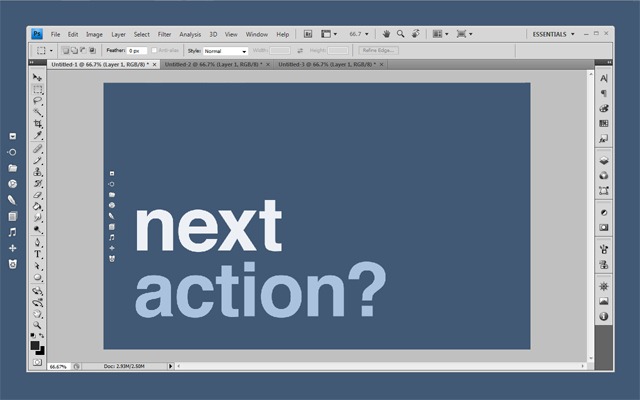
After your windows are aligned, start looking at Minimal Wall’s wallpapers. I have no doubt that you’ll find them very easy on the eyes. I chose some of the Mindful Words backgrounds; nice reminders to move on to my next action, and keep focused. I even created one of my own in Photoshop — my little girl’s name –using their work as a base. It reminds me why I am sitting at the computer in the first place, and why I need to get off it again as soon as I can.

Lifehacker has a great post featuring a Minimal Wall based desktop, combined with Rainmeter, Launchy, and Rocketdock with some nice icons. Personally, I find Rainmeter to be annoying to set up and modify, so I won’t put you all through that. I did use some of the other ideas, however, such as installing Launchy (which I find I rarely use) and Rocketdock. Rocketdock, especially with the nice iconset, provides an easy to look at quick-launch that fits the theme. I won’t go to far into customizing Rocketdock here, but if you try it out and have trouble getting it to do what you want, hit me up in the comments and I’ll do my best to help you out.

So here’s the process so far:

  • I gathered all of my clutter into Fences — then I double-clicked the desktop to make the Fences hide themselves. Another double-click brings them back when you need them.
  • I used the Grid Wallpaper to line up and size my windows (and the Fences as well).
  • I selected the four wallpapers I wanted to use and put them in a folder to create a desktop slideshow (go to Control Panel, choose “Change desktop background” under Appearance and Personalization, then browse to the folder and select the images, configuring how they should change — I shuffle them every hour).
  • I installed and configured RocketDock with the new icons (add the folder of new icons into the Icons folder in Program Files (x86), then right-click on the dock and choose Icon Settings, then the icon set).

I also moved my Windows taskbar to the top of the screen and set it to auto-hide. I had originally used a tool called Taskbar Eliminator to make the taskbar vanish altogether, but I found that it was unreliable, and discovered that — since I was now rarely working in full screen — having the taskbar hidden at the top was actually quite useful for quick access to its functions.

Finally, I right clicked on the desktop and went to Personalize and saved my wallpapers as a custom theme. Doing this makes it so you can reclaim your desktop slideshow with a click, should you change it to something else and find you want it back again. To round everything out, I changed my logon screen to match the theme. Here’s how you do that:

Here’s a Few Shots of the End Result

wall-actionwall-focuswall-windowswall-windows-2wall-fences

Since adopting this new look and feel for my desktop and workflow, I’ve found that I’m more focused, productive, and generally more relaxed while I work. The basic setup took me less than a half-hour to implement, and it’s paid that time back in spades. Hell, I was so inspired that I added a customized version of the wallpapers to my iPad, too, and then hunted down and killed my next big PC distraction: keeping Gmail open in my browser while I work. If you want a little more peace and productivity while you’re sitting in front of the multi-task machine, give this a try — I sincerely hope it helps you as much as it has me!

Let me know your thoughts in the comments!

App of the Week: Hitpad [iPad]

40Tech App of the Week | Hitpad for iPad

Our new App of the Week series covers apps that we find intriguing or exceptional, be they for iOS, Android, WM7, Blackberry, or the web. We’d also love some suggestions from you!

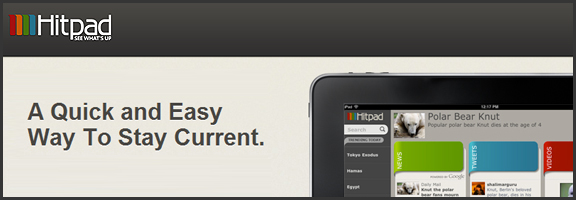
If you like at-a-glance trending topics and daily news info, and you like it from multiple sources and in myriad forms, you will really enjoy Hitpad. Hitpad for the iPad is a slick way to get all the latest from multiple search engines, Twitter, and more; and without feeling like you’ve been hit between the eyes with a mallet. A lot of thought went into the user interface, and the resulting app is definitely one of the more beautiful ways iPad users can consume information.

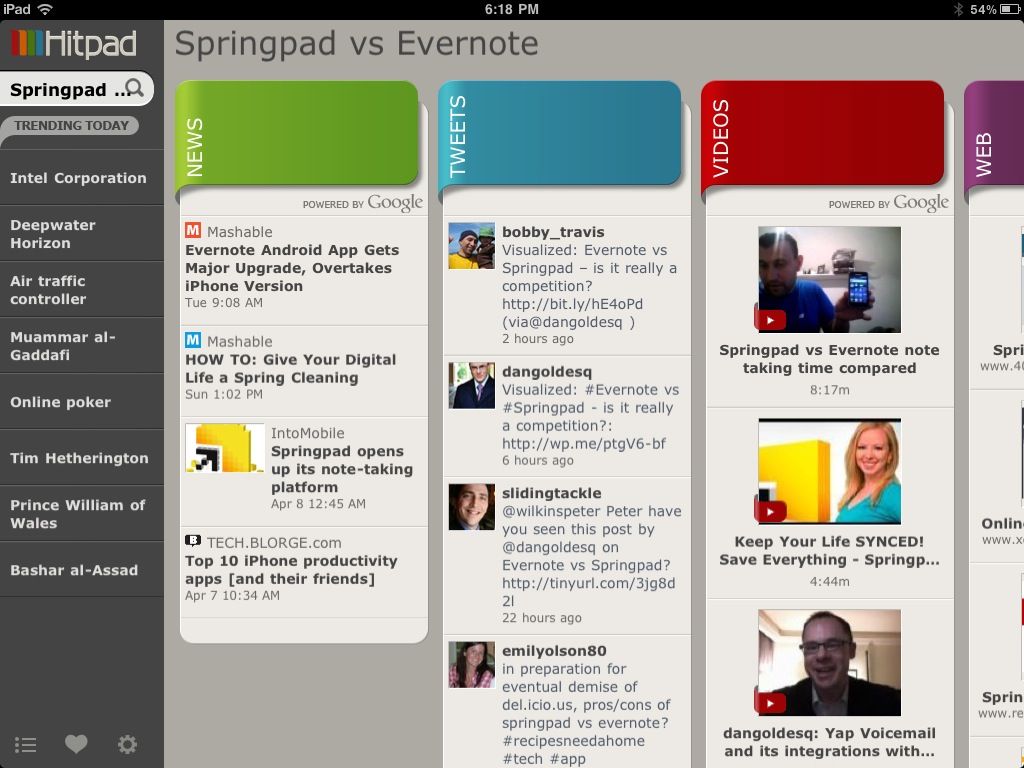
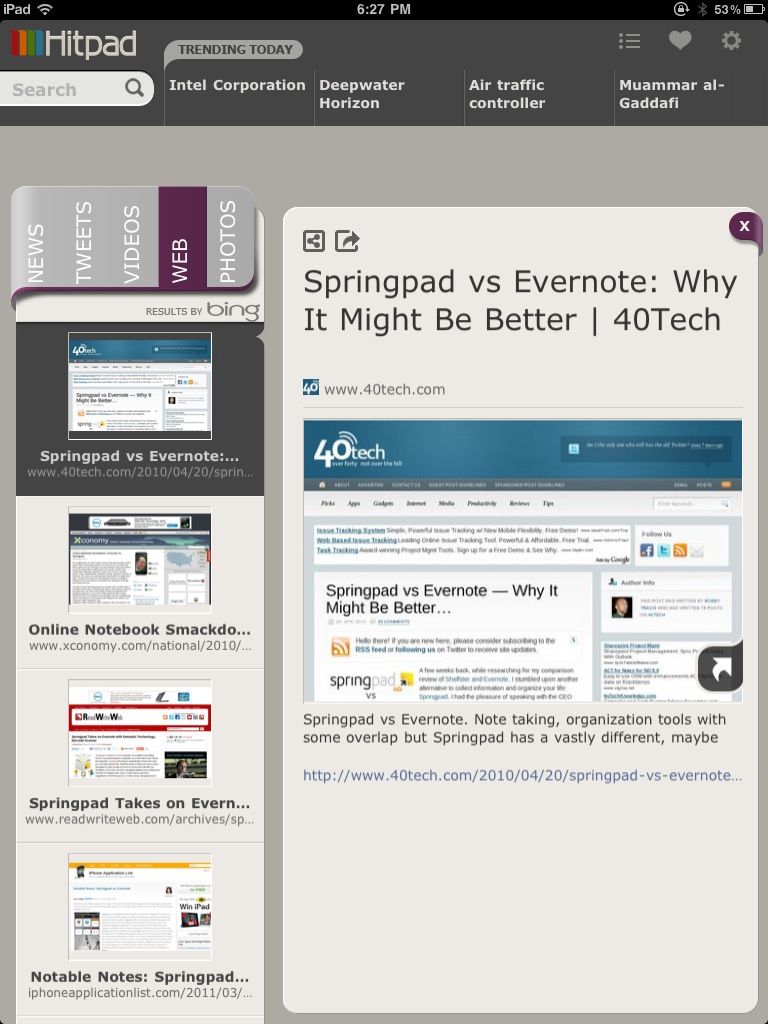
Hitpad also allows you to search for a single topic, delivering results from all across the web, which is handy if you are doing some quick research. For example, I did a search for Springpad vs Evernote, and as you can see in the images below, I received news, video, and image results from Google, and recent tweets from Twitter (yes, the most recent result happened to be me tweeting out a post by one of our readers, Daniel Gold, from his own blog). There is also a column for web page results, which comes from Bing. I found that odd, considering that most everything else was from Google — but it was nice to see that our own post on Springpad and Evernote was in the top spot with Microsoft, too.

Hitpad | Trending News at a Glance on the iPad


Hitpad for iPad

Hitpad feels like it might need a bit more in the feature department, especially if you are used to getting your information from an RSS reader. It does do what it is supposed to do, though, and it does it with flair and style, even if the thumbnails it clips of web pages sometimes load a bit slowly. Still, Hitpad would benefit from the addition of things like saved searches, the ability to choose news or search engine sources, and being able to choose multiple topics to search on. If you have an iPad, try it out! It’s free, and you can get it here.

Let us know what you think of Hitpad in the comments!


Has Your App Store Made You Its B!#&h?

Has Your App Store Made You Its B!#&h? | 40Tech

So I’ve had an iPhone for over a year now, a smartphone for at least three, and an iPad since December. I went through my initial app insanity a while back, unable to resist the call of the thousands upon thousands of different apps out there — a feeling that was only amplified by my innate geeky curiousity, and the fact that I write for a tech blog. Hell, I’ve even done about a hundred or so freelance reviews of iOS games in the past year, with all of the purchases reimbursed — talk about having an addiction enabled!

Well, I’m all done with that now. I’m no slave to my devices! Really! I’m not!! Okay, so I might be… but maybe you are too?

Has Your App Store Made You Its B!#&h? | 40Tech

I’ve taken stock of the apps that I own, and the ones that have taken up long-term residence on my devices, and I have come to the conclusion that I actually use less than 10% of my library on anything even approaching a regular basis. The rest just sit there, mooching off the storage space on my iPhone and iPad, hanging out in their folders and doing nothing all day. They should get a job or something. Seriously. They should get a job or get out — but they play off my weaknesses, you see. Every time I go in to delete them, I get bombarded with reasons that justify their existences, often using phrases like “just in case” and “but this app is just so cool!”

It’s all lies, though, and I keep falling for it. The only apps I regularly use are Evernote, Springpad, my RSS readers (MobileRSS, Zite, Flipboard), iBooks and Stanza, Facebook/Friendly, Twitter, Producteev, and Card Shark Solitaire (the free version). Of course, I use the stock apps like Mail, Safari, and the like, and I also occasionally use the Google app and Google Maps, but that is a pretty good snapshot of my average usage. I still seem to be unable to let go of the others, though… go figure.

How about you? How many of your apps do you actually use on average? What are they? And do you also suffer from app hangers-on? Have the app stores made us their bitches? Let me know!


What Are Your Go-To Tech Sites?

What Are Your Go-To Tech Sites? | 40Tech

Way back in the wilds of 2009, Evan wrote a post naming his top five tech sites for every geek. But 2009 is ancient history in the world of the web — that was way back before I even started writing for 40Tech! My kid was only barely a one year old, and Twitter was still a novelty that allowed people to talk about their lunch. Ancient times, I tell you!

This vast expanse of time and change got me to wondering: what are your top tech sites in this new — and obviously technologically superior — decade? Where do you go these days for all of your tech-related news, reviews, and tips? I’m looking for a top 10 here, ordered or not, so hit the comments, Twitter, Facebook or email, and get the word out!

Here’s my list to get us started:

Lifehacker These guys cover everything, even things I had no idea I could be interested in. Their feature posts are helpful and informative, and their short posts have lead me to some other very cool blogs.

Mashable I’m a nut about the social web, both due to my work and my geeky curiosity and need to consume new techy info. I’m also fascinated by the way Mashable has managed to infiltrate and influence mainstream news, including local, national, and even worldwide television stories.

ReadWriteWeb Some of the topics on this site can be a bit heady or politically charged, but the quality of the work and the range of interesting topics keep me coming back. I’ve found a lot of really great information here, some of which I’ve linked to from 40Tech.

Make MagazineThis site continuously blows me away with the stuff people cobble together. Some crazy DIY and experimental tech (and other things) here!

Twitter Specifically, my Twitter account (@bobby_travis). This may seem like an odd choice, but I get a lot of my tech news and info from here. Some of it is from the sites in this list — but I get it from Twitter before I ever hit the site — and much of it is from other sites that are linked in the posts of those I follow and retweet or otherwise share.

40Tech Yeah, I know, I’m biased because I write here, but this site remains one of my most frequent reads — and not due to vanity. The fact is, I was a reader, like you, before I started contributing to the site. The information I get from Evan and our commenters, not to mention guest posters, is, and always has been of the best quality.

MakeUseOf I like MakeUseOf because of the huge amount of how-to posts, general tips, and guides that I’ve found there. It’s a great place to find everything from how to build your own PC, to how to jailbreak your iPhone, and find out how to shop better online. Something for everybody, really.

Joystiq This is probably where I get most of my gaming info. I could have said Facebook, I suppose, because that’s where I often start before I get to the site, but that is only because I liked their page and have been interested enough that I haven’t muted them.

Web.AppStorm In a world focused on/obsessed with cloud computing, getting all the goods on the new and fancy web apps is a necessity. WebAppStorm is one of the best places to learn all that you could ever want to know and more, and there are several other AppStorm sites attached to it. It’s not bad to look at either. Downright pretty, even!

Digitizd Formerly known as The 2.0 Life, Digitizd is the baby and brainchild of David Pierce (Assistant Editor of PC Mag Digital Networks and 40Tech reader). The site broadcasts thoughts, tips, news, and neatness related to the digital world and living in it, and is an all around good read.

There are several other sites that I read regularly which are also tech-related, such as a multitude of other gaming sites, social media and business sites, and more, but these are the ones that I probably end up at the most.

Now it’s your turn!

Hopefully, this conversation will bring out a few gems people have never heard of, as well as a sense of what our world in general finds to be the cream of the geeky crop. And please don’t feel pressured to rank 40Tech up high on your list. We are very much aware of and comfortable with our smallish stature among the tech-site juggernauts. We still know we’re awesome — because you all keep telling us so! Thanks for that, by the way… You’re awesome too! :D


Personalize Your Windows 7 Experience: Hidden Themes

Personalize Your Windows 7 Experience: Hidden Themes | 40Tech

Windows 7 is likely the best operating system Microsoft has ever put out. Oh, I’m sure some of you die-hards out there will still swear up and down that it’s Windows 98, 2000, or even 3.1 — and you Mac folk can just go ahead and tamp down on those comments bubbling to the surface of your elitist brains right about now — but when you consider the mix of power, beauty, and function, Billy Gates and crew have finally hit the sweet-spot with their latest OS.

One of the greatest things about Windows 7 is the customizability; there are a lot of different things that you can do with it to improve your overall user experience. Some of those things are fairly obvious, and some are a bit of a surprise, but many can be done quickly and easily, even by the non-techie, sometimes with the help of a handy tool or two. This series focuses on some tweaks for personalizing your own Windows 7 setup with as little fuss as possible. Let’s start off with the hidden themes that are just hanging about in your Windows folder.

Hidden Themes

You probably already know that there are several theme-sets that you can apply in Windows 7 with little more than a click, but on the off-chance that you didn’t, head into the Control Panel, look for Appearance and Personalization, and select “Change the theme.” You can also right-click on the desktop and select Personalize from the context menu.

Once inside, you’ll find all of your pre-installed themes, and you can even create and save your own. What you may not have realized is that, depending on your Windows version, you could have anywhere from five to a dozen or more other themes hidden on your system, just waiting for you to find and install them!

Theme Personalization in Windows 7 | 40Tech

You may have noted that, in the pre-installed themes, one of the ones under Aero Themes is named for your country — I have one called Canada. What most don’t realize is that, skulking about in a hidden folder, are themes from other countries as well. Some of them are quite nice, too, containing wallpapers that have beautiful scenes from each respective country. Here’s how you find them:

  • Open up a folder and click on the white space in the address bar to select and delete the text there, and then copy and paste the following and hit enter: Windows\Globalization\MCT
  • If you find you can’t access the folder or its files, you may need to follow the steps below to unlock hidden files and folders (otherwise please skip to the next main point): 
    • Open your Control Panel and click on Appearance and Personalization.
    • Near the bottom of the list, you should see Folder Options, and just below it, the link “Show hidden files and folders” — click it.
    • In the little pop-up window, be sure that the the radio button for “Show hidden files, folder, and drives” is selected. If you don’t see it right away, double click the “Hidden files and folders” folder — it should expand and you will find the button.
    • Click Apply and OK to close the window. If you are given any warnings by Windows that you could severely screw up your system, acknowledge them — see the next point to learn how to not make such warnings a reality…
    • You will now be able to see files and folders that you couldn’t see before, and they will have a slightly translucent or “greyed-out” look to them. Leave them alone, where possible, and for the timeframe that you are able to access these files, for the love of all that keeps you sane, DO NOT DELETE ANY OF THEM!!! They are generally hidden for a reason — that reason being so that you don’t muck up your system.
    • To save yourself from accidents when you are done with the theme-getting, just repeat the above steps and re-select Don’t show hidden files, folders, and drives,” hit Apply, OK, etc.
  • You could also try to browse directly to the folder via the C: drive, but I found that I couldn’t find the folder that way, even with hidden files and folders available.
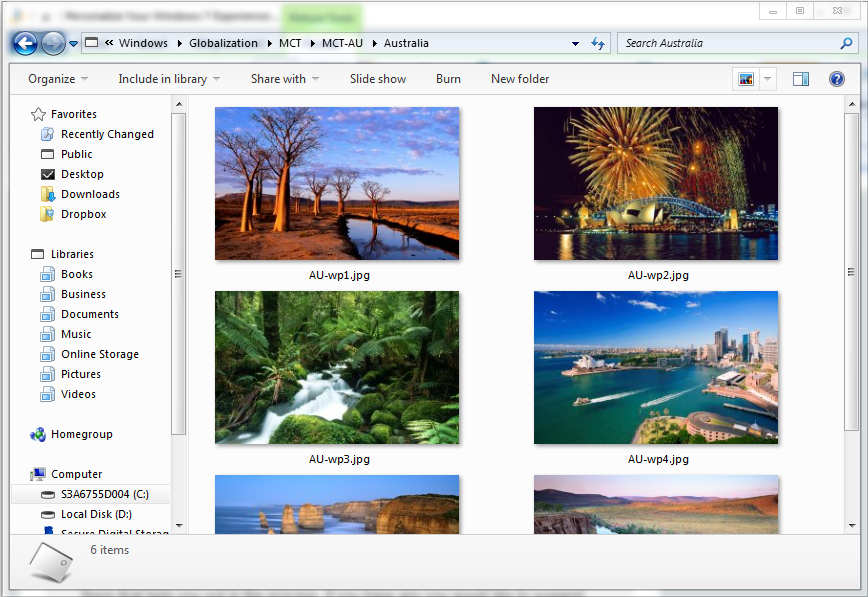
  • In MCT, you will find several other folders with the name format MCT-XX. Click on any one of these and you will find a folder with the name of a country, a folder called RSSFeed, sometimes one titled “Websites for X”, and one called Theme. For example, the folder MCT-AU contains the country of Australia.
  • In the folder named after the country, you will find six wallpapers, which you can use to get a feel for what the theme is about, and can do with as you will — but head over to the Theme folder for easy setup.

Hidden Country Themes, Australia, in Windows 7 | 40Tech

  • In the Theme folder you will see XX.theme. If you want to install that theme, click on it. At this point, you will get a chime from Windows, and your desktop will fade behind a Please Wait sign. After a moment, the sign will fade away and your new theme will be applied — rinse, lather, repeat as necessary!

As the theme is installed, your Control Panel will also open up to the Appearance and Personalization settings, and you will notice the new country theme under your My Themes section. If you want to change away from the new theme, simply click on a different one or install one for a different country. Once the theme you just installed is inactive, if you want to get rid of it, simply right-click on it and select delete. You can always reinstall it later.

Over the next few weeks, we will be posting other simple tweaks and tricks for personalizing your Windows 7 installation, as well as looking at some of the tools out there that help you out in the process. If you have any you would like to suggest, leave a comment, catch me on Twitter (@bobby_travis), or send me an email from my 40Tech contact page.

What countries were in your hidden themes folder?