Menu Close

Author: Bobby Travis (page 20 of 51)

Bobby isn't 40-something, but is a strong supporter of the Grown-up Geek kind. He's a loving husband and father first, but is also a freelance writer, productivity nut, operatically trained singer, and (not-so) closet geek.

Check out his random thoughts, wackiness, and Instagram pics on Tumblr, Twitter, or Google+-- or just head over to bobby-travis.com.

LastPass Hit By Potential Security Breach (and Some Quick Tips On Creating a Strong, Memorable Password)

LastPass Hit By Potential Security Breach (and Some Quick Tips On Creating a Strong, Memorable Password) | 40Tech

With all of the crazy outages and hacking going on in the digital world over the past week or two, the fact that LastPass has an issue (as of May 3rd), probably shouldn’t come as a surprise. Still, it is a bit of a shock to the system to be reminded that the “last password you’ll have to remember” is potentially as vulnerable as any other. Before panic sets in among LastPass users (of which I am one), know that the company is on it, and that those with strong, non-dictionary based passwords should be fine in any case. LastPass also admits that they may even be overreacting, but prefer to err on the side of caution when it comes to keeping your data safe — a policy that I am 100% behind.

Without getting into the technical aspects behind it all, what basically happened is that LastPass discovered at least two network traffic anomalies in their systems that they couldn’t explain. One occurred in a “non-critical machine” and the other came from one of their databases. The second matched with the first and involved information exiting the LastPass environment. The company reported in their blog post that the outgoing amount of data was large enough to have contained email addresses, password hashes, and “server salt,” but not enough to have “pulled many users’ encrypted data blobs.”

While LastPass doesn’t feel that the issue is a large one, they recognize the potential for brute force hacking on the passwords of any users that may have been compromised. This is most likely to affect those who have a master password that is lacking in strength and/or dictionary-based, which is still incredibly common, even today. To protect the integrity of their systems, and their users’ data, LastPass is requiring all users to change their master password. They are also looking for email validation from you if you happen to be logging in from an IP address that is outside your usual set. This is an added security measure, just in case your password does get compromised before it is changed.

Don’t rush off and change your password right away, however. The sheer volume of password change requests is slowing down LastPass as a whole, which is causing server connectivity problems across the board. The company has beefed up the email verification protection as a result, and are confident that there should be little risk in waiting a day or two before changing your master password. You will have to do it eventually, however.


Creating a Strong – But Easy to Remember – Password

When you do change your password, strength should be your primary focus — but there is no reason you have to put together something that is impossible for you to remember. That may seem a bold statement, considering that strong passwords need to have combinations of numbers, symbols, and both uppercase and lowercase letters — and should avoid dictionary words — but a great post by Gina Trapani (Lifehacker) back in 2006 essentially solves that problem.

Gina advises that you use a single rule set as the basis for all of your passwords. You start with a base password that you create from something like a favourite acronym, letter/number combination, or nonsense word that you will never forget. Pad that with some symbols for extra safety, if you want, and store it somewhere offline, just in case you forget it. Once the base of the password is set, the rest comes as a result of the service you are signing up for.

For example, you could set your base password using your initials (including middle) or even your favourite pet’s initials, combined with your favourite number. In this case, you are the proud owner of Fluffy Cattington, and have a love for the number 86. Your base password could be something like FC86, or FfyCt86, etc. Add a few things to that for extra strength and you could have this: &*FfyCt86!, or #(FC86)^^. Already, we are well on our way to a secure password.

The next step is to add a standard code for the service you are using. Initials or the first few letters of the service name are good here as well. If this were to be your LastPass master password, for example, you could have something like this: &*FfyCt86!LP, or #(FC86)^^Las. Just try to make sure your password is at least eight characters long and that you are using numbers and letters. Using symbols and uppercase/lowercase letters is even better, but not all services will allow this in their passwords, so you may have to adjust for that. LastPass does, so no worries there.

Check out the Lifehacker post for even more ideas on how to choose your base password.

If you are interested in alternatives to LastPass, check out Evan’s post on eWallet vs Keypass vs LastPass. I like LastPass, though, and am pleased by the lengths they go through to protect their service and users. Evan also makes a great case for LastPass here.

What are your thoughts on choosing and remembering strong passwords?

App of the Week: Feedly [iOS, Android, Web]

Feedly RSS Reader for iPad, iPhone, Android, Tablet, Web | 40Tech App of the Week

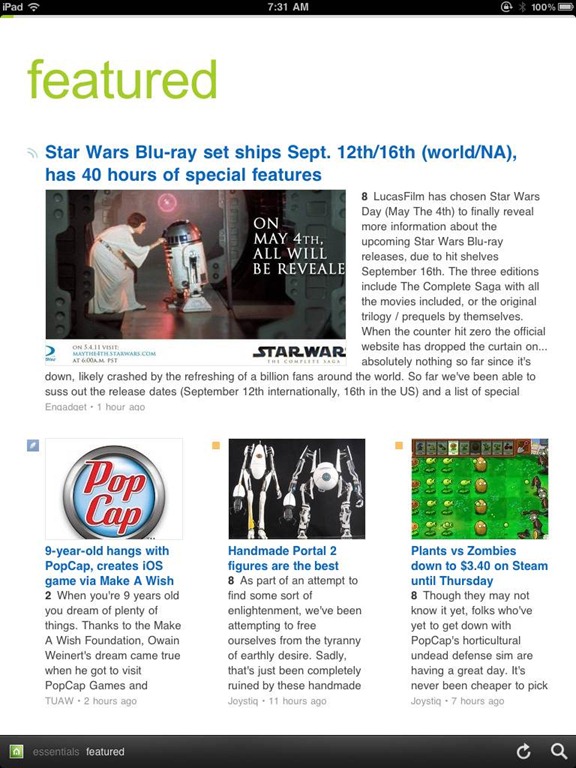
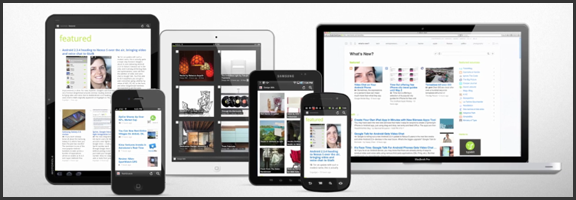
We’ve covered Feedly before (and we thought it was great!) but the RSS feed reader to smack all others is now much-improved. The web app has seen several updates in functionality and sharing features, and the recently released and updated mobile apps have been generating a lot of positive attention. And why not? The experience is nearly identical on both iOS and Android phones and tablets, and Feedly Mobile 2.0 easily competes with the likes of Pulse, Flipboard, and Zite. With an update or two, it might even blow those apps away completely.

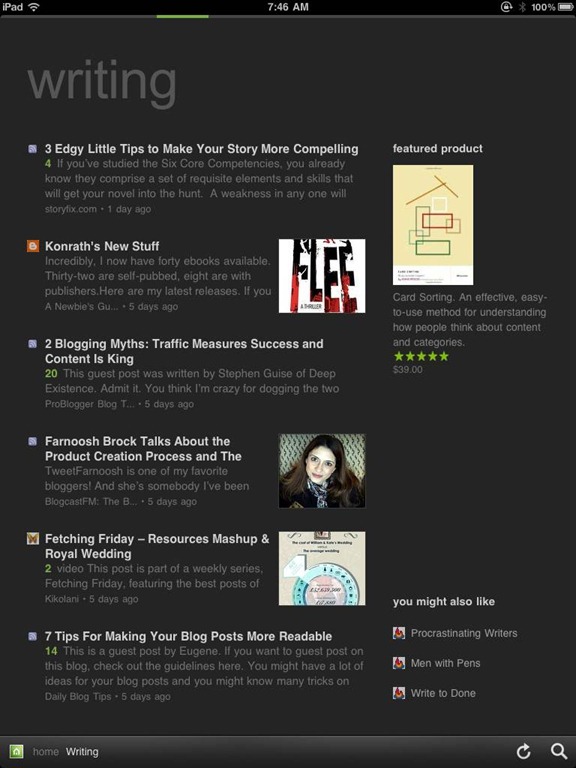
Feedly’s minimalist magazine design focuses on the content, presenting it in an easy to read format that is complemented by the app’s simplistic navigation. The mobile apps are especially barebones, keeping the effects to a minimum, and the overall presentation is extremely appealing. The toolbar on the bottom of the screen allows you to like (on Google Reader), bookmark, email, and share articles on Twitter. You can also enable saving to Instapaper and Read It Later. The web app has several more options for sharing content, but the basics are available in Feedly Mobile 2.0, with the exception of one service: Facebook. That seemed like a bit of an oversight to me (and that’s me understating the obvious), but the developers assure us that Facebook functionality will be available in version 3.

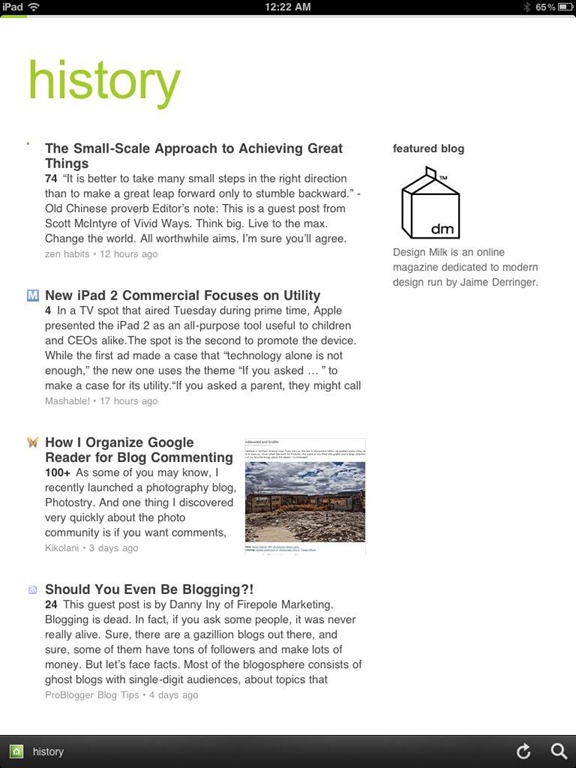
Feedly Mobile 2.0 iPad RSS Reader | 40TechFeedly Mobile 2.0 | Google Reader Magazine | 40TechFeedly Mobile 2.0 | Find Already Read Posts in History | 40Tech

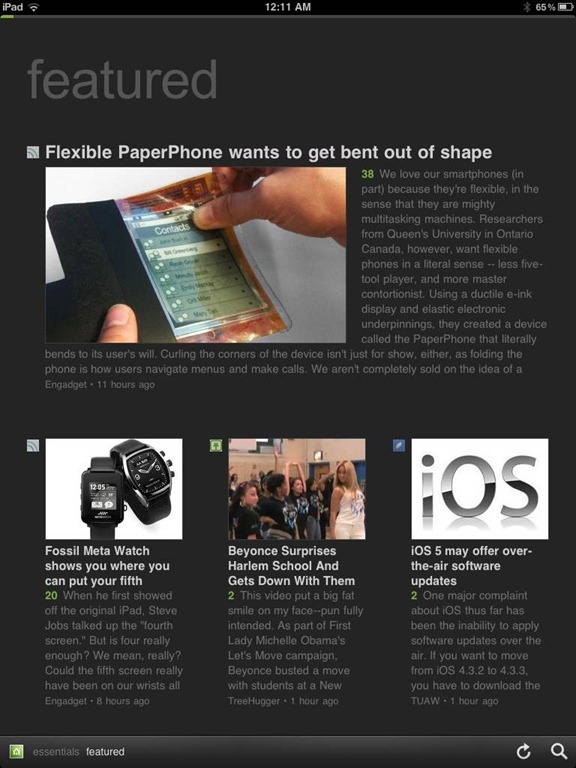
One of the best things about Feedly is its learning algorithm. While you read, the app learns about the topics that interest you most, and does a great job configuring your personal magazine around those interests, bringing your favourite types of content to the forefront. You can always go through your sources one at a time, if you like, but taking advantage of Feedly’s different sections — each one tailored just for you — really helps to keep your reading moving and you engaged. Feedly also offers suggestions, periodically, of other sites that may suit your interests, which is helpful.

If you don’t feel like connecting with Google Reader, Feedly does have a host of content already available for you to sort through, but it works best when you are logged in.

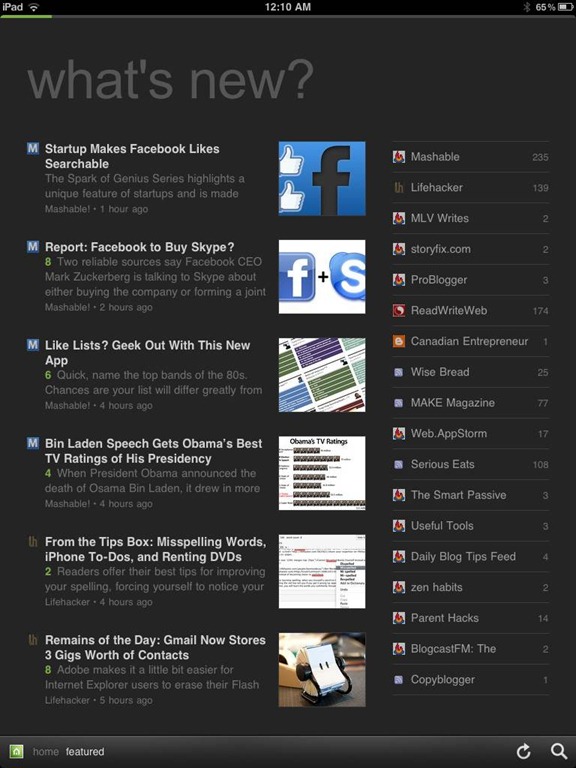
Feedly Mobile 2.0 Dark Theme | 40TechFeedly Mobile 2.0 iPad RSS Reader Magazine | 40TechFeedly Mobile 2.0 RSS Feed Reader | 40Tech

Feedly Mobile 2.0 is every bit as fantastic as the web app. It’s incredibly responsive, and is beautiful to look at on all platforms, including iPhones and Android phones, the iPad, and Android tablets of different sizes (both 7″ and 10″). There are a few niceties packed into the HTML5 goodness, as well, such as an instant search bar, a black or white theme (which helps with night reading and can be changed with a shake), a history section, and the ability to start on the magazine layout or category of your choice. There are still a few kinks that need to be ironed out of the mobile apps, however, such as the lack of Facebook sharing, and that the app only works in portrait mode. Hopefully these issues will be resolved in an update or two. I’d also like to see some of the additional sharing options in the web app find their way to mobile as well, especially sharing on LinkedIn and Evernote.

Feedly is free, and it kicks butt. Get it.

Now you know I love it — what about you?


Memolane Finds Elusive Social Updates From Your Past

Memolane Finds Elusive Social Updates From Your Past | 40Tech

Have you ever tried looking backwards in Twitter or Facebook? It’s not easy. There was that funny conversation, link, or photo that one time that you suddenly feet the need to take a look at again, but when you tried to find it, you were faced with over a year’s worth of scrolling, waiting, scrolling, waiting, and then yet more scrolling? That’s one of the downsides of a world run by micro-updates — there are a lot of them. You could try using the built in search, or even Google, but it’ll probably be a chilly day down south before you find that elusive memory. That’s where Memolane comes in.

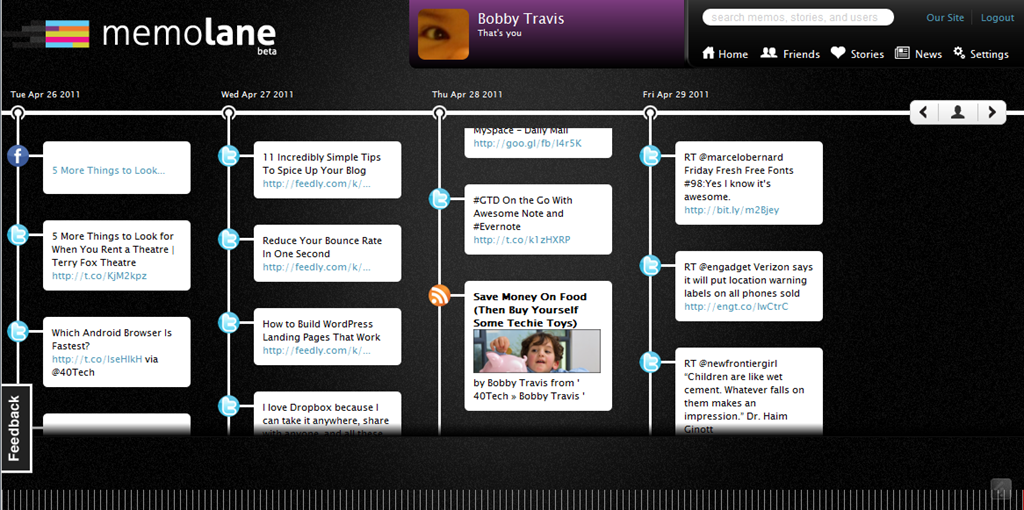
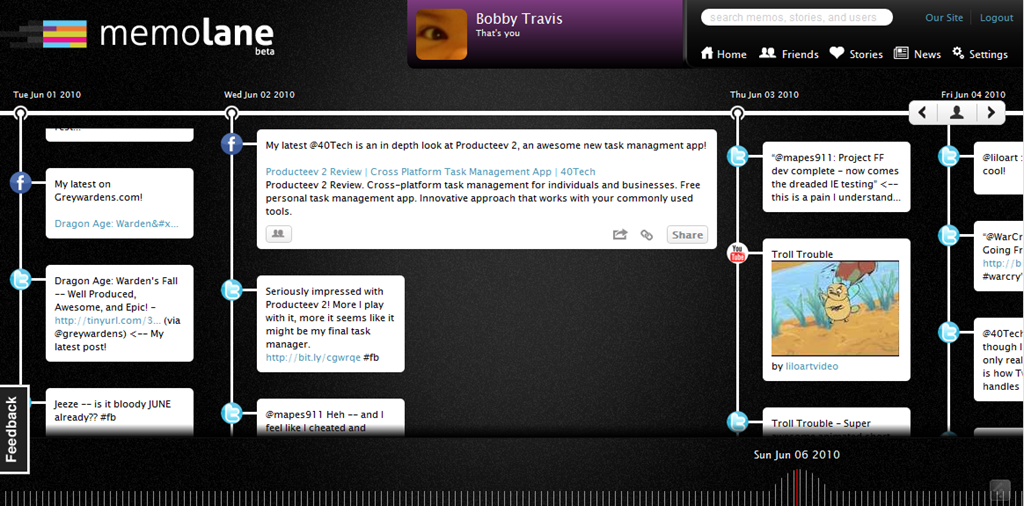
Memolane is a new web app that allows you to view content from multiple social media services in a single timeline that is easy on the eyes, and easy to search through. The timeline is scrollable and broken down into days, with the tweets, photos, updates, et al, that you posted online each day listed vertically in expandable memo bubbles. You can connect Facebook, Twitter, Flickr, YouTube, Last.fm, Trip.it, and more — and you can even add in RSS feeds to pull in custom content. I found that I was able to access Twitter updates as far back as February 2010, and Facebook updates, especially photos, all the way back to 2007. Clicking the timeline bar on the bottom of the window made for quick trips to the dates I was looking for, and the search is actually pretty powerful, so long as you don’t enter hash-tag symbols (#).

Memolane | Scrapbook for Online Life - 40Tech Memolane - Expanded | 40Tech

An easy way to find your old online memories isn’t all that Memolane is good for, however. You can also embed lanes into web pages (see it in action below), and connect with friends to create stories together around shared experiences. It’s a bit like an online scrapbook, really. In fact, Memolane may be adding a print aspect that will allow for real scrapbooking — digital life making it full circle back to the real world.

I like Memolane. It’s easy to set up and use, it allows me to find things that I may have never found otherwise, and it has per-memo and per-service privacy settings that make the sharing bit worry-free. I did find that, the further I went back in time, the more sparse the updates became, but it is entirely possible that that has more to do with the connected services than with Memolane itself. Also, it’s free — and awesome. That’s a good combination in my books.

http://vimeo.com/16474788

What do you think of Memolane?


Save Money On Food (Then Buy Yourself Some Techie Toys)

Save Money On Food (Then Buy Yourself Some Techie Toys) | 40Tech

There’s really not enough money to go around these days, what with the economic crashes and the rise in prices of, well… everything. Yes, this would be the perfect opportunity to complain about the price of gas, but this is a technology blog, so I’m going to complain about the price of food instead — wait… what? Yep, you read me right: Food. The prices are climbing toward the ridiculous for the essentials, and frankly, I’m more than a little put out about it!

Thankfully, the always vigilant folk over at Wise Bread have taken the time to scour the technology world (see, I brought it back…) for online tools that are made to help you save a bit of your hard earned cash without having to tighten up your belt.

Wise Bread breaks the tools they showcase into three categories: Menu-Planning, Coupon Resources, and Price Comparison. Menu planning takes a bit of time and dedication, but it beats the hockey sticks out of the customary North American (or , at least, my) pastime of pouring money into an active garburator. As the author, Sarah Winfrey, says — and I’m paraphrasing here — you’ll spend less, waste less, and leave the impulse buys in the past.

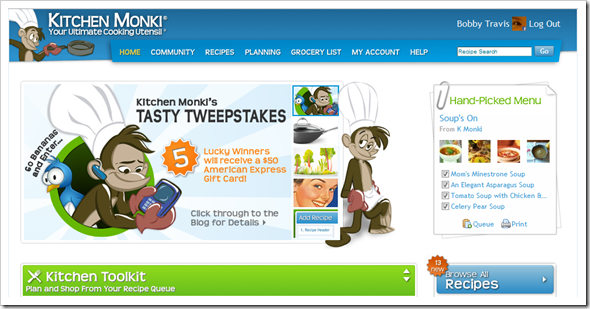
The menu-planning tool I liked the best was Kitchen Monki. You can get some good recipes from the site, or add your own, and there is a shopping list which can be scaled to suit your plan’s needs. The shopping list can be printed or sent to your phone, which is also handy, and the site has an active community and blog. The other two tools in this category were MealsMatter, which focuses on eating healthy, and Relish! — which costs 7 bucks a month. I’m not a fan of Relish! for the reason that I am interested in saving money, not spending it, but mostly I liked Kitchen Monki because of the site’s friendly layout and monkey mascot.

image

Some of the other featured resources were coupon sites CouponMom and Redplum, and price comparison site Pricible, all of which are worth a look if you are in the US.

These online tools and services are a great way to keep your cash where it should be: saving itself until it grows big enough to buy you a fancy new tech toy. Or on your kid’s college fund, but you know — whatever. Kids can get jobs…

What are your favourite money saving tools/apps/services, for food or otherwise?

Save Money On Groceries With These Online Tools [Wise Bread]


102 Free Programs Worth the Download [Windows]

102 Free Programs Worth the Download [Windows] | 40Tech

There are a lot of free programs for Windows, and while many of them may have you running for the nearest anti-virus or spyware scanner, there are some that are not only useful and safe, but awesome beyond words. The trouble, of course, is sorting through the volumes of crap – I know it’s not a task I enjoy… Thankfully, neither you nor I will have to worry about it, because the good folks over at MakeUseOf have done the work for us! They have gathered, sorted, sifted, and otherwise separated the good freebies from the bad, and compiled them into a very well organized and easy to navigate list. Bless their gigantic hearts!

The list, which can be found here on their site, is broken down into 21 categories, each containing three to nine applications. They cover everything from free anti-virus software to CD/DVD tools, productivity tools, photo/image editors, file recovery software and more. Several on the list are ones I’ve heard of and tried, such as Microsoft Security Essentials, Evernote, LastPass, and Recuva — but there are a lot that I am not familiar with, and the stamp of approval MakeUseOf gives them makes them a lot easier to consider.

The list of the best 102 Free Windows programs is worth a view for any computer owner, and a look through is nearly a must for the geeky set. Check it out — I’d love to know what you think of it, and if there are any you think should or shouldn’t be there.

The Best Of: Windows Software [MakeUseOf]