Menu Close

Author: Bobby Travis (page 14 of 51)

Bobby isn't 40-something, but is a strong supporter of the Grown-up Geek kind. He's a loving husband and father first, but is also a freelance writer, productivity nut, operatically trained singer, and (not-so) closet geek.

Check out his random thoughts, wackiness, and Instagram pics on Tumblr, Twitter, or Google+-- or just head over to bobby-travis.com.

Paper Solar Panels? Who Says Solar Power Isn’t Portable?

Paper Solar Panels? Who Says Solar Power Isn't Portable? | 40Tech

I have to say, I’m loving Google+’s Sparks for the interesting stories I find there. Today’s gem comes via the L.A. Times blog, and is something our good friend Josh Farkas would be proud of. During Josh’s short stint as a writer for 40Tech (until life got in the way), he piqued my interest in the wonders of modern green technologies — and this latest innovation is a wonder, indeed.

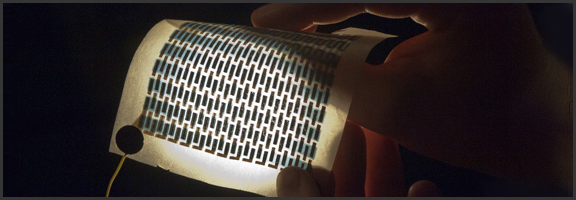
Paper solar panels.

photo by Patrick Gillooly of MIT

Solar panels are classically big, bulky, glass things that are unwieldy and don’t produce enough power to run anything significant. The technology has come a long way, in recent years, and can now be had as a film, crystalline silicon, a nano-particle spray, and even transparent plastic. However, the methods for creating these solar power solutions are generally expensive, and not all that environmentally friendly. True, mass-production of paper solar panels may not be the best think for trees, but the “ink” that contains all of the solar goodness can print solar power onto tracing paper, newspaper (with printing still on it), tissue paper, and pretty much any other kind of paper as long as it is plain and untreated.

According to the article, the process is similar to the way the “shiny interior of potato chip bags” is created, and is not actually that far off from inkjet printing — except, you know… it’s printing solar cells. A regular-sized sheet of paper can power small electronics like LCD clock displays and the like, and the solar cells are created from “common elements” which are more friendly to the environment and allow for a cheaper, more sustainable way to generate power.

One of the most interesting aspects of this solar paper is the portability of it. It’s a piece of paper — you can tape it up, keep it in your binder or notepad, and it can even be made into clothing. Basically, it can go wherever paper can go — and that also means in your pocketses. Even if you fold it into a paper airplane, it will still work when you flatten it out again. Oh, and if you’re worried about the practicality of the paper in the face of things like rain, believe it or not, you can laminate it too.

Unfortunately, this new solar tech isn’t ready for sale at the moment, but the bright fellows over at MIT who created it are busily improving on it so we can all have our very own awesome paper solar panels in the near future. Hopefully, they will get it working with significant power output on recycled paper, or more types of paper ready for recycling, as it will then also help us reduce waste and maybe even save a few trees. I like solar power and its potential — but I like oxygen even more.

Check out the video, below, to see that the paper solar panel still works even after being subjected to multiple folds:

What do you think of this new development in solar power technology?

Paper airplanes with MIT solar technology can make electricity [L.A. Times Blog, Tiffany Hsu]


App of the Week: PressReader [Mobile]

App of the Week: PressReader [Mobile] | 40Tech

Traditional newspapers are struggling. We’ve all heard this, time and again, and know that they are having the same problem that the music and other “olde world” industries have: namely, that the people in charge don’t truly understand the medium of the internet, and are too wrapped up in either complaining about it, trying to figure out how to control it, and suing people to recoup their perceived losses to take advantage of it. Some newspapers have embraced the web, openly or behind paywalls, and some of these websites and mobile apps are actually good, presenting their content well, and occasionally adding a bell or whistle here and there.

What if you have simpler tastes, though? What if, all you want to do is read your favourite newspapers, in their full, original, cover-to-cover glory, from the comfort of your iOS or Android device? How about from your Blackberry? If this is a dream of yours, then Newspaper Direct’s PressReader is your new best friend. Hell, you and your new buddy might even save a tree or 10.

PressReader is fantastic. If I had to use one word to describe it, that would be the one — that or awesome. There are over 1900 newspapers (though the app still says 1700) from around the world available (92 countries, 48 languages) for your reading pleasure, updated daily. These are, as I said, available in full, just the way you would pick them up from the news stands, including all ads, classifieds, the funnies, sections and stories. They are downloaded directly to your device (you can choose download by Wi-Fi only, if you like) so that they are available even when offline.

PressReader Downloads Full Newspapers to Your Device | 40Tech

Newspaper Direct, who are also the purveyors of PressDisplay (the web version and precursor to PressReader), have license agreements in place with all of these newspapers, receiving daily .PDF scans which Newspaper Direct then process to add all sorts of fun interactivity.


An Interactive Newspaper (the Really-Real One)

What sort of interactivity, you say? Well, for starters, all headlines are clickable. You can swipe through the pages as you like, in portrait or landscape mode, and can double-tap, pinch, and zoom to your heart’s content to read the stories — but if you want to see something that’s formatted for easy reading, then tap any headline and you will get a pop up version of only that story. While in the pop-up, you can change the text size and move to the next and previous story, as well, making for a customizable reading experience.
imageIMG_0861IMG_0863IMG_0865IMG_0859

The story pop-up also allows you to print the story in plain text or with full graphics, and has sharing features as well. At the moment, you can share a story via email, Twitter, and Facebook. The Facebook share is a bit ugly with it’s long, title-less hyperlink, but all three methods link you to the full article on PressDisplay.com. In my tests, I was able to access the shared article on the web and mobile safari (the mobile web app is pretty cool, too), without having to log in, or pay for access. That could be the case for all, or just for the papers I was using.


Newspapers That Read to You

The best feature, by far, of PressReader (and PressDisplay) is yet another gem that’s available in the pop-up when you touch a headline. It’s not the ability to search within nearly 2000 papers, and it’s not the Top Stories or Favourites feature (all available from the main menu-bar, not the pop-up) — it’s the cute little headphones icon in the bottom right. Touch this button, and PressReader’s built in text to speech functionality will read the story to you! This is a beautiful thing! If you are on the go, driving, or busily working, your newspaper story can be read to you, keeping your hands and eyes free for more important things — like not killing yourself while driving. I’ve seen more than one moron on the road that was reading a newspaper while in motion — and I’ve called the cops on the idiots, too. I’m no snitch/narc/derogatory tell-tale word of the day, but I’m on the road with my kid and you are not going to cause an accident that hurts her. If you like the paper while driving… get PressReader and save us all the trouble.

Slight digressions about morons aside, I highly recommend PressReader to anyone who enjoys the full newspaper experience (plus more) while on the go, or is interested in saving a few trees (NewsDirect claims to have saved 173,824 trees, and counting). You can get it on the iPhone, iPad, and iPod Touch, as well as on Android (Gingerbread and Honeycomb devices), Blackberry (no Playbook yet, but it’s on the way), Windows 7 Slate, and even Windows Mobile 5 (go figure). No mention of Windows Mobile 6 (5 should still work) or 7 yet, but it is likely on the way. You can also download Pressreader for your PC or Mac, iRex Digital, WebOS is on the way, and you can access PressDisplay via the web or even on your Kindle and other eReaders.


What it Costs

The PressReader app itself is free, but newspapers cost $0.99 each, or you can get an unlimited subscription to everything (all 1900 papers) for $29.95 per month. If you want to try before you buy, PressReader comes with seven free newspaper downloads of your choice, and you can give the Top News feature a whirl as well. If you want to try and offset the cost a bit, head over to your account on PressDisplay and check out the referral widget. This is a beta tool that can get you 10% of each subscription that comes through you.

NOTE: My only problem with PressReader, is that the papers you choose to subscribe to don’t sync in your account and therefore have to be re-downloaded for each device. What I am not certain of, as I am using a trial of an unlimited account, is whether or not you would have to pay for that paper on each device. I’ve asked the people at News Direct and expect them to get back to me shortly.

UPDATE: According to my contact at NewsDirect, as well as a comment by Gayle, who also appears to work for them, you can download your newspaper issues on up to six different devices, unless there is something that precludes that in NewsDirect’s licensing deal with a particular publisher.

Also, for those worried about download size and data on your mobile, go into settings to change how long you want PressReader to keep a paper, and to set your PressReader app to download via WiFi only.


PressReader


SmartBird: A Robot That Actually Flies Like a Bird [Random Tech Video]

A Robot That Actually Flies Like a Bird [Random Tech Video] | 40Tech

TED is a home for amazing things. If you’ve never been to TED.com, you should make it a point to go and spend a mini web-vacation there. Hell, spend a couple a week — it’s worth it! Their slogan is “Ideas worth spreading,” and I have yet to run into something on the site that defies that message. The awesome that I happened across this week (thanks to Pamela D Lloyd sharing a Rick Vlaha post on Google+) has made the hallowed halls of my “that was so freakin’ cool!” list.

A robot bird. Scratch that. A robot bird that looks and moves and flies like a real live bird! Holy, unmitigated awesome, Batman! The Wright Brothers’ and Da Vinci’s head would explode if they could see this.

The bird is inspired by the Herring Gull, and is the product of the genius of Markus Fischer and his Bionic Learning Network team at German technology company, Festo. There are no propulsion systems other than the flapping of the robot bird’s own wings, and its movements are so realistic, that it is likely that some audience members it flew over (twice) were thinking they should be covering their heads and getting under cover. This amazing creation is called SmartBird, and is also remarkable for the simple fact that the robot weighs only 450 grams.

Watch the video. Your brain will fall out your ear. 

If you don’t want to click the link (WordPress won’t let me embed the TED video), check out the YouTube video below that was taken by an audience member during the bird-bot’s first fly-over. It gets right to the point.


Here’s another — even real birds can’t tell the difference: 


Thoughts?


GTD, Producteev, Evernote — Bridged!

GTD, Producteev, Evernote -- Bridged! | 40Tech

As you probably already know, GTD and Productivity are creatures that live somewhere deep in my bones. They speak to me, manipulate me, and generally run my life. Not in a bad way, you understand — even if they come across as a little obsessive, the little monsters really do have my best interests at heart. They’re the reason I’m always looking for new and inventive ways to refine and apply workflows. They’re also the reason that I’ve met some cool people who have their own little creatures that bitch and nag them into action.

During a recent conversation on Google+, with a circle of those people, we were discussing the benefits of both Producteev and Evernote as GTD tools, and how it would be great if they worked together. We decided to test out a means of making that happen, with Evernote as the ultimate collection tool, and Producteev as the magic task management/Google Calendar integrator.

Here’s what I proposed (have a read and tell me what you think):


The Gist of the Idea

The first thing to do is make Evernote able to send email directly to task@producteev.com. To do this, you need to register the email address that your Evernote uses (to email out a note) in your Producteev workspace(s). Now, any tasks in Evernote that you want to process into Producteev can be done directly from within EN.

The next thing you need to do is make sure your Evernote notes get to the right place in your Producteev setup. Producteev’s email2task functionality is fantastic. It incorporates a lot of simple language that allows you to easily do things like schedule a task from email by writing “Do this task tomorrow at 2pm” in the subject line (more on syntax below). If you are working in the Evernote desktop app, you can easily send out an email by selecting that option under Share, and then changing the subject line to reflect the appropriate email2task syntax. If you are in a mobile app, or unable to change the subject line for some reason, then you can simply change the title of your note to reflect what you want the email subject line to say.

These two steps make it possible to collect information in Evernote and share it with Producteev quickly and easily. Producteev can connect to Google Calendar, as well, for two-way sync (coming first week of February, 2012), which gives you the opportunity to finally connect Evernote to Google Calendar, if only by proxy.

Finally, using the Copy Note Link or Copy URL to Clipboard features found under the Note and Share buttons in Evernote, you can add the note’s own link to the email or note body, and leave an easy to follow link back to Evernote in any Producteev task you create.


GTD Use Cases for a Evernote-Producteev Bridge

  • You could manage your GTD system in Evernote, doing everything from collecting to archiving, but use Producteev during processing to set up automated reminders and Google Calendar events. You could also add in email or IM Producteev functionality to easily close and update tasks, including sharing and delegating without ever logging in to the tool itself.
  • You could also manage your GTD in Producteev and simply use Evernote as your main collection tool, as well as for keeping all of your reference material and archives in one easily searchable place. Producteev has many ways of inputting tasks, but Evernote can utilize voice, image, and text entry, as well as the clipper, and a crazy number of integrations, to collect and organize information.


Why Bother?

  1. Evernote has superior collection capability but no true task management functionality.
  2. Producteev’s notes system and ability to add attachments simply can’t compare to Evernote.


Notes

  1. When you send an Evernote item into Producteev, the body is converted to a note. Actually, you end up with several notes, as any images that Evernote uses in the background of the note are added as separate (and useless) note items in Producteev. HTML is stripped out entirely, and this will sometimes leave garbage code in the text of the Producteev note. See the image below (thanks to Daniel Gold for doing the first test run!).
  2. Even though the Producteev notes are in plain text, the note itself is still in both tools. In Producteev, the notes system can be used to conduct a conversation around the task with others who have access to the workspace, or to leave additional notes for yourself if you are using Producteev as your main management system.

GTD in Producteev Evernote Bridge | 40Tech    pdtv-en2.

GTD in Producteev, Evernote | 40Tech


General Workflow & Syntax

  • Collect in Evernote
  • Process to Producteev via Evernote email-out and Producteev email2task syntax (with scheduled items going to Gcal, as well, for the visual calendar)
  • Manage tasks in  Evernote with Producteev used only for scheduling and reminders OR
  • Manage tasks in Producteev and/or email with Evernote for archival reference


Syntax tips can be found here, but the basics are as follows:

  • today, tomorrow, days of the week, next week, specific dates (today 8pm, August 10 8pm, 8pm August 10 when combining date and time)
  • done (to register a task as being completed)
  • @ to assign a task to a workspace collaborator (@Michael, @Michael Lewis, @Lewis, @ML)
  • * to indicate a priority level using our 1-5 starring system (4* or ****)
  • # to indicate workspace name (#Personal)
  • ## to indicate the appropriate label (##Marketing)
  • “” to add task notes (“follow up” or ‘follow up’)
  • / to have the beaver run searches for you (/today for a list of all of your tasks due by the end of the day)


Your Turn!

So what do you think of the possibilities of integrating Producteev and Evernote into one system that is relatively seamless? Thoughts? Concerns? Is this worthwhile? Let us know in the comments!


How to Watch US Netflix on Your iPad/iPhone When Outside of the US

How to Watch US Netflix on Your iPad/iPhone When Outside of the US | 40Tech

If you have Netflix, you have the ability to stream a wide array of movies and television shows for less than $10 per month. The digital streaming library isn’t as impressive as their mail-out catalogue, but any way you look at it, that’s a pretty decent price for what you get. And what you get is a lot. Old shows, new shows, crazy amounts of anime, and even some favourites like Glee, the now (sadly) cancelled Stargate Universe, and 2009’s Star Trek movie are on there. Unless you live in or visit a country other than the United States, of course.

If you do happen to be on the other side of that imaginary border line, however, and you have an iOS device, you can use a VPN to access the US Netflix streaming library — and you can do it without spending a dime if you use Hotspot Shield.

Note: Please note that, while this is a fun workaround, and can be useful in certain situations, the inability to access Netflix or any other media site mentioned in this post outside of the United States is due to international licensing agreements. These sites and services may prohibit broadcasting or accessing certain content from outside of the United States in their terms of use. As such, this post’s workaround is used solely at the device owner’s and account holder’s own risk and is for educational purposes only.

UPDATE: Hotspot Shield’s iOS configuration page is currently down. I’ll keep checking to see if and when it comes back up and will update you here. You could also try other VPN options, such as Witopia, but that one comes with a $40/year price tag.

UPDATE 2: I’ve been in touch with Anchorfree support (they are the purveyors of Hotspot Shield), and have been told that they are working on the issue. Apparently, they are re-launching the iPhone version of the VPN. I will update again when I know more.

UPDATE 3: The iOS app for Hotspot Shield is officially here! Check this post for more info.

We’ve talked about Hotspot Shield before, and even though the free version forces ads down your throat, it’s pretty handy when you want to access Hulu, Pandora, or US-only website content from across the border. It’s also handy for surfing securely at public WiFi locations, and all of the other fancy things you can do with a VPN.

So why bother with an additional post just for Netflix? Because Netflix isn’t a US-only site, but it does have US-only content. This content is accessible depending on where you are, as I found out by accident when visiting a friend in Washington state a couple weeks ago. I pulled out the iPad for my kid, loaded up Netflix to keep her busy, and was immediately boggled by the amount of new content I found staring back at me. I was hoping that we Canadians had suddenly gotten a slew of new titles, but was sadly disappointed when I returned home that evening.

Out of curiosity, I tried out Netflix on my laptop with Hotspot Shield enabled. That didn’t work. Generally (unless launched via the Chrome app, oddly enough) Netflix thought that I was trying to access the US site with a Canadian account. No dice, there. Then I remembered that Hotspot Shield was also configured on my iPad… and I was pleasantly surprised that it worked!

Here’s how you can try it out

Go to the iPhone configuration page on Hotspot Shield’s website, and follow the instructions there. You’ll want to be on a separate device for this, for simplicity’s sake.

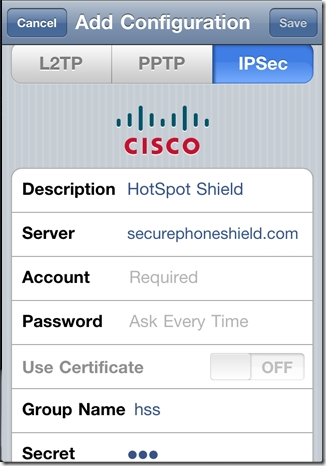
Basically, they will have you turn off your iPad’s (or iPhone’s) WiFi, and then head to Settings > General > Network > VPN > Add VPN Configuration. From there, you do the following:

  • Select the IPSec tab/pane
  • In Description, type HotspotShield
  • In the Server field, type 68.68.107.101
  • Go back to the website and click the “Get Account ID” button
  • Type the code that the button generated into the Account field
  • Type the same code into the Password field
  • Make sure that Use Certificate is set to OFF
  • In Group Name, type hss
  • In Secret, type hss
  • SAVE and then turn your WiFi back on

Hotspot Shield iPhone Configuration

Once you are set up, turn on the VPN. I’ve noticed that, if you try and turn it on from the iPad’s Settings dashboard, it will fail to connect. No idea why that is, but, if you turn it on from the Settings > General > Network > VPN switch, it connects just fine. Once the VPN says it’s connected, load up Netflix and watch in wonder as the app believes that you are in the United States and loads up the US Netflix library!

Things to note

  • The VPN will slow you down a little bit, but not enough to affect video playback. Netflix technology is very good at figuring out how to play videos optimally, even at slower speeds.
  • The VPN will disconnect periodically. This is annoying, but if you are already playing a video it will not affect it. The movie or TV show will play through to the end unless you pause it and let the iPad time out. If you find that you are having difficulty launching a show, check to see if the little VPN icon is in the upper left corner of the iPad’s notification bar. If it is, then you may need to restart the app. If it isn’t, then head back into the VPN settings and turn it on again. You may want to close Netflix out completely, first to make sure that the VPN takes with the app (double-tap the iPad’s hardware button to see the running/recently running programs, press and hold Netflix till it shakes and gets an X in the corner, then tap the X to close it).

There you have it! Access to US Netflix on your iPad whether you have a non-US account, or just happen to be visiting another country. It is important to note that this trick may only last until Netflix figures a way to block it out, but HotSpot Shield is versatile. They have managed to get people back into Hulu every time they’ve been locked out so far, so it will probably be the same with Netflix.

Thoughts?