
 One way to streamline your Firefox browsing experience is to move away from using the dropdown boomarks menu, and instead use the bookmarks toolbar. To streamline the experience even further, and to fit more bookmarks on the toolbar, you can modify the toolbar so that the sites you frequently visit are accessible by a row of site icons (known as "favicons") across the toolbar. There are two Firefox plugins to help you accomplish this.
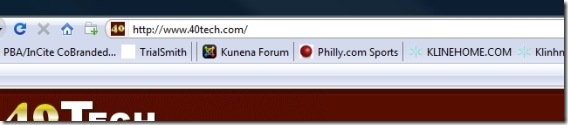 Normally, the bookmarks toolbar displays a horizontal list of bookmark icons and names, as seen in the above screenshot. The Smart Bookmarks Bar plugin allows you to hide the bookmark names, and display only the bookmark favicons. The plugin’s options allow you to customize the display behavior, such as whether your bookmarks’ names will display (i.e. expand) on mouseover of the icon, and how much spacing exists between bookmarks. The finished result will look something like the image below. It may seem like it would be difficult to remember what all of the icons represent, but I was able to get accustomed to the icons in no time at all.
  Some websites don’t have favicons, while other sites on your bookmarks bar might share the same icon (for example, some of the various Google services). That is where another Firefox plugin, Favicon Picker, comes in handy. Favicon Picker allows you to change a site’s default favicon, or even add a favicon to a site that doesn’t have one. This requires you to actually have an icon that you want to use. I will typically find an image that is in the public domain, resize it to 16 x 16 pixels, and then save it to a folder on my computer. Favicon Picker allows you to browse to the icon, and select it as the default favicon in your bookmark bar. The plugin supports many image formats, such as jpg, gif, png, and bmp, and also supports .ico files.
 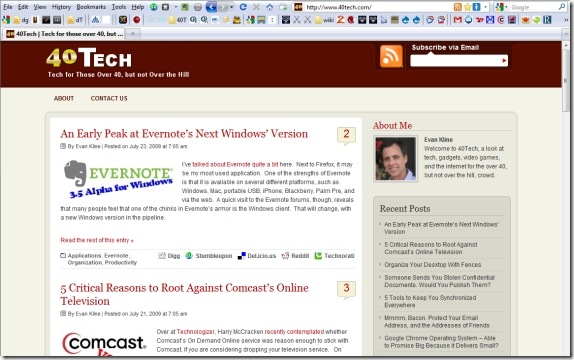 The end result, for me at least, is a much tidier browsing experience. I’m still much more of a mouse user than a keyboard user, so this also speeds up my browsing. How about you? Do you have any tools that you use to speed up finding your links?

Bobby Travis says:
These are very cool plugins! They work quite nicely for my folder/share bookmarlet setup.
July 26, 2009 — 2:53 pm
Benry says:
I've been setting up my browser the same way for years–I want my screen real estate for productive purposes, not tied up in toolbars and icons and whatnot.
I've tried the SmartBookmarksBar addon a couple of times, but there's a longtime bug that makes it unusable for me. I have a few folders on my bookmarks bar that hold groups of websites that I'll “open all in tabs” on a daily basis. When SmartBookmarksBar is set to “autohide” the bookmarks bar (I *love* this functionality, I don't need to see the bookmarks bar until I move my mouse over to it), it breaks those folders–you can no longer select the bookmarks or options within those folders.
Tangential thought: I can't be the only one that ponders this, but I'm surprised I don't see this brought up as an issue anywhere. The trend for some time now has been toward a widescreen computing experience… so with all this extra screen width, why do software designers continue to take away our vertical space, which is already hampered by the widescreen dimensions? For example, I use the TreeStyleTabs addon to stack my tabs sidebar-style. But whether it's our web browsers with their propensity to add toolbars and status bars across the top, with extra padding for aesthetics, or Microsoft wanting to put a big fat ribbon at the top of all their apps now… well, pretty soon we'll be required to scroll just to see a dozen lines of text on the screen. Widescreen HD video is great… but I wish they'd stop restricting my vertical space in so many apps!
July 27, 2009 — 1:35 am
Evan says:
That's a good point and something I'd never thought of regarding the vertical placement of the toolbars. I have a large widescreen monitor at home, with lots of wasted space on websites with fixed widths. It might make more sense to have my menus on the left.
I wasn't aware of the bug with folders and autohiding the bookmarks bar. I don't use it that way, but hopefully they can come up with a fix because I'm sure you can't be the only one who does.
July 27, 2009 — 9:41 am
Benry says:
Actually, I very well may be. ;-) I've reported the problem to the developer after all three occasions where I've tried the addon, but it's still there. I'd bet that there aren't a whole lot of folks who use the auto-hide option, and even fewer that use folders to organize bookmarks on the toolbar. I see that you do, Evan, but I don't recall seeing that often in any screenshots I've stumbled across. Personally, I see the bookmarks menu as more of an archive, and the toolbar more for everyday-usage.
In my case, I long ago removed the text from the links on my bookmarks bar… the I'm sure I'm in a very, very small minority in wanting to use SmartBookmarksBar for just two reasons: to auto-hide the bookmarks bar and to condense the padding and sqeeze more icons onto the bar. Again, the folders only become unusable when the auto-hide option is selected.
Other than that, it's a wonderful extension, and certainly worth recommending.
July 27, 2009 — 8:19 pm
Stefan says:
I tried this plugin a few months ago but never got it to work. I guess I did something wrong. Anyhow, instead of using a plugin I decided to simply remove the names from all of my booksmarks in the firstpage. Simple right click and chose settings. There you can remove the name and give it the same look as with this plugin.
July 30, 2009 — 11:23 am
Evan says:
That's a pretty neat trick. Will you still be able to mouse over the icon to see the name?
July 30, 2009 — 11:30 am
Benry says:
Having done it that way for years, no, the name doesn't show up on mouseover–that's a SmartBookmarksBar feature. Instead of seeing the name on mouseover, you see the bookmark's “location” field, which is the actual link. And nothing when you mouseover on folders.
To be fair, the addon also has options for condensing the bookmarks bar to “squeeze” more icons onto the bar… so you can't accomplish the same look by just removing the link names. And of course there's the auto-hide option that I love but can't use because of the folders bug… ;-)
July 30, 2009 — 1:43 pm