
 One piece of software that Microsoft got right was Windows Live Writer. If you’re a blogger, and don’t want to dig around in HTML (and arguably even if you do), Windows Live Writer is the software that we recommend for your drafting needs. One flaw with Live Writer, though, is that it doesn’t offer a setting to change where your blog posts get saved on your machine. By default, your drafts and recent posts get saved to your user folder, in the \Documents\My Weblog Posts\ directory. What if you want to save your posts elsewhere? You can do this, with a registry hack. Read more
Tag: Windows (page 5 of 9)

Yesterday we covered five ways to boost your productivity using a text expansion program. If we’ve sold you on the value of a text expansion program, your next question may concern which program to get. We previously mentioned how to use text expansion for free on Windows using Texter, an app that we identified as one of five tech tools to increase your productivity in a non-tech job. Texter was the first text expander that I used. When I added a Mac to my repertoire, though, one problem that I ran into was that Texter is a Windows-only app. I started using TypeIt4Me on the Mac, but then I had to manually enter my expansion snippets to keep them in sync between Mac and Windows. Recently I discovered a better solution – two separate apps (one on each platform) that can use the same snippet file, synchronized over Dropbox. I’ve been in text expansion heaven ever since.

If you grew up in the 80’s, do you remember games like Space Quest, Leisure Suit Larry, and perhaps the best of them all, King’s Quest? They were games from the legendary, and now defunct, Sierra Entertainment. If you long for the fun of yesteryear, then you’re in luck. You can now play the first three King’s Quest Games if you own a Mac or PC. The best part? They’re free.
AGD Interactive is a non-profit fan company that was given a fan license to remake the King’s Quest series. King’s Quest I was released back in 2001, and has seen a few revamps since then, mostly recently in September 2010. King’s Quest II followed in 2002.
The games aren’t just conversions of the originals to support modern operating systems, but rather are complete overhauls of the games. Compare the type of graphics, below, from the original (left) and the remake (right), and you’ll see what I mean. Also, the remakes include additions to the storyline, deeper plots, enhanced puzzles, and fleshed out characters.
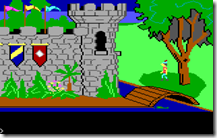

In February 2011, the King’s Quest III remake was completed. This one included a digital music score, as well as voice acting. I’ve only just started playing the King’s Quest I remake, but I was very tempted to jump to the third in the series, as it looks to be the most refined. Of course, half the charm of these older games is that they feel unrefined and retro.

Have you gotten through all three? Do you know of any other retro adventure games that are available for true geeks at heart?
King’s Quest I: Quest for the Crown
King’s Quest 2: Romancing the Stones
King’s Quest 3: To Heir Is Human
—
Original King’s Quest screenshot from Wikipedia.

Thanks to OS X Daily for helping me find these games.
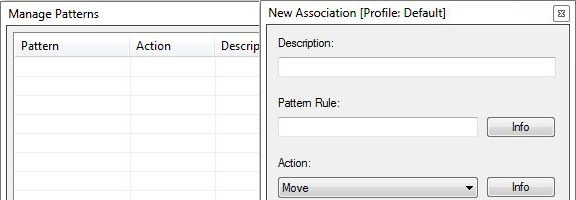
Is your PC’s desktop or downloads folder cluttered with files? If so, and you’re feeling overwhelmed with the thought of getting your system organized, check out DropIt. DropIt is a free program that creates a big icon on your desktop, that can be thought of as a drop zone. When you drop a file onto the icon, actions will be performed on it depending on how you’ve configured DropIt. DropIt can help you quickly move files to the proper place on your PC, without having to manually select a folder for each file.
The filters that you can set up with DropIt are fairly basic, so you would be better off with something like Belvedere on Windows or Hazel on the Mac if you want advanced features for PC organization and cleaning. With DropIt, you can filter a file based on name or file type. For each such file, you can preset DropIt for one of the following options: Move, Copy, Compress, Extract, Open With, Delete, Exclude.
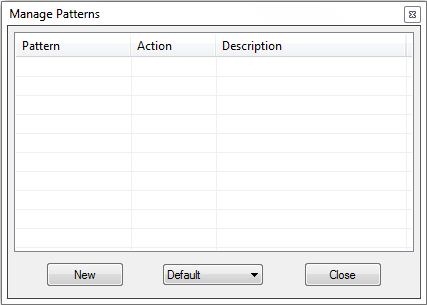
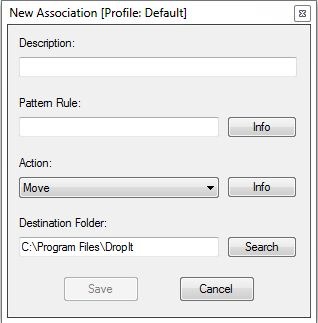
DropIt doesn’t seem to be intended to be a comprehensive organization utility, but does seem ideal for quickly going through your desktop or other folders, and moving files to preset locations. For example, you could quickly go through your desktop, and drop all of your image, video, and audio files onto your DropIt drop zone, and have them moved to your picture, video, or music folders, without taking the time to place each file in the proper location.
Do you have any apps that you use to organize your system? Let us know in the comments.
DropIt [via Cybernet News]

Ahh, a new computer. Kind of makes you tingle with excitement, right? Perhaps, but you’re probably also thinking about all the work that you have ahead of you when installing all of your apps. We’ve previously talked about ways to download several apps in one bundled download, to help speed along the process, and we’ve covered some tips for upgrading to Windows 7 in a couple of posts. If you want to get even more streamlined, you can move programs, settings and all, from your old PC to your new PC using PickMeApp. Read more