In my recent kick to clean up and customize my desktop, I discovered one problem- in Windows, no matter what you use for your desktop, you’re stuck with the same boring logon screen whenever you lock your computer or are booting your computer. There are some hacks around this, such as tweaking the registry and the background image file, but I wanted an easier process. Enter LogonStudio, which lets you customize your Windows logon screen.
Every once in a while you try to download or install something, only to be told by your impertinent machine that you don’t have enough space. You try and try to resolve the issue, but, for the life of you, can’t find the files that are hogging up your hard drive. Everything seems accounted for. You’ve even emptied your Recycle Bin and cleared your temp folder, but all you get from your computer is some digitized, maniacal laughter — or maybe that’s just me.
Potential crazy aside, there is an easy and very handy free tool that you can use to smack some sense into your Windows PC. It’s called SpaceSniffer, and it will help you find and destroy what’s eating your computer’s storage space. You’ll probably be surprised by what you find.
I’ve tried a few different HDD analyzing tools. Many of them are ugly and not very fun when it comes to usability, and they are usually packed with features that you probably don’t need, because they take away from your singular goal: to find and delete what is keeping you from getting that new file or program on your machine.
SpaceSniffer’s interface gets to the point. Every button has a point, and the display is clean and easy to understand — in it’s simplest form, the bigger the block, the bigger the file. There are a few simple animations that happen as the files populate, or when you double-click to zoom in on a folder or block, but they don’t distract or have any major impact on speed. If you’re in a hurry, though, you can decrease the graphics refresh rate in the Configure/Effects panel (or remove the animations completely in Configure/Colors). It won’t be as pretty, but it will be faster.
Basically, what SpaceSniffer does is go through your folders and analyzes how your disk space is being used, then presents it in a dynamic grid. From there, you can drill down into folders, tag and filter files to get a more specific look, and use the Windows context menu by right clicking to open folders or get right to the deleting part. You can even navigate during the scanning process, and SpaceSniffer will react to file system events (like clearing your Recycle Bin or deleting a file) to always stay in sync.
There are a few other tips and tricks such as printing customized reports and creating batch files for automation, but chances are you won’t really need them — if you do, check out the Tips and Tricks page of the SpaceSniffer website. You can also get a full list of the features here.
I have to tell you: I love this program. I used it to clear a whopping 50GB of space from my hard drive. 50 frickin’ gigabytes!! Of course, I immediately cut that down by half after installing the free-to-play MMORPG Age of Conan… but that’s another story. Bottom line: 50GB, man! I found files that made no sense, a bunch of space taken up by the mysterious $Recycle.Bin (even though my Recycle Bin was empty), and decided that, since I never use Hibernate in Windows, there was no need for me to allow the OS to reserve 4.5GB for it. I turned that off…
Check Out These SpaceSniffer Videos:
Running a Simple Scan
File Tagging
SpaceSniffer is a portable program that plays nice with your machine, and doesn’t clog up your registry. Download it here, and see what’s taking up space on your hard drive.
If you want to squeeze every last ounce of speed out of your browsing experience, then check out the latest browser speed tests at Tom’s Hardware. The site takes a look at several browsers on both the PC and on a Mac, and offers results in several different categories. The site then crowned a winner on each platform, as well as overall.
Ask any computer expert, and she will stress the need for not only local backups, but offsite backups as well. One option to get offsite backups is to use an online service. For many years, I was a happy subscriber to Carbonite. As the number of computers in my household grew, however, I needed a more economical solution. My wife and I each had a desktop and laptop, and I also ran a Windows virtual machine on one of my Macs. That made five systems that I needed to backup. After a bit of research, I settled on CrashPlan, and haven’t looked back. Not only is the CrashPlan+ Family Unlimited plan a good choice for a family with many computers, but CrashPlan might also be a good choice for you if you don’t want to pay anything at all.
Computers are a constant source of fun and potential ulcer-creating stress. This is especially true — at least in the latter respect — when we find ourselves needing that oh-so-important file that we just deleted from the Recycle Bin. Or lost in a crash. Or from any other of the number of creative ways Windows can eat your work. There are several data recovery tools out there, and they come in varying degrees of complication and quality. If you are looking for something simple, though — something that you can take with you, and even use on a flash drive — check out Kickass Undelete.
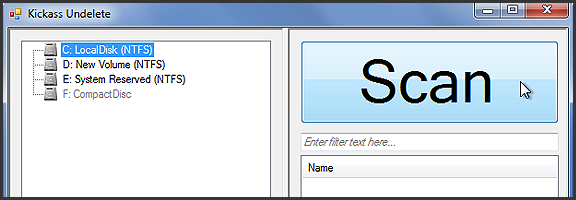
Kickass Undelete is more than just a fun name. It’s portable, it’s pretty effective, and it’s big-button easy. All you need to do is select the drive you want to scan for deleted files, hit the ginormous Scan button, wait a tick, and then sort through the list of deleted files for the one you’re looking for. To help you along, Kickass Undelete allows you to sort by Name, Type, Size, and Last Modified date. Select the files you want to restore, then hit the also-sizable Restore Files button, and you’re all good!