Every now and then, a web site comes along that defies categorization, but is amazingly cool nonetheless. One such site made the rounds lately, spreading virally. The site is by Intel, and takes the content of your Facebook account, and puts it together in one mind-blowing online “museum.” I was late to the game, only recently visiting the site. If you haven’t paid the site a visit yet, check it out.
There’s really not enough money to go around these days, what with the economic crashes and the rise in prices of, well… everything. Yes, this would be the perfect opportunity to complain about the price of gas, but this is a technology blog, so I’m going to complain about the price of food instead — wait… what? Yep, you read me right: Food. The prices are climbing toward the ridiculous for the essentials, and frankly, I’m more than a little put out about it!
Thankfully, the always vigilant folk over at Wise Bread have taken the time to scour the technology world (see, I brought it back…) for online tools that are made to help you save a bit of your hard earned cash without having to tighten up your belt.
Wise Bread breaks the tools they showcase into three categories: Menu-Planning, Coupon Resources, and Price Comparison. Menu planning takes a bit of time and dedication, but it beats the hockey sticks out of the customary North American (or , at least, my) pastime of pouring money into an active garburator. As the author, Sarah Winfrey, says — and I’m paraphrasing here — you’ll spend less, waste less, and leave the impulse buys in the past.
The menu-planning tool I liked the best was Kitchen Monki. You can get some good recipes from the site, or add your own, and there is a shopping list which can be scaled to suit your plan’s needs. The shopping list can be printed or sent to your phone, which is also handy, and the site has an active community and blog. The other two tools in this category were MealsMatter, which focuses on eating healthy, and Relish! — which costs 7 bucks a month. I’m not a fan of Relish! for the reason that I am interested in saving money, not spending it, but mostly I liked Kitchen Monki because of the site’s friendly layout and monkey mascot.

Some of the other featured resources were coupon sites CouponMom and Redplum, and price comparison site Pricible, all of which are worth a look if you are in the US.
These online tools and services are a great way to keep your cash where it should be: saving itself until it grows big enough to buy you a fancy new tech toy. Or on your kid’s college fund, but you know — whatever. Kids can get jobs…
What are your favourite money saving tools/apps/services, for food or otherwise?
Two months ago, we wrote about the U.S. Department of Justice’s largely unilateral seizure of domain names of commercial websites that were engaged in counterfeiting. We’ve now seen the danger of that process, with the government pulling a major “whoopsie” and mistakenly shutting down a large number of perfectly innocent sites, as the government went after child pornography sites.
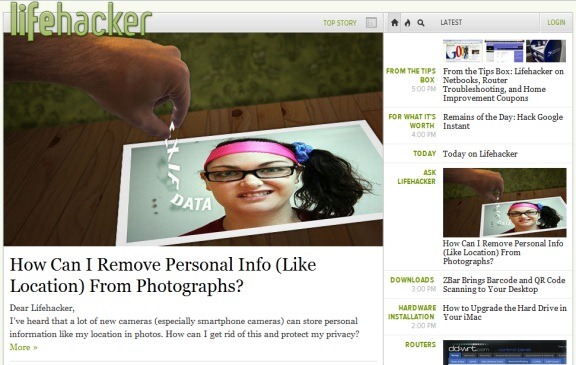
Lifehacker, one of our favorite sites here at 40Tech, just got a redesign, along with the rest of the sites under the Gawker umbrella. The redesign has been a bit controversial, to say the least. Users have complained that the site is slow, hard to navigate, and clunky.
Personally, I hate the new design. Ajax and javascript can be great, but not when an entire site is built around them. I like sites to be scannable, and I want to be able to jump around quickly.
I love Lifehacker’s content, though, so I’ve been trying to find a way to make the site easier to digest. Here are three alternate ways to get Lifehacker’s content. They aren’t perfect, but I actually prefer them to visiting the main site.
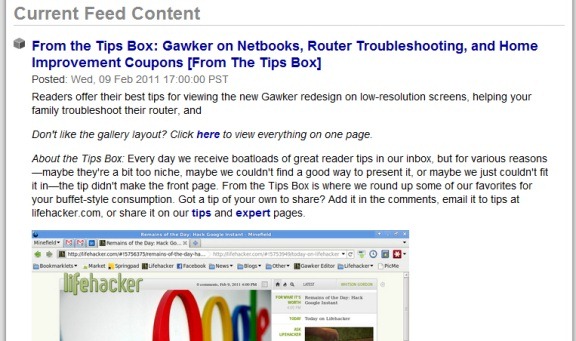
1) Visit the full RSS feed
Even if you don’t subscribe to the RSS feed, you can still use the feed to your advantage by navigating to the feed address, and reading the site’s content there.
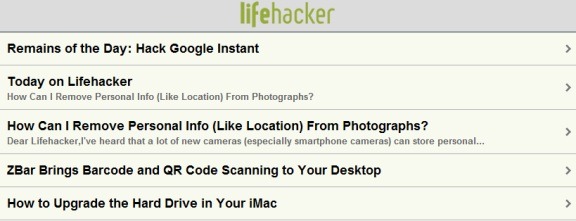
2) Visit the mobile site
You won’t see any post excerpts, but if you just want to see Lifehacker’s headlines, you can visit the mobile site in your desktop browser.
3) Use the new “blog view”
The new design does offer a way to see posts in reverse chronological order. To do so, click on the “blog view” button, which is hidden next to the date and time at the top right of the main column (see the arrow we’ve added in the image below). Scrolling in blog view doesn’t work as well as it does in a traditional blog design, but it beats scrolling through the new design. You also get blog snippets, to help you decide whether to read a full article or not.
From the Star Wars Kid to the Red Shirt Guy, certain items or ideas gain traction on the Internet, and reach the hallowed status of Internet meme. If you’re like me, you’re not exactly hip to the latest memes. Fear not! Know Your Meme has you covered, helping you stay abreast of the latest memes on the Internet.
In its own words, Know Your Meme is “a web series and online database dedicated to documenting Internet culture, one scientismic investigation at a time.” Know Your Meme is more than just a meme database, as a visit to the front page will reveal. For example, you can find blog posts discussing memes in greater detail. One recent example is a look at the basics of a distributed denial-of-service attack, which can help you to understand the Anonymous attacks on PayPal, Visa, and others this past week. Know Your Meme also highlights trending memes, and even has video episodes that dissect certain memes.
For me, though, the most fun is just browsing aimlessly through the site. In the Meme database, you can find a list of popular memes, many of which are worth a chuckle. Chubby Bubbles Girl anyone? To get the full effect of some of the memes, you need to check out the images at the bottom of each page. Some meme pages also contain graphs that track the interest in the meme over time.