Menu Close

Tag: Web Apps (page 3 of 15)

Find Out What Flights Are Overhead With Wolfram Alpha

Wolfram alpha fights overhead

Mark this one down as not very useful, but pretty cool nonetheless. Wolfram Alpha, an online service that answers queries, now will tell you what planes are flying above you. Simply type “flights overhead” into the search box, and Wolfram Alpha will return a list of flights overhead, including the altitude, the angle from the horizon, the type of plane, and the distance away.

Read more


Gmail Has a New Look — And Almost Has An Official iPhone App

Gmail Has a New Look -- And Almost Has An Official iPhone App | 40Tech

In keeping with their Big Push, Google released a new version of Gmail with a major facelift, as well as released — and then pulled — their long-awaited native Gmail app for iOS.

The new Gmail look, as is to be expected, has a few minor annoyances to accompany some great new features, and the app is actually very cool, but was pulled due to a notification system problem.

Check out the feature-list for both below.


New Gmail Web App

Gmail's New Look

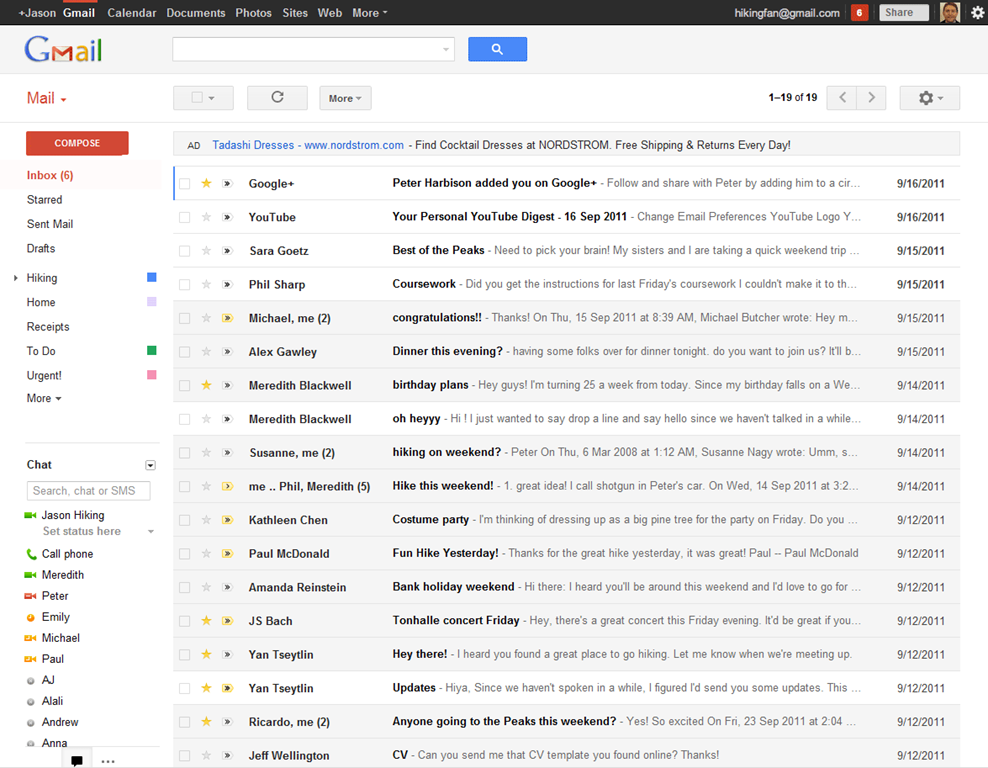
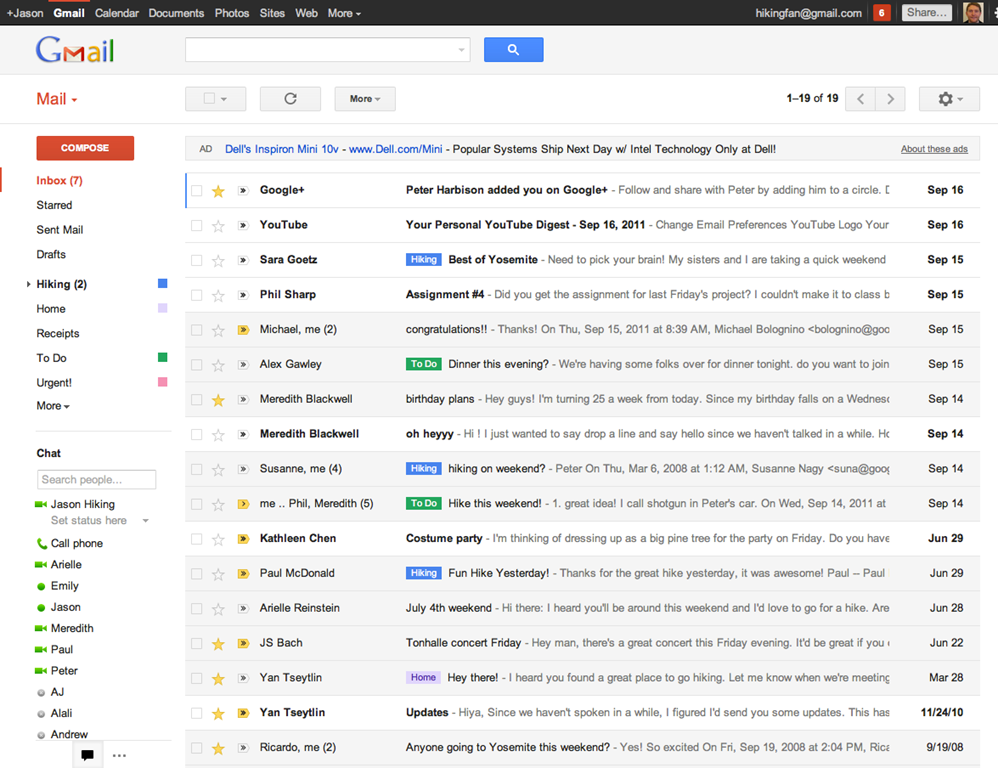
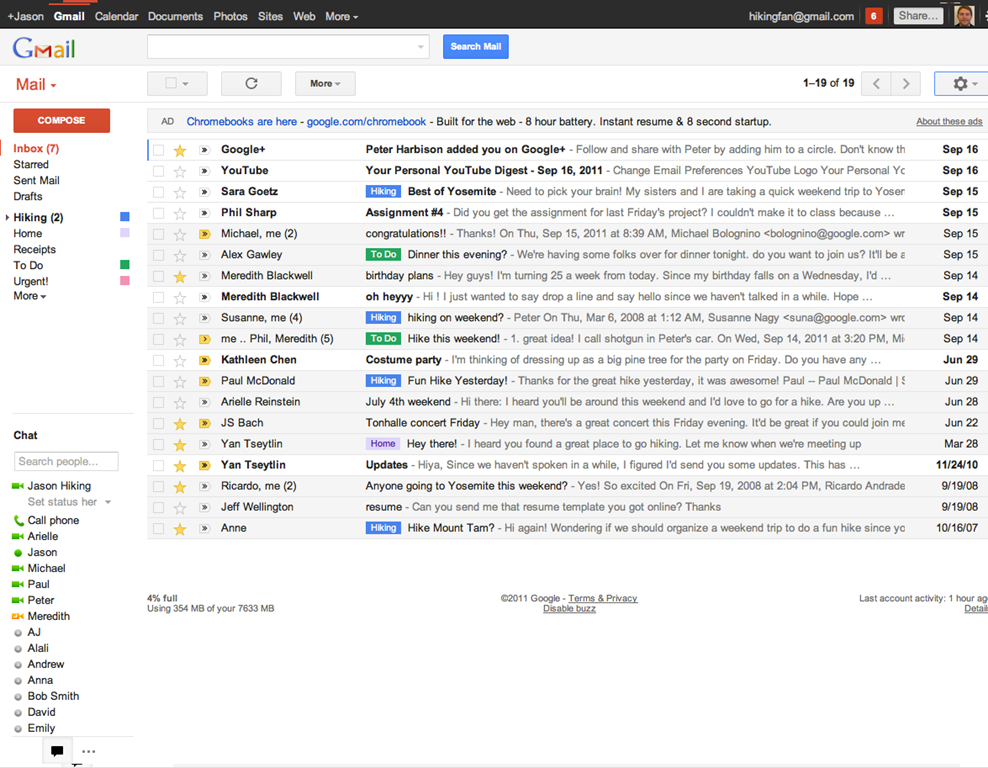
The new web app has a look and feel that fits in with Google’s updated branding. It’s “cleaner, more modern” and is very similar to the preview theme that the Gmail team released a while back. I’ve been using that theme for a few months and I love it, but I’m not terribly fond of the dynamic “Display Density” feature.

Display Density allows you to control the default amount of whitespace for each email message in your inbox (Comfortable, Cozy, or Compact), but whill actually change dynamically depending on the size of your browser window. This may seem like a good idea, but if you use Minimal Wall’s guidelines for window sizes, it displays as Compact, no matter what, which clashes with your zen by slapping you about with tiny little squished up emails. Google should add a feature that allows you to force the display of your favourite Density, no matter the size of your window.

New Gmail Comfortable Setting    New Gmail Compact Setting

What is awesome about the new Gmail is the sweet new toolbar, the much-improved search dialogue — I always hated the in-field search commands — new themes, and the improved look of threaded conversations. I also like the additional control settings, the ability to drag the size of the chat window, and the awesome little buttons in the sidebar that can make the chat, gadgets, and other annoying sidebar items vanish until you want them.

Give the new Gmail a try, and let us know what you think. If you don’t love it, you can always revert back — at least for now. Check out the video for details on the upgrade:


Native Gmail App for iOS

Once Google gets a handle on the notifications errors (apparently just a silly little mistake on their part, so it shouldn’t be long), the new iOS app will probably kill the iOS mail app for me. I only use the thing because I hate waiting for Safari to load, and the new app looks like it will finally allow me to do what I’ve always wanted to from my iPhone and iPad: reply to emails with the email address that they were sent to.

This is a huge deal for me, because I use a multitude of different email addresses for different things, and they all come through Gmail. I don’t necessarily want to answer my 40Tech email or my work email with my main email address, which I’ve had forever, but might not always come off with the… professionalism… I need.

Unfortunately, you still can’t compose new email in the app and choose what email you want to send from. Baby steps, though, I suppose — and it’s still better than the iOS emai app.

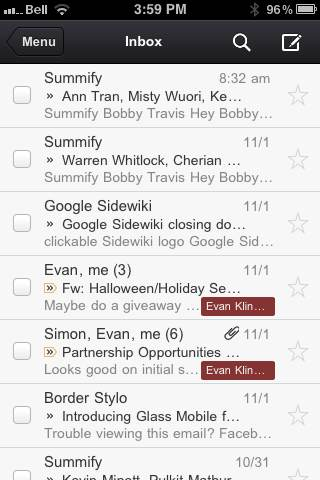
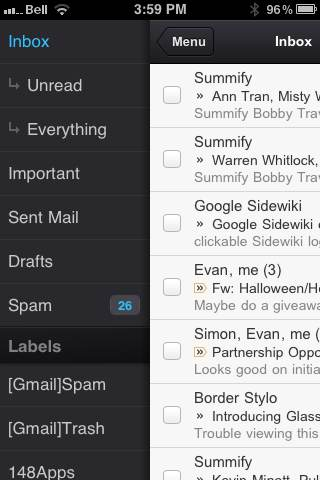
The new Gmail for iOS app is nearly a full-featured Gmail experience. There is universal search, auto-complete from both Gmail contacts and iPhone addressbook, attachment upload (which is basically photos, of course), threaded conversations, priority inbox, easy archiving, labelling, starring, deleting, and spam reporting.

New Gmail App for iOS | 40Tech       New Native Gmail App for iOS | 40Tech

On iPhone/iPod Touch, the Gmail app gets out of its own way, focusing on the content, with a nice expandable sidebar to sort through your labels. On the iPad, you get the standard two-paned view, which makes for easy viewing and navigating on the larger screen.

The only other things to note are that, at the moment, the app doesn’t have offline support, and doesn’t do multiple Gmail accounts, and that swipe gestures — while good for the most part — sometimes feel a bit awkward.

What are your thoughts on the new look for Gmail? And when you get a chance to check it out, tell us what you think of the iOS app, as well! 


Springpad Adds Custom Notebooks, Shareable Notebook Templates — and Have You Seen the New Friends Stuff Yet? [App of the Week]

Springpad Adds Custom Notebooks, Shareable Notebook Templates -- and Have You Seen the New Friends Stuff Yet? | 40Tech

Usually, I like to pull out new apps for the App of the Week. Every once in a while, though, one of my favourites releases something so cool that I have no choice but to add the “extra-special” label. For the second time this week, Springpad pushes itself into the 40Tech stream, first with a slick integration into the iOS 5 notifications system, and now by adding yet another level of personalization and social value to their service.

Springpad vs Evernote is a thing of the past. With every new update, Springpad moves farther away from being just a note-taking/remember everything app, and gets closer to being the definitive service for collecting, sorting through, and acting on what interests you. Their latest leaps into this arena bring you three things:


Customize Your Notebooks

Note: Notebook customizations show up in the most recent versions of the mobile apps: iOS 2.6+, and Android 2.4+.

The ability to easily customize your notebooks so that you see only what you want in the sidebar, and cut the extra steps out of the Quick Add process.

Customizing your Springpad notebooks is easy. All you need to do is hover over the notebook (or the open notebook’s title bar) until you see the little wrench appear by the name, click said wrench, and head to either the Navigation or Quick Add button that appears in the pop up settings dialogue.

Navigation

  • Click and drag the navigation items to reposition them or delete them completely.
  • Change the item-type without moving anything (change Everything to Board, for example).
  • Change the way notes are sorted when you open that navigation item (by Added, Modified, Tag, etc.).
  • Change the Starting View for that navigation item to default as title-only, title-with-description, or grid.

Springpad Notebook Navigation Customization | 40Tech

Different navigation types will have different options, depending on their function. For example, the Types Section and Tags Section also allow you to decide how many of their items to show in the sidebar, as well as to decide if you want to sort by note count or name. That last bit, alone, will make life easier for those who use GTD in Springpad, and the other features won’t hurt either.

Quick Add

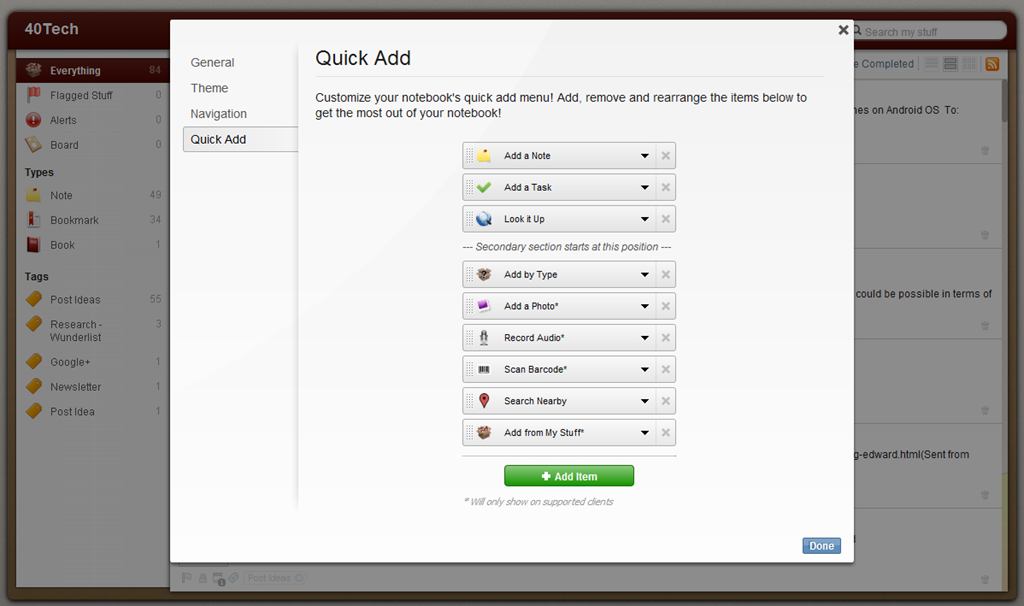
This is where things get fun. The best thing an app like Springpad can do is make it as fast and easy as possible for you to get things into it. Springpad was already pretty good at this, especially via their mobile apps, but sometimes it was a bit of a pain to select notebook, then select item type (or change item type, if Springpad’s auto-select got it wrong), etc., etc. Now you have the ability to make sure that the notebook only shows the options that you need to see.

You can select by the standard add a Note, Task, By Type, Look It Up, et al, as well as by Recipe, Book, Movie, and more. You can also choose client-specific options. This is fantastic if you do most of your collecting for that notebook by mobile, as you can then set it to collect only by Photo, Audio Recording, Barcode, or Search Nearby. Please note that Android devices currently do not allow adding alarms, contacts, or events, and mobile devices in general do not allow adding from My Stuff. Quick Add can be used to filter these items out.

Springpad Notebook Quick Add Customization | 40Tech


Save, Share, and Download New Notebook Templates

The ability to save your new notebooks as a template for other notebooks, share it with others, or easily adopt their shared templates.

Once your notebook is customized just how you like it, you can use it as a template for new notebooks by selecting it from the “Choose template for this notebook” dropdown menu (in the same place you name the new notebook).

Unfortunately, this only applies to new notebooks — there is no option to apply a template to a notebook you already have. If this annoys you, don’t worry, there’s an easy fix:

  • Create a new notebook
  • Add the desired template
  • Open the old notebook
  • Click Edit in the top left of the notes area
  • Click the checkbox to select all or use the dropdowns to filter and select (or just use a saved filter and Edit/checkbox)
  • Use the Notebooks dropdown to add the new notebook
  • Delete the old notebook

Add Springpad Notebook Templates to Existing Notebooks | 40Tech

Sharing Notebook Templates

All you have to do here is open up the settings, and click where it tells you to get the share link. None of your notes are shared, or any other private information, only the template. the link will lead to a page that allows people to Spring and install the theme. Add it wherever you like to add links: Twitter, Facebook, Google+, your blog, a public Springpad notebook just for templates — wherever.

Sharing Springpad Notebook Templates | 40Tech

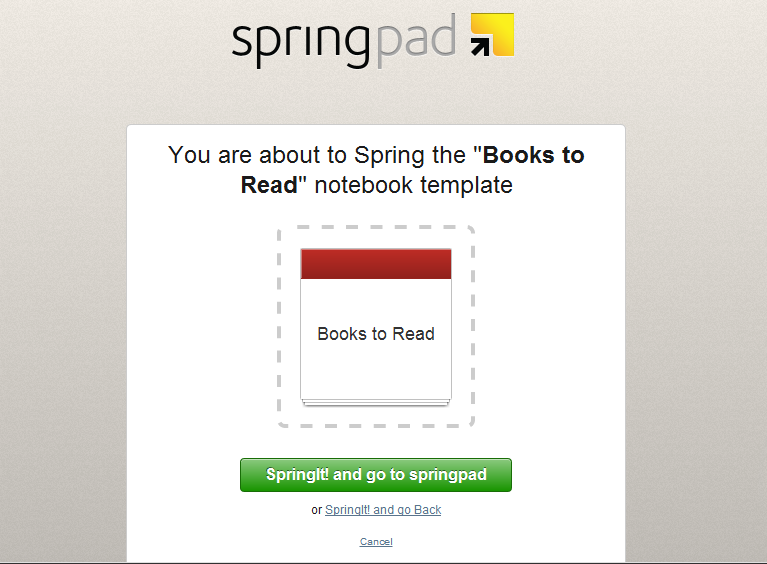
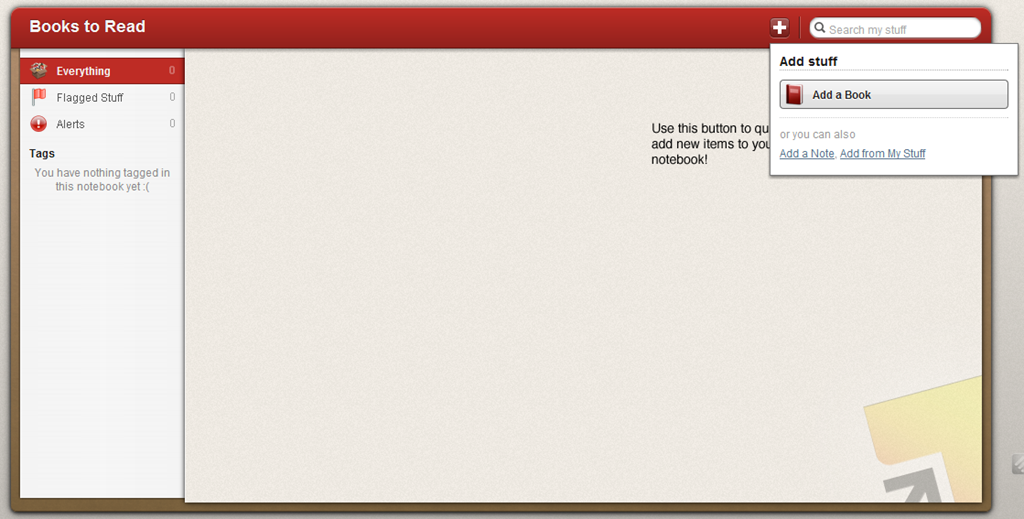
Springpad already has a few templates available on their blog that can get you started, complete with ideas on how to make the most of them on the web and on the go. Check them out, and follow the prompts to install them: Gift Ideas template, Recipe Book template, Books to Read template.

Adding Springpad Notebook Templates | 40TechSpringpad Notebook Templates in Action | 40Tech

Share your custom notebook templates in the comments! 


Friends Stuff + Facebook = More Awesome

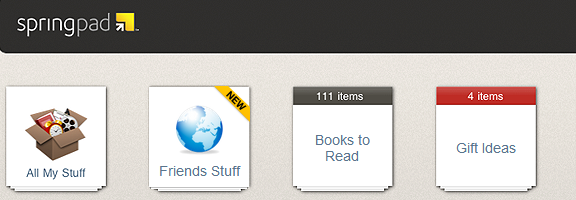
In case you haven’t heard, Springpad has integrated Facebook into Friends Stuff, so you can easily check out and add your friends’ Likes and Check-ins. We’re talkin’ movies, books, TV shows, music, places, and the like that your real-life friends recommend; easily viewable and sortable in your Springpad app, and easy to add to your own notebooks for later access.

Springpad Connects Facebook to Friends' Likes | 40Tech

The Friends Stuff Facebook integration is in beta, but if you click the link in the Homecreen’s sidebar and authenticate with Facebook, you should be able to get connected. At the very least, you will be put on the list and Springpad will send you an email to let you know when you can access the new feature.

Check out the Friends Stuff + Facebook video:


So yeah… That’s a lot of Springpad awesome for one day. Kudos to CEO Jeff Janer and the entire Springpad crew for continually thinking of and adding new ways to make their service useful and unique. I can’t wait to see what they do next!

What do you think about Springpad’s new additions?


Springpad Mobile Clipper is the (Near) Seamless Content Clipper You’ve Been Waiting For

Springpad Mobile Clipper is the (Near) Seamless Content Clipper You've Been Waiting For | 40Tech

It’s been a long time coming. Since I got myself an iPhone, and especially since the iPad, I’ve joined the ranks of the millions of users out there who have been waiting for a simple and easy way to clip web content on my mobile device. I’ve used Read It Later and Instapaper, I’ve copied things into email and sent them to Evernote, Springpad, Producteev, and myself. I’ve even used the desktop clipper bookmarklets with reasonable — if time-consuming — success. That’s all in the past now: Springpad has hooked up the mobile world with a new and improved web clipper that is near to seamless.

The new Springpad mobile clipper doesn’t have the fancy bells and whistles of the Chrome extension, of course, but the updated bookmarklet is straightforward and easy on the eyes, and it works just as well in Mobile Safari and Atomic Web Browser as it does on desktop browsers. I used to use the old Springpad bookmarklet, and sometimes the Evernote and Memonic ones as well, but more often than not, they would load or function slowly — if they loaded at all. I’m presented with or stumble across a plethora of juicy things I want to follow upon in any given day – and most of it happens while I’m not at my computer. Now I can grab a bookmark for later, organize it, and move on within seconds. No fuss, no later processing, and no clutter in my email inbox.


Clipping Content is Great on iPad, a Bit Neutered on iPhone

Clipping bits of content from an article or page is a bit of a problem, though, at least on the iPhone. When using the iPad, I had no issues at all. Select a bit of the text or an entire article, fire the clipper, and it appears in the bookmark’s description area, complete with formatting — unless you want to edit it, of course. That strips the HTML. On the iPhone, however, no amount of selecting or even copying text to the clipboard will get the content you want to clip to show up. All you will get is the description write-up. I’m not sure why this is, and it definitely limits the iPhone to a quick link-grabber as opposed to a full-fledged clipper.

If you really want to clip that bit of content or entire article for later reading while on the iPhone, you can copy the text and edit it into the description field by doing a select-all-and-paste maneuver. Once again, though, you will lose all formatting, including any links and images.

The iPhone issue aside, the clipper rocks for getting those bookmarks into Springpad and organized in your notebooks and tag structure. Notebooks are an easy drop down, and tags auto-complete as you type. You can also change the type of save you want it to be. Bookmark is the default, but you can change it to Business, Restaurant, Recipe, Product, and all the rest with just a few touches. Almost all the rest, that is — Note is missing, and so is Task. Not a huge loss, I suppose, unless you want to save a bookmark to a task or a note, which could happen. If you really need that functionality, you can always go into Springpad and add a reminder or a note directly to the bookmark.

Springpad Mobile Web Clipper for Mobile Safari in Atomic Web Browser | 40Tech   Springpad Mobile Safari Web Clipper | 40Tech

Selecting Post Type in Mobile Safari Web Clipper, Springpad | 40Tech   Tagging Bookmarks in Springpad Web Clipper for iPad, iPhone | 40Tech

image   image


Installation is Easy

Springpad has made it easy to install the bookmarklet to Mobile Safari. They provide step-by-step instructions in the Settings area of the most recent versions of their iPhone and iPad apps. If you use another browser, just follow the instructions and let Springpad load up Mobile Safari, as it will automatically add the JavaScript to your clipboard. After that, open up your browser of choice and add a bookmark, pasting the JavaScript into the URL field. There is no guarantee your browser will work, but I can tell you that Atomic Web Browser does just fine.

image


Springpad Has a Few More Tricks Up Their Sleeves

The new mobile clipper isn’t the only thing Springpad’s been up to lately. They also released a Quick Add bookmark for your home screen that makes it faster for you to load up the Springpad app to add a note, photo, or whatever else you choose. This is nice for those of us without widgets like those Android folks.

I also have received word from Springpad CEO, Jeff Janer, that they have some big moves in the works that will differentiate them even more from Evernote. Having a mobile clipper that consistently works and works well is a good start though. They just need to fix that pesky iPhone issue…

What are your thoughts on the Springpad Mobile Clipper?


Memonic: A (Not So) Quiet Rival to Evernote and Springpad [App of the Week]

image

I just confirmed with the CEO of Memonic that the crazy premium account deal ($3.33 Euro for 10,000 notes and 50GB storage) link works until the end of October. And it works for whomever, not just the Swiss/Germans. Translate the page from German and get it while it’s hot!

There’s been a lot of discussion on 40Tech about which is the best note-taking app. While the battle is generally between Springpad and Evernote, occasionally a new option steps in for a punch or two. This week’s contender has been watching, learning, and in many cases even improving upon the competition. I’d like to introduce you all to Memonic — there’s a reason it made App of the Week.

When it comes to note-taking apps, there are five key things to look for: how easy it is to get information into the app, organization and sharing features, overall usability, cross-platform possibilities, and personal preference. That last is a huge factor in user adoption. Depending on what you need your notes app to do, one or another may work better for you.

Evernote, for example, is well suited to those who just need a straight ahead, highly searchable portable filing cabinet. It can do many other things, true, such as be used for a GTD system, but portable (and searchable!) filing cabinet is what it does best. Springpad, on the other hand, is great for taking notes, but has this fantastic capacity for making certain types of notes “smart.” If you like to comparison shop, find good deals, or get value from what the people in your network are interested in, Springpad’s note-alerts system offers you something no other note-taking app can match.

Memonic doesn’t have the budget that Springpad or Evernote has. They’ve been bootstrapping their system for a while now, and when you consider that and then see what they’ve put together, I have no doubt you’ll be impressed. I was — and am. Just as Evernote and Springpad differ in their approach and target markets, Memonic has brought its own angle to the field: research and collaboration. Now, before the Evernote lovers start touting shared notebooks, and the Springpad-enamoured bring up the oh-so-very-cool Board, hear me out. Those are all excellent features — but if you want an app that makes it easy to share and organize notes on a project (or projects), easy to be notified when new notes and research snippets have arrived or been commented on, and ridiculously simple to gather information in the first place, then Memonic is the clear choice. Here’s why:


Groups

Memonic can be used as a central collaboration notebook for research, planning, and discussions on projects. You can create a group, invite a few people, and then get to work. The group gets its own page with its own activity feed, too, which makes it simple to be notified and to keep an eye on progress.

If you run into the ever-present problem of working with someone who doesn’t want to use the service, sharing notes with people outside of Memonic is easy, too. You can share via Facebook, Twitter, email, or a link, RSS feeds, and you can even embed notes on web pages — which is a nice touch.

Share Memonic Notes on Facebook, Twitter, Email, or Embed in a Web Page | 40Tech


The Dashboard

Memonic’s group and contacts features are fully realized with the feed-like Dashboard. The Dashboard not only shows you a quick clip of everything you’ve posted recently, but it also shows the public posts of your contacts — which can be opened and read in full right from the dashboard itself. See something you like? Copy it to your own collection of notes, or share it with others via email, link, Facebook, or Twitter (or even copy it to Word) with just a few clicks.

Memonic Dashboard | One of the Best Note Taking Apps | 40Tech


The Best Clipper I’ve Come Across

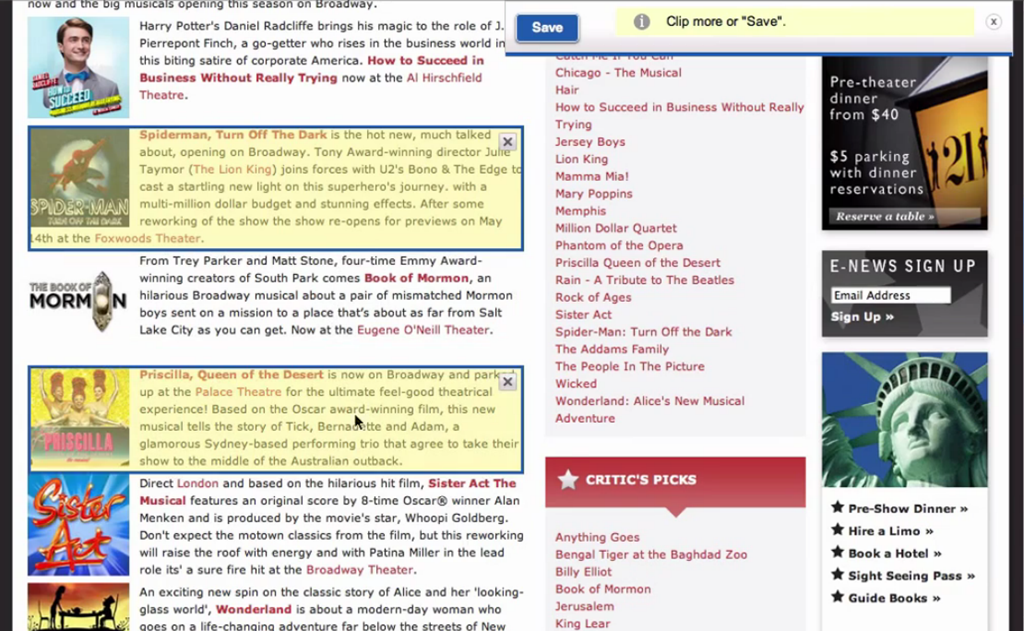
I love the Evernote Web Clipper, and I like the Springpad Clipper even better, but both can get a bit irritating if you’re in a hurry. Memonic’s clipper does away with the click and drag highlighting and breaks each section of content on a page into regions that can be selected with a single click. You can do multiple parts of the page, or even the entire page in one go. When you’re doing a lot of web research, this speeds up the process immensely.

Memonic Clipper is the Best Web Clipper in the Business | 40Tech

Quick content selection isn’t the only reason the Memonic clipper stands out over the others. The other big one is Gathering Mode, which is a little toggle switch that allows you to lock in your settings for where you want to put your notes — folder, privacy level — and save you the trouble of having to re-establish those settings for every single clipping. It’s awesome — and I have no idea why other clippers don’t do the same. The only thing I would like to see added to Gathering Mode is the ability to lock in tags, as well.

Finally, the Memonic clipper has a variety of other useful modes that can replace a number of other services with just this one:

  • Read Later mode that allows you to grab entire pages
  • Bookmark mode (which provides a nice snippet description as well)
  • Screenshot mode that attaches an image of the visible browser area
  • Write a note (to get to the note taking without even opening the service)

Memonic Web Clipper Can Replace Read It Later, Bookmarking Apps | 40Tech

The web clipper works with all major browsers — and even works by bookmarklet with Safari for iPad. If that isn’t enough, there is also a clipper for Windows that allows you to clip content outside of the browser.


Clean and Simple Design — Across all Platforms

Memonic focuses on the minimal. The way notes are displayed in expandable windows that are neatly separated from one another is easy on the eyes and easy to use. The look and feel is distinctly uncluttered, and is fairly persistent across all versions of the app. And you can get Memonic pretty much anywhere: Windows and Mac desktop apps, iPhone, iPad, Android devices, and the web app for everything else. Mobile versions don’t have the Dashboard, unfortunately, but everything else you could want is there, both online and off.


Crazy Integrations

For a small operation, Memonic is throwing around some important integrations, especially for the business set. Here’s just a few: Salesforce, SugarCRM, Confluence, Sharepoint — and guess what… they are planning to integrate with Evernote! That may seem a bit weird, but soon, all those who can’t bear to walk away from Evernote, but love the power of the Memonic clipper, will be able to use the super-awesome clipper to save content directly to their Evernote accounts. A nice, tidy little bit of genius on the part of Memonic, if you ask me.
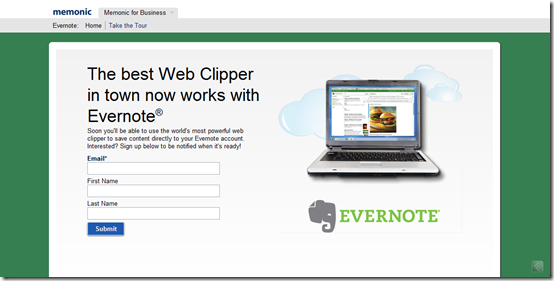
Memonic Clipper Integrates with Evernote | 40Tech

If, for some strange reason, you need more than the promise of Evernote integration, well, Memonic also integrates a save button into Facebook so you can save your favourite photos, status updates, and wall posts. Want more? How about Google Reader integration so you can clip your favourite posts while reading your feeds? How’s that tickle you?
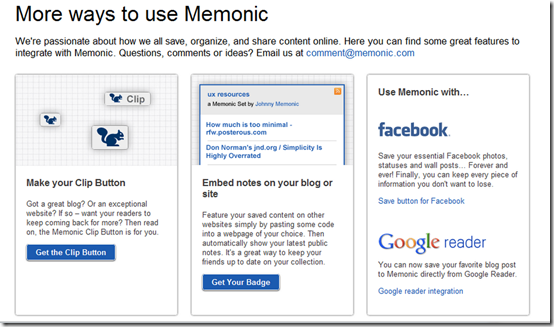
More ways to Use Memonic | Save Facebook, Google Reader Posts | 40Tech


Memonic’s co-founder, Dorian Selz, and the rest of the team have worked their butts off on a bootstrap budget to put together one of the most robust note-taking apps I’ve ever come across — a definite rival for Evernote and Springpad if it gets the notice it deserves. The only issue I personally have with Memonic is that their free version is limited to only 100 notes and doesn’t have Gathering Mode. To get the full service, though, only costs $28/year — which isn’t bad considering Evernote premium is $45/per year — and Memonic doesn’t have any advertising to clutter up your experience. If you do a lot of research on your own, or as part of a student or business team, give Memonic a try — you just might love it. And there are discounts for students, too.

What do you think of Memonic?