Menu Close

Tag: Security (page 9 of 11)

The One Step You Should Take Today to Secure Your Gmail Account

gmail hacker large

Felicia Day, Internet celebrity and star of the original web series The Guild, recently had her Gmail account hacked.  She eventually recovered her account, although it isn’t clear whether her celebrity status played a role in the recovery.  What happens if your account gets hacked?  How can you get it back?

We’ve covered 7 Tips to Protect Your Email From Hackers, but what happens if your account has already been hacked? If you’re going to do nothing else, at least set up your Google account so that you can recover your account via text message.  Then, if your Gmail account is hacked, and if the hacker hasn’t dug into your settings too deeply, you can reset your password via a recovery code that Google will send to you in a text message.  Chances are, the hacker won’t have access to your cell phone (and, if he does, you’ve got bigger problems than just your hacked email).

To enable password recovery via text message, click on “Settings” in Gmail, and then on the “Account and Import” tab.  At the bottom of that tab, click the “Google Account settings” link.  On the page that loads, click the “Change password recovery options” link.  You’ll need to reenter your password and hit the “Verify” button.

Once you’re into the “Recovering your password” page, find the “SMS” section and click the “Add a mobile phone number” link.  Then, select your country and input your telephone number, and click the “Save” button.  If you entered your number correctly, you’re all set to recover your account via text message, in the even of catastrophe.

I haven’t tested to see if a Google Voice number would work as your recovery number, but, even if it does, you don’t want to use it.  If a hacker has your email password, he also has your Voice password, and may be checking that.

This system isn’t foolproof.  As best I can tell, there is no verification process to change the account recovery telephone number.  So, a hacker with your password could go in and change this number, and you’d be out of luck.  Still, an extra line of defense can’t hurt.

If you have any other tips for securing your Gmail account, let us know in the comments.

Find Lost Gadgets… With This Gadget

Find Lost Gadgets with Zomm | 40Tech

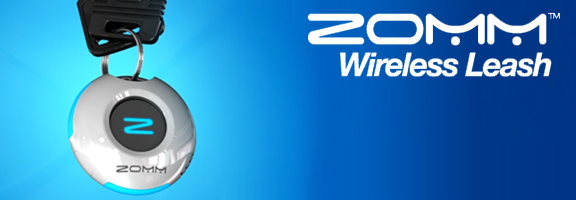
Zomm is one of those neat little gadgets that I’m not sure I would ever buy, might raise an eyebrow at if given it for a gift, but would probably find ridiculously useful if I had one. It does three things:

  1. Helps you never forget your phone (or other bluetooth-enabled device you’ve paired to it) by sounding an alarm if you start to walk away from it.
  2. Answers phone calls with the touch of a button, improving driving/cell-phone safety.
  3. Acts as a personal security alarm that will even dial 911 for you.

The Zomm, which won Best of Innovations at 2010’s CES (Consumer Electronics Show), is keychain-sized, comes in white or black with blue accents, and will fit in the palm of your hand. It costs about $80.00.

Check out the video post on the Zomm below. It’s by super-geek Chris Pirillo, and will, at the very least, remind you of exactly what level of geek you are by comparison. If five minutes of Chris is too much for you to handle, go one video down and check out the Zomm commercial – Chris is funnier, though. Enjoy, and have a fantastic weekend!


Who’s getting the Zomm on your Christmas shopping list?

How Do You Find Lost Gadgets [Lockergnome]


7 Tips to Protect Your Email from Hackers

7 Tips to Protect Your Email from Hackers | 40Tech

In the spirit of yesterday’s security-focused post, I wanted to share with you some tips on how to protect your email account from getting hacked. This list was originally put together by the folks at MakeTechEasier and was focused on Gmail, but many of the items are relevant to any web email client, and many other services besides. I’ve reworked the concepts for general use – if you want the just-for-Gmail step by step details, please visit the original post.

original photo by Don Hankins

1. Always check the URL before logging in.

Fake login pages are a problem with any site that hosts sensitive information. Even Craigslist was having this problem just last month. Tread carefully before you log in.

2. Avoid checking emails at public places

This may be a bit much for anyone in this mobile-focused world, but this is geared more toward avoiding checking email (or any private account) from a public computer. You never do know what sort of spyware has been installed on someone else’s machine.

3. Create a secondary email account

If you absolutely must login to your email account on a machine other than your own, create a secondary email account (with different login credentials, of course) and forward a copy of all emails from your original account to the secondary. This way, if you get hacked, your original account should remain uncompromised. Be sure to empty this account regularly – don’t use it as a backup for your sensitive messages. Also, don’t use it for your password recovery account…

4. If you are able, regularly check the IP of the last login

This is a nice Gmail feature, and is offered by some other webmail email providers as well. If you don’t recognize the IP that last logged in to your account – especially if it comes up often – you may have been hacked.

5. Check for bad filters

If your email service allows custom filters, there is always the possibility that one of them could be forwarding your messages to someone else. Regularly check your filters to see if there are any that you don’t recognize.

6. Don’t click on suspicious links

This one should be highlighted in bold, flash, and emit dangerous beeping noises. If you don’t know what it is – even if it is from a friend – don’t click on it. If it came from a friend, send them an email or call them to ask if it was really sent by them. This applies to email, Facebook, Twitter, a sticky note, or any other way a link might have been sent to you.

7. Choose a strong alphanumeric password (and add other characters too)

Some services don’t allow capitals or special characters in your password – avoid these services if you can. Use of funky characters is a great way to increase password strength. If you can get a password up to 16 characters, all the better. I know that these are a pain to remember, but you can always create a password base to help with that, or use a tool like LastPass or KeyPass to remember the password for you.

As a final note, remember what Evan suggested in yesterday’s post on Firesheep and Blacksheep: the only real way to be sure you are at least as safe as you can be when you login is to use services that require https and/or to connect via a Virtual Private Network. The TOR network is a great service if you want a free VPN, and there is even a TOR toggle extension for Google Chrome called Proxy Switchy!.

How do you protect yourself when you login to your email (or other) accounts?


Blacksheep Protects You From WiFi Hackers – Sort Of

firesheep

By now, you’ve probably heard of Firesheep, the Firefox plugin that makes it trivial for someone on an unsecured WiFi network to hack user login info for many other social networks.  Yesterday, ZScaler Security released BlackSheep, a Firefox plugin to alert you if someone is using Firesheep on your network.  This is promising, but can also lull you into a false sense of security.

BlackSheep is based upon the Firesheep source code, and reuses the same network listening backend, as well as the same list of sites and corresponding cookies.  The problem is that Firesheep was but one way (albeit the easiest way) for someone to exploit you on an unsecured wireless network.  There is nothing in the description of BlackSheep to suggest that it will protect you from other types of hacking attempts.

The real way to stay safe on a public WiFi network?  Connect only to secure networks (in which case even other people on the same network can’t hijack your traffic), connect only to HTTPS sites, or connect via a VPN.

So .  .  .  fess up- have any of you tried Firesheep, or seen it in action?  Or maybe you have a horror story about being hacked?  Let us know in the comments.


Log In to Windows – With Your Face

log in to Windows with your face

If you have a webcam, you can make logging in to your Windows PC super easy.  Blink! lets you log into your account by simply looking into your webcam.  You have to install Blink! on your system, and then it will load with Windows at startup.  From there, it requires no action on your part.  Sit in front of your computer, and Blink! uses facial recognition to verify your identity, and log you in.

Photo by Justin Moore.

While we had no way to test their claims, the developers of Blink! say that the app has no false positives.  Still, if you place a premium on security, you may want to think twice before using it.

Blink does save your login history, so you can see a snapshot of everyone who successfully logs in to your PC.  That alone makes it pretty handy.

blink login full

Blink! is a free program that works on Windows 7 and Windows Vista.  If you have a 64 bit system, make sure you follow the link on the Blink! site to the 64 bit version.

Would you trust a program like this?

Blink! [Luxand]