I’m a GTD enthusiast. Rather, I’m a make-tech-work-for-GTD enthusiast, as is evidenced by previous posts showing how to incorporate GTD in Evernote and GTD in Producteev. Springpad always seemed like a good candidate for the GTD treatment as well, but, truth be told, the concept was a bit daunting. Springpad is a powerful tool. Over the last several months, the service has honed its user interface and focused its purpose, but there is still a lot going on under that pretty exterior. As such, a GTD in Springpad method required a certain level of commitment. Time, testing, that sort of thing. Don’t be scared, though — it’s the sort of commitment that tends to lead to really good things.
GTD Basics
For those of you unfamiliar with the particulars of GTD, the GTD in Evernote post gives a very thorough breakdown of the concepts and how to use them. I won’t leave you hanging completely, though. If you need or want a quick rundown of GTD basics, read the next two paragraphs. If you already know everything you need to and want to jump right into the Springpad method, skip down a bit to the Springpad Setup section.
David Allen’s GTD — Getting Things Done — methodology is essentially the process of collecting the information that is thrown at you throughout your day and shoving it in a box so you can ignore it until a scheduled processing time. This maximizes your in-the-moment effectiveness. At processing time, everything that takes longer than two minutes to accomplish is broken down into an actionable next step. If an item requires more than one step, it becomes a project, is added to your projects list, and the next reasonable step goes into your next action lists.
Next actions are where GTD actually happens, as they are broken down into contexts that relate to where you are and what you need to do — @home, @work, @computer, @errands, @meetings, @calls, etc. These contexts allow you to “set it and forget it,” freeing your mind to focus on what you are doing now, not what you need to do later. Anything that is not a next action is either something you are waiting for, something that you need to be tickled about at a later date, a reference item, a someday/maybe, or useless junk that should be expunged from your reality. Following these concepts with a little discipline, and a weekly review to check the status of your projects and tie up loose ends, can potentially bring your entire life into a smooth, much less stressful sort of harmony.
Springpad Setup
Now that the background’s out of the way, we get into the meat of how to make GTD work in Springpad. Depending on how you work best, there are several ways you could go about adapting the service to suit you. Daniel Gold, a frequent and very helpful commenter here at 40Tech, put together a system that does most of the processing right in the “All My Stuff” area of Springpad, utilizing the built in task items and their categories, as well as flags to highlight his next actions — check it out on his blog. He’s also written a Springpad E-Book [affiliate link]. Another system, by Marcel Chaudron, takes Dan’s method and expands upon it, opening several notebooks to get a clearer visual of where items need to go. Both systems are viable and will work well, depending on your needs and the way you process information.
I had to take things in a slightly different direction for four reasons:
- A lot of what I need to get done comes in from various sources, including the camera on my iPhone, the web clipper bookmarklet/extension, manual entry, and especially email.
- There is currently no way to change a type (note, task, event, bookmark, etc.) in Springpad.
- Springpad does not allow filtering by the categories functionality built into the task item.
- I use Springpad, at times, for many different things that I’m interested in or researching, and find that too many things in the All My Stuff area is overwhelming. For me, any system that involves visual overwhelm is a system that I conveniently forget about — in a hurry.
GTD Notebooks & Context Tags
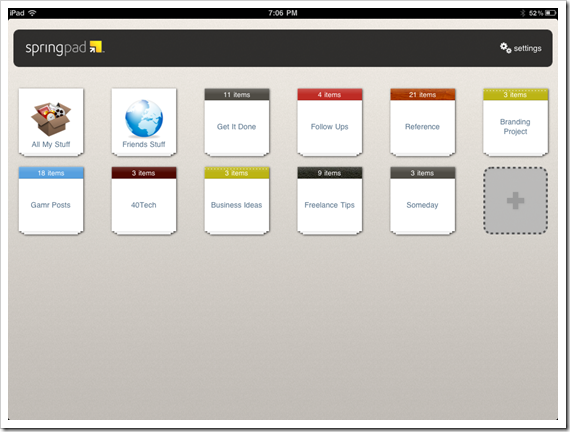
To solve these problems, I opened four notebooks: Get It Done, Follow Ups, Reference, and Someday. I then did away with task categories completely and started to creatively use the nuances of Springpad’s dynamic tagging system.
Tags start out in alphabetical order, but the ones with the largest number of items bubble up to the top of the list. This makes any sort of alphabetic reference system impossible — but when the tags are used for contexts, you suddenly have a means to see, at a glance, which context has the most tasks, and therefore requires the most attention! It also helps that, aside from in the All My Stuff area, tags only appear in the notebook(s) that the tagged item belongs to. The downside of this is that you have to be careful when attaching items to multiple notebooks.
Once your notebooks are created, open up Get It Done (or whatever you decide to call it) and create the contexts that best suit your particular needs (mine were @home, @computer (the equivalent of @work for me), @anywhere, @call, @meeting, @errand). The Get It Done notebook will serve as both your inbox and next action area.
Note: If there is nothing in a tag, the tag ceases to exist. To create a list of tags that never dies, use a dummy item in your notebook — I chose one with an inspirational message — and add every tag that you plan to use to that one note.
Getting the information into the Get It Done inbox is as easy as the click of a button in most cases; sending by email is currently the exception, as all emails go directly to All My Stuff. This will change in the next couple weeks, when Springpad adds the ability to set type and notebook (and possibly tags) when you send an email into the web app. In the meantime, take advantage of the “sort by date added” feature in All My Stuff.
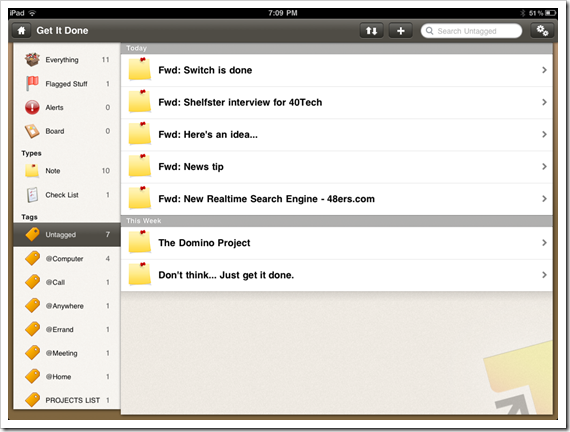
This next step is completely optional, but I recommend it if you are like me and freak out when you see long task lists. Create a tag called something like [untagged] and attach it to all incoming items. This will allow one-click access to sort your GTD notebook into inbox only items. This step works well for me because I like things in one spot as much as possible. If that’s not your thing, create a separate notebook for next actions, using the tags, and create one that is just meant to be an inbox. Springpad makes it very easy to move items from notebook to notebook, so the extra step will hardly be noticeable.
Everything Else
As you process your items into their respective contexts, you will to use some of the other functions of Springpad:
- Reminders – Great way to set up an alert for a time-sensitive item. These can be configured to send to multiple email addresses and SMS. At this time, however, reminders can only be set in the web app, and on Android devices.
- Events – Events allow you to sync an item from your Springpad to Google Calendar. You can’t change item types, so events will need to be created from scratch as you process the items in your inbox.
- Tasks – In this GTD system, everything added to a context tag is treated as a task, so the Task item is somewhat redundant. If you like the task item’s format, and the ability to check a big checkbox when you are done makes you happy, then add tasks as you see fit. They will likely need to be created from scratch until Springpad implements type-switching (no ETA).
- Checklists – Another way to satisfy the need to check off check boxes, checklists are a great way to maintain your projects list. As your small and large projects are completed, check them off. Remember, anything that takes more than one step to accomplish is considered a project. Checklists are also a good place to track your goals and other listable things.
- Flagged Stuff – Clicking the little flag button in the web app (the command is in the upper right dropdown menu on the iPad and iPhone) will add the item to the Flagged Stuff area. This is a perfect way to highlight those next actions that need special attention.
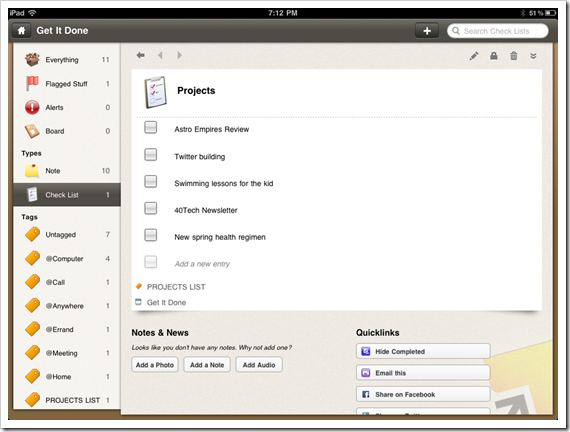
If an item doesn’t fit any of the contexts, it will either go into the Follow Ups notebook, which has tags for Waiting For and Tickler items, the Someday notebook (tag it as suits you), be deleted entirely, or sent to the Reference notebook. In the GTD in Evernote post, Evernote had a tag set up that used tags for every letter of the alphabet. This doesn’t work in Springpad due to the dynamic nature of the tags. If you plan to keep reference notes and items in Springpad then I suggest you use category tags to group those items. You can also use specific keywords in subject lines or elsewhere and take advantage of Springpad’s search function. Notebooks that are specific to subjects or large projects are also a good idea. In fact, I encourage you to keep notebooks for large projects, as you can have next actions that ride in more than one notebook. This allows you to not only keep track of next actions that are specific to large projects, but also gives you use of the Board for those items, which may help you in your planning processes.

Another option for reference items is to export them individually by email. You could send them to whatever email-enabled organization tool you have, including Evernote and your email client. Each email contains a link back to the original Springpad item, making it easy to get right to it, and it also has a link for people to spring it into their own Springpad account. That last is fantastic for collaboration and backup purposes — though you can also collaborate by sending out a share link, or simply making the item or notebook public and sharing it on Facebook and Twitter.
Conclusions
The strength of Springpad as a GTD system is its flexibility. It is so easy to get information into Springpad and to change an item from one context or GTD state to another, including jumping around from notebook to notebook or even keeping one item in multiple notebooks. Combine that with the ability to access the app offline from all platforms, to bulk-edit items, enhance information on items that are related to products (mostly in the US at this point), and add events to Google Calendar — one place where Springpad will always have it over Evernote for me — and you can create and use a very solid GTD system.
I do wish that Springpad allowed for changing types, as that would cut out a step at times and just make things easier. I also wish that the iOS apps had the ability to add and edit reminders — Android does, as I understand it. With the way Springpad has been updating lately, though, I’m sure these features are only a matter of time.
UPDATE: Springpad adds autosave, backup, and export features! You can also add Types, Notebooks, and Tags directly to subject lines when sending in items via email. Oh, and viewing Springpad via RSS readers and full API access are also available. Check out the Springpad Blog for details!
Tell us about your experiences with GTD in Springpad.