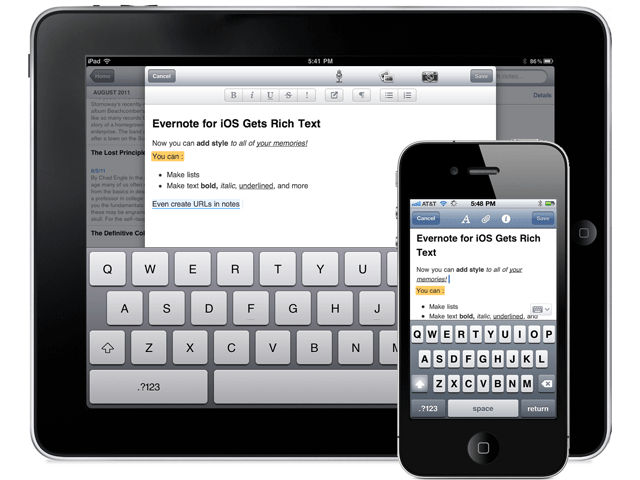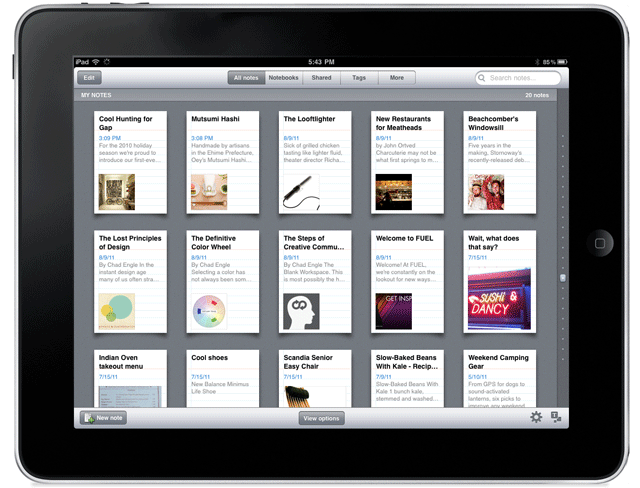
Last week, when it was still August (where the hell did the summer go?), Evernote released the mother of all iOS updates. There was a lot to it — a cool redesign, a lock feature for premium users — but the big deal was the inclusion of a rich text editor and the ability to access notes in shared notebooks.
The new features aren’t as robust as the desktop version of Evernote, of course, but are nonetheless dripping with the sort of awesome that makes you want to find your Irish roots and dance a merry jig.
Here are the highlights:
Rich Text Editor
The new editor allows for basic bold, italics, underline, bullets and the like, as well as strike-through, header text, highlighting and linking. You can also edit notes that were already created with rich text, which is great, but don’t think the append prompt is gone for good. If the note has too much fancy in it, even the new editor may not like it. There is a new option, though, that saves at least a bit of headache: the ability to simplify the formatting to be workable in the iOS apps. This way, you only lose some of the formatting, instead of everything.
Note: Checkboxes are still not able to be created in Evernote for iOS. You can check them, but not make them.
Shared Notebooks
Tired of not being able to access a note or notebook that someone shared with you? Now that Evernote has added shared notebooks into iPhone, iPad, and iPod Touch, you can breathe easy. Note that I said access, however. You can only read them, not create new ones. Yet.
Another handy feature is the new ability to search within notes. Want to find a word or turn of phrase from your note? Now you can, quickly and easily. It’s no desktop search, but it’s definitely a good start.
This is only the tip of the update-iceberg. There’s a lot more going on under the hood and in the form of a new look and feel for Evernote’s iOS apps. If you haven’t updated yet, you should. Get the full list of new features here.
Thoughts on Evernote’s new iOS features? Head down to the comments!
If you have Netflix, you have the ability to stream a wide array of movies and television shows for less than $10 per month. The digital streaming library isn’t as impressive as their mail-out catalogue, but any way you look at it, that’s a pretty decent price for what you get. And what you get is a lot. Old shows, new shows, crazy amounts of anime, and even some favourites like Glee, the now (sadly) cancelled Stargate Universe, and 2009’s Star Trek movie are on there. Unless you live in or visit a country other than the United States, of course.
If you do happen to be on the other side of that imaginary border line, however, and you have an iOS device, you can use a VPN to access the US Netflix streaming library — and you can do it without spending a dime if you use Hotspot Shield.
Note:Please note that, while this is a fun workaround, and can be useful in certain situations, the inability to access Netflix or any other media site mentioned in this post outside of the United States is due to international licensing agreements. These sites and services may prohibit broadcasting or accessing certain content from outside of the United States in their terms of use. As such, this post’s workaround is used solely at the device owner’s and account holder’s own risk and is for educational purposes only.
UPDATE:Hotspot Shield’s iOS configuration page is currently down. I’ll keep checking to see if and when it comes back up and will update you here. You could also try other VPN options, such as Witopia, but that one comes with a $40/year price tag.
UPDATE 2: I’ve been in touch with Anchorfree support (they are the purveyors of Hotspot Shield), and have been told that they are working on the issue. Apparently, they are re-launching the iPhone version of the VPN. I will update again when I know more.
We’ve talked about Hotspot Shield before, and even though the free version forces ads down your throat, it’s pretty handy when you want to access Hulu, Pandora, or US-only website content from across the border. It’s also handy for surfing securely at public WiFi locations, and all of the other fancy things you can do with a VPN.
So why bother with an additional post just for Netflix? Because Netflix isn’t a US-only site, but it does have US-only content. This content is accessible depending on where you are, as I found out by accident when visiting a friend in Washington state a couple weeks ago. I pulled out the iPad for my kid, loaded up Netflix to keep her busy, and was immediately boggled by the amount of new content I found staring back at me. I was hoping that we Canadians had suddenly gotten a slew of new titles, but was sadly disappointed when I returned home that evening.
Out of curiosity, I tried out Netflix on my laptop with Hotspot Shield enabled. That didn’t work. Generally (unless launched via the Chrome app, oddly enough) Netflix thought that I was trying to access the US site with a Canadian account. No dice, there. Then I remembered that Hotspot Shield was also configured on my iPad… and I was pleasantly surprised that it worked!
Here’s how you can try it out
Go to the iPhone configuration page on Hotspot Shield’s website, and follow the instructions there. You’ll want to be on a separate device for this, for simplicity’s sake.
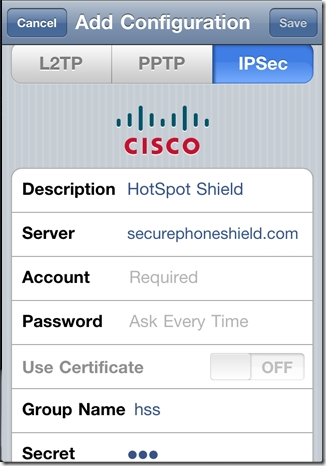
Basically, they will have you turn off your iPad’s (or iPhone’s) WiFi, and then head to Settings > General > Network > VPN > Add VPN Configuration. From there, you do the following:
Select the IPSec tab/pane
In Description, type HotspotShield
In the Server field, type 68.68.107.101
Go back to the website and click the “Get Account ID” button
Type the code that the button generated into the Account field
Type the same code into the Password field
Make sure that Use Certificate is set to OFF
In Group Name, type hss
In Secret, type hss
SAVE and then turn your WiFi back on
Once you are set up, turn on the VPN. I’ve noticed that, if you try and turn it on from the iPad’s Settings dashboard, it will fail to connect. No idea why that is, but, if you turn it on from the Settings > General > Network > VPN switch, it connects just fine. Once the VPN says it’s connected, load up Netflix and watch in wonder as the app believes that you are in the United States and loads up the US Netflix library!
Things to note
The VPN will slow you down a little bit, but not enough to affect video playback. Netflix technology is very good at figuring out how to play videos optimally, even at slower speeds.
The VPN will disconnect periodically. This is annoying, but if you are already playing a video it will not affect it. The movie or TV show will play through to the end unless you pause it and let the iPad time out. If you find that you are having difficulty launching a show, check to see if the little VPN icon is in the upper left corner of the iPad’s notification bar. If it is, then you may need to restart the app. If it isn’t, then head back into the VPN settings and turn it on again. You may want to close Netflix out completely, first to make sure that the VPN takes with the app (double-tap the iPad’s hardware button to see the running/recently running programs, press and hold Netflix till it shakes and gets an X in the corner, then tap the X to close it).
There you have it! Access to US Netflix on your iPad whether you have a non-US account, or just happen to be visiting another country. It is important to note that this trick may only last until Netflix figures a way to block it out, but HotSpot Shield is versatile. They have managed to get people back into Hulu every time they’ve been locked out so far, so it will probably be the same with Netflix.
When I got my iPad back in December, I mostly used it as a means to surf the web, watch Netflix, read, and play the occasional game. Oh, I blogged on it a bit, too, and I figured it would be great for taking notes and the like, but I quickly found that extended typing on the glass surface led to aching fingertips. Besides, when trying to work things out and get creative, there is something very powerful about the old fashioned pen and paper approach. Determined to see if I could get the same power out of my iPad, I started researching handwriting apps.
After going through several, I was largely disappointed by what was out there — until I discovered Noteshelf.
Now, to be fair, I originally went with Penultimate, which has an excellent natural feel when you write — and gets extra awesome points for it’s freeness. However, I still felt like I was missing something. So, when my friend and colleague Daniel Gold recommended Noteshelf to me, I grudgingly gave it a shot, despite it’s $4.99 price tag. I’m cheap when it comes to app purchases, but I figured I could hold him responsible if it sucked.
It didn’t.
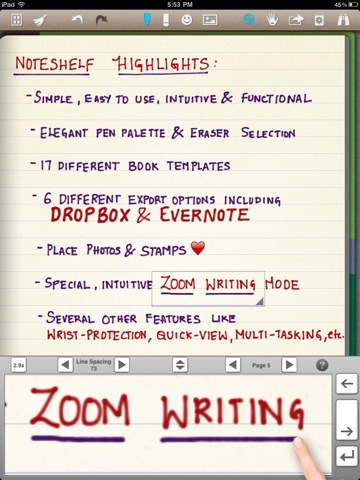
In fact, it rocked so much that I use it all the time, even though my handwriting is absolutely atrocious. Noteshelf has all of the features I could want or need:
Excellent natural feel when writing
Different pen sizes and colours
Wrist protection that works
Zoom writing
Just as functional in landscape mode as portrait mode
Unlimited undo and redo (until you leave the page, anyway)
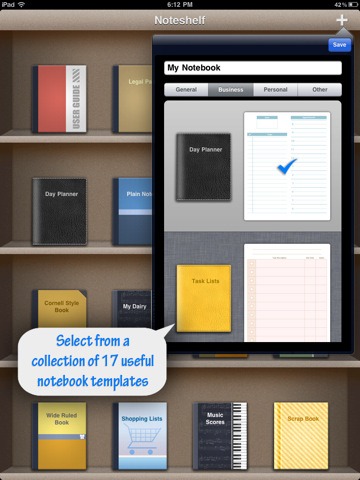
Notebook templates for writing, drawing, task and day planning, meeting notes, shopping lists, journal writing, graphing, and music
A bookshelf view to easily organize notebooks
Dynamic line-sizing for easy and clean jumps to the next line on a page
Photo embedding and annotation
Backup and restore functionality
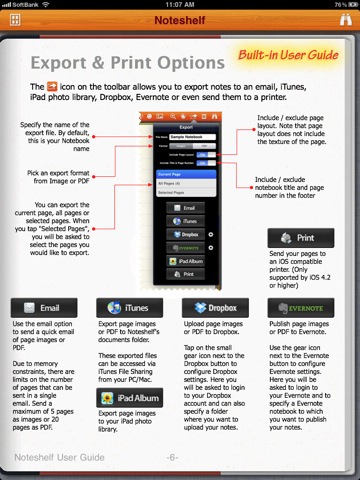
The kicker, though, is Noteshelf’s sharing capabilities. You can print and export notes as .jpegs and .pdfs, configuring by page or as an entire notebook — by email, iTunes, your iPad photo album, and (Yay!!) Dropbox and Evernote! That’s all kinds of awesome, right there! Nothing quite like being able to quickly scrawl down several pages worth of ideas, and then send them to your out-of-brain-brain for easy searching with Evernote’s OCR. Even writing as bad as mine gets picked up. Mostly…
I can’t say enough that’s good about Noteshelf. If you have an iPad, and have a want or need to use it as a notebook that will get you on the path to being well and truly paperless, you need to go and get it. Right now.
What’s your favourite handwriting app for tablets?
Mobile Safari has it’s good points, but there are several places where it leaves a lot to be desired. There are speed issues when loading, the lack of any real multitasking (resulting in windows constantly reloading when you exit the app and return), no background tab or window loading, etc., etc., etc. To compound these issues, the last few iPad versions of Safari (including the current one) are unstable at the best of times, their regular crashes making browsing a chore.
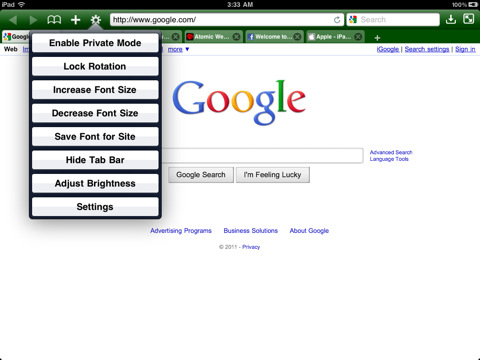
There are several Safari alternatives for iOS, all if them trying to overcome the shortcomings of the stock iPhone and iPad browser. The best of the lot, however, considering features, usability, and price, is Atomic Web Browser.
Atomic Web Browser has been around since December of 2009 and while it has floated back and forth between $0.99 and $1.99, it has held steady at $0.99 for nearly a year. It also has a Lite version which has nearly all of the same features, but for $0.99, getting niceties like the ability to set a homepage isn’t a bad deal. Anyone who’s read my work on 40Tech before knows that’s high praise, too. It takes a lot to get me to shell out money if I don’t have to, and I’ve found it to be completely worth my while so far.
Features
It used to be that Atomic and other mobile Safari alternatives were sought after for real tabbed browsing and the ability to switch User Agents and view mobile pages as if they were served on a full-sized computer. Those are minor features these days, and Atomic has become useful for so much more. Here are the highlights(go here for the full list):
Load tabs in background
True multitasking
Add JavaScript as bookmarks
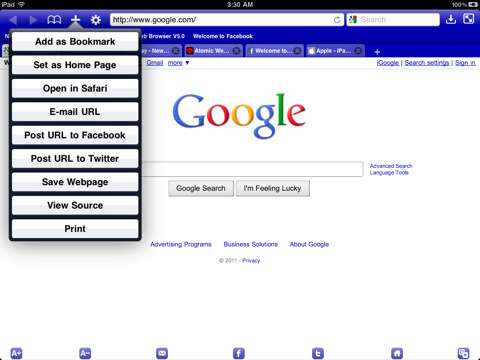
Share links on Facebook and Twitter
Configurable swipe and tap gestures
Save pages for offline viewing
Download manager with Dropbox, iTunes and email support
Import/Export bookmarks
Jump to top/bottom of web pages
Change and lock font-size for specific sites
Full-screen browsing with configurable buttons
Launch homepage, last session, or last viewed
Bookmarklet that sends pages to Atomic Web Browser from Safari
There are a ton of other features as well, such as setting the colour of the browser, ad block, private mode, air print, web compression (for faster browsing), search engine plugins, on-page search, view page source code, and more.
There are a few other browsers that compare with Atomic, the closest in both price and features being Mercury Browser, which I have been using on my iPhone for the past while. Mercury Browser is almost identical in features and has a few interesting possibilities like a library of common bookmarklets that can be installed (which is a bit buggy), a bookmarks springboard, and speed-dial-like dashboard for your favourite sites.
Mercury Browser’s extra features are great, and combine well with an interesting and pretty interface to make for fantastic browser, but I find that Atomic is easier to navigate. The Atomic Web Browser’s look and feel is more minimalist and straightforward in its approach, and for me — and more importantly, my wife — that translates into a better overall experience. Both have free and very functional Lite versions, though, so you should give them a try to see what suits you better.
When I was a kid, I was an astronomy nut. I was in love with the planets, the stars, nebulae, constellations, you name it. I read everything I could get my hands on. I even did a science project presentation in grade five (I think) on black holes. Somehow or other, though, as I grew older and the whirlwind of life, family and general stuff caught me up, I lost a lot of what I knew and never found the time to pick it up again. What bothered me especially was that I couldn’t identify more than four or five constellations any more — and that’s the sort of fun star gazing that I really wanted to share with my little girl.
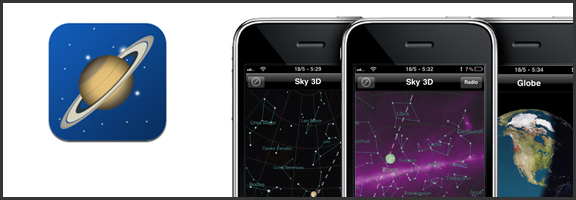
Belatedly, it hit me: I own a GPS-capable, compass-packing smartphone. Somebody must have created a stargazing app for the iPhone and/or iPad. There’s an app for everything, or some other such marketing phrase, right? Of course, it turned out that there were several apps of varying costs and degrees of complexity — and the one that struck the balance with me was simple, free app (with over 5 million downloads) called Planets.
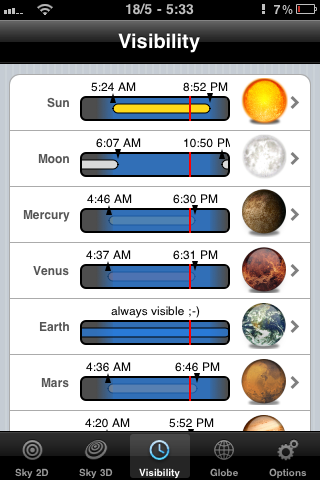
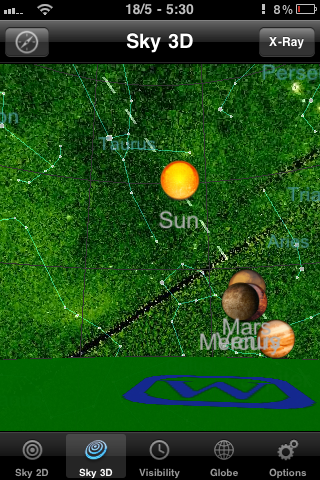
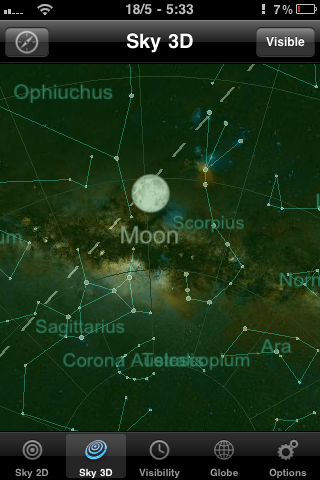
Planets doesn’t compare to the feature-sets of some of the paid apps like Starwalk for iPad, but it isn’t bogged down by complications either. It’s a straightforward 2D or 3D view of the heavens, augmented by some location-based gyroscope action. This is especially useful in the 3D view, as it allows you to get a look at the constellations and planets as you turn and point your iPhone or iPad. The 2D view provides a some useful information at a touch, such as rising and setting times of planets, the sun, and the like, but it’s the 3D virtual planetarium that gets me.
While Planets for iPhone and iPad could benefit from providing more information about specific stars and planets, and I wouldn’t mind a bit of interactivity and a photo of a nebula or two, I love the fact that me and my kid can quickly identify artwork in the sky and can even see where things should be if there wasn’t so much light pollution or the sometimes perpetual cloud cover we get on the Northwest coast – or if pesky things like daylight hours or the plane of the Earth get in the way. I also like that the Planets app actually tells you where the planets of our solar system happen to be hanging out, and at what times they might be visible to the naked eye. I found Saturn outside my door the other day. I’ve always loved Saturn. It’s pretty.
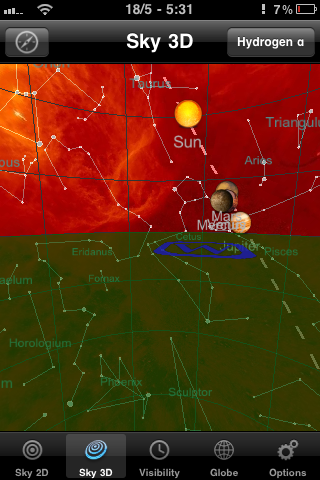
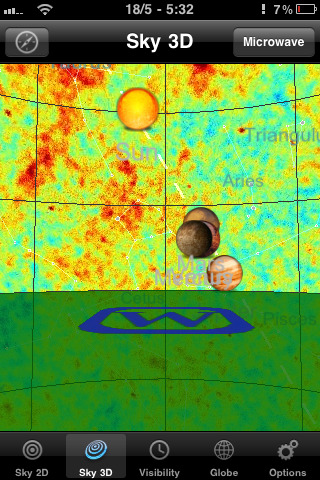
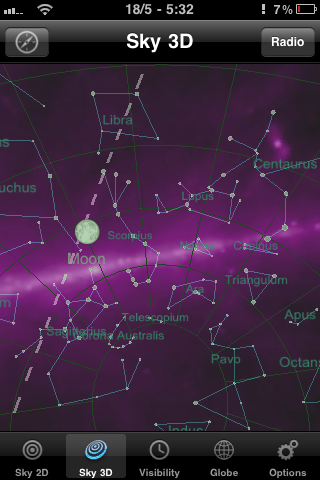
If the regular planetarium view doesn’t cut it for you, Planets also has several other views that make the sky look impressively colourful, including X-ray, Radio, Infrared, Microwave and Hydrogen-a. There are also some twirling shots of the planets in the globe section, but that part of the Planets app definitely needs more information and other bells and whistles to be interesting. Still, for a free app, it’s a great little stargazing assistant, and one that I get regular use out of.