Today, 40Tech is pleased to present a guest post by Keith from Computer Repair Calgary.
The modern computer workstation is made up of a wide variety of parts. Unfortunately,
when any one of these parts runs into problems you, the computer user, are likely to feel
the negative consequences.
When RAM Goes Bad
RAM, the shorthand for random access memory, (a form of computer short term
memory), is no exception. When your RAM starts misbehaving you will notice certain
signals. What are the likely signals, you may be asking yourself? Well, bad random
access memory generally causes a computer to become somewhat unstable. In other
words, you may be working on a word document, or loading up a picture when suddenly
your PC suddenly quits the application or decides to restart entirely (often giving you
some kind of error). The biggest problem here is that your computer is not wise enough
to tell you exactly what is happening. It doesn’t come right out and say, you know what;
your memory is no good. Rather, it will typically give you an archaic error message
which is generally of little help. As a result, it is up to you, the computer user, to figure
out where the problem truly lies. Consequently, you have two choices. You can either
attempt to determine the problem yourself, or you can send your machine into your local
computer repair shop.
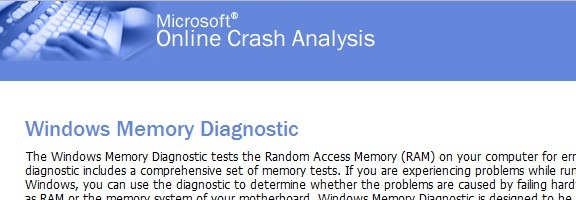
If your system is becoming increasingly erratic, one way you can test your computer’ s
RAM is through the use of a free Microsoft designed product known as Microsoft
Memory Diagnostic. As its name suggests, this particular application is solely designed to
diagnose your RAM. In layman’s terms, it will tell you if it believes that your memory is
good or bad (and in need of replacement).
Testing your RAM with Memory Diagnostic
So how does one go about using Microsoft Memory Diagnostic then? Luckily, the
procedure is fairly easy; especially if you take your time to work through it.
1) Head over to the Microsoft Memory Diagnostic webpage and download the program.
2) Run the program and choose to create a CD Image
3) Burn this CD Image onto a CD (you can find a wide range of free programs online
which allow you to burn a CD Image – also known as an ISO – onto a CD)
4) Put the CD into your CD drive
5) Reboot your computer and choose to boot from your CD (take a look on Google if you
are unsure how to boot from a CD – trust us, it’s not that hard once you take the time to
learn how).
6) Let Microsoft Memory Diagnostic run for at least 1 pass
7) If there are error messages at the bottom of the screen then some of your memory is
likely bad. If there are no error messages then there is a reasonable chance that everything
is ok.
8) Restart your computer when done.
That’s all there is to it!
Bio: Computer Repair Calgary is a computer repair blog hosted by Keith. On his site, he gives various computer tips and tricks, including how to test RAM.