Posting your email on a website, or in a blog, social media, or forum comment, opens you up to a world of messages about making money online, viagra, the enlargement of specific body parts, and a host of other fun solicitations and potential virus links. We all know this, and we all know that the safest way to post an email link is this: don’t. If you absolutely have to, you can always try to beat the bots by posting it as an image (time consuming), or by killing the link and adding some brackets and such like this: myemail (at) adomain (dot) com. The trouble with this approach is that you are also making trying to contact you annoying for the people you want to connect with.
Here are three ways you can share your email safely and easily:
scr.im
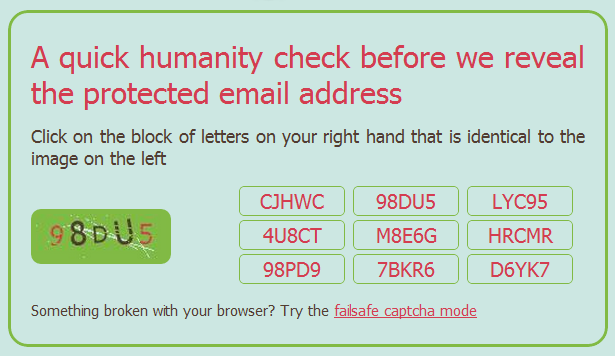
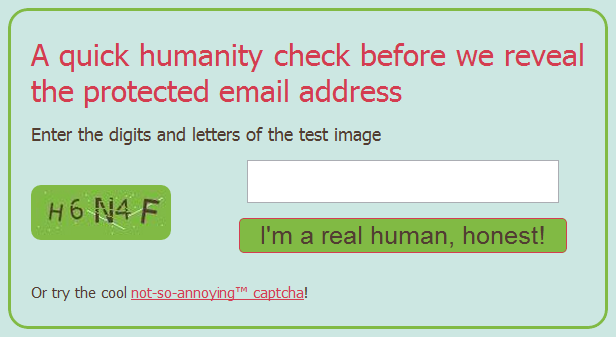
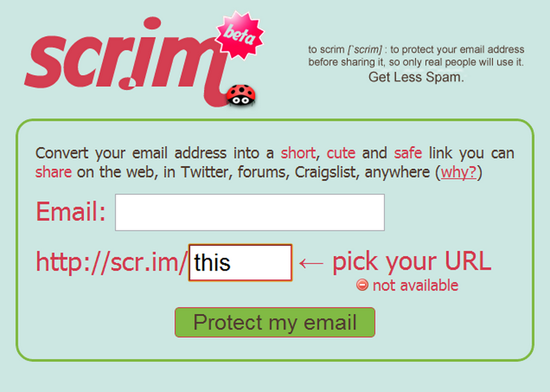
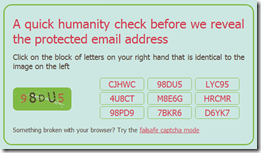
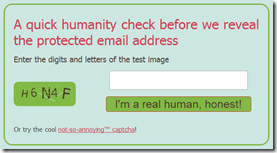
Scr.im is a convenient and brand-efficient way to post a link to an email address. It provides you with a simple vanity url that is easy to share and doesn’t require any specific code in the link. When the link is clicked, the person — or spam-bot — is directed to a captcha page that shows an image of an alpha-numeric code and a game of match the code with one of the nine buttons on the right. If there is, for some reason, a problem with this method, you can simply click the link at the bottom to go to the tried and true “failsafe” captcha method of typing in the code from the image and clicking the “I’m a real human, honest!” button.
To get set up with scr.im, head to their site, enter your email address, click “Protect my email” and go, share, be merry. They will generate a url for you, but if you want some extra awesome, then type in your own vanity url tail in the provided field. Scr.im will automatically let you know if the url is available or not.
reCAPTCHA Mailhide
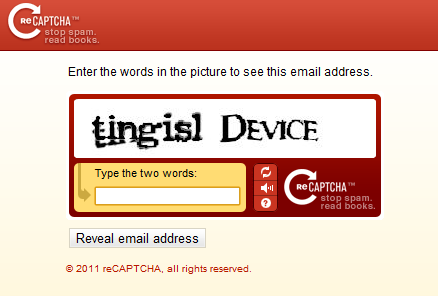
You are probably familiar with reCAPTCHA, especially if you own a blog. They have put together one of the easiest and most powerful (and best looking) captcha protections out there. They are also owned by Google, now, which I only recently became aware of. Whether that makes you feel more or less comfortable will be determined by how many Google services you already use , and how evil you feel Google is, but the reCAPTCHA Mailhide solution is a great way to safely post an email link to a website.
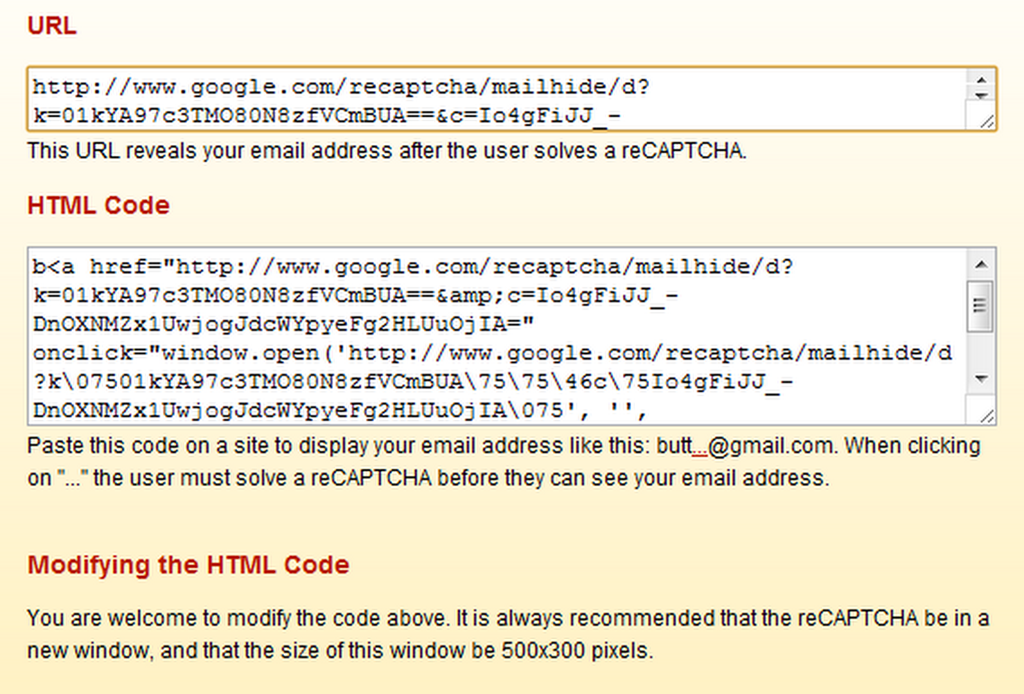
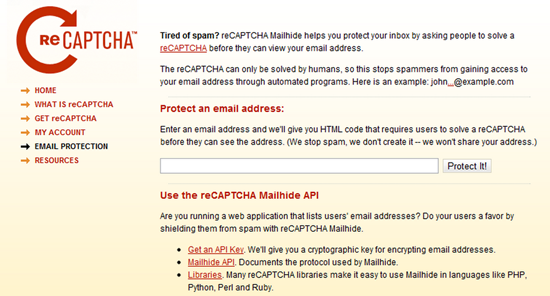
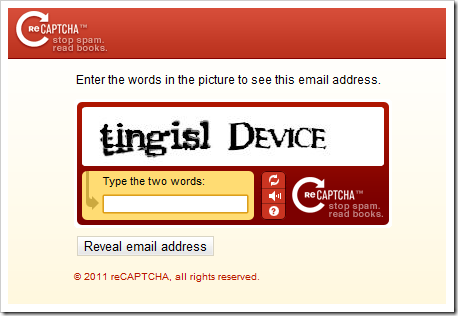
If you want to try it out, head to the reCAPTCHA Email Protection page and enter your email address in the given field and click “Protect It!” You will be taken to a page that provides the URL of the reCAPTCHA that will need to be solved before anyone can send you an email — which you can then share anyway you like. You can even take the (crazy, long) URL and plug it into your shortener of choice to create an nice and easy to share link. Once the captcha — which can only be solved by humans — is correctly entered, people will be presented with a page that contains an untrackable link to your actual email address.
Web security is important to the people clicking your fancy email link, as well, so if you want to assure them that they are heading toward an email address, you may want to use the customizable HTML code that is also provided by Mailhide. This code will display your email with the first four letters of your address, followed by a clickable “…” and @yourdomain.com. This code can be customized to your liking — which was especially handy in my case, as I used an address with “butter” in the beginning. Posting an email link to butt…@gmail.com is not likely to gain me more than a few laughs. (Note: the clickable … previous is for aesthetics only. It is not an active link to my email address)
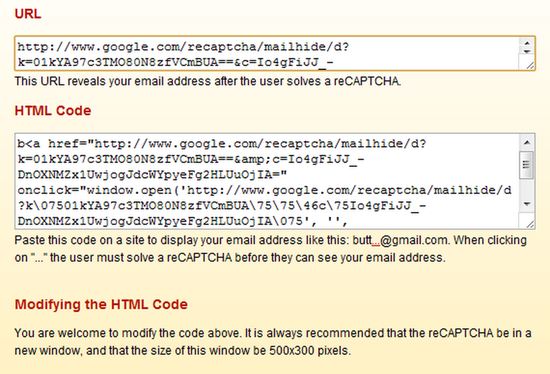
If you want to know the technical protocols used by Mailhide, check out this API link.
Google+ Profile Link
If you aren’t using Google+ yet, you should be. Yeah, I’ve drunk the Kool-Aid — and it’s sweet, refreshing, beautiful, and I hope it lasts. Aside from the Picasa integration, circles and other neat network and privacy controls, and the fact that social games are finally done right, Google+ also makes one hell of a way to share your email without getting attacked by spam.
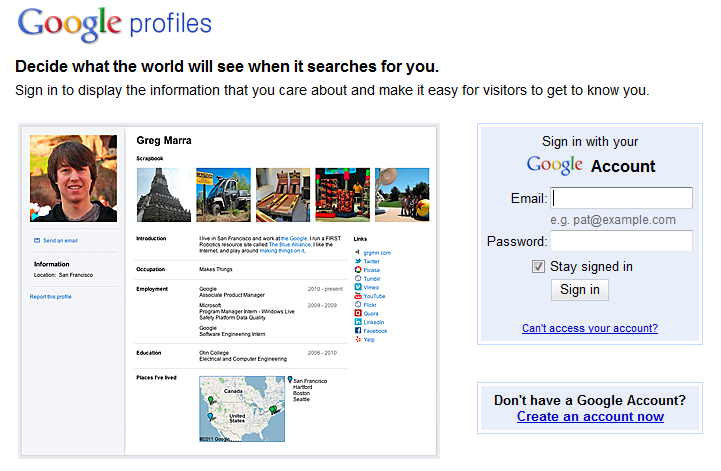
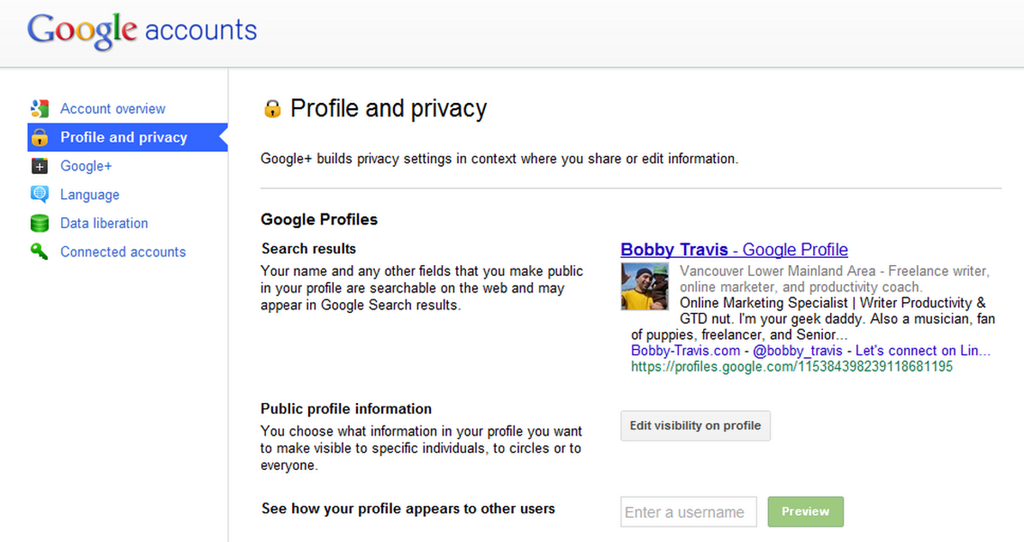
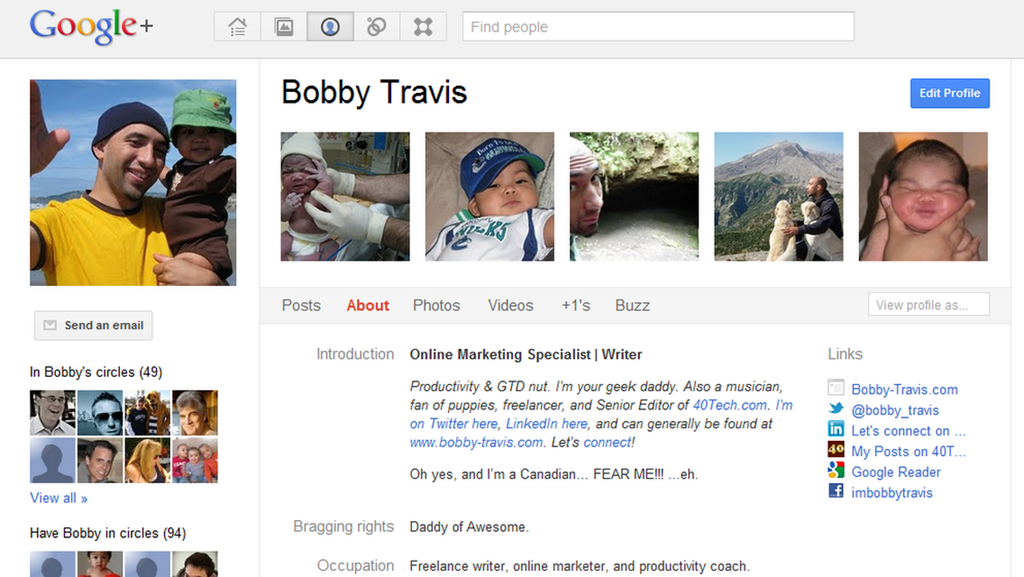
The first step is to make sure your Google+ Profile (okay, okay, if you really can’t stomach using Google+ yet, you can always just use a regular old Google Profile) has a visible “Send an email” button just below your picture. To do this, you go to the settings gear in the top right, then click on “Profile and privacy,” and then the “Edit visibility on profile” button beside “Public profile information.”
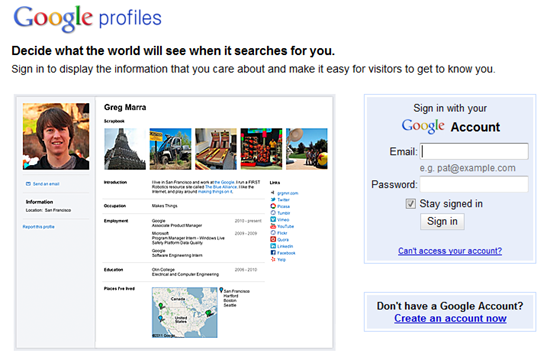
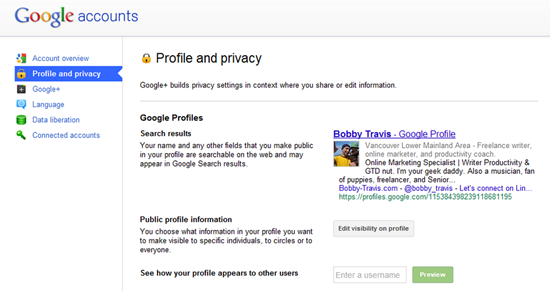
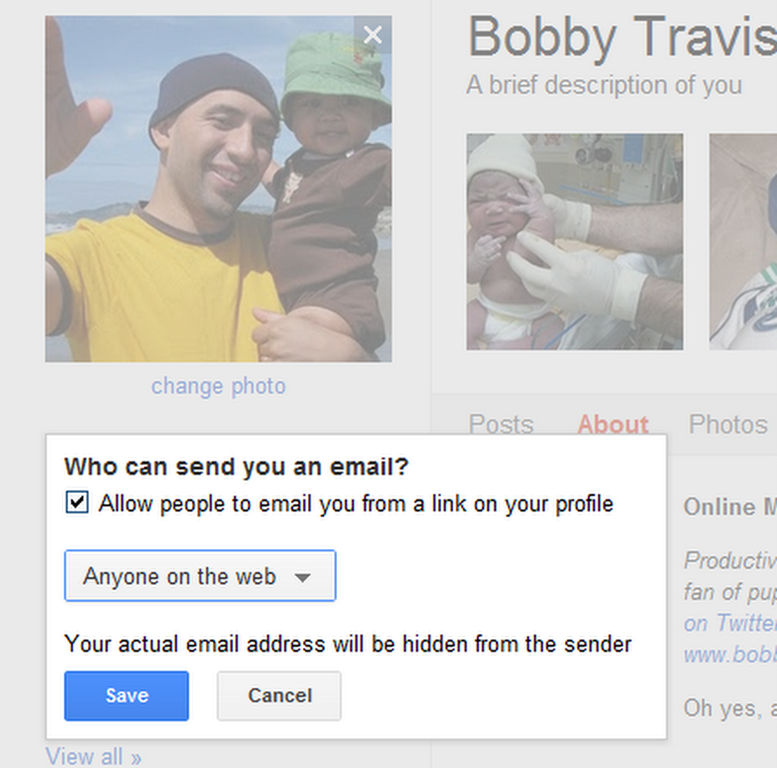
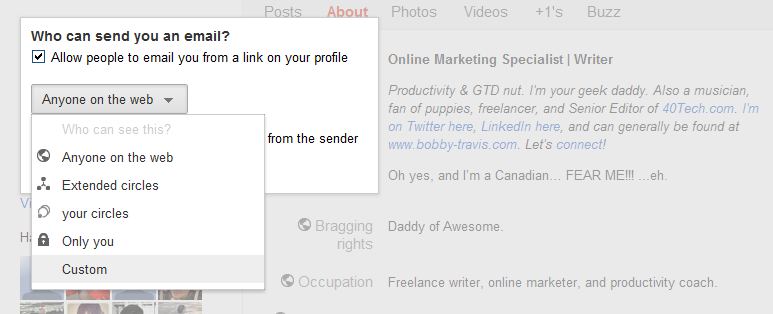
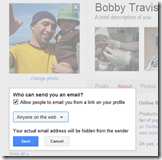
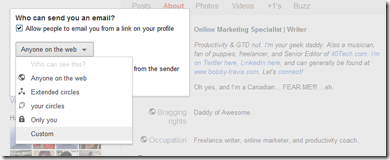
Step two is click on the “Send and email” area below your profile picture, click the check-box that is next to “Allow people to email you from a link on your profile,” and then click on the dropdown that sets your visibility preferences. For the broadest case, you will want to choose “Anyone on the web” as it will allow you to safely share a link to your email with anyone. Save, and then click the “Finished editing” button at the top of the page. People can now send you email right from your Google/Google+ Profile page.
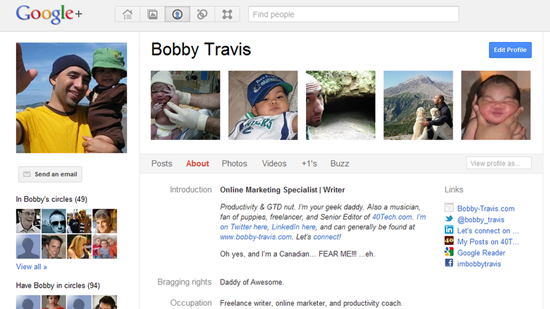
The final thing to do is to share your Profile link with others. There are a number of ways to do this, including the secure (long) Google Profile URL, using a general URL shortener or a vanity URL, or even by using your profiles.google.com/username — though that may defeat the purpose a bit if you don’t want people to know your email address (seeing as the username + @gmail.com = is your email address).
Bonus – Bugmenot
If you are after a way to sign up for services without getting spammed, none of the above methods will work for you — so check out Bugmenot, instead. Bugmenot is the perfect way to check out for a multitude of “sign up first” services using dummy emails and passwords set up by other people. It’s a great way to avoid spam and solicitations, and it saves time. You could also just use your own dummy email address.
There you have it! Three easy ways to share a link to your email address without painting yourself as a target for spam bots. If you know of any others or have had experiences with any of these methods, please share them in the comments!