Some Mac task management apps allow you to use a keystroke to create a task from an Apple Mail message, and then have that task link back to the Mail message. This is particularly handy if, like me, many of your tasks originate from Mail messages. If you’re a Toodledo user, you can do this as well, although it will require you to purchase a third-party Mail plugin.
Consider this post to be a gripe. The gripe is about iCloud, the Apple voodoo that will keep all of your documents, photographs, and music magically in sync between your iOS and OS X devices. Just turn it on and it works, without any further effort on your part. Edit a document on your iPad, and there it is waiting for you when you pick up your Mac. Except that it doesn’t quite work that way if you’re a Mac user.
Usually, I like to pull out new apps for the App of the Week. Every once in a while, though, one of my favourites releases something so cool that I have no choice but to add the “extra-special” label. For the second time this week, Springpad pushes itself into the 40Tech stream, first with a slick integration into the iOS 5 notifications system, and now by adding yet another level of personalization and social value to their service.
Springpad vs Evernote is a thing of the past. With every new update, Springpad moves farther away from being just a note-taking/remember everything app, and gets closer to being the definitive service for collecting, sorting through, and acting on what interests you. Their latest leaps into this arena bring you three things:
Customize Your Notebooks
Note:Notebook customizations show up in the most recent versions of the mobile apps: iOS 2.6+, and Android 2.4+.
The ability to easily customize your notebooks so that you see only what you want in the sidebar, and cut the extra steps out of the Quick Add process.
Customizing your Springpad notebooks is easy. All you need to do is hover over the notebook (or the open notebook’s title bar) until you see the little wrench appear by the name, click said wrench, and head to either the Navigation or Quick Add button that appears in the pop up settings dialogue.
Navigation
Click and drag the navigation items to reposition them or delete them completely.
Change the item-type without moving anything (change Everything to Board, for example).
Change the way notes are sorted when you open that navigation item (by Added, Modified, Tag, etc.).
Change the Starting View for that navigation item to default as title-only, title-with-description, or grid.
Different navigation types will have different options, depending on their function. For example, the Types Section and Tags Section also allow you to decide how many of their items to show in the sidebar, as well as to decide if you want to sort by note count or name. That last bit, alone, will make life easier for those who use GTD in Springpad, and the other features won’t hurt either.
Quick Add
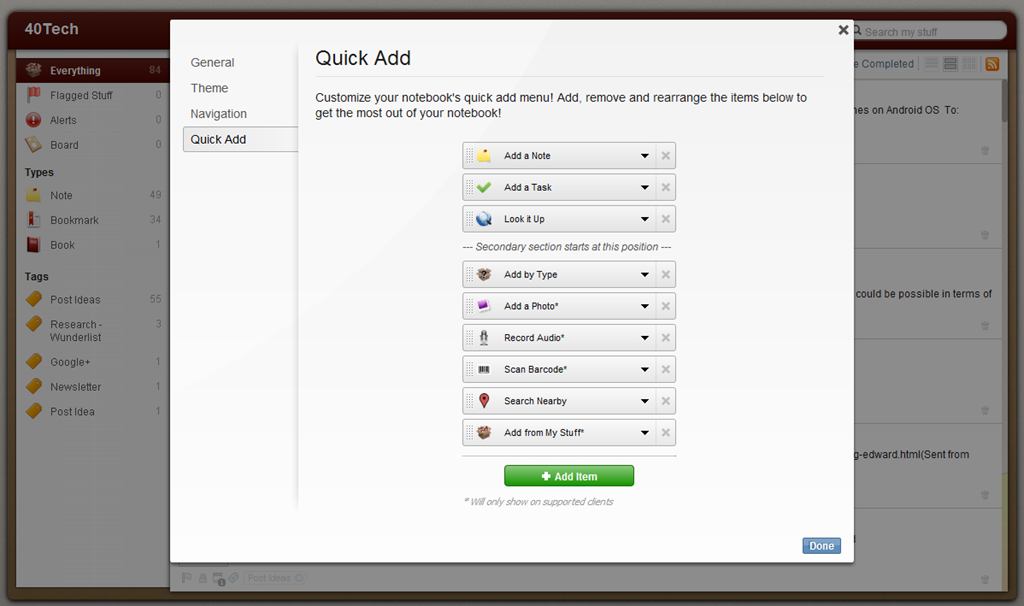
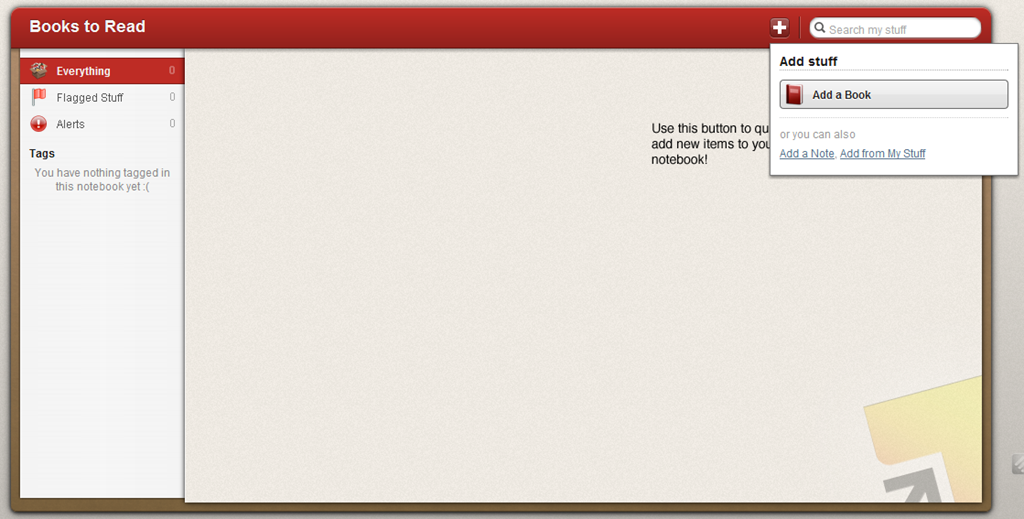
This is where things get fun. The best thing an app like Springpad can do is make it as fast and easy as possible for you to get things into it. Springpad was already pretty good at this, especially via their mobile apps, but sometimes it was a bit of a pain to select notebook, then select item type (or change item type, if Springpad’s auto-select got it wrong), etc., etc. Now you have the ability to make sure that the notebook only shows the options that you need to see.
You can select by the standard add a Note, Task, By Type, Look It Up, et al, as well as by Recipe, Book, Movie, and more. You can also choose client-specific options. This is fantastic if you do most of your collecting for that notebook by mobile, as you can then set it to collect only by Photo, Audio Recording, Barcode, or Search Nearby. Please note that Android devices currently do not allow adding alarms, contacts, or events, and mobile devices in general do not allow adding from My Stuff. Quick Add can be used to filter these items out.
Save, Share, and Download New Notebook Templates
The ability to save your new notebooks as a template for other notebooks, share it with others, or easily adopt their shared templates.
Once your notebook is customized just how you like it, you can use it as a template for new notebooks by selecting it from the “Choose template for this notebook” dropdown menu (in the same place you name the new notebook).
Unfortunately, this only applies to new notebooks — there is no option to apply a template to a notebook you already have. If this annoys you, don’t worry, there’s an easy fix:
Create a new notebook
Add the desired template
Open the old notebook
Click Edit in the top left of the notes area
Click the checkbox to select all or use the dropdowns to filter and select (or just use a saved filter and Edit/checkbox)
Use the Notebooks dropdown to add the new notebook
Delete the old notebook
Sharing Notebook Templates
All you have to do here is open up the settings, and click where it tells you to get the share link. None of your notes are shared, or any other private information, only the template. the link will lead to a page that allows people to Spring and install the theme. Add it wherever you like to add links: Twitter, Facebook, Google+, your blog, a public Springpad notebook just for templates — wherever.
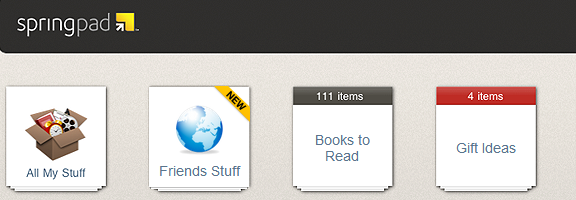
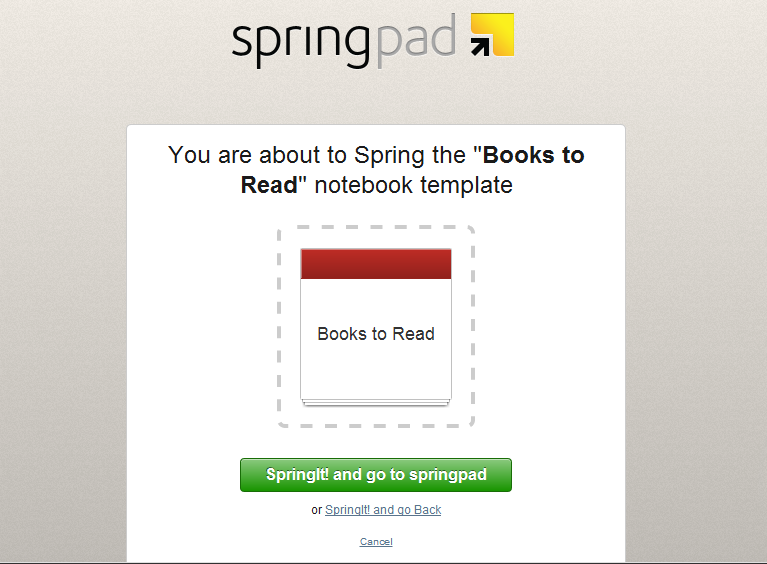
Springpad already has a few templates available on their blog that can get you started, complete with ideas on how to make the most of them on the web and on the go. Check them out, and follow the prompts to install them: Gift Ideas template, Recipe Book template, Books to Read template.
Share your custom notebook templates in the comments!
Friends Stuff + Facebook = More Awesome
In case you haven’t heard, Springpad has integrated Facebook into Friends Stuff, so you can easily check out and add your friends’ Likes and Check-ins. We’re talkin’ movies, books, TV shows, music, places, and the like that your real-life friends recommend; easily viewable and sortable in your Springpad app, and easy to add to your own notebooks for later access.
The Friends Stuff Facebook integration is in beta, but if you click the link in the Homecreen’s sidebar and authenticate with Facebook, you should be able to get connected. At the very least, you will be put on the list and Springpad will send you an email to let you know when you can access the new feature.
Check out the Friends Stuff + Facebook video:
So yeah… That’s a lot of Springpad awesome for one day. Kudos to CEO Jeff Janer and the entire Springpad crew for continually thinking of and adding new ways to make their service useful and unique. I can’t wait to see what they do next!
What do you think about Springpad’s new additions?
We give cloud storage a lot of love here. And why not? Having access to, and the ability to share, your files wherever you are is peachy keen — and convenient too. It’s a competitive world, though, and the main contenders — Dropbox, Box.net, and SugarSync — have been battling it out via pricing, free storage offerings, and promotions to ensure they get a solid chunk of the target market that is you. The latest play has come from Box.net — and it’s a doozie: 50GB of free storage just for logging in to their iPhone, iPad, or iPod Touch app.
Before you ask, there’s no catch. You don’t have to sell the idea to your friends, you don’t have to buy anything after so many days of use, and you don’t have to give them your first-born child. All you have to do is log in and the 50GB is yours! The promotion started October 12th, 2011 and runs until December 2nd, 2011 (50 days). Just make sure you have the most recent version of the iOS app, and away you go.
For those who take advantage of the promotion, Box.net has also increased the maximum file-size upload to 100MB — it’s usually 25MB for free accounts. That doesn’t beat out Dropbox, for me, but there’s a lot you can do with 50GB of 100MB files, and Box has cool collaboration features that most of the competitor services don’t match. The only other thing to watch for is the 10GB bandwidth limit.
If you’re already paying for an account with Box.net, don’t fret. You can get the 50GB, too, if you downgrade to a free account. You lose out on the more advanced security and collaboration features and the like, as well as your 1GB+ upload limit, but you will still be able to share your files quickly and easily.
If you’re on Android, you might be feeling a bit of “What the hell! Can I haz…???” For Android users in general, at the moment it appears you’re out of luck. However, if you have a Sony Tablet S — which uses Android — there’s a similar promotion running. BlackBerry Playbook and HP TouchPad users are on as well. But don’t get too upset, Android Army (or those with other devices), according to the Box.net blog, they have some more promotions up their sleeves just for you guys.
MarsEdit is now my Mac blogging platform of choice. Until recently, when I wanted to work on MarsEdit drafts on multiple machines, my workflow consisted of uploading a draft of my post to my blog, and then downloading it to my other machine. With a little bit of tinkering, you can do away with such a workaround, and use Dropbox to automate your workflow.