Menu Close

Archives (page 70 of 199)

Use a Linksys Router? You’ve Got Security Problems

Burglar breaking in

One of the bigger security-related stories over the past week concerns a vulnerability in WiFi Protected Setup (WPS). WPS is designed to be an easy way for inexperienced users to set up a secure network, using methods such as inputing a PIN from your router into your computer or other device. The problem is that the PIN, which is 8 digits long, is susceptible to brute force attacks. In fact, a free tool named Reaver can crack that PIN in just a few hours. This vulnerability exists regardless of the kind of security you’re using on your network, so even WPA2 is at risk. This means that the kid next door could get Reaver running, go off and watch a movie, and a few hours later he is in your network. The solution? Turn off WPS. Unfortunately, you can’t do this with modern Linksys routers.

Read more


How to Change the Default Email Client and Web Browser on Your Mac

mac change default browser and mail client

As I continue my now year-old journey as a Mac user, I’ve blogged about a few tips that I’ve stumbled upon, such as how to drag text onto your desktop and change it into a text note, how to reveal the dock and menu bar when using full screen apps in Lion, and how to add folders to the Finder sidebar. Many of these tips are probably “Duh!” moments to seasoned Mac users, but for those of us who come from the Windows world, they aren’t so obvious. It’s time to add another simple but important one to the list – how to change your Mac’s default email client and web browser.

Read more


Awesome App Updates: Flipboard, Zite, PressReader (iOS)

Awesome App Updates: Flipboard, Zite, PressReader (iOS) | 40Tech

We’re always looking for a better way to filter and experience all of the content we discover on the web. Thankfully, there are a ton of great feed readers and news discovery apps out there. Three of the standouts, Flipboard, Zite (which we somehow never wrote an article on, directly), and PressReader, have recently received some significant updates. Some might even call them game-changing. Either way, they’re significant enough that we feel the need to share them with you, so read on! Enjoy! And comment, of course…  


Flipboard and Zite

When Flipboard came out, it blew people’s minds. All of your Google Reader content boiled into a pretty, personalized magazine? Awesome! Especially when you consider that it would do the same with your Twitter and Facebook feeds.

Then Zite came out. It wasn’t as flashy as Flipboard, but it had a nice, minimalist feel to it, and a fancy learning algorithm that helped it to feed you the content you would find most relevant. Aside from Feedly, which came to iOS later (but had been a web app since before the iPad existed), there was really nothing that could compare with Flipboard and Zite for stylized delivery of your favourite content. And all for free, too.

Both of these apps did what all good apps do: they kept updating. Mostly, they kept adding more ways to share content and more ways to bring new content in — everything from Tumblr to Instagram to their own suggested feeds organized by topic could be added to your magazine. Flipboard and Zite weren’t just for organizing your own content, they were discovery engines as well!

There was only one problem… with all of the updates, the one that everyone wanted never came. Where, oh where was the iPhone app? Yes, yes, Android users, I know the Android app was wanted, as well, but this is an iOS post — it says so in the title. :P

Well, the updates that people were waiting for are in and both Flipboard and Zite are now available for the iPhone. To make things cooler (and make sure that you stay engaged with their apps), Flipboard and Zite both offer a way to synchronize your feeds between devices. All you have to do is sign up for their free accounts.


Flipboard Cover on iPhone | 40Tech  Flipboard for iPhone | 40Tech  Flipboard Article on iPhone | 40Tech

Zite for iPhone | 40Tech   Zite Article on iPhone | 40Tech   Zite Article Options on iPhone | 40Tech

If you love the look of Flipboard but wish it had the same learning ability of Zite, then you’ll be happy to hear that the iPhone version does do something very similar. The iPad should get that feature soon. Zite still has a slight edge for massive content consumers, however — or for shared iOS devices. The app allows for multiple accounts, which makes it easy to set up and switch between magazines for work, pleasure, news, food, different people; you name it.


Sync Flipboard to iPhone, iPad | 40Tech  Sync Zite to iPhone, iPad, with Multiple Profiles | 40Tech


PressReader (by NewspaperDirect)

I love PressReader simply because it is a fantastic use of technology. It allows people to experience their local newspaper — and newspapers from all over the world — right on their iPhone or iPad (it’s on Android and the web as well). It’s fantastic. People who aren’t ready to part from their traditional means of reading the news can still have it. In many ways, the experience is enhanced, as well; most especially with the sharing features of the app, and the text-to-speech capability that allows your iPhone or iPad to read your paper to you on the go.

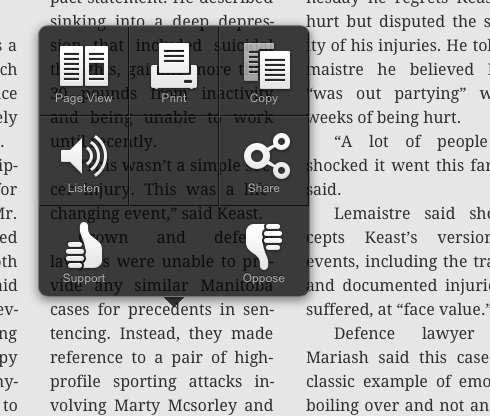
PressReader’s most recent update not only brings the app up to date with iOS 5, but it also adds a bevy of new features that make the experience even better. The most notable is the (iPad only) SmartFlow technology that visually optimizes the newspaper for the iPad, much in the same way that Flipboard and Zite prettify content feeds. This feature can be turned on and off in settings, and enabled per article and page from the nifty new press and hold menu. It’s a bit intense for the first generation iPad, so it is off by default. I found it worked well enough with mine, though, with only the occasional crash.
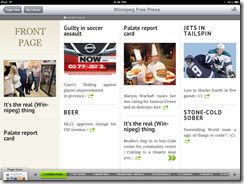

PressReader Smartflow | 40TechPressReader Before SmartFlow | 40TechPressReader After Smartflow | 40Tech

PressReader has also added push notifications so that you can know right away when the latest version of your favourite paper is out. It’s like it’s got a built in paperboy — or maybe paperperson?

Finally, the added ability to copy and paste articles directly into note taking applications is a nice touch for those of us who use Evernote and friends (see: Us).
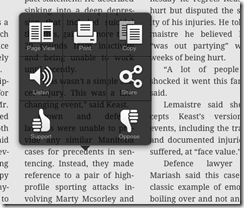
PressReader Press, Hold Menu | 40Tech  PressReader Article Copied to Evernote | 40Tech


I’m loving the updates to PressReader, Flipboard, and Zite. They are, in a word, Awesome. I think you should get them and you should love them. If you are using a first generation iPhone or iPod Touch, though, don’t get the PressReader update. Your tech will not like you.

What are your thoughts on these recent Awesome App Updates? 


My Daughter Ate My Stylus — So I Learned How to Make a New (and Even Better) One

My Daughter Ate My Stylus -- So I Learned How to Make a New (and Even Better) One | 40Tech

My little girl is three. Three-and-a-half, to be exact — and before now, we never had to worry about her putting things in her mouth. I’m not sure what changed, really, but now we have to watch her like a hawk. And we do — but, unfortunately, it was already too late for my iPad stylus. For both of them…

The first one, she chewed on. It was pretty much a write-off. The second one, she decided it would be fun to see what the business end tasted like. Now I’m down two pens. They were the cheap kind, thank the tech gods, but that’s still about $40 down the drain! So I decided: the next stylus will be one of my own making. One that will cost me nothing to make, and that I can easily repair. And thanks to the wonders of the internet, making that happen was easy peasy.

There are several articles on the subject of the DIY touchscreen stylus. The ones that caught my eye were those talking about using a real pen. The basic touchscreen stylus isn’t exactly known for it’s ergonomic feel, so working one up from a real pen seemed like a good idea. I found a few iterations, but the basic concept can be traced back to a video on Make Magazine’s Makezine Blog. All you have to do is connect some light-gauge wire to some conductive foam — which can be found in the packaging of computer and electronic components such as microchips and CPUs — feed it through the empty body of a comfortable pen, and then wrap the wire around the outside, where your hand will come into contact with it. Trim the conductive foam tip to desired size and shape, and voila: instant iPad stylus.

The whole project can be done very quickly, and you can spruce it up a bit by drilling small holes to lock the wire inside the body of the pen, so that you don’t have to use tape. If you happen to have a pen with a metal body, even better. All you’ll need in that case is the conductive foam and you’re good to go! The wire method isn’t so bad, though. It’s not always pretty, but it works.

Here’s a (somewhat blurry) shot of my rough prototype:

image

I made this on a whim, entirely from things I had on hand. I was able to use the original stylus head for the conductive foam, which was nice — we caught her before she swallowed it. I also used some very light speaker wire (all I had, at the time), and the head of an old 1/4 audio jack to provide support for the tip. It fit snugly into the point of the pen, once the pen’s original head was taken off. Note that the wire is only on one side of the pen. I did that because speaker wire is ugly, and wrapping it all the way around would have been a total atrocity, potentially involving metal splinters. The way I hold a pen would have me almost always in contact with it, anyway, and the next round will be prettier.

Looks notwithstanding, due to the ergonomic grip of the pen, I’ve already found that the DIY iPad stylus is much more accurate than those that are up for sale. I’ll never go back.

Looking for a fun, easy project? Make your own stylus! Then tell us all about it. Post pictures, even!

Collin’s Lab: DIY iPAd Stylus [Make]


Which PC and Mac Browsers Are Fastest?

Web browser speed tests

If you want to squeeze every last ounce of speed out of your browsing experience, then check out the latest browser speed tests at Tom’s Hardware. The site takes a look at several browsers on both the PC and on a Mac, and offers results in several different categories. The site then crowned a winner on each platform, as well as overall.

Read more