Menu Close

Archives (page 121 of 199)

The History of Mobile Operating Systems

Mobile operating systems have come far in the last 15 years. From dull screens with no Internet connection, to the mini-computers that we have today, the changes have been staggering. [x]cubeLABS has a graphic on its site displaying the progression of several mobile operating systems over the years.

For a full-sized look at the chart, check out The Evolution of Mobile Operating Systems at [x]cubeLABS.

I’ve used a couple versions of Palm OS, Windows Mobile, iOS, and now Android. How many of the operating systems have you used? Do you have a favorite?

[Disclaimer: the creator of the chart previously sponsored a text link here at 40Tech a month or two ago, but we’re writing about this chart because we think it is pretty darn cool.]


Sparrow – Finally a Desktop Email Client That Nails Gmail (But Only On the Mac, Dangit)

Last week we conducted a survey, asking you whether you preferred your apps in the cloud, or on your desktop. I’ve been a big fan of the cloud, but lately I’ve gone retro, enjoying a few desktop apps. One of the apps that has fostered my growing love of desktop apps is Sparrow, a desktop email app for Mac OS X. The beauty of Sparrow is how well it integrates with Gmail, and how fast it operates.

Read more


Do Your Cross Post on Facebook and Twitter? Why or Why Not?

crossposting to twitter and facebook

We’re looking for a little reader feedback here. The title of this post says it all – do you post the same content on both your Facebook and Twitter accounts? If so, why? If not, why don’t you?

Read more


How to Back Up Your Gmail Account for Free

Gmail Meltdown | 40Tech

When thousands of Gmail users opened their inboxes last weekend and discovered, to their horror, that even the servers at the Great and Powerful Google are fallible, the word “backup” started flying around like a hummingbird drunk on one too many cups of coffee. We all know that we should regularly back up our Gmail — or anything that contains important information — but I have to wonder how many of us heard the news of the big disaster that might have been (if Google had been unable to restore the accounts) and quietly thanked our makers when we found that it hadn’t hit us. I suspect that the count in favour would be high, and that many of that group might like to take a moment to do that backup in case it happens again.

What’s the best way to back up your Gmail, though? Can it be done for free? Yep! Read on for two methods, below.

Desktop Email Clients

Using a desktop email client is one of the best ways to get a backup of your Gmail account that you control. It is fairly straightforward to set up either POP or IMAP access to a webmail account in any of them, but if you are set on free and don’t have Outlook already, then download and install Thunderbird or Windows Live Mail for Windows users, or use Apple Mail on OS X. Linux users can also install Thunderbird or use one of the other Linux email clients. If you plan on using the client for all of your email needs, then you should connect via IMAP, but if you want it only for backup purposes, POP will do just fine. Setting these email clients up with Gmail is fairly intuitive, but Google has extensive tutorials on both IMAP and POP setup and troubleshooting if you run into problems.

Once you have your entire Gmail account downloaded to the desktop client of your choice, don’t stop there. Look under file to see if there is an Export option. Exporting your email to .eml format and then backing it up on a separate hard drive or three is the next logical step in a true backup process. You can also export your Contacts from the desktop client, or right from the Gmail/Contacts interface. Set a reminder series on your calendar, and do the “physical” backup regularly. If you need some tips on good file backup services, check out Evan’s post on a comprehensive backup solution.

Hotmail

If you don’t want to go through the hassle of periodically opening up a desktop client just to download your Gmail messages, or are just looking for yet another backup channel, then take advantage of the war for your services that Microsoft and Google are engaged in. Why shouldn’t you benefit from their attempts to draw you in? That’s the core of capitalism and free enterprise, right?

Open up a Hotmail account and and then set it up to import all of your Gmail messages. This is more than just forwarding, this is the inclusion of all of your archives, done with TrueSwitch for Hotmail. The unfortunate thing is that it stops after it imports what is in your Gmail, with no facility to continue drawing in your messages after the fact. In order to do that, you will need to open up your Gmail settings and click on “Forwarding and IMAP”. Once in there, you can set up your Hotmail as a forwarding address, and choose the option to “keep Gmail’s copy in the Inbox.” Don’t forget to schedule yourself to login to that new Hotmail address once per month, just to make sure that everything is going well, and that Hotmail doesn’t shut it down on you.

This method is also a great way to clear space in your Gmail account if you happen to (somehow) be running low on your 7+GB. The only downside is that you are backing up one cloud service to another, but the likelihood of both Hotmail and Gmail going down at the same time is not very high — chances are if it does happen, you will be worried about more important things than a few emails. Like survival — or the freezing cold suddenly emanating up from the depths of Hell.


Both of these methods are easy to implement and require very little maintenance on your part. If you are looking for even less hassle, though, and want to put your backups in the hands of someone who does such things for a living, check out Backupify (we covered it here). Backupify gives you 2GB of backup storage for free, and has paid plans besides. It can also backup many of your other services, like Facebook, Twitter, Flickr, and more, and is compatible with Google Apps.

Your turn! What methods do you use to backup your Gmail account?


Access Your eBook Library On Multiple Computers with Calibre and Dropbox

Access Your eBook Library On Multiple Computers with Calibre and Dropbox | 40Tech

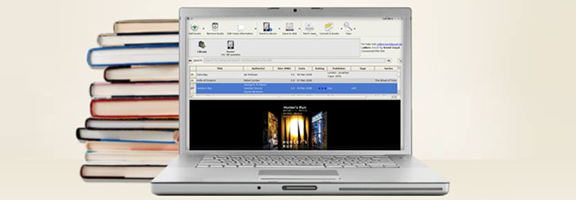
Calibre is, hands down, the best eBook manager out there. It can help you organize your entire library across devices, convert books from one format to another as needed or desired, and even use the built in server for over-the-air access to your books, from anywhere. In theory, anyway. In practise, there are many things that will get in the way of the “anywhere” part. Software and router firewalls, for example, may prove too complicated to overcome easily, leaving over-the-air book transfer dreams confined within the walls of home networks.

An easy way to mitigate these problems is to set up your Calibre library to be accessible from multiple computers — and the best way to do that is with Dropbox.

You will need:

  • At least two separate installations of Calibre eBook Manager
  • At least one Dropbox Account (free should be fine, but you can upgrade to a paid plan if you need more space)

Setting Up Your Library in Dropbox

In order to use Calibre with Dropbox, you first need to either start or move the library folder into your computer’s Dropbox folder. This can be accomplished by clicking on the Library button (it looks like a small shelf of five books) and selecting the new location. If you are starting anew library, select “Create an empty library at the new location.” If you are moving your current library, select “Move current library to new location.” Continue forward and wait for the library to be created/books transferred.

Connecting Your Library to Another Computer

Once your library is set up in Dropbox, install Calibre and Dropbox on a second computer. When Dropbox is installed, login and wait for the library folder you installed to sync fully over to the new computer. Soon there should be green checkmark icons all ’round and indicating readiness. Uthe Library button on this computer’s Calibre installation to once again set the location of your Calibre library in your Dropbox folder. This is the same as before, but this time you will need to select “Use existing library at the new location.” Again, wait until the folder is completely synced, otherwise you may get an error.

That’s it. You’re done! You should now have full access to your eBook library on two computers — more, if you were so inclined as to repeat the last steps a few times. Any changes you make in any of your Calibre installations (or in Dropbox itself) should be reflected in all, and you will be able to use the server for local WiFi transfers to your devices (if supported), without having to worry about complications that may cause you to pull your hair out.

If you happen to have been wondering, the answer is yes: you can also use this method across multiple Dropbox accounts using shared folders. This can be handy when you are using separate accounts among family computers or for work. I’m sure it could be used for other things as well, but we obviously don’t condone that at 40Tech.

Things to Remember

As you are working with the same library across multiple installations, it is a good idea to only work in Calibre on one computer at a time as doing otherwise may cause problems with the database.

It is possible that using this method across different operating systems (Windows, Mac, Linux) will cause issues with case-sensitivity in filenames and metadata. As I understand it, this is due to more to how Dropbox must interact with the host OS’s file system. Recent versions of Calibre attempt to mitigate this problem, but according to the creator of the software, it does not solve it. In a thread about this on the mobilereads forum he says: “If you have multiple books by the same author and you change the case of the author name for one of the books on a case insensitive filesystem, then on a case sensitive filesystem, calibre will lose track of the other books.” Bottom line? Be careful changing information when working across OS’s.


So far, this method has proven to be a very effective way to manage and access an eBook library from multiple computers and locations. As an added bonus, you will have access to your eBooks from any computer or device capable of accessing Dropbox, even when Calibre is not present. On the Dropbox iPhone app, for example, you can find the book file you want and open it directly in an eReader application, including iBooks and Stanza, allowing you to bypass Calibre transfers altogether. As long as you have an internet connection, your library is with you — even when space on your device is at a premium.

How do you manage your eBooks?