Menu Close

Archives (page 109 of 199)

LastPass vs. 1Password: Password Manager Shootout [Windows/Mac]

lastpass vs 1password

Password managers help you keep track of your passwords, which is vital if you want to use unique passwords on all sites that you visit. We’ve previously compared Lastpass, Keepass, and eWallet, and found that Lastpass came out on top. Those apps aren’t the only apps in the password manager field, though, and Lastpass just experienced a potential security issue. “Potential” is the key word here. There was no definitive indication that user data was compromised, but the LastPass team required all users to change their master passwords, out of an abundance of caution. Still, it seemed like a good time to compare Lastpass with another popular choice in the field, 1Password.

Read more


Magically Send Files to the Right Location On Your PC, With DropIt [Windows]

dropit header

Is your PC’s desktop or downloads folder cluttered with files? If so, and you’re feeling overwhelmed with the thought of getting your system organized, check out DropIt. DropIt is a free program that creates a big icon on your desktop, that can be thought of as a drop zone. When you drop a file onto the icon, actions will be performed on it depending on how you’ve configured DropIt. DropIt can help you quickly move files to the proper place on your PC, without having to manually select a folder for each file.

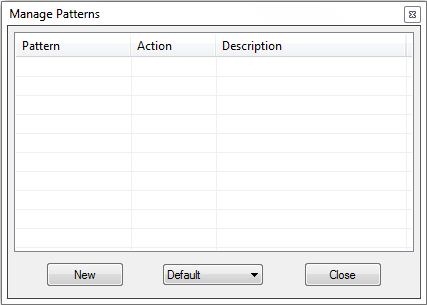
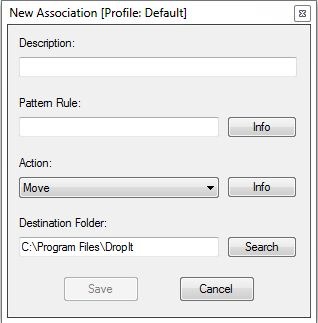
The filters that you can set up with DropIt are fairly basic, so you would be better off with something like Belvedere on Windows or Hazel on the Mac if you want advanced features for PC organization and cleaning. With DropIt, you can filter a file based on name or file type. For each such file, you can preset DropIt for one of the following options: Move, Copy, Compress, Extract, Open With, Delete, Exclude.

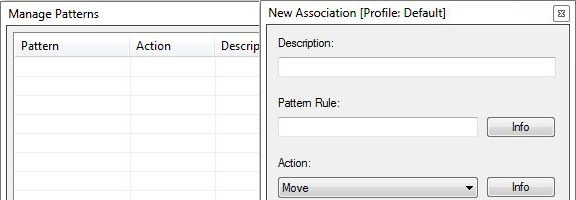
dropit manage patterns dropit new association

DropIt doesn’t seem to be intended to be a comprehensive organization utility, but does seem ideal for quickly going through your desktop or other folders, and moving files to preset locations. For example, you could quickly go through your desktop, and drop all of your image, video, and audio files onto your DropIt drop zone, and have them moved to your picture, video, or music folders, without taking the time to place each file in the proper location.

Do you have any apps that you use to organize your system? Let us know in the comments.

DropIt [via Cybernet News]


eReaderIQ The Easy Way to Find Free eBooks (and Track Price Drops) for Your Kindle

eReaderIQ The Easy Way to Find Free eBooks (and Track Price Drops) for Your Kindle | 40Tech

Borrowing eBooks is a great way to get your free on in Kindle-land, but if you want to actually own the books — and not be subject to time limits — then check out eReaderIQ. Sure, you probably won’t find the latest best sellers, but you will find a lot more than just public domain. The price drop notifications don’t hurt, either.

eReaderIQ is fairly easy to use, though the interface is a bit busy, and they have recently added a Kindle-friendly version of the site so you can browse right from your device. The database is updated hourly and is region-specific, which helps you to avoid any cross-border licensing disappointments. The 10 regions cover the planet, for the most part, though some are very generalized (like “Asia & Pacific” — does it include Russia? Who knows?) and there is a note at the bottom of the site that states prices and availability are accurate for US customers, regardless of the region you choose. It should also be noted that the book links take you directly to Amazon.com, not the Amazon site that is specific to your country.

Free eBook Database, eBook Price Drop Tracker, eReaderIQ | 40Tech

You don’t have to register for anything, or provide any personal information at all to eReaderIQ for it to work, but if you do provide your email (upper-right corner of the site) you will be notified up to twice per day of any new free Kindle eBooks outside of the public domain. You can also watch specific books for price drops by adding the ASIN or Item URL, your price-drop Notification Threshold, and your email address.

Another cool feature of the Price Drop Tracker is that you can see a list of books that others are watching (again, with no identifiable information), and can sort by percent of the drop, recent price drops, and most watched. There is also an icon legend to quickly note things like Text-to-Speech, Lending Enabled, etc., which makes it easy for you to find what you are looking for.

eReaderIQ is a great service for Kindle readers looking for free and price-reduced eBooks. Hopefully, they will expand to cover other eBook stores as well, like Barnes & Noble, Kobo, and iBooks. If you want more details on using the service, check out this review by Guiding Tech.

Where do you find your free eBooks?


GTD With 2Do and Toodledo [Reader Workflow]

GTD With 2Do and Toodledo [Reader Workflow] | 40Tech

Continuing with our Reader Workflow showcase, we’re proud to present Nina Kefer’s second post in her GTD experiments series, Beauty and Brains: Getting Things Done™ In Style. In her last article, she showed us a particularly awesome GTD setup with Awesome Note and Evernote; focused on the iPhone, overall. This time around, she delves into a mobile frontend for Toodledo. Read on for Nina’s GTD workflow with the iPhone app, 2Do.

For an additional take on Toodledo and GTD, also check out our post on Getting Things Done with Toodledo using pseudo-GTD methodologies.


Beauty & Brains: Getting Things Done™ In Style, Part 2 – 2Do

In my last article I described my GTD system for Awesome Note synced with Evernote. If you prefer a tighter sync between front and back end, however, you’ll want to give 2Do a try. 2Do is an award winning productivity app that syncs with the task management website Toodledo as well as iCal and Outlook (via a sync helper). I use a PC, so iCal is not an option and I don’t use Outlook because it doesn’t doesn’t play well with Gmail, so unfortunately I had to make do without a desktop client.

The sync with Toodledo is pretty tight, albeit with some peculiarities. 2Do’s interface is designed to look like a colourful Filofax and comes with several pre-installed “calendars” or tabs, which are basically to-dos, projects and check lists that are pulled together in the “Today” and “All” tabs. 2Do’s tabs appear in Toodledo as folders and, as with Awesome Note, they can be easily renamed or replaced to suit GTD. They can also be moved up or down and assigned custom colours – I basically think of them as dividers in a lever arch file or personal organiser.

While Toodledo supports contexts, 2Do doesn’t out of the box, but this can easily be set up by creating tags for each context and then searching for each tag using the excellent built-in search function. These searches can be saved as tabs which will then sync to Toodledo as folders. Just like “normal” tabs, they can be moved up or down to whichever position fits best with your GTD setup. Note that tags cannot be created from scratch; you first need to create a task, then you can create the tags to tag it with.


The Setup

For my to-do system I use a similar setup as in Awesome Note. Since 2Do doesn’t have a dedicated inbox, I first created a new tab called Inbox. I then created a Next Action tab as well as saved searches for all my context tags. That way I can collect all next actions in one tab, but filter them by context using the saved searches. Since these are the folders I check most often I moved them to the top of the list, so they are immediately visible on my screen when I open the app. Alternatively, you can create a dedicated “normal” tab for each context. Finally, I created Project, Someday and Reference tabs and moved all tabs in an order that suited me best. I then manually arranged the corresponding folders in Toodledo in the same order:

  • Inbox
  • @PC
  • @Contact
  • @Errands
  • @Home
  • @Waiting (these appear as tags in Toodledo)
  • Next Action
  • Projects
  • Someday
  • Reference

Setup GTD in 2Do for iPhone | 40Tech


Using 2Do

2Do offers an almost bewildering array of features, but they are elegantly tucked away in hidden menus, so the interface never looks cluttered. When creating your tasks you have the choice between three different types – to-do, checklist and project – that can be assigned six different actions: call, SMS, email, browse, visit and Google. Call, SMS, email and visit actions can be linked to the contacts in the iPhone’s address book and a tap on a task containing such an action will bring up the contact’s phone number or email address or show the postal address in Google maps. You can then call, text or email them directly from within the app.

A long tap on a task brings up a menu that shows what you can do with that particular task: mark as done, defer to another day, copy, share (via email, SMS or Twitter), delete, add note, take or attach a photo, record and attach an audio file or assign a due date and alarm. There is a choice between email alerts and local alerts, i.e. a notification on the phone lock screen that works even if data roaming is disabled or the phone is in airplane mode. For local alerts, you can choose between receiving a push message only or a message plus sound, with a choice of different alarm sounds. A red badge on the app icon shows how many to-dos are due or overdue and within the app overdue tasks appear in red font instead of black.

2Do uses two types of tags – word tags and people tags, the latter linked to contacts in the iPhone’s phone book – which make tasks easily traceable via the search function. You can also search by key word and date range, and searches you do frequently can again be saved as new calendar tabs, so in the future you only have to tap on the tab to bring up a search result.

Tasks can be sorted by status, priority (none, low, medium, high, star), due date, note, URL, alphabetical or manually. As in Awesome Note, you can sort each folder in a different way. The Today tab shows all tasks due today and additionally there is a focus button that can filter out to-dos that don’t fulfil certain requirements, e.g. due date or level of priority. Individual tasks can be moved from one tab to another with a few quick taps. Switching to landscape view in any tab brings up a calendar showing all tasks that are due in the current month. Finally, there is a nearby tab that alerts you when you approach a location connected with your task, but I don’t use it since it uses GPS and therefore guzzles battery.

2Do for iPhone, iPad, iOS | Task Management App


Tasks, Subtasks, and Sync with Toodledo

I Get Things Done in 2Do in pretty much the same way as in Awesome Note: my Inbox and Next Action (and context) tabs are reviewed daily and Project tab weekly. As with Evernote, you send emails to Toodledo to create a task; you can specify folder, priority, due date and time, tag, repeat, and attach the body of the email as a note.

2Do supports subtasks, so there is no need for workaround like there is in Awesome Note. Each subtask can be given its own tag, due date, alarm, action and attachment and can be moved out of the project and into the appropriate Next Action folder, right from within the main task menu (parent and subtask can’t be in different folders). Alternatively, if you have created contexts tabs from saved searches, adding the appropriate context tag (@PC, @Contact, @Errands and so on) will make the subtask appear in that tab, with the project and folder name still visible. Finally, if you assign a due date, the task will eventually pop up in the Today tab. However, be aware that subtasks are a premium feature in Toodledo and in order for them to sync between 2Do and Toodledo together with their parent task you need a (paid) Pro account. In free accounts, subtasks sync separately from the parent task.

Tags, due dates and notes sync to Toodledo, but photos, location maps and audio files remain locally in 2Do as Toodledo only supports notes. However, this has the advantage that these files are available for offline use on the iPhone.


There is a reason why 2Do was voted Best iPhone Productivity app: in combination with Toodledo it offers pretty much everything one could wish for, except the option to sync your tasks with the iPhone calendar. It is quick and easy enough that you barely have to use the web, yet the sync with Toodledo is tight enough to be able to use both apps more or less interchangeably. Don’t be put off by Toodledo’s less than slick appearance either. It is a powerful and highly customisable task manager and there are a number of Stylish and Greasemonkey themes to pretty it up.

What are your thoughts on GTD in 2Do and Toodledo?

Nina lives in the UK and works in Financial Services. A frequent international traveller, she has extensive experience of managing life on the go. A trip to Japan opened her eyes to the possibilities of mobile phone technology and she has been attempting to achieve a similar level of connectivity ever since. This is her first technology article.

Up Next: Part 3 – Springpad


Springpad Web App Adds Offline Access, Data Backup

Springpad Web App Adds Offline Access, Data Backup | 40Tech

One of the things that has been a major point of contention in the ongoing Springpad vs Evernote debate (which still rages, despite the different market segments the apps target) has been the lack of a desktop app for Springpad. This was closely followed by the inability to backup and download your Springpad data, which was a strong deterrent for some of our own readers. Well, Springpad has pushed their product forward yet again, and have addressed these issues — and while offline access to the service doesn’t quite stack up to the power of a desktop version, it’s a huge step forward for the web app, and only the beginning of things to come.

Offline Access

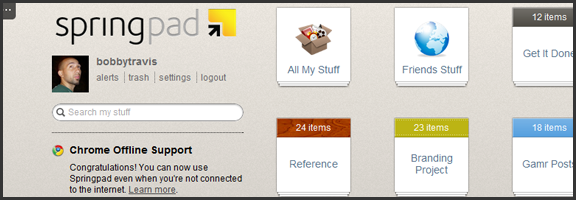
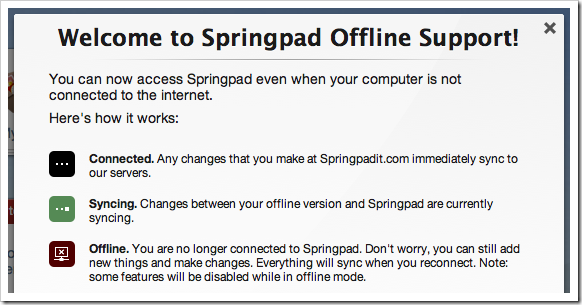
The Springpad mobile apps have had offline access for some time now, leaving their web counterpart to catch up. To do this, Springpad has used it’s integration into the Google Chrome browser to its — or, rather, our — advantage. Other browsers will be added soon enough, but for now, all that HTML5 offline goodness is locked into the native Chrome app. If you already have it installed, you will probably have to uninstall it and then grab it from the Chrome Web Store again. Then you need to pop into settings, then services, and click the button to enable offline access and start the sync. If you want to make sure everything you sync remains up to date, then leave the app open while you do other things. I suggest right-clicking on the app and then selecting “open as pinned tab” or as a new window so you can “set it and forget it.”

Springpad Offline Mode Syncs Data for Offline Access

While the offline access is a fantastic development, there are still a few things that are lacking. Of course, you won’t have access to elements that are internet-dependent, like alerts and links to other sites, but you also won’t be able to use the Board, or the advanced sorting and filtering options. Also, you can only search by title (which is a little annoying), you have no access to the trash, and you can’t add new photos or files for later upload (among other limitations — full list here). Some of these things will be addressed in future updates, and I’m definitely not complaining — I’m happy about the offline access, and fully expect it to improve in leaps and bounds over the next while. I still have that hankering for a desktop app, though. I have no real reason for it, and I fully understand that Springpad’s dedication to the cloud and HTML5 puts them ahead of the curve, but… I want one. It’s probably just me showing my age or something…

Data Backup

I’m loving what Springpad has put together for a data backup solution. Most times, when you download a backup of an online service, it is a CSV file, or some other dump of data that is not otherwise immediately usable. Springpad has basically given you an offline website with a list of your data in HTML form. Unfortunately, it is not easily navigable without a lot of scrolling or using your browser’s Find feature, but it’s all there and it’s easy to read. I downloaded a few thousand notes and bookmarks into a 12 MB zip file (with attachments and photos in their respective folders) that I was able to open and read right away. This made me happy!

Springpad Offline Access, Data Backup Features | 40Tech

The downside of this method is that it is not really ideal for transferring your data to another service, if that is what you want to do. Perhaps Springpad should include a CSV option, but I’m thinking you would have to leave a lot of data behind that way.

In any case, you now have the ability to mitigate the potential disaster of losing all your Springpad data in a freak accident, and will be able to enjoy reading it too. Huzzah!

Springpad isn’t slacking on other fronts, either. They are a part of the Google IO Chrome Sandbox, and have updated their Android apps to support Honeycomb tablet devices. They also have released a version for the Barnes & Noble Nook Color — which is awesome for the owners of the eBook reader/tablet hybrids, considering how Springpad is able to keep track of and deliver alerts on books. I love the steady and focused flow of updates we’ve been getting from Springpad, and I can’t wait to see where they take us next. I’m hoping desktop app – but I’ll take what they give.

What are your thoughts on the latest Springpad updates?