Menu Close

Category: Security (page 8 of 12)

LastPass Hit By Potential Security Breach (and Some Quick Tips On Creating a Strong, Memorable Password)

LastPass Hit By Potential Security Breach (and Some Quick Tips On Creating a Strong, Memorable Password) | 40Tech

With all of the crazy outages and hacking going on in the digital world over the past week or two, the fact that LastPass has an issue (as of May 3rd), probably shouldn’t come as a surprise. Still, it is a bit of a shock to the system to be reminded that the “last password you’ll have to remember” is potentially as vulnerable as any other. Before panic sets in among LastPass users (of which I am one), know that the company is on it, and that those with strong, non-dictionary based passwords should be fine in any case. LastPass also admits that they may even be overreacting, but prefer to err on the side of caution when it comes to keeping your data safe — a policy that I am 100% behind.

Without getting into the technical aspects behind it all, what basically happened is that LastPass discovered at least two network traffic anomalies in their systems that they couldn’t explain. One occurred in a “non-critical machine” and the other came from one of their databases. The second matched with the first and involved information exiting the LastPass environment. The company reported in their blog post that the outgoing amount of data was large enough to have contained email addresses, password hashes, and “server salt,” but not enough to have “pulled many users’ encrypted data blobs.”

While LastPass doesn’t feel that the issue is a large one, they recognize the potential for brute force hacking on the passwords of any users that may have been compromised. This is most likely to affect those who have a master password that is lacking in strength and/or dictionary-based, which is still incredibly common, even today. To protect the integrity of their systems, and their users’ data, LastPass is requiring all users to change their master password. They are also looking for email validation from you if you happen to be logging in from an IP address that is outside your usual set. This is an added security measure, just in case your password does get compromised before it is changed.

Don’t rush off and change your password right away, however. The sheer volume of password change requests is slowing down LastPass as a whole, which is causing server connectivity problems across the board. The company has beefed up the email verification protection as a result, and are confident that there should be little risk in waiting a day or two before changing your master password. You will have to do it eventually, however.


Creating a Strong – But Easy to Remember – Password

When you do change your password, strength should be your primary focus — but there is no reason you have to put together something that is impossible for you to remember. That may seem a bold statement, considering that strong passwords need to have combinations of numbers, symbols, and both uppercase and lowercase letters — and should avoid dictionary words — but a great post by Gina Trapani (Lifehacker) back in 2006 essentially solves that problem.

Gina advises that you use a single rule set as the basis for all of your passwords. You start with a base password that you create from something like a favourite acronym, letter/number combination, or nonsense word that you will never forget. Pad that with some symbols for extra safety, if you want, and store it somewhere offline, just in case you forget it. Once the base of the password is set, the rest comes as a result of the service you are signing up for.

For example, you could set your base password using your initials (including middle) or even your favourite pet’s initials, combined with your favourite number. In this case, you are the proud owner of Fluffy Cattington, and have a love for the number 86. Your base password could be something like FC86, or FfyCt86, etc. Add a few things to that for extra strength and you could have this: &*FfyCt86!, or #(FC86)^^. Already, we are well on our way to a secure password.

The next step is to add a standard code for the service you are using. Initials or the first few letters of the service name are good here as well. If this were to be your LastPass master password, for example, you could have something like this: &*FfyCt86!LP, or #(FC86)^^Las. Just try to make sure your password is at least eight characters long and that you are using numbers and letters. Using symbols and uppercase/lowercase letters is even better, but not all services will allow this in their passwords, so you may have to adjust for that. LastPass does, so no worries there.

Check out the Lifehacker post for even more ideas on how to choose your base password.

If you are interested in alternatives to LastPass, check out Evan’s post on eWallet vs Keypass vs LastPass. I like LastPass, though, and am pleased by the lengths they go through to protect their service and users. Evan also makes a great case for LastPass here.

What are your thoughts on choosing and remembering strong passwords?

Use DropBox and Hazel to Bust the Scumbag Who Steals Your MacBook

hazel and dropbox to secure your mac

If someone stole your Mac, that would stink, to put it mildly. Not only would you be out an expensive piece of equipment, but your sensitive data might be accessible to the criminal who stole your gear. Using two free programs, you can not only remotely secure your Mac if it is stolen, but you can bust the loser who pilfered it. A combination of Hazel, Dropbox, and a bit of geek kung fu allows you to record the crook’s IP address, snap a screenshot of him, record his browsing history, disable automatic login, and lock the stolen machine.

Read more


Text Messaging for Super Spies

image

Are you a spy, engaged in nefarious business dealings, or an extreme fan of privacy? Maybe you just really liked Mission Impossible or Inspector Gadget? If so, you will probably get a kick out of self-destructing text messages. That’s right, messages where you get to add your own little “time-bomb” that deletes the possibly offending or incriminating text off both your own phone, and that of the receiving party. Never get caught sexting by your significant other again.* Don’t leave a trail of incriminating evidence behind!* Etc. Etc. Etc… You get it, I’m sure.

Read on for more details, opinions, and the meaning of the little *’s.

ba-Bomb image by LKaestner

I understand the need for privacy in personal and business communications. I don’t have a problem with that and I support it wholeheartedly. It just seems to me that the marketing around TigerText and TigerText Pro, the mobile app that gives you the power of the self-destructing message, skirts the sleazy. Oh, they never out and out say “hide your potentially incriminating communications” or “never get caught.” They are very careful about that, in fact, focusing more on privacy protection and the fact that they are a free text and picture messaging service. However, something about the overall tone of their message tickles my increasingly cynical ear — especially when they bandy about quotes from some of their reviewers, like the New York Post, that state “TigerText eliminates the possibility of damaging evidence being left behind.” Maybe it’s just me, but broadcasting that statement as a part of your marketing seems to target a specific audience need.

I suppose, fundamentally, that I have some sort of righteous moral issue with the fact that the need exists in the first place. Somewhere, deep in my airy-fairy soul, there is a little voice whispering, “why can’t we all just be honest and nice, and stuff.” I recognize that the little voice is sadly naive and am actually much more practical in my view of human nature, but the tiny little fellow is persistent and closely related to the last resident (and black sheep) of Pandora’s Box. It also believes in the possibility of unicorns, dragons, and other romantic notions, so take from that what you will.

In any case, TigerText is a good service for getting around texting and picture messaging costs on your smartphone. It works over WiFi, and so can work in poor service areas, and is a fast, easy to use app available for all major smartphone platforms. You can only communicate with other TigerText users, however, so in many ways it is more like an instant messaging service that allows you to add a timed-delete function to your messages.

TigerText is free for personal use, and TigerText pro — the enterprise version — has some nifty features like email notifications and the like. It also has branches that are specific to those needing HIPAA (healthcare and insurance) and SOX (Sarbanes-Oxley Act – national securities investment protections) compliance in their communications. If you want to try it out, go to your smartphone’s app store, or head to this link for personal, and this one for enterprise.

* Notes

A word to the wise: as TigerText themselves point out, this is by no means a bulletproof method of not getting caught. Send sensitive information to others at your own risk — anyone can take a picture of a smartphone screen, either with another camera or the press of a button or two. How much you really trust the person you are sending the message to had best be at the forefront of your mind.

Oh, and also: 40Tech by no means condones cheating on your spouse, conducting nefarious dealings, yadda yadda.

What do you think of TigerText? What would you use it for?


How to Find Out if Your Account Was Hacked at a Gawker Site (Lifehacker, Gizmodo, etc.)

gawker accounts hacked

One of the big news stories last week was the hacking of Gawker Media’s servers. As part of the attack, user accounts were compromised on Gawker sites, including Lifehacker and Gizmodo. More than 500,000 user emails and 185,000 decrypted passwords were posted online.  If you’re not sure which account you used on a Gawker site, and want to determine if your account might have been compromised, there’s a tool for that.

Slate has created a widget that lets you input your username or email address to see if your account was hacked.  All that you need to do is input your username or email address that you used on a Gawker site, and hit the “Check” button.  You’ll get one of two messages back:

1. “Your account data has been released. If your account had a password, it has also been released in an encrypted form. Change it.”

2. “The e-mail account or user name does not appear to be in the released database.”

If you get the first message, you should not only change your Gawker password, but if you used that email/password combination on any other sites, you should change your password on those sites, too.

To avoid a problem like this in the future, make sure that you use unique passwords on all sites.  Check out one of our favorite tools, LastPass, for an easy way to generate and remember all of those passwords.

Does a hack like this make you trust Gawker sites less?  Or trust the Internet less? Our take: this could happen to any site out there. Protect yourself by using unique passwords on all sites.

Gawker Media account check widget [Slate]


Record This Info Now, Thank Us Later If Your Gmail Account Is Ever Compromised

gmail hacked

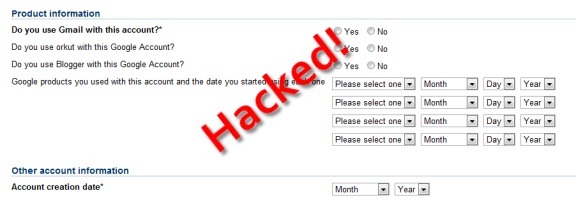
Last week we wrote of an important step that you should take to secure your Gmail account – associating a cell phone number with your Gmail account, so that you can receive a recovery code via text message.  As we pointed out, that’s not foolproof – a savvy hacker could change the cell phone number associated with your account.  Then what?  Google does offer an account recovery process, but it requires you to know the answer to several questions. Read more