Menu Close

Category: Problem solving (page 4 of 6)

Simplify Your Desktop for Peaceful Productivity

image

This post continues our Personalize Your Windows 7 Experience series, but much of what’s in here can be applied to any PC operating system.

Lately, I’ve been upping my productivity game. I love GTD, and I’ve been pretty successful at making tech like Evernote, Springpad, and Producteev work for me, but I still find that I have a tendency to get bogged down by clutter and distraction. A cluttered desktop doesn’t support a creative or efficient mindset very well, so I spent a little time sorting hiding the clutter with a tool Evan introduced to me called Fences. That helped, but something was missing — and I had absolutely no idea what that was. I tweaked, I fiddled, and messed about with different settings, but nothing seemed ring that proverbial gong for me. Nothing, that is, until I discovered Minimal Wall.

Minimal Wall is the ultimate place to begin simplifying your desktop experience. It’s  more than just a collection of minimalist wallpapers, though. They actually help you to get set up for the optimal desktop in just a few steps. You start out by losing the clutter and icons on your desktop, and you end by choosing a very cool background, but the most intriguing thing about their set up process is the Grid Wallpaper.

Minimal Wall | Simplify Your Desktop

The Grid Wallpaper uses simple graphic design principles to help you set up your windows for a better — and uncluttered — user experience. All you do is set the Grid as your desktop background, and then align your most commonly used windows to the yellow borders. When I first did it, I wasn’t quite sure what to expect, but I was surprised at how looking at my new desktop made me feel. It resonated with me. I was more relaxed, and I found it much easier to focus, even with several windows open at once.

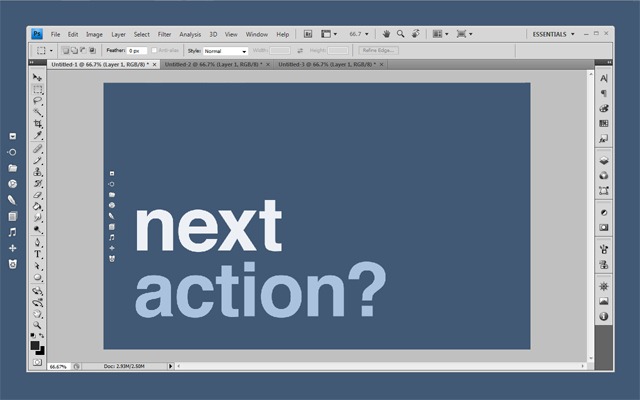
After your windows are aligned, start looking at Minimal Wall’s wallpapers. I have no doubt that you’ll find them very easy on the eyes. I chose some of the Mindful Words backgrounds; nice reminders to move on to my next action, and keep focused. I even created one of my own in Photoshop — my little girl’s name –using their work as a base. It reminds me why I am sitting at the computer in the first place, and why I need to get off it again as soon as I can.

Lifehacker has a great post featuring a Minimal Wall based desktop, combined with Rainmeter, Launchy, and Rocketdock with some nice icons. Personally, I find Rainmeter to be annoying to set up and modify, so I won’t put you all through that. I did use some of the other ideas, however, such as installing Launchy (which I find I rarely use) and Rocketdock. Rocketdock, especially with the nice iconset, provides an easy to look at quick-launch that fits the theme. I won’t go to far into customizing Rocketdock here, but if you try it out and have trouble getting it to do what you want, hit me up in the comments and I’ll do my best to help you out.

So here’s the process so far:

  • I gathered all of my clutter into Fences — then I double-clicked the desktop to make the Fences hide themselves. Another double-click brings them back when you need them.
  • I used the Grid Wallpaper to line up and size my windows (and the Fences as well).
  • I selected the four wallpapers I wanted to use and put them in a folder to create a desktop slideshow (go to Control Panel, choose “Change desktop background” under Appearance and Personalization, then browse to the folder and select the images, configuring how they should change — I shuffle them every hour).
  • I installed and configured RocketDock with the new icons (add the folder of new icons into the Icons folder in Program Files (x86), then right-click on the dock and choose Icon Settings, then the icon set).

I also moved my Windows taskbar to the top of the screen and set it to auto-hide. I had originally used a tool called Taskbar Eliminator to make the taskbar vanish altogether, but I found that it was unreliable, and discovered that — since I was now rarely working in full screen — having the taskbar hidden at the top was actually quite useful for quick access to its functions.

Finally, I right clicked on the desktop and went to Personalize and saved my wallpapers as a custom theme. Doing this makes it so you can reclaim your desktop slideshow with a click, should you change it to something else and find you want it back again. To round everything out, I changed my logon screen to match the theme. Here’s how you do that:

Here’s a Few Shots of the End Result

wall-actionwall-focuswall-windowswall-windows-2wall-fences

Since adopting this new look and feel for my desktop and workflow, I’ve found that I’m more focused, productive, and generally more relaxed while I work. The basic setup took me less than a half-hour to implement, and it’s paid that time back in spades. Hell, I was so inspired that I added a customized version of the wallpapers to my iPad, too, and then hunted down and killed my next big PC distraction: keeping Gmail open in my browser while I work. If you want a little more peace and productivity while you’re sitting in front of the multi-task machine, give this a try — I sincerely hope it helps you as much as it has me!

Let me know your thoughts in the comments!


7 Useful, Free, Programs That Make Computer-Life Easier

7 Useful, Free, Programs That Make Computer-Life Easier | 40Tech

Today, 40Tech is pleased to present a guest post by Dan from Test Freak, a technology review and price compilation site.

Across the internet there are pages and pages of documents, photo’s, applications and more. Within all of this it can often be hard to find the gems that can brighten your day or make the day easier. Because of this, I’ve compiled for you a list of useful programs that you may have missed when roaming through the vast web space. Not only are they useful but all of the below programs are also completely free!

Avast!

Everyone’s computer needs protecting from the vast amounts of malicious viruses that have turned up over the past years created only to cause harm and distress to other users on the internet. In order to protect yourself, a good antivirus program should be the first thing you head for once a computer is up and running.

Thankfully there is a large market for antivirus products leaving users with a wide choice of what’s best for them. For me and many others, the best choices are those that require no outlay of money — and surprisingly, there are still many varied options available that are completely free such as AVG, Avira, Avast! and more.

One of the best of these is arguably Avast! which is currently protecting my system and many others. Avast! is favoured by many due to the features provided and its solid ability to lock out malicious content. The application features a variety of real time shields which are actively protecting your use of the computer. For example the web shield is able to protect you whilst surfing the web by checking the connections you are making. If it finds a website containing harmful content the connection is instantly blocked, stopping viruses from reaching your computer.

Free Antivirus Software | Avast!

However if problems do crop up on your system, Avast! is equipped with a scanner to check over your whole computer in order to root out and eliminate any viruses that are present.

Another very useful feature of Avast! is its self-maintenance, it is able to update its virus database without user interaction and does so on an almost daily basis making it very useful for those not completely clued up on IT systems.

Process Blocker

One of the most annoying things about these viruses is their ability to continually restart themselves, much to the user’s annoyance. However it’s not just viruses that have picked up this trait; many programs can be found which start of their own accord and continually start even when told not to, particularly things such as program updaters.

This is where Process Blocker (beta) comes in, a tool which is able to automatically block programs from starting as soon as it detects their arrival; handy for stopping unwanted programs and saving precious memory space.

Stop Unwanted Programs with Process Blocker for Windows (Beta) Process Blocker for Windows (Beta)

It’s also incredibly simple to use, with users simply having to direct Process Blocker to the unwanted program file and it to the block list. From here it will be blocked every time that program’s start-up is detected. An option can even be set to allow the blocking of a process if it has been renamed, making this a very handy little tool.

7-Zip

7-Zip is another program that is great for those of us who like to save cash. Many files today are sent in a compressed format, and groups of files are often archived into a zipped file before being sent to others, making them easier to keep track of and smaller to transfer.

However when they get to their destination they need to be unzipped and so need a program to do this. Often, people will pay for these programs such as WinRAR or WinZip but there is no need. 7-Zip is capable of unpacking many of these file formats without the need for you to part with a penny.

It is also capable of packing files itself using its own format of .7z, meaning that this free piece of software has you completely covered when you need to unzip files, work on them, and then package them back up to go elsewhere.

Recuva

I’m sure we’ve all done it in the past: deleted something only to regret it a few moments or even weeks later. Thankfully another one of our top free internet applications has you covered. That application is Recuva.

Recuva is a piece of data-recovery software capable of retrieving information even when it has been permanently deleted and reallocated as free space, up until the point that the free space is over-written with new data.

The application itself is very easy to operate. Simply open it up and follow the on-screen wizard. You’ll first be tasked with selecting the type of file you are looking for and then where to look for it. For files you are unsure about, the option to search everywhere is available.

Recuva | Recover Lost Files, Deleted Files for Free Recuva | Free Data Recovery Tool

After this short wizard, Recuva zooms off, searching your drives for the specified file-type and returns a full list of everything it has found. From here, you simply select the files you want, click recover and hey, presto! Your files are back, saving you from a potentially disastrous situation!

Paint.NET

Paint.NET, as the name implies, is an image-editing program and works surprisingly well as an alternative to some of the larger software packages in the genre, such as Adobe’s Photoshop collection. Whilst it does lack many of the features present in Photoshop, it is still a fully competent photo-editing application that provides a substantial upgrade from the basic Paint program bundled in with Windows.

Free Photoshop Alternative, Easy Photo, Image Editor | Paint.NET

Paint.net provides a good blend between the two scales of drawing packages, maintaining the ease of use and clear layout found within paint whilst providing several of the advanced features found in Photoshop. These features include layer-based editing, allowing you to manipulate one part of the image without risking the whole project, along with artistic adjustment tools in order to affect colours, levels and image effects.

Audacity

Once you’re done with editing images, why not try your hand at editing sound with Audacity. Audacity allows you to very simply edit pieces of music by cutting, pasting, and remixing the track. This can be done through music files already stored on your computer but can also be done through your own music played by yourself. Audacity features a built in recording function allowing you to capture your music before bringing it into the editing stage.

The editing section is also very easy to use due to its simple nature, with the interface providing direct access to the basic controls whilst hiding more complicated and advanced features away within sub menus. Basic controls include tools that allow you to select certain sections of the track, move them around, delete them entirely or copy them for later, repeated use.

Audacity | Free Audio Editor, Free Audio Recorder

Along with these, more advanced tools are also available in the effects menu, which allows you to change things such as the speed, tempo, pitch and more. These tools should allow you to easily and quickly enter the world of audio editing and provide a great deal of fun. If nothing else, everybody likes taking their favourite track and turning it into a chipmunk version, right?

VLC

Once you have finished with your audio track, why not play it back to friends and family with VLC. VLC is a media player capable of playing many different file formats, from files stored on both hard drives and physical media. It features the ability to decode and play many different codecs, and is able to play many files that other players simply cannot, allowing it to become your one-stop-shop for playing video and audio files. I’ve yet to find a single file that it can’t play, which is why it has earned its place on this list of useful programs.

As with most programs on this list, it also earns bonus points for being incredibly easy to use, with the initial interface only offering the most basic controls and making the program nearly incapable of confusing any of its many users. However it also features a few more advanced functions that improve its usefulness even more — such as allowing content to be streamed, the video to be cropped and resized, and audio re-synched. A few more fun features can also be found in the effects and features menu such as options to invert the colours, turn the video into a cartoon or even make the video into a puzzle game that needs to be reorganised in order to watch the film normally.


While this list provides a few great – and free — programs that you may have missed, it is by no means all-inclusive. If you’ve found a great free program, pop it into the comments below and tell us why you think it should be here!


Access Your eBook Library On Multiple Computers with Calibre and Dropbox

Access Your eBook Library On Multiple Computers with Calibre and Dropbox | 40Tech

Calibre is, hands down, the best eBook manager out there. It can help you organize your entire library across devices, convert books from one format to another as needed or desired, and even use the built in server for over-the-air access to your books, from anywhere. In theory, anyway. In practise, there are many things that will get in the way of the “anywhere” part. Software and router firewalls, for example, may prove too complicated to overcome easily, leaving over-the-air book transfer dreams confined within the walls of home networks.

An easy way to mitigate these problems is to set up your Calibre library to be accessible from multiple computers — and the best way to do that is with Dropbox.

You will need:

  • At least two separate installations of Calibre eBook Manager
  • At least one Dropbox Account (free should be fine, but you can upgrade to a paid plan if you need more space)

Setting Up Your Library in Dropbox

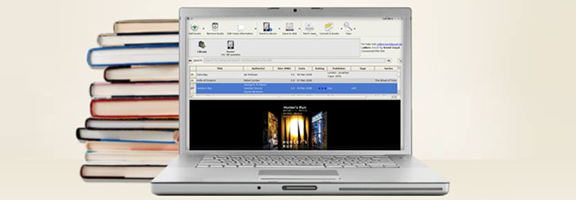
In order to use Calibre with Dropbox, you first need to either start or move the library folder into your computer’s Dropbox folder. This can be accomplished by clicking on the Library button (it looks like a small shelf of five books) and selecting the new location. If you are starting anew library, select “Create an empty library at the new location.” If you are moving your current library, select “Move current library to new location.” Continue forward and wait for the library to be created/books transferred.

Connecting Your Library to Another Computer

Once your library is set up in Dropbox, install Calibre and Dropbox on a second computer. When Dropbox is installed, login and wait for the library folder you installed to sync fully over to the new computer. Soon there should be green checkmark icons all ’round and indicating readiness. Uthe Library button on this computer’s Calibre installation to once again set the location of your Calibre library in your Dropbox folder. This is the same as before, but this time you will need to select “Use existing library at the new location.” Again, wait until the folder is completely synced, otherwise you may get an error.

That’s it. You’re done! You should now have full access to your eBook library on two computers — more, if you were so inclined as to repeat the last steps a few times. Any changes you make in any of your Calibre installations (or in Dropbox itself) should be reflected in all, and you will be able to use the server for local WiFi transfers to your devices (if supported), without having to worry about complications that may cause you to pull your hair out.

If you happen to have been wondering, the answer is yes: you can also use this method across multiple Dropbox accounts using shared folders. This can be handy when you are using separate accounts among family computers or for work. I’m sure it could be used for other things as well, but we obviously don’t condone that at 40Tech.

Things to Remember

As you are working with the same library across multiple installations, it is a good idea to only work in Calibre on one computer at a time as doing otherwise may cause problems with the database.

It is possible that using this method across different operating systems (Windows, Mac, Linux) will cause issues with case-sensitivity in filenames and metadata. As I understand it, this is due to more to how Dropbox must interact with the host OS’s file system. Recent versions of Calibre attempt to mitigate this problem, but according to the creator of the software, it does not solve it. In a thread about this on the mobilereads forum he says: “If you have multiple books by the same author and you change the case of the author name for one of the books on a case insensitive filesystem, then on a case sensitive filesystem, calibre will lose track of the other books.” Bottom line? Be careful changing information when working across OS’s.


So far, this method has proven to be a very effective way to manage and access an eBook library from multiple computers and locations. As an added bonus, you will have access to your eBooks from any computer or device capable of accessing Dropbox, even when Calibre is not present. On the Dropbox iPhone app, for example, you can find the book file you want and open it directly in an eReader application, including iBooks and Stanza, allowing you to bypass Calibre transfers altogether. As long as you have an internet connection, your library is with you — even when space on your device is at a premium.

How do you manage your eBooks?


Google’s Cloud Connect Syncs MS Office with Google Docs

Google’s Cloud Connect Syncs MS Office with Google Docs | 40Tech

There are several ways to sync Microsoft Office documents to the cloud (we covered three here), but until now, not one of them was made by Google. Whether that statement sparks feelings of warm and fuzzy quality in you, or makes you shudder in fear as Google officially digs its fingers into your Office docs, Google Cloud Connect has taken off the training wheels and been released to the world at large. Besides, if you are of the latter persuasion, chances are you haven’t bothered with the Google account that the service requires.

Cloud Connect adds a toolbar to the Microsoft Office interface that effectively accomplishes two things:

  1. Giving MS Office the online capabilities of Google Docs — and this is a good thing, as Microsoft’s cut-down web offering of Office can be somewhat unwieldy by comparison.
  2. Finally gives Google Docs the offline capability it has always needed to make it truly relevant in today’s workplace, which is still a few years away from going fully to the cloud.

Google Cloud Connect works on Windows XP, Vista, and Windows 7, and is available for Office 2003, 2007, and 2010. Check out the video below for more information on its capabilities.

http://www.youtube.com/watch?v=H12teRzulW0

New Ways to Experience Better Collaboration with Google Apps [Google Blog]


Block Sites From Search Results with the Personal Block List Extension [Chrome]

Block Sites From Search Results with the Personal Block List Extension [Chrome] | 40Tech

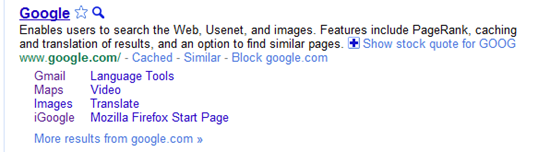
A new and incredibly useful extension has popped up on the Chrome Web Store: Personal Block List (by Google). If you have ever searched for something and been plagued by useless links that wiggle past Google’s algorithm — and odds are you have — then this extension is your friend. Personal Block List adds a handy little “Block [URL]” button to the right of the “Cached” and “Similar” links in Google’s search results. Once clicked, that site is omitted from your search results until you decide otherwise.

Block Sites from Search Results with Personal Block List Extension for Google Chrome, Rockmelt | 40Tech

Neat, huh? Of course, it should be mentioned that this extension will transmit information to Google regarding the sites you have blocked, including patterns that you create as you block or unblock sites. Google promises to only use this information for good and to improve their products. Actually, there are no promises. They just say that you “agree that Google may freely use this information to improve [their] products and services.” Considering all of the things out there that already track browsing habits — including Google — this sort of tracking may actually be a step forward.

In any case, the extension does its job well. In a few of the coding-related searches I have been conducting lately, looking for help on a particular area of menu design, I repeatedly found myself directed, via several different domains, to the same annoying website trying to sell me their tool that was apparently supposed to make my life easier. My annoyance in this regard is no more. The Personal Block List extension for Google Chrome (as well as Chromium, and Rockmelt) works!

If I were to have any issues with the extension, they would be that it does not work from the searchbar, only from the actual Google site, and that it doesn’t appear to have a master list in the cloud. That last surprised me, and meant that I had to block the same site twice, once in Rockmelt, and once in Chrome. Still, it did the job. I can see that there will be many more sites that will end up being forcibly removed from my search results soon.

Try it out the Personal Block List (by Google) Chrome extension here.