Menu Close

Category: iPhone (page 10 of 19)

App of the Week: Localscope [iPhone]

image

It’s a given fact that smartphones have made it easier to get around. You’ve got your maps applications, search engines, business directories, even apps that are strictly for finding the nearest bathroom. Life is good — but Localscope makes it even better.

Localscope is one of the most comprehensive local search apps I’ve come across. Some apps of this type, especially outside of the United States, have a tendency to miss the bank, gas station, or Starbucks just down the street (hard to blame them on that last — Starbucks has a tendency to sprout spontaneously on vacant corners). Localscope attempts to solve the missing business problem by integrating several hyperlocal search engines — Google, Bing, Foursquare, Twitter, and Wikimapia — into their app, all nicely tied together with a slick interface.

A tap of the little monitor button in the top left opens a dialogue that allows you to change views between list, map and augmented reality views (augmented reality allows you to use your phone’s camera to visually search the surrounding area). But the different views and search engines aren’t where the ultimate power of Localscope lies. It’s what the app lets you do with the information it finds. Tap on  or swipe a listing and you are able to interact with the information there with just a tap or two. You can tap to call the business, view their website, open the Google Maps applicatios, set it as your current location, share via SMS, email, Facebook, or Twitter — and even add the business directly to your Contacts list. This is extremely handy!

localscope

You can conduct your own searches in Localscope (which are automatically saved), or you can jump in to one of the many pre-defined searches like Restaurant, Bank, Shopping, Parking, Taxi, etc. You can also use the “Browse all nearby” button to get a good snapshot of the entire neighbourhood.

The only problem with Localscope is that it’s one of those apps that spends a lot of time telling you that there is compass interference. Not to worry, though, you can easily turn off the notifications in the settings (touch the little i-for-information icon in the app). Other than that, Localscope is one of the best apps for finding local businesses that I’ve seen. You can purchase Localscope in multiple languages for $1.99 on the App Store. Highly recommended!

What’s your favourite way to find local businesses online?


How to Watch US Netflix on Your iPad/iPhone When Outside of the US

How to Watch US Netflix on Your iPad/iPhone When Outside of the US | 40Tech

If you have Netflix, you have the ability to stream a wide array of movies and television shows for less than $10 per month. The digital streaming library isn’t as impressive as their mail-out catalogue, but any way you look at it, that’s a pretty decent price for what you get. And what you get is a lot. Old shows, new shows, crazy amounts of anime, and even some favourites like Glee, the now (sadly) cancelled Stargate Universe, and 2009’s Star Trek movie are on there. Unless you live in or visit a country other than the United States, of course.

If you do happen to be on the other side of that imaginary border line, however, and you have an iOS device, you can use a VPN to access the US Netflix streaming library — and you can do it without spending a dime if you use Hotspot Shield.

Note: Please note that, while this is a fun workaround, and can be useful in certain situations, the inability to access Netflix or any other media site mentioned in this post outside of the United States is due to international licensing agreements. These sites and services may prohibit broadcasting or accessing certain content from outside of the United States in their terms of use. As such, this post’s workaround is used solely at the device owner’s and account holder’s own risk and is for educational purposes only.

UPDATE: Hotspot Shield’s iOS configuration page is currently down. I’ll keep checking to see if and when it comes back up and will update you here. You could also try other VPN options, such as Witopia, but that one comes with a $40/year price tag.

UPDATE 2: I’ve been in touch with Anchorfree support (they are the purveyors of Hotspot Shield), and have been told that they are working on the issue. Apparently, they are re-launching the iPhone version of the VPN. I will update again when I know more.

UPDATE 3: The iOS app for Hotspot Shield is officially here! Check this post for more info.

We’ve talked about Hotspot Shield before, and even though the free version forces ads down your throat, it’s pretty handy when you want to access Hulu, Pandora, or US-only website content from across the border. It’s also handy for surfing securely at public WiFi locations, and all of the other fancy things you can do with a VPN.

So why bother with an additional post just for Netflix? Because Netflix isn’t a US-only site, but it does have US-only content. This content is accessible depending on where you are, as I found out by accident when visiting a friend in Washington state a couple weeks ago. I pulled out the iPad for my kid, loaded up Netflix to keep her busy, and was immediately boggled by the amount of new content I found staring back at me. I was hoping that we Canadians had suddenly gotten a slew of new titles, but was sadly disappointed when I returned home that evening.

Out of curiosity, I tried out Netflix on my laptop with Hotspot Shield enabled. That didn’t work. Generally (unless launched via the Chrome app, oddly enough) Netflix thought that I was trying to access the US site with a Canadian account. No dice, there. Then I remembered that Hotspot Shield was also configured on my iPad… and I was pleasantly surprised that it worked!

Here’s how you can try it out

Go to the iPhone configuration page on Hotspot Shield’s website, and follow the instructions there. You’ll want to be on a separate device for this, for simplicity’s sake.

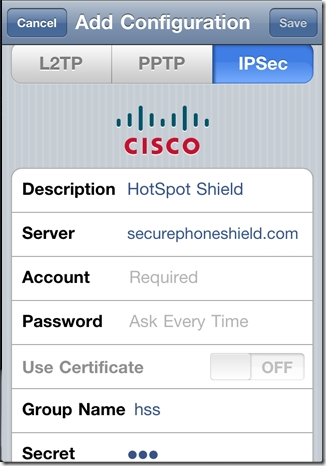
Basically, they will have you turn off your iPad’s (or iPhone’s) WiFi, and then head to Settings > General > Network > VPN > Add VPN Configuration. From there, you do the following:

  • Select the IPSec tab/pane
  • In Description, type HotspotShield
  • In the Server field, type 68.68.107.101
  • Go back to the website and click the “Get Account ID” button
  • Type the code that the button generated into the Account field
  • Type the same code into the Password field
  • Make sure that Use Certificate is set to OFF
  • In Group Name, type hss
  • In Secret, type hss
  • SAVE and then turn your WiFi back on

Hotspot Shield iPhone Configuration

Once you are set up, turn on the VPN. I’ve noticed that, if you try and turn it on from the iPad’s Settings dashboard, it will fail to connect. No idea why that is, but, if you turn it on from the Settings > General > Network > VPN switch, it connects just fine. Once the VPN says it’s connected, load up Netflix and watch in wonder as the app believes that you are in the United States and loads up the US Netflix library!

Things to note

  • The VPN will slow you down a little bit, but not enough to affect video playback. Netflix technology is very good at figuring out how to play videos optimally, even at slower speeds.
  • The VPN will disconnect periodically. This is annoying, but if you are already playing a video it will not affect it. The movie or TV show will play through to the end unless you pause it and let the iPad time out. If you find that you are having difficulty launching a show, check to see if the little VPN icon is in the upper left corner of the iPad’s notification bar. If it is, then you may need to restart the app. If it isn’t, then head back into the VPN settings and turn it on again. You may want to close Netflix out completely, first to make sure that the VPN takes with the app (double-tap the iPad’s hardware button to see the running/recently running programs, press and hold Netflix till it shakes and gets an X in the corner, then tap the X to close it).

There you have it! Access to US Netflix on your iPad whether you have a non-US account, or just happen to be visiting another country. It is important to note that this trick may only last until Netflix figures a way to block it out, but HotSpot Shield is versatile. They have managed to get people back into Hulu every time they’ve been locked out so far, so it will probably be the same with Netflix.

Thoughts?


3 Reasons the IT Department (Still) Hates Your iPhone

3 Reasons the IT Department Hates Your iPhone | 40Tech

Today, 40Tech is pleased to present you with a guest post by Jaelithe.

Everyone you know has one—everyone except for you. The mere mention of the shiny rectangle has your IT guy cussing under his breath.  One look at the interface of this phone and it’s obvious it was designed for the consumer but that doesn’t mean it can’t do the heavy-lifting too. So what has your IT department so worked up?

Sensitive Corporate Data

In 2007 the iPhone stomped onto the cellular scene with huge technical advances and major curb appeal but it lacked some critical security features for IT departments to jump on the bandwagon. At first, the iPhone didn’t support the encryption of user data and didn’t have a solution to remotely wipe data clean in the event the phone was lost or stolen. Enterprise fraud management is a huge IT concern and becomes ever bigger if your IT department has to be concerned with you and the guy you left your iPhone next to on the bus. In addition, many IT departments achieve corporate goals with third-party applications and office suites (the iPhone wasn’t supporting them yet). Apple quickly responded, adding support for third-party apps and the ability to interact with Exchange servers. The memory of the first iPhone’s limited capabilities echoes in the minds of IT professionals everywhere—it could take a while for them to shake off the stigma.

Corporate Customization

Your company doesn’t want to pay for you to take photos in the bathroom of your abs (or other ridiculousness). The iPhone has a myriad of fun, snazzy features but companies don’t want to pay for you to take pictures for Facebook, play Angry Birds, or watch YouTube videos featuring cats jumping out of boxes. It’s critical to IT departments that they’re able to customize the features and define settings on the device in order to effectively manage compliance with the company’s acceptable-use policy. Apple is now delivering solutions to administrators.

Business Apps

In 2007 there were fewer apps that applied to serious business folks but now there’s a never-ending myriad of apps available specifically engineered to support business objectives. As Apple provides more and more solutions, it will be difficult for IT departments to hold their stance for long.

Does your IT department still hate the iPhone, or have they come around? How do they feel about Android?

Jaelithe is a freelance writer interested in all things tech. Jaelithe and her iPhone Irene live a very happy life together filled with technology and productivity. You can usually find Jaelithe writing about enterprise fraud prevention for Attachmate, and the ways that gadgets can enhance everyday life.


App of the Week: Atomic Web Browser [iOS]

App of the Week : Atomic Web Browser | 40Tech

Mobile Safari has it’s good points, but there are several places where it leaves a lot to be desired. There are speed issues when loading, the lack of any real multitasking (resulting in windows constantly reloading when you exit the app and return), no background tab or window loading, etc., etc., etc. To compound these issues, the last few iPad versions of Safari (including the current one) are unstable at the best of times, their regular crashes making browsing a chore.

There are several Safari alternatives for iOS, all if them trying to overcome the shortcomings of the stock iPhone and iPad browser. The best of the lot, however, considering features, usability, and price, is Atomic Web Browser.

Atomic Web Browser has been around since December of 2009 and while it has floated back and forth between $0.99 and $1.99, it has held steady at $0.99 for nearly a year. It also has a Lite version which has nearly all of the same features, but for $0.99, getting niceties like the ability to set a homepage isn’t a bad deal. Anyone who’s read my work on 40Tech before knows that’s high praise, too. It takes a lot to get me to shell out money if I don’t have to, and I’ve found it to be completely worth my while so far.

Features

It used to be that Atomic and other mobile Safari alternatives were sought after for real tabbed browsing and the ability to switch User Agents and view mobile pages as if they were served on a full-sized computer. Those are minor features these days, and Atomic has become useful for so much more. Here are the highlights (go here for the full list):

  • Load tabs in background
  • True multitasking
  • Add JavaScript as bookmarks
  • Share links on Facebook and Twitter
  • Configurable swipe and tap gestures
  • Save pages for offline viewing
  • Download manager with Dropbox, iTunes and email support
  • Import/Export bookmarks
  • Jump to top/bottom of web pages
  • Change and lock font-size for specific sites
  • Full-screen browsing with configurable buttons
  • Launch homepage, last session, or last viewed
  • Bookmarklet that sends pages to Atomic Web Browser from Safari

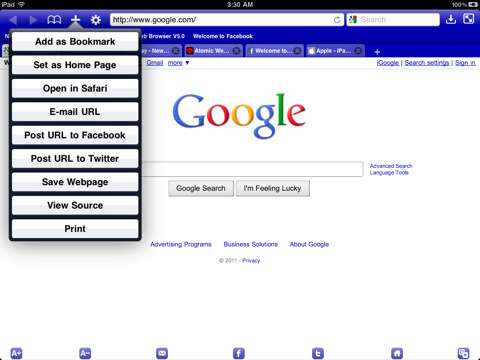
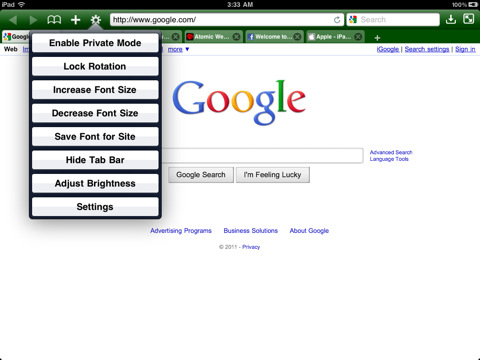
There are a ton of other features as well, such as setting the colour of the browser, ad block, private mode, air print, web compression (for faster browsing), search engine plugins, on-page search, view page source code, and more.

Atomic Web Browser Background Tabs Atomic Web Browser Download ManagerAtomic Web Browser Action ButtonsAtomic Web Browser Options

There are a few other browsers that compare with Atomic, the closest in both price and features being Mercury Browser, which I have been using on my iPhone for the past while. Mercury Browser is almost identical in features and has a few interesting possibilities like a library of common bookmarklets that can be installed (which is a bit buggy), a bookmarks springboard, and speed-dial-like dashboard for your favourite sites.

Mercury Browser’s extra features are great, and combine well with an interesting and pretty interface to make for fantastic browser, but I find that Atomic is easier to navigate. The Atomic Web Browser’s look and feel is more minimalist and straightforward in its approach, and for me — and more importantly, my wife — that translates into a better overall experience. Both have free and very functional Lite versions, though, so you should give them a try to see what suits you better.

Your turn:

What’s your favourite browser for iOS?


Want the Best Instagram Web App? Get Extragram!

Want the Best Instagram Web App? Get Extragram! | 40Tech

For some of our posts, we do like Lifehacker and other sites, finding articles about tech that interests us and then creating a summary post that links to the original article — replete with our own opinions, of course. :) One of my favourite sites is Web.AppStorm.net, which is part of the Envato network, and a great resource for web app reviews and articles. For this particular Web AppStorm-related summary post, I’m going to talk about Extragram, a fantastic web app interface for social photo-sharing service Instagram.

So why did I bother with that odd intro? Well, this time around, I have the pleasure of linking to none other than… well… me! My first article went live on Web AppStorm on Monday, and I didn’t want you guys to miss out. Read on for a summary of the sweetness that is Extragram!

Extragram - Best Instagam Web App | 40Tech

If you’ve had the chance to use Instagram at all, you will have noticed that it is more than just another photo-app that has a few fancy filters. It not only makes your pictures look cool, it also has its own very Twitter-like social network. You can follow users’ photo-streams, they can follow yours, there’s commenting, conversation, @mentions, the whole deal. You can even share your photos on the big social networks and microblog sites. What you can’t do with Instagram is view or interact with your social account — or even your own photos — outside of your mobile device. That changed rather quickly once Instagram released its API in February.

Since then, there have been several web apps that have popped up with the sole purpose of creating a comparable, or even better user experience on a screen that doesn’t fit into the palm of your hand. Some other notables are Gramfeed, Instgre.at, and Webstagram, but for a slick and fully-featured user experience, the web app you want is Extragram.

Extragram stands out from the other web apps by doing two things: getting out of its own way, and adding extra features that compliment the Instagram experience.

Here are the highlights:

  • Content-focused, consistent user experience
  • Easy commenting and photo liking
  • Navigation with mouse or keyboard
  • Grid and Filmstrip views
  • Map View to discover great photos and users near to you or anywhere in the world
  • Tag-based and “what’s hot” discovery
  • Sharing your own photos on Twitter, Facebook, Flickr, and Tumblr
  • Allowing other users to share your photos (opt-in, configurable)

The keyboard navigation is a nice touch, and works reasonably well — though it could be a bit tighter, overall. Other than that, Extragram is a great all ’round experience and the perfect compliment to Instagram. I highly recommend giving it a shot.

Check out my in-depth review here.

Some of my own Instagram Photos are here.

Get Extragram.

Get Instagram.

I’ll be writing for Web AppStorm fairly regularly over the next while, and am considering doing more summary posts here on 40Tech to make sure the readers here don’t miss out on the cool web apps I’ll be talking about. Before I commit to that, though, I would love some opinions from you about it. Let me know in the comments or send me a message via my contact form, Twitter, LinkedIn, or my personal site.