We like useful tech here at 40Tech, and spend a fair amount of time talking about productivity related apps. We’ve written more than a few posts talking about ways we’ve used tech to make our busy lives a little more sane, and a little while back, we asked people to show us their own workflows. We wanted to see how our readers integrate tech into their daily lives to keep them productive. We received some comments on the post, some notes on Twitter and Facebook, and even had a few email conversations with folks, and have decided to feature a couple of the more involved methods.
Today’s feature, by freelance graphics and web designer Chase Mann, involves a GTD process that includes Evernote, Outlook, Microsoft’s OneNote, and a few other choice bits of technology:
Getting Things Done (GTD) with Evernote, Outlook and OneNote
I’m a freelance graphics & web designer that uses a tablet pc. In short, these are the tools that I’ve found work best for me:
- Moleskin notebook & pen, Smartphone with Evernote app.
- Dropbox to automatically sync all client files and research folders.
- Outlook for Contacts, Calendar & Tasks. (connected with Gmail).
- OneNote as my written-note capture and Working space (on my tablet-pc) with a GTD Notebook for current Projects.
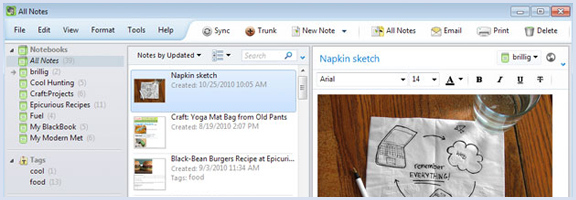
- Evernote as my magic, portable filing cabinet & reference library.
Reference Material:
I then tweaked all these programs and setups to better fit my workflow needs.
The GTD Workflow
I begin my GTD workflow by keeping my Moleskin notebook and Android phone as my immediate capture devices, which I then process into my Evernote Inbox notebook. Because I have design software on both my desktop and my tablet pc, and I’m constantly making changes to client files and gathering research resources, I use Dropbox to have the most updated client files and research folders automatically synced between all of my devices.
My projects tend to be mostly digital so I rely heavily on email communications (and some telephone conversations), but I tell all my clients that I prefer email so we both have documented project conversations. Outlook has quickly become my main communications & scheduling hub. Once I am referred a potential client, I setup a meeting to discuss project needs via whatever medium they prefer. I always take notes during the conversation and then email a copy to the client as my first follow-up step. If the client chooses me for the project, then I make new notebooks in both Evernote and OneNote specifically for that client and that project.
As I have time to sort through my inboxes, I’m able to organize and set tasks up as Projects. All Projects get their own notebook created in OneNote. I also attach that notebook to all possible related contacts in Outlook.
Why the heck would I use Outlook? I love the integration of Outlook and OneNote (2010 versions). I like being able to take an email about a client meeting and actually turn it into a task AND an appointment on my Calendar. I love being able to set reminders on tasks and calendar items too. It’s my tickler system. Easy.
As I process emails, they either get turned into scheduled tasks, flagged with a reminder tickler, sent to Evernote as reference, or sent to OneNote for current working projects. A major benefit of sending an email from Outlook to OneNote is that any attachments on the email show up as attached files in OneNote. How cool is that?!
Using Evernote
From the beginning, I had decided that Evernote would be my magical, brain-dump, inbox, filing cabinet. My very own research and records department that I can conveniently carry around in my pocket and access via a variety of mobile options. I setup Evernote using Bobby’s article with some tweaks to better suit my workflow.
Since Evernote came out with sub-notebooks, I find it easier to use those on my Android phone. I created a “Clients” notebook with sub-notebooks for each client by name. “Inbox” is my default notebook and “References” notebook, because I like moving items out of the Inbox notebook as part of my review process. I also created a “Coffee” notebook because I’m heavily involved in the coffee industry.
For all of my own personal projects, I create “@Project-name” tags to easily find them and I created a “!clients” tag for quickly marking items for later processing into the actual client’s sub-notebook. Since I really don’t use Evernote for my GTD (I prefer Outlook and OneNote for that), the only other tags I used were Bobby’s suggestion of Reference Materials, with a “folder” tag for each letter of the alphabet … which I further break down into actual tags. So A, would also have Apple, Art, Amphibians, etcetera … whatever tags make the most sense to me when I capture the item.
I do most of my project research via the internet and send pages, selections and images to Evernote with the !clients tag into my Inbox notebook for later sorting. Next I sort through my research materials and send selected items over to the project’s notebook in OneNote and create a mood-board page so I can mix and match items organically and scribble notes wherever I feel like it.
OneNote
OneNote is my working desktop so I try to keep it tidy by not using it as a reference tool, even though I could. The reason I prefer OneNote over Evernote for projects is because with a tablet PC I have the freedom to scribble hand-written notes anywhere I like in OneNote — then I can right click them and convert them into typed text. I also keep a section called “Scribbles” in each Client’s section group so that I can scribble notes and ideas as they hit me, then I convert them into tasks or reference material during my daily review of projects. I try my best to stay organized as I go so I have less processing to do during reviews.
One extra thing I did with OneNote was to setup a Clients Notebook where I created a section-group for each client with a Projects section that has pages and sub-pages for each active project I have with that client. I have an All Projects section in my GTD Notebook that lists all my currently active projects which has a wiki-style link to the Client’s section-group, and the specific Projects section for that client (and vice versa). This way I’m able to move around quickly within OneNote. I have To Do lists in each Client section-group and have those wiki-linked to a main To Do list in my GTD Notebook. I also set up an Archives section in each of the Client’s section-groups where I send the individual projects when they are totally complete. This way I only have current working projects in the active Projects section of both my GTD Notebook and my Clients Notebook.
Another reason I prefer to keep Evernote for reference and OneNote as my Projects organizer is so I can use the power of tags in each program respectively. I like being able to list all my tags across all notebooks in OneNote and know that they are project-related.
When I’m looking for a reference item, I know to just search by tags in Evernote and copy/paste only the necessary bits I need (instead of entire articles or web pages) over into OneNote.
Reviewing
I do a daily review each morning so I can make new daily lists, and I do a Sunday morning weekly review. I do mine in the mornings so that I’ve not got a lot on my mind when I’m trying to go to sleep at night.
So that’s my current workflow – thought it is still developing and being refined. I’m curious if someone has done something similar, but with Google apps or other free apps?
Chase Mann is the owner of Aim It Media, a creative design and marketing company for entrepreneurs and small businesses. You can connect with him via his many comments on 40Tech, or catch him on Twitter as @AimItMedia, @MyCoffeePro, or @Creativarty


![Evernote Pre-release Enables Notebook Sharing from Desktop [Windows] | 40Tech](https://www.40tech.com/wp-content/uploads/2011/03/image8.png "Evernote Pre-release Enables Notebook Sharing from Desktop [Windows] | 40Tech")