Menu Close

Category: Mac (page 11 of 26)

Writing Legal Briefs with Scrivener

Scrivener toolbar

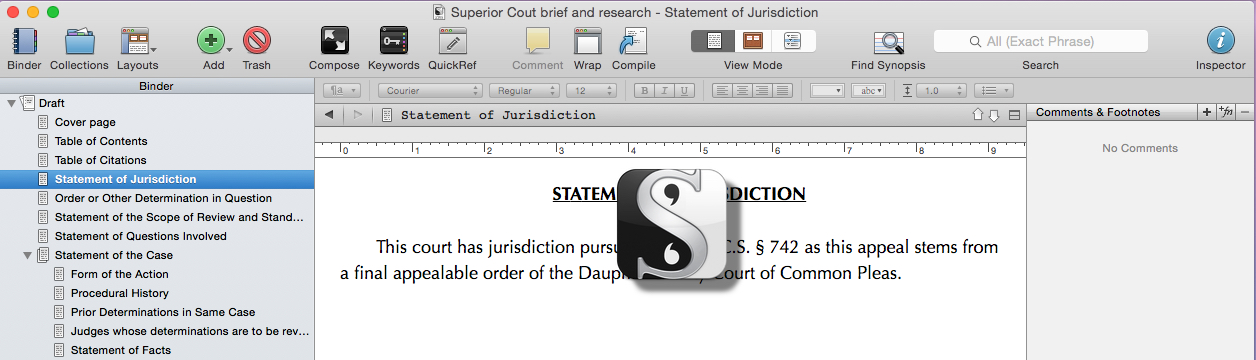
WordPerfect 5.1 is legendary among tech geeks of a certain age, and still has devoted users. I used various incarnations of WordPerfect as my main word processor and brief[1] writing tool until just a few years ago, when I succumbed to the inevitable force of change, and switched to Microsoft Word. Now, though, I’m not even using a traditional word processor as my main brief writing application, because I’ve discovered that Scrivener is a fantastic tool for that purpose.

Read more


Restore OS X Photos’ Lost Functionality With Automator

I’ve been an Aperture user for a couple of years now, and have debating what the future will hold for my workflow, in light of the sunsetting of Aperture in favor of OS X’s new Photos app. I’ve played with Photos a bit, and like much about the app. There are some features I need, though, that are currently missing in Photos. One of those features is the ability to export photos with custom sizes. It looks like there may be a pretty easy workaround to that problem.

Read more


DEVONthink for Lawyers

devonthink_logo[Mac] I’ve been using DEVONthink Pro Office for a few years now, but only as a filing cabinet for documents that I don’t want to trust to the cloud. The latest episode of the Mac Power Users podcast took a detailed look at DEVONthink, and got me thinking about whether I was using the app to its fullest potential. Specifically, I wondered if I would benefit from using DEVONthink in my legal practice.

Read more


Quickly Extract an App Icon For Use Elsewhere

[Mac] Someone please tell me why I didn’t discovery this, oh, maybe six years ago? If you have a blog and write about software, you’re constantly looking looking for high quality icons to use. The method quoted at the bottom of this post from Macworld makes it easy.

Even easier, I’ve found, is a tip I stumbled upon a while back on another site. I’ve been unable to relocate the source, so regretfully can’t credit it, but I remember the tip: find an application in your Finder, and drag it onto the Preview icon in your Mac’s dock. Preview will then open, showing you all of the artwork used in that application, including the icon. You can then export a high quality version of it to use in your blog post.
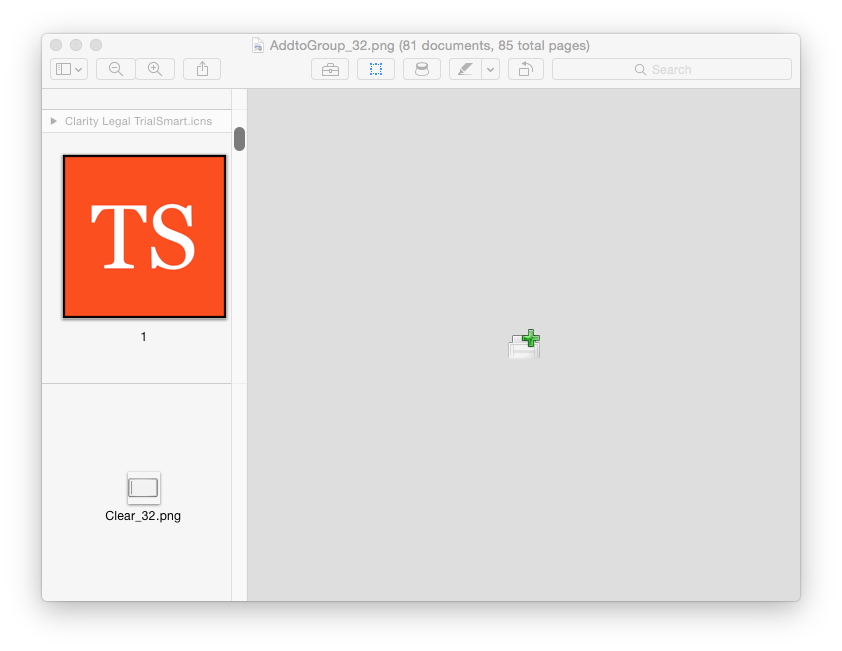
Use Preview to extract app icons

In the Finder, select the program in question, and press Command-C (or if you love menus, select Edit -> Copy). You’ve now got a full copy of the application on your clipboard. . . Now launch Preview, and press Command-N (File -> New from Clipboard for you menu users). You may be surprised at the result: a full copy of the chosen application’s icons, in every available size.

Easily view an application’s icons | Macworld


3 Note-taking Apps, Used Together

For the past few years, I’ve been using three note taking apps side by side. Two of the three apps have stayed the same over the years, while the third has changed a couple of times. Why three apps? It’s partially a function of the strengths and weaknesses of the apps I use, but it’s largely a function of my brain liking to keep different types of data segregated into different apps. In my system, each app serves a different purpose:

Read more