
 Some websites just have “it.” Whether it is good writing, a pleasing design, or great content, those sites rise above the others. Today I take a look at five tech-related sites that are worth visiting on a regular basis, or subscribing to in your RSS reader (or both). Of course, I would put 40Tech at the top of the list, but since I might be just a wee bit biased, I’ll leave it off. For this post, I’m focusing more on sites that generate their own content, rather than social media sites like Twitter. Also, since gadget sites just remind me of what I don’t have and might never have, sites like Gizmodo and Engadget are absent from this list.
Author: Evan Kline (page 158 of 164)
Hello, I'm Evan. I write about tech from my perspective – that of the average tech geek, sometimes with my lawyer glasses on. You can also find me on Twitter and at my real-life job as a lawyer. MORE ABOUT ME.
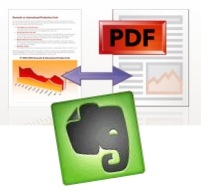 One of the big differences between Evernote on the Windows and Mac platforms is that Mac users have the ability to clip web pages from Safari, and send those pages into Evernote as PDF files. Windows users can clip pages to Evernote, but those pages aren’t sent as PDF files. As a result, the pages often lose important formatting in the transition.
Firefox users on Windows can get similar functionality to their Mac counterparts by installing the PDF Download add-on, and then, when downloading a page as a PDF, selecting Evernote as the default program to open the file. Read on for more detailed instructions.
Read more
 The internet is like the wild west, with all sorts of unsavory sites waiting for the unsuspecting. If you have children, it can be particularly scary, as your kids could intentionally or unintentionally come upon websites that are not for the faint of heart, let alone suitable for children. You aren’t without defenses, though. One way to protect your children is through the use of DNS servers. Read more
 If Windows 7 presales are any indication, many of you will be upgrading from Windows XP or Vista in a few months. Many of you will likely choose the “clean install” route, completely wiping your hard drives and starting fresh. Although reformatting usually can make for a more solid installation, it can cause headaches if you haven’t prepared ahead of time. With that in mind, I’ve put together a checklist of 10 steps to take prior to upgrading to Windows 7, to save you time later. This list could also apply to any of you who are reinstalling a current operating system, if you don’t have an image of your hard drive for an easy restoration. In a future post, I’ll take a look at steps to take after upgrading to Windows 7. I intend for this to be a “living” list, so please chime in with other suggestions in the comments. My hope is to be able to then take these suggestions, and post an updated list closer to the release of Windows 7. Without further adieu, here is the list. Read more
3 Reasons Google Wave Won’t Flop
Read more