Menu Close

Month: May 2011 (page 3 of 6)

Review of GTD in Springpad & Which GTD Solution Nina Chose [Reader Workflow]

Review of GTD in Springpad & Which GTD Solution Nina Chose [Reader Workflow] | 40Tech

Reading about how our readers approach their tech/workflow combinations has been both enlightening and a pleasure. You guys are smart — and we appreciate you taking the time to articulate your personal systems with us. Nina Kefer has already shown us two GTD setups in applications she has experimented with. Her Beauty and Brains: Getting Things Done™ In Style series has put an emphasis on mobility (from the iPhone), a beautiful user interface, and above all, functionality. She wraps up her series today with her own take on and review of GTD in Springpad (Bobby put together a slightly different approach here), and a final conclusion as to which GTD setup ultimately works the best for her – and might for you, too.

Read more


App of the Week: Planets, Free Stargazing App for iPhone, iPad [iOS]

40Tech App of the Week: Stargazing App Planets for iPhone, iPad, iPod Touch

When I was a kid, I was an astronomy nut. I was in love with the planets, the stars, nebulae, constellations, you name it. I read everything I could get my hands on. I even did a science project presentation in grade five (I think) on black holes. Somehow or other, though, as I grew older and the whirlwind of life, family and general stuff caught me up, I lost a lot of what I knew and never found the time to pick it up again. What bothered me especially was that I couldn’t identify more than four or five constellations any more — and that’s the sort of fun star gazing that I really wanted to share with my little girl.

Belatedly, it hit me: I own a GPS-capable, compass-packing smartphone. Somebody must have created a stargazing app for the iPhone and/or iPad. There’s an app for everything, or some other such marketing phrase, right? Of course, it turned out that there were several apps of varying costs and degrees of complexity — and the one that struck the balance with me was simple, free app (with over 5 million downloads) called Planets.

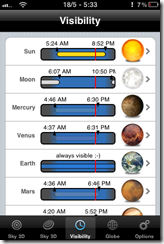
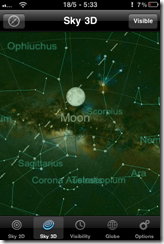
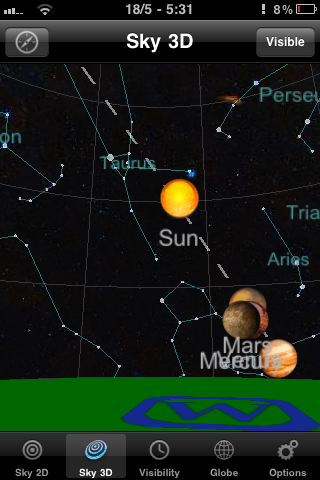
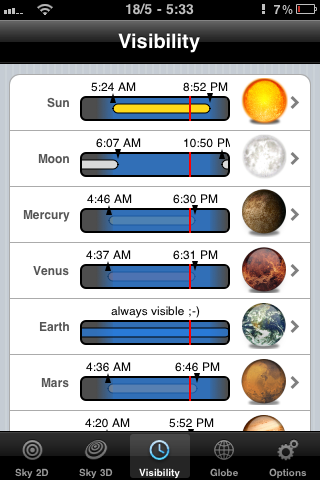
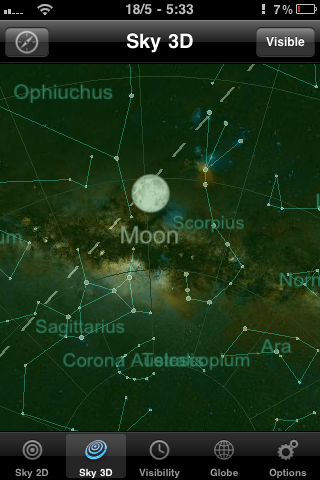
Planets doesn’t compare to the feature-sets of some of the paid apps like Starwalk for iPad, but it isn’t bogged down by complications either. It’s a straightforward 2D or 3D view of the heavens, augmented by some location-based gyroscope action. This is especially useful in the 3D view, as it allows you to get a look at the constellations and planets as you turn and point your iPhone or iPad. The 2D view provides a some useful information at a touch, such as rising and setting times of planets, the sun, and the like, but it’s the 3D virtual planetarium that gets me.
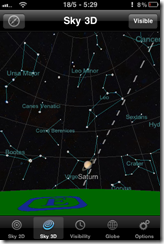
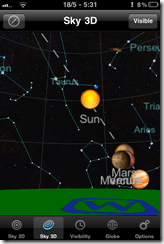
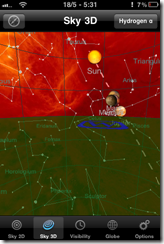
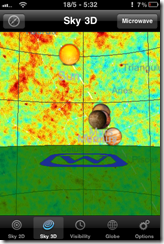
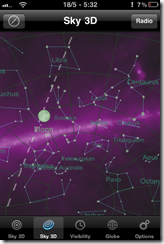
Constellations on the iPhone with Planets for iPhone, iPad | 40TechView planets, stars on the iPhone with Planets for iPhone, iPad | 40TechPlanet rise, sunrise, visibility of planets with the naked eye on iPhone, iPad | 40Tech

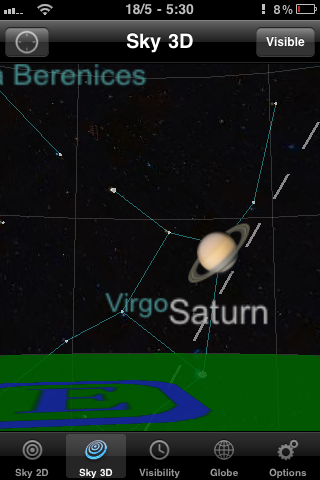
While Planets for iPhone and iPad could benefit from providing more information about specific stars and planets, and I wouldn’t mind a bit of interactivity and a photo of a nebula or two, I love the fact that me and my kid can quickly identify artwork in the sky and can even see where things should be if there wasn’t so much light pollution or the sometimes perpetual cloud cover we get on the Northwest coast – or if pesky things like daylight hours or the plane of the Earth get in the way. I also like that the Planets app actually tells you where the planets of our solar system happen to be hanging out, and at what times they might be visible to the naked eye. I found Saturn outside my door the other day. I’ve always loved Saturn. It’s pretty.
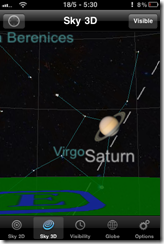
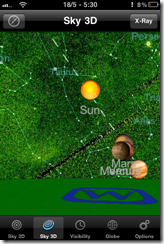
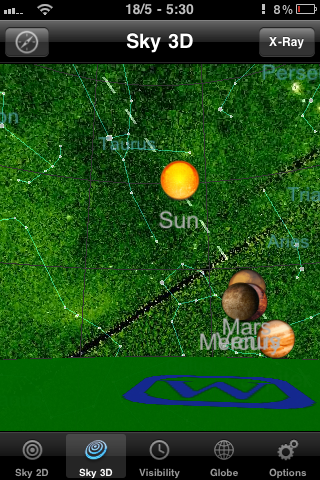
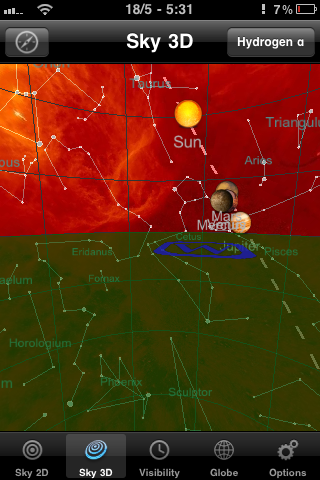
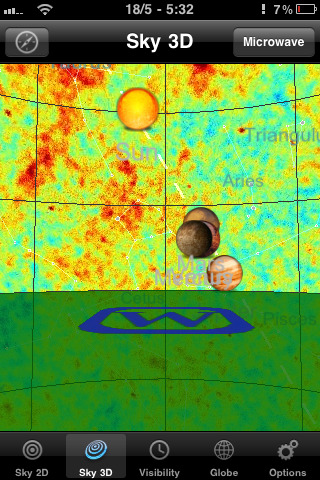
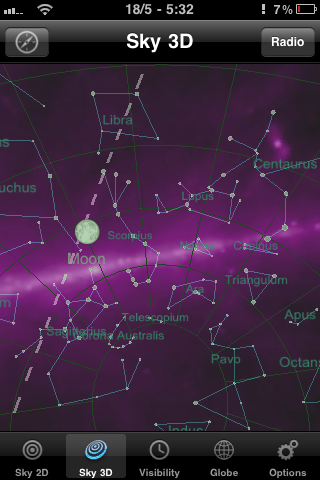
Photo May 18, 5 30 06 PMPhoto May 18, 5 30 59 PMPhoto May 18, 5 31 31 PMPhoto May 18, 5 32 11 PMPhoto May 18, 5 32 30 PMPhoto May 18, 5 33 03 PM

If the regular planetarium view doesn’t cut it for you, Planets also has several other views that make the sky look impressively colourful, including X-ray, Radio, Infrared, Microwave and Hydrogen-a. There are also some twirling shots of the planets in the globe section, but that part of the Planets app definitely needs more information and other bells and whistles to be interesting. Still, for a free app, it’s a great little stargazing assistant, and one that I get regular use out of.

You can pick up Planets for free at the iTunes App Store.

What’s your favourite stargazing app for your mobile device?


How To Quickly Toggle the Tap To Click Functionality of Your Trackpad [Mac]

Tap to Click Toggle.jpeg

When you type on a Mac laptop with a trackpad, do you inadvertently brush the trackpad with your palms or with the base of your thumbs? Doing so can cause your cursor to jump to unintended places on your screen, and really screw up whatever you’re working on. You can change your trackpad settings to disable Tap to Click to prevent this, but then you lose some convenience. What you really need is a quick way to toggle Tap to Click off and on. With a little AppleScript magic, you can do so.

Read more


LastPass vs. 1Password: Password Manager Shootout [Windows/Mac]

lastpass vs 1password

Password managers help you keep track of your passwords, which is vital if you want to use unique passwords on all sites that you visit. We’ve previously compared Lastpass, Keepass, and eWallet, and found that Lastpass came out on top. Those apps aren’t the only apps in the password manager field, though, and Lastpass just experienced a potential security issue. “Potential” is the key word here. There was no definitive indication that user data was compromised, but the LastPass team required all users to change their master passwords, out of an abundance of caution. Still, it seemed like a good time to compare Lastpass with another popular choice in the field, 1Password.

Read more


Magically Send Files to the Right Location On Your PC, With DropIt [Windows]

dropit header

Is your PC’s desktop or downloads folder cluttered with files? If so, and you’re feeling overwhelmed with the thought of getting your system organized, check out DropIt. DropIt is a free program that creates a big icon on your desktop, that can be thought of as a drop zone. When you drop a file onto the icon, actions will be performed on it depending on how you’ve configured DropIt. DropIt can help you quickly move files to the proper place on your PC, without having to manually select a folder for each file.

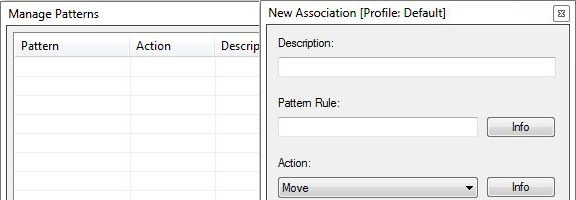
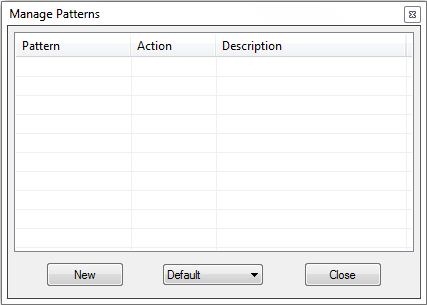
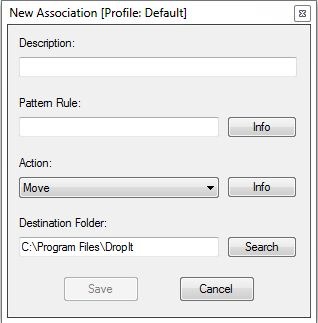
The filters that you can set up with DropIt are fairly basic, so you would be better off with something like Belvedere on Windows or Hazel on the Mac if you want advanced features for PC organization and cleaning. With DropIt, you can filter a file based on name or file type. For each such file, you can preset DropIt for one of the following options: Move, Copy, Compress, Extract, Open With, Delete, Exclude.

dropit manage patterns dropit new association

DropIt doesn’t seem to be intended to be a comprehensive organization utility, but does seem ideal for quickly going through your desktop or other folders, and moving files to preset locations. For example, you could quickly go through your desktop, and drop all of your image, video, and audio files onto your DropIt drop zone, and have them moved to your picture, video, or music folders, without taking the time to place each file in the proper location.

Do you have any apps that you use to organize your system? Let us know in the comments.

DropIt [via Cybernet News]