
One of the strengths of Android is its open app ecosystem. No approval by Google is required for a developer to get an app into the Android Market. That also creates a problem, though, in that it sometimes can be difficult to find the good apps. Such was the case when I went hunting for a calendar app. AnCal, Gemini, Business Calendar Beta, Pocket Informant, Pure Calendar, CalWidget, iRT Calendar, Agenda Widget. Those are just a few of the calendars available for Android. Some of those are great, and warrant a look, but none of them jumped out at me as the perfect calendar for my needs. After sorting through several, I found one that was – CalenGoo.
Interface
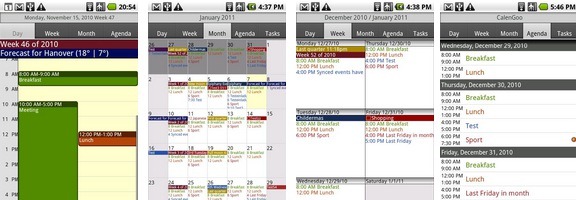
CalenGoo offers four basic calendar views, plus an additional landscape view. You can choose between Day view, Month view, Week view, and Agenda view. I found that CalenGoo was the app that best allowed me to view my appointments in each view. I spend most of my time in Agenda view, which is a chronological list of your appointments, by day. The week view might have been what sold me on CalenGoo, though, as I was looking for a calendar app that had a week view similar to Outlook’s week view on the desktop.
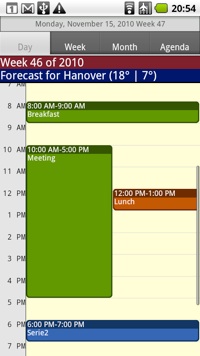
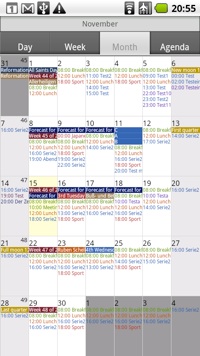
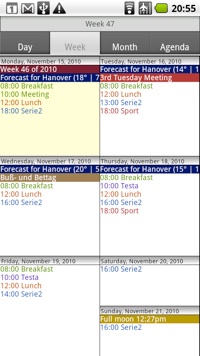
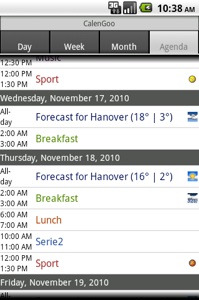
You can easily jump between views via tabs at the top of each view. Within each view, you can advance to the next day, week, or month (depending on the view) with a swipe to the left. You can drill down in each view with a double tap. For example, if you double tap a day from within week view, you will be switched into the day view for that day. Double tap on an appointment in day view, and the appointment details open.
CalenGoo has a fifth view, that you discover when you turn you phone into a landscape position from Day view. If you do that, you’ll be presented with a landscape week view, that shows your appointments as blocks of time (larger blocks = longer appointments).
Another nice feature of CalenGoo is that colors from Google Calendar will sync to your CalenGoo calendar, as shown in the above screenshots taken from the CalenGoo site. You also can drag and drop appointments, with a menu that pops up after a long press on a calendar entry.
The interface for entering events is elegant, with the usual areas for text entry, and selection menus for dates and times. You can also input a locaton if desired, and choose which of your calendars to associate with the event. From the input interface, you can add reminders, set recurrence, input a longer description, add attendees, and set privacy.
Syncing
CalenGoo syncs with Google Calendar, and also syncs directly with the stock calendar on my Captivate. As best I can tell, there is no way to bypass the stock calendar and sync directly with an Exchange server. This isn’t a fatal flaw, as my Outlook appointments still end up in CalenGoo, but it meant that I couldn’t eliminate the native Exchange sync on my phone.
Other Features
CalenGoo has a search functionality. It’s simple, letting you search for words, but I’ve also found that is is very fast compared to the search functionality in the stock calendar on my Captivate.
While I use it with my work (Exchange) calendar, CalenGoo has close interaction with Google Calendar. You can input any type of recurring event that Google Calendar supports. You can edit these from within the app, and can use the same rules that you use when setting up a recurring appointment from within Google. You can invite people to events from within the app, and see their status from within the app, and from within Google Calendar. You can add up to five reminders for an event, choosing (just like in Google Calendar) between popup, email, and SMS reminders.
The interface also supports Event Flairs, the Google Labs feature that allows you to associate icons with events.
Widgets aren’t forgotten with CalenGoo. In fact, far from it. You can choose between seven different widgets, from 2×2 all the up to 4×4, and including Agenda, Day, Week, and Month views. For example, the Agenda widget allows me to keep a list of my upcoming appointments directly on my home screen. This allows me to view my appointments without even opening the app.
Finally, CalenGoo does support syncing with Google Tasks. I don’t use Google Tasks, so I haven’t tried this out and can’t comment on it.
Price
CalenGoo is not free. It is currently $6.44 (U.S.) on the Android Market. Unfortunately, there is no trial. I took a leap of faith based on the many glowing recommendations I saw in online forums, figuring that I had Android’s 15 minute app review window within which to check it out.
Summary
Pros
- Easy to use
- Great interface – all views are clean and well thought out, and easy to move between
- Fast at moving around, and at searching
Cons
- Not free, and no trial
- No direct sync with Exchange
Are you using a calendar app on your Android device? If so, let us know your impressions of it in the comments.

Sergey says:
I’ve tried about ten different calendars (Gemini, Pocket Informant,Agenda Widget etc.). After all I chose Business Calendar Beta. It is free and has a lot of options and adjustments. BTW, there are many different handy widgets too.
March 29, 2011 — 6:10 am
jon says:
I use Pocket Informant (https://market.android.com/details?id=net.webis.pocketinformant&feature=search_result). They are on release 1.0, but if you look at the development of their previous versions, iOS, WM, BB – you know what will be in the future. It offers much more functionality than this CalenGoo. There are a couple of noticable big things missing (Widget for one), but they are aware and working on the next release already.
March 29, 2011 — 9:06 am
Evan Kline says:
If I remember correctly, Pocket Informant was the runner up when I was looking at apps. For me, I use the basic functionality, so it was more of a question of which app had the right feel.
April 4, 2011 — 1:19 pm
Bobby Travis says:
I’ve used CalenGoo for iPhone, and it is very similar. Very powerful app.
March 30, 2011 — 12:33 am
Vivek @ Nokia Price in India says:
Celengoo is a nice app for Android based phones. Quite useful.
April 4, 2011 — 8:12 am