

- Easy Access to US, UK Streaming Services From Anywhere - August 18, 2012
- 5 Fresh Android Games Released in 2012 - July 5, 2012
- Google Chrome Explodes On To iOS, Puts Desktop Experience In Your Pocket - June 30, 2012

If you are a dedicated Windows Live Messenger user and own an iPhone, you may want to take a gander at the official, recently released (and free) iPhone app for the longstanding IM service. The new Live Messenger app is fairly slick and easy to navigate, has push notifications, displays updates from many of the services you can integrate with in your Windows Live account — including Facebook — and handles the job of basic messaging very well. That said, there are a few obvious gaps and design flaws that have made the experience a bit frustrating for some.
Live Messenger for iPhone Features
- Chat with Windows Live and Yahoo! Messenger contacts
- Push notifications
- See what your friends are sharing and update your status on multiple Social Network accounts including Facebook, Flickr, MySpace and a slew of others
- Take photos or upload photos from your iPhone to share on your Windows Live account (add captions, yadda yadda)
- View and interact with your Windows Live connections and your own profile (including viewing profiles, chat, call and email)
- Lots of smiley emoticons for the lovers of smiley emoticons
- Access your hotmail account and send messages right from the app

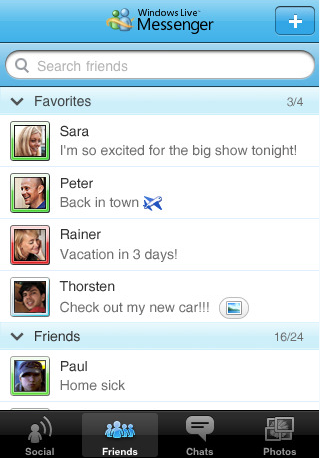

Where It Lacks
- You can’t add or remove your social networks from within the app
- Push notifications have been reported to be spotty at best
- The app seems to have a problem refreshing the status of your online friends
- No group chats
- No iOS4 multitasking support at this time (and at least a two second wait for the app to load)
- UI issues that make it difficult to find settings — like where to log out, for example
- No way to reorder your contacts based on status, groups, hiding offline, or any other way that seems readily apparent
- Can’t block or delete contacts
- The email functionality appears to be just an embedded browser viewing Hotmail’s mobile version
How to View Profiles, Change Online Status and Sign Out of Windows Live Messenger for iPhone
In case you are one of the many having trouble with this, you can find your profile link, change your picture and online status by touching your profile picture (this is how you interact with your contacts’ menu options as well). To sign out of Windows Live Messenger for iPhone, go to your online status menu and you will find a “Sign out from here” button below Appear Offline.
As mentioned above, if you are a major Windows Live Messenger or even just Windows Live user, the new offering from Microsoft is a great start, and it ought to give you most of what you need on the go. It will likely improve in a hurry, too, considering Microsoft’s current push to take over the net. However, if you are an IM power user, you may wish to stick with another free service, like eBuddy, or Nimbuzz, which also allow for multiple instant message and some social network chat accounts.
What do you think of the new Windows Live Messenger for iPhone? Let us know in the comments!

bernice says:
hi is it that the windows live messenger app for iPhone only works with hotmail accounts? I can’t seem to log in with my gmail one
July 6, 2010 — 4:32 am
Bobby Travis says:
Hi Bernice, Windows Live Messenger is good for both Hotmail and Yahoo! Messenger accounts, unfortunately.
If you want a free app that uses Gmail login for Google Talk (as well as Windows Live Messenger and Yahoo!, Facebook chat and others), I suggest the free version of eBuddy or Nimbuzz.
July 6, 2010 — 3:44 pm
Maraia says:
It’s a pity I downloaded the windows live messenger update on iPhone as I can’t and don’t have an option to sign in appearing offline anymore. Big issue for me, anything I may have missed? Like the older one better just for this. Aside from that it’s great!
September 24, 2010 — 8:04 am
Bobby Travis says:
Hi Maraia,
I just took a look and found that, if you tap your picture, you will be able to tap your online status (which appears in a slide-out menu) and change to Appear Offline. If you sign out (which you can do from the same menu that allows you to change your status), and then sign back in, your status should remain as Appear Offline. It worked for me, anyway… Although, I should mention that when I tap the the menu again, Available is the item that is checked even though my status states Appear offline.
September 24, 2010 — 2:12 pm
Maraia says:
Hi Bobby and thanks. I’m forever changing my online status once I’ve signed in to offline as you mentioned, always sign out from there BUT whenever I sign back in, there’s my little profile pic surrounded by GREEN!!! I use messenger on PC and my Mac also but don’t have this issue there. Anyway thanks for the reply it must just be me lol have a great day!
September 24, 2010 — 7:14 pm
Bobby Travis says:
lol! — No Problem Maraia. I hope I was at least some help. :D
September 24, 2010 — 7:19 pm
Abu Haajar says:
Is there any way to show as “online” when you exist the App?
July 16, 2011 — 6:44 am
Bobby Travis says:
Hi Abu,
I’m not entirely certain what you’re asking, but if it is where the controls are located to change your online status in the app, then just tap the Friends button on the bottom of the screen, then tap your name on the top right to set your status. A little green square beside your name means you are showing as “Online.”
Hope that helps you out! :D
July 19, 2011 — 8:45 pm
Ima says:
sucks – no way to remove a friend on the iphone app, but you can add one.. weird
July 22, 2011 — 6:13 pm
Bobby Travis says:
I hear you, Ima! The app has had a few updates, but the functionality has seen little to no improvement. I basically just keep it around for quick access to hotmail if I ever need it.
July 28, 2011 — 10:39 pm
Chris says:
How do you actually delete chat history???
November 21, 2011 — 8:39 am
Bobby Travis says:
I honestly have no clue, Chris. I did a bit of looking around for you, but didn’t find anything useful. I don’t use Messenger for chat, so I’m not much help here.
November 25, 2011 — 11:57 am