Menu Close

Tag: Web Apps (page 6 of 15)

Sign and Send Faxes and Emailed Documents . . . Without a Fax, Scanner, or Printer

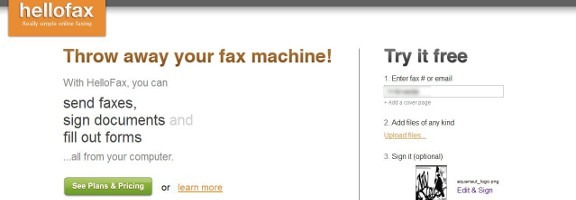
hellofax page

With the dominance of email and other forms of digital communications, the fax machine is dying a slow death. There are still times, though, where you’ll want to not only send a fax, but attach a signature to a faxed document. You can do so without a scanner, fax machine, or printer, using webapp HelloFax. HelloFax also supports the signing and sending of documents via email.

With HelloFax, you upload your document (so be forewarned if privacy is an issue) and enter the recipient’s fax number or email address. If you’d like, you can also add a signature or other marking to the document that you’re sending. The option box for this will appear after you’ve uploaded your document.

hellofax1

You have the choice of creating your signature with your mouse (probably quite difficult), uploading an image, or by taking a photo of your signature with your phone. HelloFax will process that, and isolate it for you. You can crop the signature image, as well as adjust the contrast. The background of this image will be transparent, so you don’t have to worry about it accidentally obscuring parts of your document. I found that my signature looked horrible by default, but I was able with to get it looking nice with just a bit of tweaking.

hellofax4

When you’re all done, just hit send, and your message will be sent. HelloFax allows you to send five faxed pages for free. After that, you need a paid account, which begins at $4.99 per month for 50 faxed pages. The sending of signed emails is unlimited.

How do you send faxed documents, if you don’t have a fax machine?

HelloFax [via MakeUseOf]


Producteev Adds Google Tasks Sync, Outlook Plugin, with Native Mac, Windows, Android Apps On the Way

Producteev Adds Google Tasks Sync, Outlook Plugin, with Native Mac, Windows, Android Apps On the Way | 40Tech

Producteev won me over a while back with the smooth way they integrate into your already established workflow. The pretty helped too — pretty is a necessity for me when looking at a task list — but it was the Google Calendar integration, and the ability to interact with and create tasks from email, IM, and more that clinched it for me. As a Gmail user, I have access to a nifty widget, and Google Apps users get even tighter integration.

Enough about me and my Google services, though! We’re here to talk about you — and did you know that Producteev has just launched an Outlook plugin that let’s you single-click emails directly to tasks? And that’s not all… they’ve also announced a two-way sync with Google Tasks, and have some native apps on the way! You like? Read on for details!


Outlook Plugin

Outlook is powerful software, but it lacks mobility, which is a tough thing when you use it as your main task manager in this day and age. Producteev makes Outlook tasks portable by allowing you to take them to the cloud by way of a tightly integrated Outlook plugin. With the plugin, you can add emails to tasks in Producteev with a single click of the flag button, and with the integrated Producteev tab, you can assign it to others, add priority stars, etc. The plugin only allows you to sync with one workspace at a time, but you can choose for the sync to be two-way, Outlook to Producteev, or Producteev to Outlook only, and you can change workspaces right from Outlook, as well.

Here’s a link to the Producteev Outlook plugin screencast.


Google Tasks

I was honestly under the impression that people cared about Google Tasks about as much as they do about Buzz, Wave and Sidewiki. Or Orkut. Apparently, I was gravely mistaken, as Google is invested enough in Tasks that they went through the trouble of launching a Tasks API at Google I/O this month. Producteev was right there with them, and has created a two-way revolving door with the in-Gmail task manager.

It’s a pretty cool integration, actually. It allows you to create tasks in Google and have them sync to your Producteev workspace where they will have their own label (the list’s name) automatically assigned. It also works the other way, bringing your workspace’s tasks into Google where you can quickly check on them and interact with them without leaving your email. Yayy efficiency!

Check out the quick screencast on the integration, below:

http://www.youtube.com/watch?v=1yesX1I_KeI&feature=player_embedded

I advise you to be careful when using Google Tasks sync, however. It is, at this point, only designed to handle a connection from one Producteev workspace. If you use several workspaces concurrently, like I do in my Producteeev GTD setup, and you, say, I don’t know… connect them all… at once —  well, let’s just say you will end up with an ever-growing and duplicating list of tasks as the workspaces sync them, and then re-sync them, one after the other, after the other, after the other. *grins*  Thankfully, they all show up under one label and so were easy to delete.

If you do use multiple workspaces in your productivity setup, I recommend using only your most important workspace in Google Tasks sync. You could also use it for a priority tasks list, or to keep your Projects workspace handy at a glance.


Native Apps

Producteev hasn’t forgotten about the users out there who prefer native apps. They have had them in the works for some time now, and that awesome little tree is about to bear its fruit. A Mac app is due to hit the mainstream by the end of this month, and Windows will get a native app in mid-June. That’s straight out of the mouth (well… email) of Producteev founder Ilan Abehassera, so doubt me at your peril! Ilan also said that a fancy new Android app will be available in early June, as well.

Here’s a look at the Mac app (from the Producteev Blog):
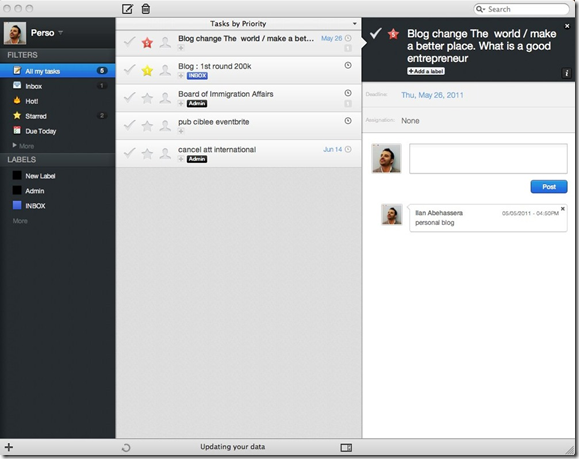
Producteed Native App | Producteev Mac App

What do you think of Producteev’s new integrations?


Springpad Web App Adds Offline Access, Data Backup

Springpad Web App Adds Offline Access, Data Backup | 40Tech

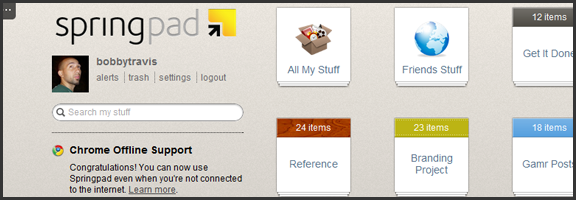
One of the things that has been a major point of contention in the ongoing Springpad vs Evernote debate (which still rages, despite the different market segments the apps target) has been the lack of a desktop app for Springpad. This was closely followed by the inability to backup and download your Springpad data, which was a strong deterrent for some of our own readers. Well, Springpad has pushed their product forward yet again, and have addressed these issues — and while offline access to the service doesn’t quite stack up to the power of a desktop version, it’s a huge step forward for the web app, and only the beginning of things to come.

Offline Access

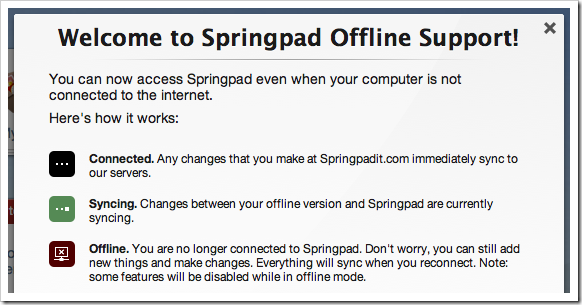
The Springpad mobile apps have had offline access for some time now, leaving their web counterpart to catch up. To do this, Springpad has used it’s integration into the Google Chrome browser to its — or, rather, our — advantage. Other browsers will be added soon enough, but for now, all that HTML5 offline goodness is locked into the native Chrome app. If you already have it installed, you will probably have to uninstall it and then grab it from the Chrome Web Store again. Then you need to pop into settings, then services, and click the button to enable offline access and start the sync. If you want to make sure everything you sync remains up to date, then leave the app open while you do other things. I suggest right-clicking on the app and then selecting “open as pinned tab” or as a new window so you can “set it and forget it.”

Springpad Offline Mode Syncs Data for Offline Access

While the offline access is a fantastic development, there are still a few things that are lacking. Of course, you won’t have access to elements that are internet-dependent, like alerts and links to other sites, but you also won’t be able to use the Board, or the advanced sorting and filtering options. Also, you can only search by title (which is a little annoying), you have no access to the trash, and you can’t add new photos or files for later upload (among other limitations — full list here). Some of these things will be addressed in future updates, and I’m definitely not complaining — I’m happy about the offline access, and fully expect it to improve in leaps and bounds over the next while. I still have that hankering for a desktop app, though. I have no real reason for it, and I fully understand that Springpad’s dedication to the cloud and HTML5 puts them ahead of the curve, but… I want one. It’s probably just me showing my age or something…

Data Backup

I’m loving what Springpad has put together for a data backup solution. Most times, when you download a backup of an online service, it is a CSV file, or some other dump of data that is not otherwise immediately usable. Springpad has basically given you an offline website with a list of your data in HTML form. Unfortunately, it is not easily navigable without a lot of scrolling or using your browser’s Find feature, but it’s all there and it’s easy to read. I downloaded a few thousand notes and bookmarks into a 12 MB zip file (with attachments and photos in their respective folders) that I was able to open and read right away. This made me happy!

Springpad Offline Access, Data Backup Features | 40Tech

The downside of this method is that it is not really ideal for transferring your data to another service, if that is what you want to do. Perhaps Springpad should include a CSV option, but I’m thinking you would have to leave a lot of data behind that way.

In any case, you now have the ability to mitigate the potential disaster of losing all your Springpad data in a freak accident, and will be able to enjoy reading it too. Huzzah!

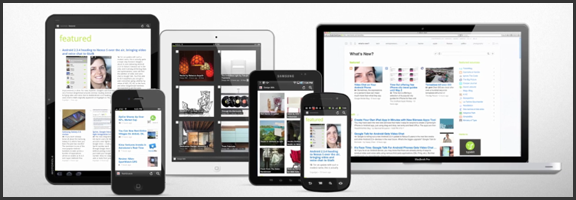
Springpad isn’t slacking on other fronts, either. They are a part of the Google IO Chrome Sandbox, and have updated their Android apps to support Honeycomb tablet devices. They also have released a version for the Barnes & Noble Nook Color — which is awesome for the owners of the eBook reader/tablet hybrids, considering how Springpad is able to keep track of and deliver alerts on books. I love the steady and focused flow of updates we’ve been getting from Springpad, and I can’t wait to see where they take us next. I’m hoping desktop app – but I’ll take what they give.

What are your thoughts on the latest Springpad updates?


App of the Week: Feedly [iOS, Android, Web]

Feedly RSS Reader for iPad, iPhone, Android, Tablet, Web | 40Tech App of the Week

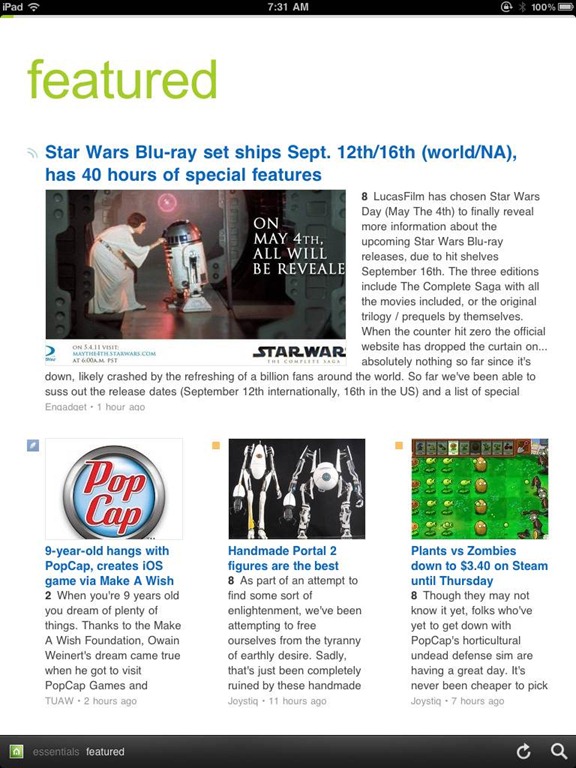
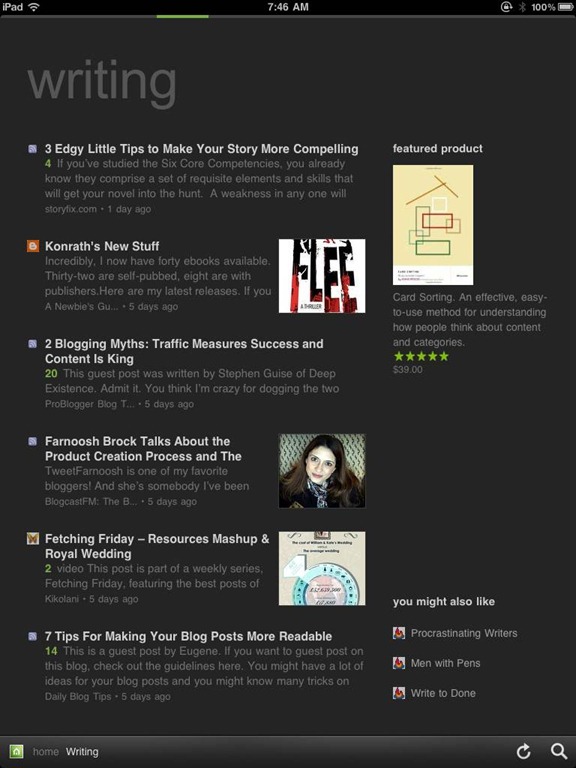
We’ve covered Feedly before (and we thought it was great!) but the RSS feed reader to smack all others is now much-improved. The web app has seen several updates in functionality and sharing features, and the recently released and updated mobile apps have been generating a lot of positive attention. And why not? The experience is nearly identical on both iOS and Android phones and tablets, and Feedly Mobile 2.0 easily competes with the likes of Pulse, Flipboard, and Zite. With an update or two, it might even blow those apps away completely.

Feedly’s minimalist magazine design focuses on the content, presenting it in an easy to read format that is complemented by the app’s simplistic navigation. The mobile apps are especially barebones, keeping the effects to a minimum, and the overall presentation is extremely appealing. The toolbar on the bottom of the screen allows you to like (on Google Reader), bookmark, email, and share articles on Twitter. You can also enable saving to Instapaper and Read It Later. The web app has several more options for sharing content, but the basics are available in Feedly Mobile 2.0, with the exception of one service: Facebook. That seemed like a bit of an oversight to me (and that’s me understating the obvious), but the developers assure us that Facebook functionality will be available in version 3.

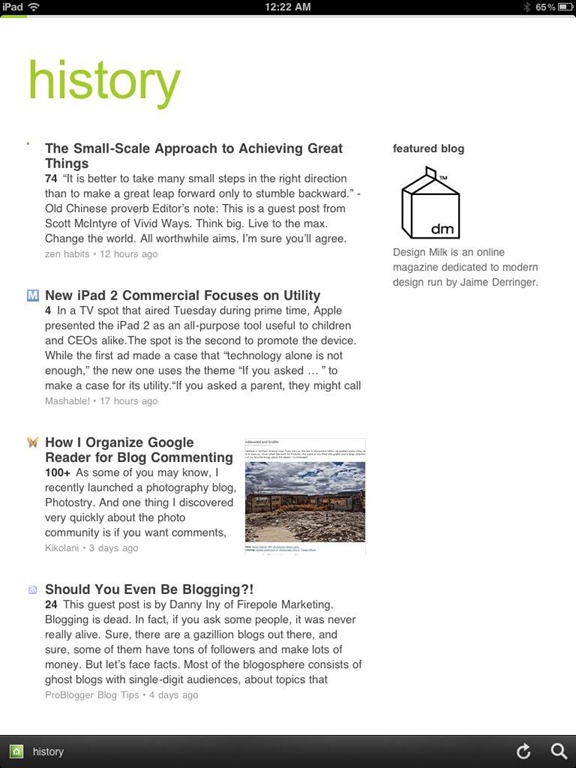
Feedly Mobile 2.0 iPad RSS Reader | 40TechFeedly Mobile 2.0 | Google Reader Magazine | 40TechFeedly Mobile 2.0 | Find Already Read Posts in History | 40Tech

One of the best things about Feedly is its learning algorithm. While you read, the app learns about the topics that interest you most, and does a great job configuring your personal magazine around those interests, bringing your favourite types of content to the forefront. You can always go through your sources one at a time, if you like, but taking advantage of Feedly’s different sections — each one tailored just for you — really helps to keep your reading moving and you engaged. Feedly also offers suggestions, periodically, of other sites that may suit your interests, which is helpful.

If you don’t feel like connecting with Google Reader, Feedly does have a host of content already available for you to sort through, but it works best when you are logged in.

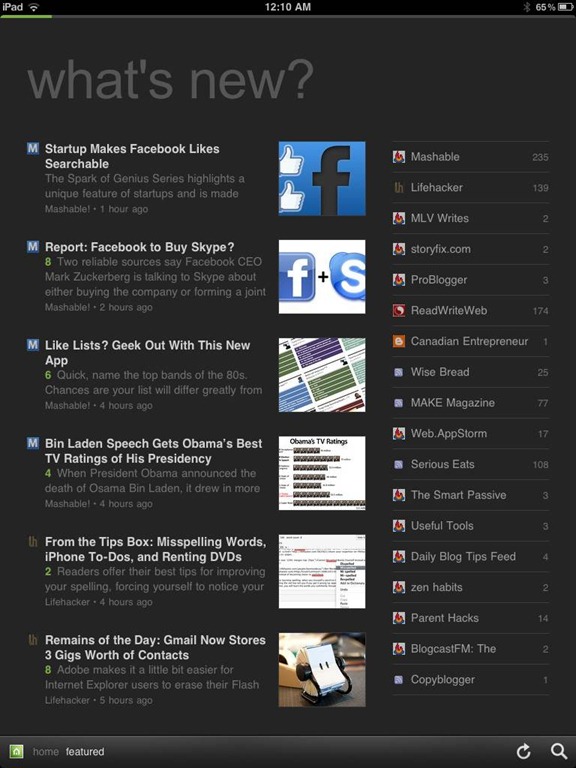
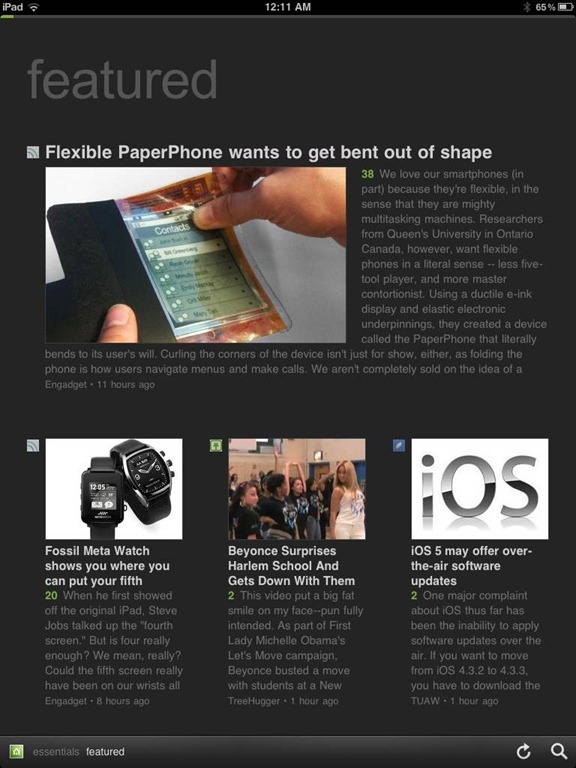
Feedly Mobile 2.0 Dark Theme | 40TechFeedly Mobile 2.0 iPad RSS Reader Magazine | 40TechFeedly Mobile 2.0 RSS Feed Reader | 40Tech

Feedly Mobile 2.0 is every bit as fantastic as the web app. It’s incredibly responsive, and is beautiful to look at on all platforms, including iPhones and Android phones, the iPad, and Android tablets of different sizes (both 7″ and 10″). There are a few niceties packed into the HTML5 goodness, as well, such as an instant search bar, a black or white theme (which helps with night reading and can be changed with a shake), a history section, and the ability to start on the magazine layout or category of your choice. There are still a few kinks that need to be ironed out of the mobile apps, however, such as the lack of Facebook sharing, and that the app only works in portrait mode. Hopefully these issues will be resolved in an update or two. I’d also like to see some of the additional sharing options in the web app find their way to mobile as well, especially sharing on LinkedIn and Evernote.

Feedly is free, and it kicks butt. Get it.

Now you know I love it — what about you?


Memolane Finds Elusive Social Updates From Your Past

Memolane Finds Elusive Social Updates From Your Past | 40Tech

Have you ever tried looking backwards in Twitter or Facebook? It’s not easy. There was that funny conversation, link, or photo that one time that you suddenly feet the need to take a look at again, but when you tried to find it, you were faced with over a year’s worth of scrolling, waiting, scrolling, waiting, and then yet more scrolling? That’s one of the downsides of a world run by micro-updates — there are a lot of them. You could try using the built in search, or even Google, but it’ll probably be a chilly day down south before you find that elusive memory. That’s where Memolane comes in.

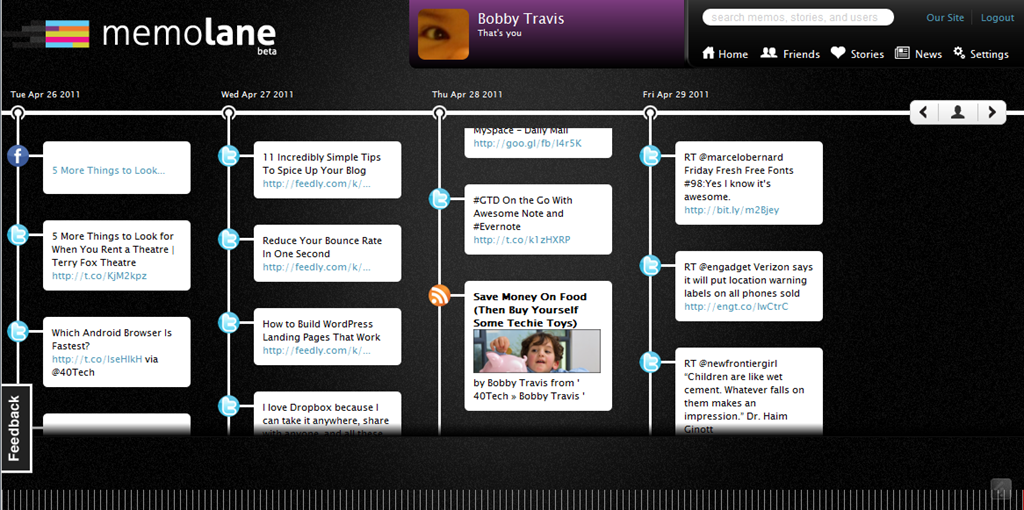
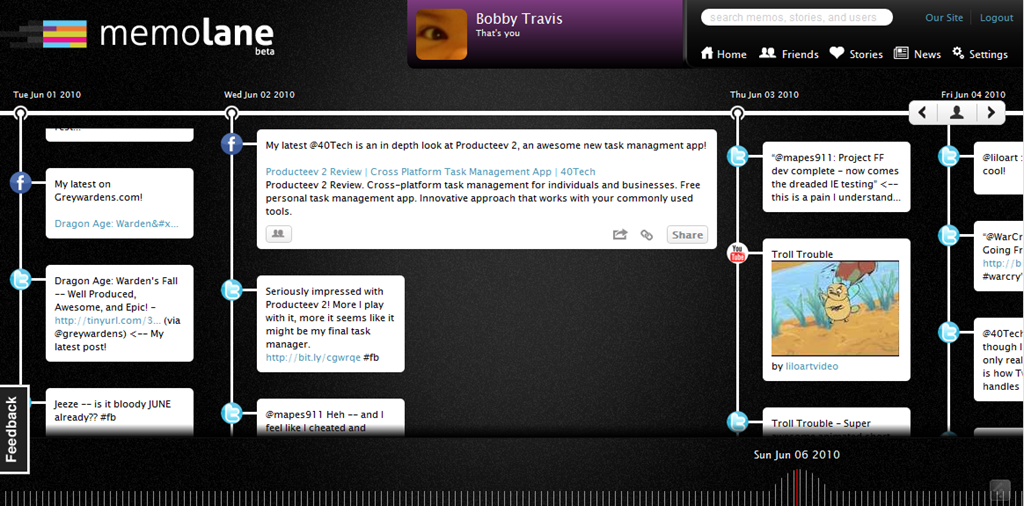
Memolane is a new web app that allows you to view content from multiple social media services in a single timeline that is easy on the eyes, and easy to search through. The timeline is scrollable and broken down into days, with the tweets, photos, updates, et al, that you posted online each day listed vertically in expandable memo bubbles. You can connect Facebook, Twitter, Flickr, YouTube, Last.fm, Trip.it, and more — and you can even add in RSS feeds to pull in custom content. I found that I was able to access Twitter updates as far back as February 2010, and Facebook updates, especially photos, all the way back to 2007. Clicking the timeline bar on the bottom of the window made for quick trips to the dates I was looking for, and the search is actually pretty powerful, so long as you don’t enter hash-tag symbols (#).

Memolane | Scrapbook for Online Life - 40Tech Memolane - Expanded | 40Tech

An easy way to find your old online memories isn’t all that Memolane is good for, however. You can also embed lanes into web pages (see it in action below), and connect with friends to create stories together around shared experiences. It’s a bit like an online scrapbook, really. In fact, Memolane may be adding a print aspect that will allow for real scrapbooking — digital life making it full circle back to the real world.

I like Memolane. It’s easy to set up and use, it allows me to find things that I may have never found otherwise, and it has per-memo and per-service privacy settings that make the sharing bit worry-free. I did find that, the further I went back in time, the more sparse the updates became, but it is entirely possible that that has more to do with the connected services than with Memolane itself. Also, it’s free — and awesome. That’s a good combination in my books.

http://vimeo.com/16474788

What do you think of Memolane?