Menu Close

Tag: iPhone (page 8 of 19)

Three Low-Cost, DIY Ways to Use Your Smartphone While Wearing Gloves

image

So I’m in Winnipeg now. Winnipeg, affectionately referred to as Winterpeg, and thought by some (possibly me) to be a window into the truth behind the colloquialism “when Hell freezes over.” Okay, so I’m being a bit dramatic — but it can get freaking cold here in the depths of winter, man! Minus 75 degrees Celsius in the wind isn’t uncommon here. I have no idea what that is in Fahrenheit, but I’m sure you Americans will agree that anything north of Fargo has got to be cold.

In any case, my new location has me continuing my investigation into how to use my tech while freezing my butt off. Previously, I talked about winterizing smartphones, tablets, and laptops. My latest quest has been how to use my capacitive touch screen devices without having to take my gloves off just to answer the phone. And we all know I’m into doing things on the cheap, so we can squash any thoughts about buying those fancy-schmancy touchscreen gloves. It’s DIY or die, baby! This is what I found:

Perusing the Google brought forth three methods from three different, and trusted sites — Lifehacker, Make, and Instructables.


Sewing Conductive Thread

Instructables has a nice tutorial on sewing about a foot of conductive thread into the fingertip of a glove. The idea is to sew just a few close-set stitches (3-5) on the touchy-feely side of the glove, keeping things to about 1/4″ (6mm) in diameter. Smaller is bad, as your iPhone or other smartphone will pretend you don’t exist, and too big will sacrifice accuracy. Why all those inches of thread for just a few, small stitches? Because you want to leave a rats-nest of the special thread on the inside of the glove’s finger, to make sure you get good conductive contact. You may also want to save some for other fingers so you can do multi-touch gestures and the like.

The whole operation costs less than $5 (not including the gloves of course).

Instructables Touchscreen Glove with Conductive Thread


No-Sew Method 1: Snap-Fastener

Make Projects has a slightly different take on the subject. They take the complicated sewing out of the equation and shove a brass or nickel-plated snap-fastener right through the fingertip of a heavy glove so it can go clickety-clack on your screen. Now, one might be concerned about scratching or cracking the glass, but if that is the case then I say to you, this: how hard are you tapping your screen anyway? Are you angry? Calm down, guy… seriously.

In a way, this method is more complicated, as it requires more tools than just some thread abd a needle. There is little in the way of precision required here, however, and you get to hit things with a hammer (when you set the snap-fastener’s rivet).

This method costs about $5 to $7.

Make Projects No-Sew Touchscreen Glove with Snap Fasteners


No-Sew Method 2: Thermal Compound

Leave it to a Lifehacker contributer to come up with a clever and cheap (albeit messy) way to get the job done. Easy, too. This method would work better for thinner gloves, I should think, but be that as it may, it’s pretty cool — and there is not even a dream of a pun intended there. All you need here is a little CPU thermal compound rubbed in to the fingertip of your glove, and voila! No fuss connectivity. Well… no fuss until you need to rub some more in — and maybe a bit of increased screen cleaning.

This is by far the easiest method, though it lacks permanence. The cost of thermal compound (available at most computer stores) is about $7. You can even get it at Radio Shack.

Arctic Silver CPU Thermal Compound Used for Touchscreen Gloves


Those were the best — and cheapest methods I found to use your touchscreen tech in the dead of winter. Which one’s your favourite? If you have any other suggestions, I’d love to hear them!


Funny Stuff That Siri Says – the Website

What siri is saying

How are you?” “Finer than frog hair, Kevin.” According to What Siri Is Saying, those are two examples of responses you might get from Siri. For those of you who somehow have avoided the Apple PR juggernaut, Siri is a voice-operated assistance interface, available only on the iPhone 4S. You can ask Siri a question, or ask it (her?) to perform a variety of tasks, such as setting an alarm, sending a text, or getting a definition. Of course, much like the sometimes humorous responses from the iPhone’s autocorrect feature, Siri sometimes returns a funny answer. What Siri Is Saying has collected many of those responses, and allows readers to vote and comment on them. If you’re quick, you might even win a prize by submitting your own Siri question – even if you don’t have an iPhone 4S.

Read more


Hotspot Shield VPN Officially on iOS — Secure Browsing, Bandwidth Compression, Access Blocked Sites/Services

Hotspot Shield Now Officially on iOS -- Say Hello to HTTPS, Bandwidth Compression, Out-of-US Netflix, Pandora | 40Tech

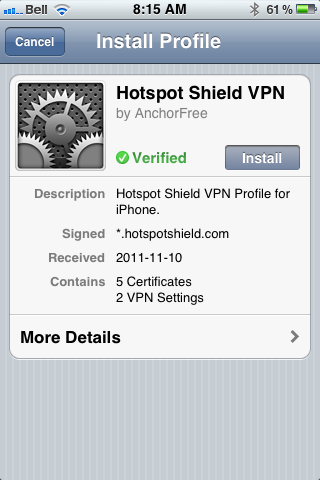
When we first told you about Hotspot Shield, it was to use the free Virtual Private Network to bypass blocked media, as well as increase your browsing security. Over a year later, we posted a tutorial on how to use the VPN to watch US Netflix outside of United States, using your iOS devices. Unfortunately, the Hotspot Shield sign up process for iOS was broken soonafter, and their customer service team didn’t have a lot to say about it. Now we know why: Anchorfree, the creators of Hotspot Shield have released an iPhone app that makes all of the steps go away, and even solves a few of the problems.

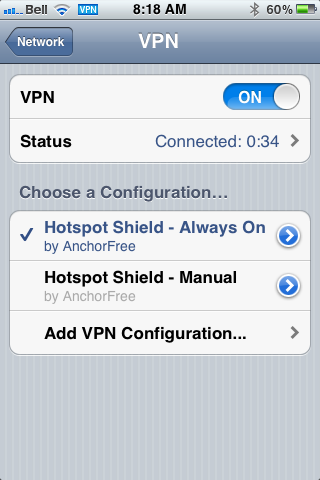
The new Hotspot Shield app will have you up and running with a couple of touches, installing two VPN configurations on your iPhone or iPad. The second one is for manual use — you turn it on when you need it, and leave it off when you don’t. The default configuration, though, is Always On, which handily accomplishes two things: it allows you to automatically have the VPN’s data compression and additional security in place whether you are on WiFi or mobile broadband, and it also fixes potential annoyances by automatically re-establishing the VPN’s connection when it drops (which is still a regular occurrence).

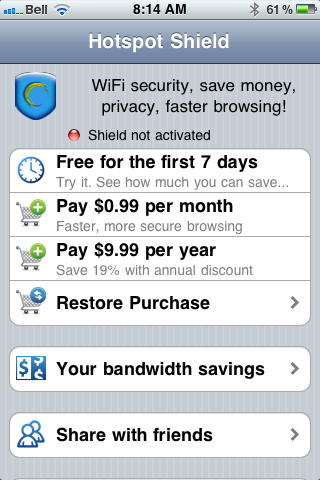
In testing, I found that the VPN is more stable on iOS than it was previously, and that using it was practically painless. I also discovered, very quickly, that the free-ness of Hotspot Shield — at least for mobile — is a thing of the past. In comparison to other VPNs, though, especially services that are as effective, the price is still more than worthwhile. You can use the VPN free for a week, after that, it’ll cost you $0.99/month or $9.99/year. You can also use a purchase code the app provides you to activate up to five personal devices that are connected to the same iTunes account. If the incredibly attractive price is to much for you, and you already have an old Hotspot Shield VPN installed on your iOS device, it should still work, at least for now — mine does, anyway.

Hotspot Shield VPN for iOS, iPhone, iPad, iPod Touch | 40TechHotspot Shield VPN App for iPhone, iPad, iPod Touch | 40TechHotspot Shield VPN App for iOS | 40Tech

Some other fun features of the app are the abilities to track your bandwidth savings and to control your compression level. You can turn it off completely for WiFi, or turn it up to maximum to save bandwidth on images and the like. This will downgrade image quality, of course, but how much is your data worth to you?

All in all, I recommend it to pretty much everyone on iOS with even a passing interest in security (or in using Hulu, Netflix, Pandora, etc., outside of the US). You can never be too careful with your data, and HotSpot Shield does a decent job of protecting you. According to ReadWriteWeb, it was even used during the revolutions of the Arab Spring to allow “users to skirt detection of officials that may have been monitoring mobile internet activity.” Handy, that…

If you do decide to use Hotspot Shield for iOS, do keep a couple of things in mind:

  1. The terms of service are very explicit about the VPN being for personal use only. Don’t use it for business or they may cut you off.
  2. Using a VPN to access a US-only service outside of the US may be considered breach of that service’s terms of use. You may want to double-check that before going ahead to make sure you don’t have any issues — especially if you pay for said service.

What do you think of Hotspot Shield for iOS? Do you plan to use it to increase your browsing security? Let us know in the comments!


Gmail Has a New Look — And Almost Has An Official iPhone App

Gmail Has a New Look -- And Almost Has An Official iPhone App | 40Tech

In keeping with their Big Push, Google released a new version of Gmail with a major facelift, as well as released — and then pulled — their long-awaited native Gmail app for iOS.

The new Gmail look, as is to be expected, has a few minor annoyances to accompany some great new features, and the app is actually very cool, but was pulled due to a notification system problem.

Check out the feature-list for both below.


New Gmail Web App

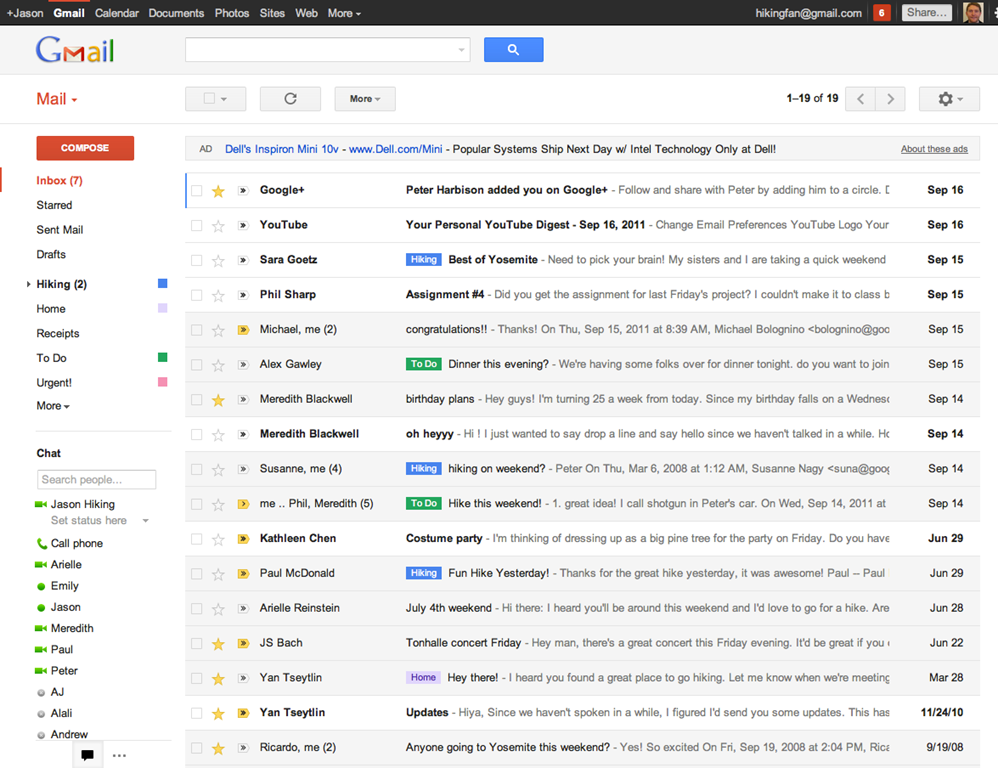
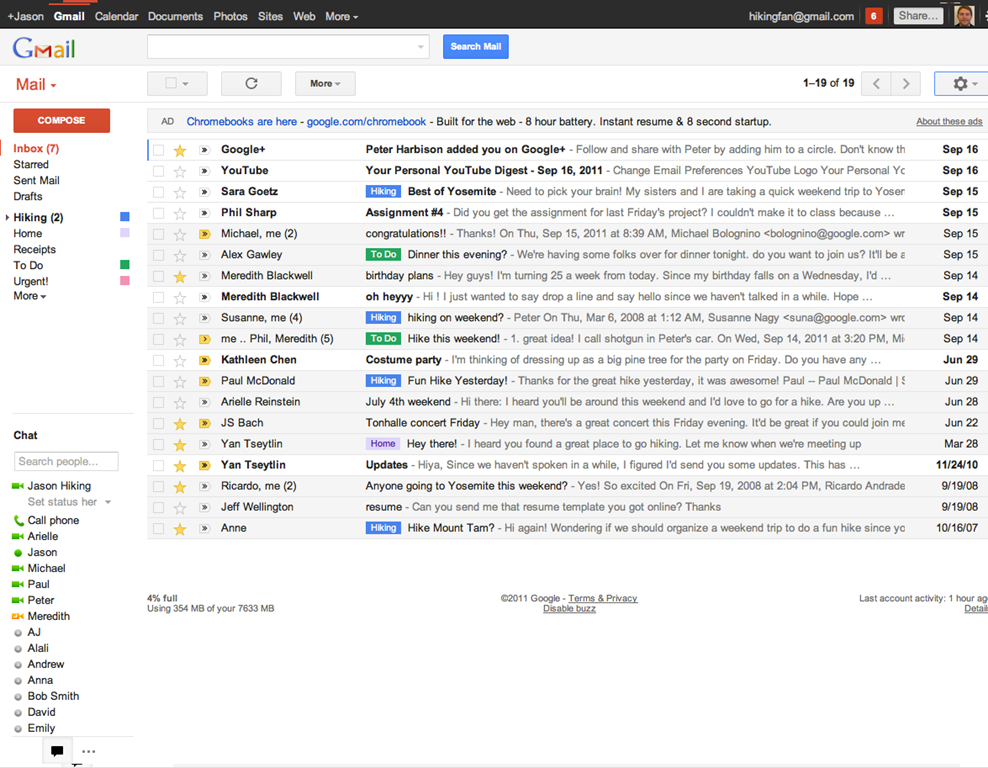
Gmail's New Look

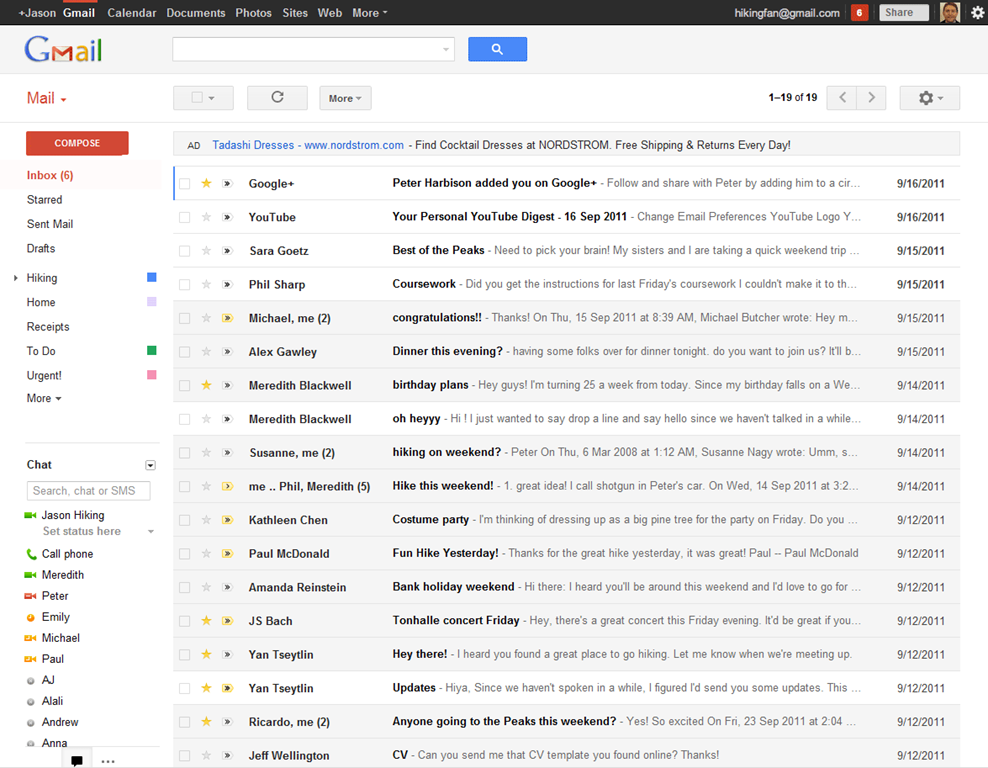
The new web app has a look and feel that fits in with Google’s updated branding. It’s “cleaner, more modern” and is very similar to the preview theme that the Gmail team released a while back. I’ve been using that theme for a few months and I love it, but I’m not terribly fond of the dynamic “Display Density” feature.

Display Density allows you to control the default amount of whitespace for each email message in your inbox (Comfortable, Cozy, or Compact), but whill actually change dynamically depending on the size of your browser window. This may seem like a good idea, but if you use Minimal Wall’s guidelines for window sizes, it displays as Compact, no matter what, which clashes with your zen by slapping you about with tiny little squished up emails. Google should add a feature that allows you to force the display of your favourite Density, no matter the size of your window.

New Gmail Comfortable Setting    New Gmail Compact Setting

What is awesome about the new Gmail is the sweet new toolbar, the much-improved search dialogue — I always hated the in-field search commands — new themes, and the improved look of threaded conversations. I also like the additional control settings, the ability to drag the size of the chat window, and the awesome little buttons in the sidebar that can make the chat, gadgets, and other annoying sidebar items vanish until you want them.

Give the new Gmail a try, and let us know what you think. If you don’t love it, you can always revert back — at least for now. Check out the video for details on the upgrade:


Native Gmail App for iOS

Once Google gets a handle on the notifications errors (apparently just a silly little mistake on their part, so it shouldn’t be long), the new iOS app will probably kill the iOS mail app for me. I only use the thing because I hate waiting for Safari to load, and the new app looks like it will finally allow me to do what I’ve always wanted to from my iPhone and iPad: reply to emails with the email address that they were sent to.

This is a huge deal for me, because I use a multitude of different email addresses for different things, and they all come through Gmail. I don’t necessarily want to answer my 40Tech email or my work email with my main email address, which I’ve had forever, but might not always come off with the… professionalism… I need.

Unfortunately, you still can’t compose new email in the app and choose what email you want to send from. Baby steps, though, I suppose — and it’s still better than the iOS emai app.

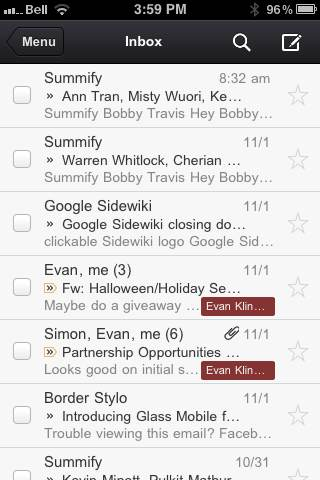
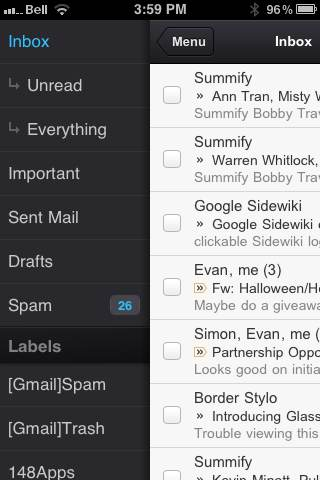
The new Gmail for iOS app is nearly a full-featured Gmail experience. There is universal search, auto-complete from both Gmail contacts and iPhone addressbook, attachment upload (which is basically photos, of course), threaded conversations, priority inbox, easy archiving, labelling, starring, deleting, and spam reporting.

New Gmail App for iOS | 40Tech       New Native Gmail App for iOS | 40Tech

On iPhone/iPod Touch, the Gmail app gets out of its own way, focusing on the content, with a nice expandable sidebar to sort through your labels. On the iPad, you get the standard two-paned view, which makes for easy viewing and navigating on the larger screen.

The only other things to note are that, at the moment, the app doesn’t have offline support, and doesn’t do multiple Gmail accounts, and that swipe gestures — while good for the most part — sometimes feel a bit awkward.

What are your thoughts on the new look for Gmail? And when you get a chance to check it out, tell us what you think of the iOS app, as well! 


Side By Side iPhone Photo Comparison, From the Original to the 4S

IPhone photo comparison

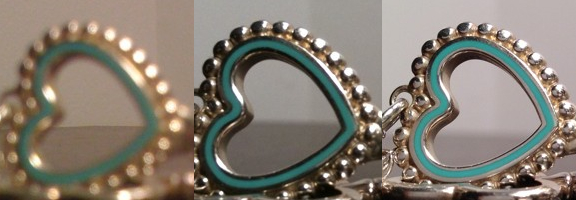
I’ve been an Android user since late last year, and have never looked back. At the time, my iPhone was starting to feel like a very simple toy, with too many limitations. Restrictions caused by sandboxing, the inability to share files between apps, and Apple dictating what apps I couldn’t install – all that finally pushed me over to the Android camp, and I’ve had no regrets. Until now. Siri, right? That might be the first guess – that Siri has me longing for the new iPhone 4S. Nope. While it would be nice, the real draw of the 4S to me are all the reports about its fantastic camera. Now, thanks to Lisa Bettany, we can view side by side photos to see just how much better the iPhone 4S camera is than previous iPhone cameras.

Read more