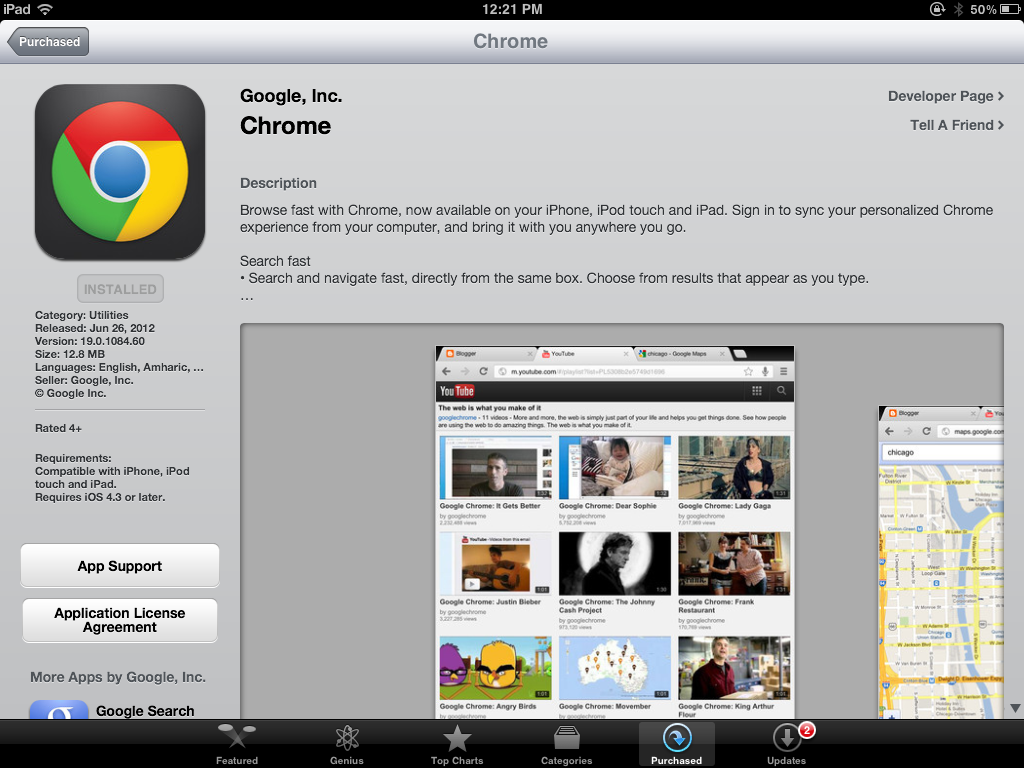
If you hadn’t already heard, Google Chrome for iPhone and iPad was released this week — and it promptly became the #1 free app on the app store. This is something that we’ve been waiting for with baited breath, and something that I, personally, was never sure would happen properly due to the rivalry between Apple and Google.
Have no doubt, though, it’s here — and it takes the best of Google Chrome’s desktop browser and jams it neatly and prettily into your pocket.


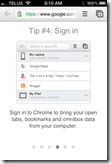
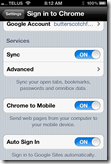
One of the best features of Google Chrome for iOS is the integration of Chrome’s sync technology. If you have ever wanted the ability to open up any device — iPhone, iPad, Android, any computer that you’ve signed in to Google Chrome on — and pick up browsing from where you left off (again, on any of them), then you have reason enough to love Chrome for iOS app as the final piece in that puzzle.
It syncs your browsing history, open tabs, omnibar searches (yep, all that omnibar instant search power is in there, too), passwords, bookmarks, etc., etc., etc. Chrome was always great for being able to hop from computer to computer, but now you can hop from computer to computer to mobile and back again — and seamlessly, at that.




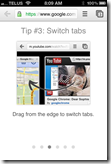
That’s just the tip of it, though. Google Chrome for iPhone and iPad is blazingly fast, has an intuitive interface, and comes with niceties like easy, swipe-based tab switching, tracking of recently closed and most-visited web pages, voice-based search capability (Google’s not Siri’s), search within web pages, and the ability to request a switch to desktop mode for entire sites at the touch of a button.
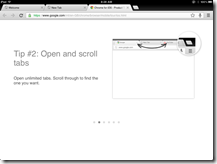
Google Chrome for iOS also includes Incognito Mode, and allows you to have as many open tabs in the browser as you damned well please. Chrome for iPhone is beautifully designed and extremely intuitive, and Chrome for iPad is the closest thing to a desktop browser that you will find on any tablet.




As with anything, though, Chrome for iOS is not perfect. There is no read later functionality, which you may miss if you love it in Safari, and heartbreakingly, there is a fairly consistent lag issue. Don’t get me wrong… when it works, it’s stupidly fast — but there are times, especially on pages with Javascript, that you will be typing or touching a button and nothing will happen for a few seconds. This can be an extreme pain in the ass, and may even be a deal-breaker for some. There may not even be much Google can do about it, because it could be related to Apple not giving other browsers on iOS access to their Nitro Javascript engine.
If you can get past the occasional (if persistent) few seconds of waiting, though, Google Chrome for iPhone and iPad could be your go-to web browser replacement for mobile Safari (it’s certainly more stable than Safari for iPad). The possibilities excite me to no end. I’m thinking some version of Chrome extensions would be a logical next step! Either way, Chrome for iOS gives me yet another reason to jailbreak my iPhone and iPad: to cull Safari out of default browser status, once and for all.
Get Google Chrome for iOS (iOS 4.3+)