Menu Close

Tag: Email (page 6 of 7)

7 Tips to Protect Your Email from Hackers

7 Tips to Protect Your Email from Hackers | 40Tech

In the spirit of yesterday’s security-focused post, I wanted to share with you some tips on how to protect your email account from getting hacked. This list was originally put together by the folks at MakeTechEasier and was focused on Gmail, but many of the items are relevant to any web email client, and many other services besides. I’ve reworked the concepts for general use – if you want the just-for-Gmail step by step details, please visit the original post.

original photo by Don Hankins

1. Always check the URL before logging in.

Fake login pages are a problem with any site that hosts sensitive information. Even Craigslist was having this problem just last month. Tread carefully before you log in.

2. Avoid checking emails at public places

This may be a bit much for anyone in this mobile-focused world, but this is geared more toward avoiding checking email (or any private account) from a public computer. You never do know what sort of spyware has been installed on someone else’s machine.

3. Create a secondary email account

If you absolutely must login to your email account on a machine other than your own, create a secondary email account (with different login credentials, of course) and forward a copy of all emails from your original account to the secondary. This way, if you get hacked, your original account should remain uncompromised. Be sure to empty this account regularly – don’t use it as a backup for your sensitive messages. Also, don’t use it for your password recovery account…

4. If you are able, regularly check the IP of the last login

This is a nice Gmail feature, and is offered by some other webmail email providers as well. If you don’t recognize the IP that last logged in to your account – especially if it comes up often – you may have been hacked.

5. Check for bad filters

If your email service allows custom filters, there is always the possibility that one of them could be forwarding your messages to someone else. Regularly check your filters to see if there are any that you don’t recognize.

6. Don’t click on suspicious links

This one should be highlighted in bold, flash, and emit dangerous beeping noises. If you don’t know what it is – even if it is from a friend – don’t click on it. If it came from a friend, send them an email or call them to ask if it was really sent by them. This applies to email, Facebook, Twitter, a sticky note, or any other way a link might have been sent to you.

7. Choose a strong alphanumeric password (and add other characters too)

Some services don’t allow capitals or special characters in your password – avoid these services if you can. Use of funky characters is a great way to increase password strength. If you can get a password up to 16 characters, all the better. I know that these are a pain to remember, but you can always create a password base to help with that, or use a tool like LastPass or KeyPass to remember the password for you.

As a final note, remember what Evan suggested in yesterday’s post on Firesheep and Blacksheep: the only real way to be sure you are at least as safe as you can be when you login is to use services that require https and/or to connect via a Virtual Private Network. The TOR network is a great service if you want a free VPN, and there is even a TOR toggle extension for Google Chrome called Proxy Switchy!.

How do you protect yourself when you login to your email (or other) accounts?


Clean Your Gmail Inbox by Playing a Game

0boxer

If you’re like me, your inbox is not exactly tidy.  Gmail’s recently revealed Priority Inbox feature has helped, but getting through an email backlog can still be a chore.  To make cleaning your Gmail inbox be a bit less tedious, give 0boxer a try.

OBoxer is a service, complete with extensions for Chrome and Safari, that awards points and badges to you for processing messages in your Gmail inbox.  Once you install the extension, 0Boxer works automatically as you process messages.  You get points for every message written, archived, or deleted.  These points are displayed in a bar at the top of your browser window, as shown in the screenshot above.  You can also earn badges for certain achievements, such as reaching a zero inbox.  Your inbox will show a link to 0Boxer’s leaderboard, which displays the usernames of  the users who have the most points for the day, and the week.

You do need to use Gmail’s authorization feature when you set up 0Boxer, to give 0Boxer access to your account.  0Boxer only accesses stats about your activity (such as messages archived), rather than the actual content of messages.

Right now, 0Boxer only has extensions for Chrome and Safari, so you’re out of luck if you’re a Firefox, Opera, or Internet Explorer user.  0Boxer does work with Google Apps email accounts.

Is 0Boxer the type of app that would help you get through your inbox?  Or is it something gimmicky?

0Boxer [via Fast Company]


How to Get All Your Mail Accounts into Gmail, With No POP3 Delay

gmail

Several months ago, we wrote about how to use Gmail to check your various email accounts from across the web, so that you have one single inbox to check.  That post contained handy tips on how to get other mail into Gmail, how to organize it, and how to send messages from within Gmail as if you were using the external account.  To get other mail into Gmail, that procedure used POP3 to periodically pull mail from those accounts.

One flaw in Gmail is that you can't specify how frequently your account will pull down that mail.  Gmail determines this frequency based on how often it discovers mail in those accounts when it checks.  Lifehacker recently had a tip on how to increase that frequency.  But what if you want to eliminate the delay entirely?

If you have the right kind of account, then eliminating the delay is easy.  The trick is to not use POP3 at all from within your main Gmail account.  Instead, forward mail from your old account into your main Gmail account.  All of the other tricks for using your Gmail account as your main account will still work.  Here are a few tricks to keep in mind.

Version of Gmail logo from velorowdy.


Option 1: Get All Mail From the Secondary Account

If you simply want to get all mail from the external account, check that account for a global forwarding option.  If your secondary account is also a Gmail account, that can be found under Forwarding and POP/IMAP.


Option 2: Use Filters to Get Only the Important Stuff (and to Keep Your Secondary Account Clean)

Maybe you don't want everything forwarded from your secondary account.  For example, I get various newsletters sent to my secondary Gmail account that I don't want clogging my main inbox.  Instead of using the global forwarding setting on the second account, I use a filter.  (Again, your secondary account must support filters and forwarding, like Gmail does).  This filter also keeps my secondary inbox clean, by deleting a message after it is forwarded.

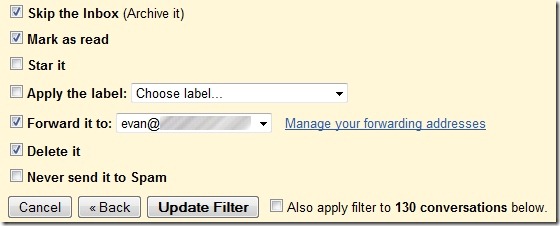
To use a filter to forward almost everything, put an asterisk (*) in the "From" box in the filter settings, and then carve out the undesirable senders by putting those domain in the "doesn't have" box.  On the next screen, check "Skip the Inbox," "Mark as read", "Forward it to:" (followed by your main email address), and "Delete it."  Screenshots of my filter are below.

gmail filter 1

gmail filter 2


Highlight and Organize Your Imported Emails

We touched upon this in our prior post on using Gmail as your only inbox.  We suggested that you use Gmail's label features to label incoming mail.  I set up custom labels, based on the "To" line in the message, along with a filter for each account.  This way, you will always know, at a glance, to which account the message was originally sent.  To make this even more effective and obvious, try adding a color to the label.


Send Mail As If You Were Using the Secondary Account

Another one of our prior tips that still holds true with this method concerns how to send mail from your main account, but make it look like you are sending it from the secondary account.  Check out the prior post for detailed instructions on how to add the new account to accomplish this (check out "To Use Your Server's SMTP settings" to make it truly transparent to your mail recipients).


Once you follow these tips, email will forward, almost instantly, from your secondary account to your main account.  If you try to reply to or forward a message, Gmail will automatically send it using the address to which the message was originally sent.

Do you have any more tips for making Gmail more effective as your main email hub?


Threadsy Just Got a Whole Lot Better

Threadsy Just Got a Whole Lot Better | 40Tech

You might remember our post on Threadsy Beta way back in January. Threadsy is a great web app that pulls all of your email, Facebook and Twitter info into one neat little interactive package, and even gives you some detailed multiple social network info on your contacts. In May, Threadsy went live to the public with a slew of new features, and has added even more in the last week. It’s safe to say that Threadsy is growing fast and doing well, so if you tried it and dropped it, you might want to look again — and if you haven’t played with Threadsy yet, we recommend you check it out!

Here’s the shortlist of Threadsy’s new features, some detail on their latest updates, and a few things we would still like to see:

Read more


Threadsy: Facebook, Twitter and Email All in One Happy Place

Threadsy | Facebook, Twitter and Email all in one placeRemember, back in the day, when email was one-dimensional? The good ol’ days when all you had to do was remember one contact list and deal with one inbox? Well, those days are long gone, buddy. Today, we are in a world of social media: connecting and sharing with the planet at large in as many ways and as quickly as possible. Workplaces everywhere are banning social media because people are addicted to it and they just ain’t gettin’ nuthin done. Nuthin’. Yep. We are also in a world of the high speed degradation of da englich langage, loosing it fastr den wat wuz expected — but that’s another post (ohh that pained me!). Threadsy can’t help you with that last bit or the work bans — you’ll need to look to yourself, your conscience, and your pocket computery phone for that — but Threadsy can help you out with the constant jumping from webpage to webpage or tool to tool to deal with your three main inboxes: Email, Facebook and Twitter.

Read more