Menu Close

Archives (page 97 of 199)

6 Cool Interactive Google Doodles

interactive google doodles.jpeg

By now, you’ve probably seen some of the cool Google Doodles – those logos at the top of the Google search page that replace the standard Google logo from time to time. Those logos stick around for a day or so, and then are seemingly lost forever. Except they aren’t. You can find a complete list of Google logos on the Google logo archive page. The archive page has one shortcoming, though. Some Google logos were interactive, and on the archive page they are presented as static images, with no way to use the interactive elements. With a bit of digging (i.e. Google searching), though, you can locate some of the interactive logos. Here are six of them.

Read more


SmartBird: A Robot That Actually Flies Like a Bird [Random Tech Video]

A Robot That Actually Flies Like a Bird [Random Tech Video] | 40Tech

TED is a home for amazing things. If you’ve never been to TED.com, you should make it a point to go and spend a mini web-vacation there. Hell, spend a couple a week — it’s worth it! Their slogan is “Ideas worth spreading,” and I have yet to run into something on the site that defies that message. The awesome that I happened across this week (thanks to Pamela D Lloyd sharing a Rick Vlaha post on Google+) has made the hallowed halls of my “that was so freakin’ cool!” list.

A robot bird. Scratch that. A robot bird that looks and moves and flies like a real live bird! Holy, unmitigated awesome, Batman! The Wright Brothers’ and Da Vinci’s head would explode if they could see this.

The bird is inspired by the Herring Gull, and is the product of the genius of Markus Fischer and his Bionic Learning Network team at German technology company, Festo. There are no propulsion systems other than the flapping of the robot bird’s own wings, and its movements are so realistic, that it is likely that some audience members it flew over (twice) were thinking they should be covering their heads and getting under cover. This amazing creation is called SmartBird, and is also remarkable for the simple fact that the robot weighs only 450 grams.

Watch the video. Your brain will fall out your ear. 

If you don’t want to click the link (WordPress won’t let me embed the TED video), check out the YouTube video below that was taken by an audience member during the bird-bot’s first fly-over. It gets right to the point.


Here’s another — even real birds can’t tell the difference: 


Thoughts?


GTD, Producteev, Evernote — Bridged!

GTD, Producteev, Evernote -- Bridged! | 40Tech

As you probably already know, GTD and Productivity are creatures that live somewhere deep in my bones. They speak to me, manipulate me, and generally run my life. Not in a bad way, you understand — even if they come across as a little obsessive, the little monsters really do have my best interests at heart. They’re the reason I’m always looking for new and inventive ways to refine and apply workflows. They’re also the reason that I’ve met some cool people who have their own little creatures that bitch and nag them into action.

During a recent conversation on Google+, with a circle of those people, we were discussing the benefits of both Producteev and Evernote as GTD tools, and how it would be great if they worked together. We decided to test out a means of making that happen, with Evernote as the ultimate collection tool, and Producteev as the magic task management/Google Calendar integrator.

Here’s what I proposed (have a read and tell me what you think):


The Gist of the Idea

The first thing to do is make Evernote able to send email directly to task@producteev.com. To do this, you need to register the email address that your Evernote uses (to email out a note) in your Producteev workspace(s). Now, any tasks in Evernote that you want to process into Producteev can be done directly from within EN.

The next thing you need to do is make sure your Evernote notes get to the right place in your Producteev setup. Producteev’s email2task functionality is fantastic. It incorporates a lot of simple language that allows you to easily do things like schedule a task from email by writing “Do this task tomorrow at 2pm” in the subject line (more on syntax below). If you are working in the Evernote desktop app, you can easily send out an email by selecting that option under Share, and then changing the subject line to reflect the appropriate email2task syntax. If you are in a mobile app, or unable to change the subject line for some reason, then you can simply change the title of your note to reflect what you want the email subject line to say.

These two steps make it possible to collect information in Evernote and share it with Producteev quickly and easily. Producteev can connect to Google Calendar, as well, for two-way sync (coming first week of February, 2012), which gives you the opportunity to finally connect Evernote to Google Calendar, if only by proxy.

Finally, using the Copy Note Link or Copy URL to Clipboard features found under the Note and Share buttons in Evernote, you can add the note’s own link to the email or note body, and leave an easy to follow link back to Evernote in any Producteev task you create.


GTD Use Cases for a Evernote-Producteev Bridge

  • You could manage your GTD system in Evernote, doing everything from collecting to archiving, but use Producteev during processing to set up automated reminders and Google Calendar events. You could also add in email or IM Producteev functionality to easily close and update tasks, including sharing and delegating without ever logging in to the tool itself.
  • You could also manage your GTD in Producteev and simply use Evernote as your main collection tool, as well as for keeping all of your reference material and archives in one easily searchable place. Producteev has many ways of inputting tasks, but Evernote can utilize voice, image, and text entry, as well as the clipper, and a crazy number of integrations, to collect and organize information.


Why Bother?

  1. Evernote has superior collection capability but no true task management functionality.
  2. Producteev’s notes system and ability to add attachments simply can’t compare to Evernote.


Notes

  1. When you send an Evernote item into Producteev, the body is converted to a note. Actually, you end up with several notes, as any images that Evernote uses in the background of the note are added as separate (and useless) note items in Producteev. HTML is stripped out entirely, and this will sometimes leave garbage code in the text of the Producteev note. See the image below (thanks to Daniel Gold for doing the first test run!).
  2. Even though the Producteev notes are in plain text, the note itself is still in both tools. In Producteev, the notes system can be used to conduct a conversation around the task with others who have access to the workspace, or to leave additional notes for yourself if you are using Producteev as your main management system.

GTD in Producteev Evernote Bridge | 40Tech    pdtv-en2.

GTD in Producteev, Evernote | 40Tech


General Workflow & Syntax

  • Collect in Evernote
  • Process to Producteev via Evernote email-out and Producteev email2task syntax (with scheduled items going to Gcal, as well, for the visual calendar)
  • Manage tasks in  Evernote with Producteev used only for scheduling and reminders OR
  • Manage tasks in Producteev and/or email with Evernote for archival reference


Syntax tips can be found here, but the basics are as follows:

  • today, tomorrow, days of the week, next week, specific dates (today 8pm, August 10 8pm, 8pm August 10 when combining date and time)
  • done (to register a task as being completed)
  • @ to assign a task to a workspace collaborator (@Michael, @Michael Lewis, @Lewis, @ML)
  • * to indicate a priority level using our 1-5 starring system (4* or ****)
  • # to indicate workspace name (#Personal)
  • ## to indicate the appropriate label (##Marketing)
  • “” to add task notes (“follow up” or ‘follow up’)
  • / to have the beaver run searches for you (/today for a list of all of your tasks due by the end of the day)


Your Turn!

So what do you think of the possibilities of integrating Producteev and Evernote into one system that is relatively seamless? Thoughts? Concerns? Is this worthwhile? Let us know in the comments!


How to Watch US Netflix on Your iPad/iPhone When Outside of the US

How to Watch US Netflix on Your iPad/iPhone When Outside of the US | 40Tech

If you have Netflix, you have the ability to stream a wide array of movies and television shows for less than $10 per month. The digital streaming library isn’t as impressive as their mail-out catalogue, but any way you look at it, that’s a pretty decent price for what you get. And what you get is a lot. Old shows, new shows, crazy amounts of anime, and even some favourites like Glee, the now (sadly) cancelled Stargate Universe, and 2009’s Star Trek movie are on there. Unless you live in or visit a country other than the United States, of course.

If you do happen to be on the other side of that imaginary border line, however, and you have an iOS device, you can use a VPN to access the US Netflix streaming library — and you can do it without spending a dime if you use Hotspot Shield.

Note: Please note that, while this is a fun workaround, and can be useful in certain situations, the inability to access Netflix or any other media site mentioned in this post outside of the United States is due to international licensing agreements. These sites and services may prohibit broadcasting or accessing certain content from outside of the United States in their terms of use. As such, this post’s workaround is used solely at the device owner’s and account holder’s own risk and is for educational purposes only.

UPDATE: Hotspot Shield’s iOS configuration page is currently down. I’ll keep checking to see if and when it comes back up and will update you here. You could also try other VPN options, such as Witopia, but that one comes with a $40/year price tag.

UPDATE 2: I’ve been in touch with Anchorfree support (they are the purveyors of Hotspot Shield), and have been told that they are working on the issue. Apparently, they are re-launching the iPhone version of the VPN. I will update again when I know more.

UPDATE 3: The iOS app for Hotspot Shield is officially here! Check this post for more info.

We’ve talked about Hotspot Shield before, and even though the free version forces ads down your throat, it’s pretty handy when you want to access Hulu, Pandora, or US-only website content from across the border. It’s also handy for surfing securely at public WiFi locations, and all of the other fancy things you can do with a VPN.

So why bother with an additional post just for Netflix? Because Netflix isn’t a US-only site, but it does have US-only content. This content is accessible depending on where you are, as I found out by accident when visiting a friend in Washington state a couple weeks ago. I pulled out the iPad for my kid, loaded up Netflix to keep her busy, and was immediately boggled by the amount of new content I found staring back at me. I was hoping that we Canadians had suddenly gotten a slew of new titles, but was sadly disappointed when I returned home that evening.

Out of curiosity, I tried out Netflix on my laptop with Hotspot Shield enabled. That didn’t work. Generally (unless launched via the Chrome app, oddly enough) Netflix thought that I was trying to access the US site with a Canadian account. No dice, there. Then I remembered that Hotspot Shield was also configured on my iPad… and I was pleasantly surprised that it worked!

Here’s how you can try it out

Go to the iPhone configuration page on Hotspot Shield’s website, and follow the instructions there. You’ll want to be on a separate device for this, for simplicity’s sake.

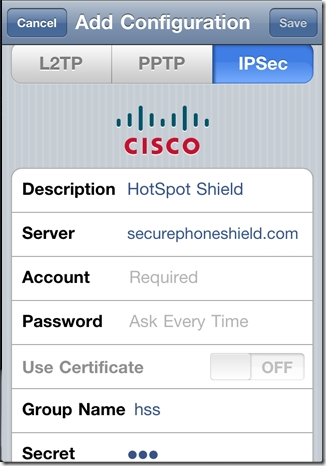
Basically, they will have you turn off your iPad’s (or iPhone’s) WiFi, and then head to Settings > General > Network > VPN > Add VPN Configuration. From there, you do the following:

  • Select the IPSec tab/pane
  • In Description, type HotspotShield
  • In the Server field, type 68.68.107.101
  • Go back to the website and click the “Get Account ID” button
  • Type the code that the button generated into the Account field
  • Type the same code into the Password field
  • Make sure that Use Certificate is set to OFF
  • In Group Name, type hss
  • In Secret, type hss
  • SAVE and then turn your WiFi back on

Hotspot Shield iPhone Configuration

Once you are set up, turn on the VPN. I’ve noticed that, if you try and turn it on from the iPad’s Settings dashboard, it will fail to connect. No idea why that is, but, if you turn it on from the Settings > General > Network > VPN switch, it connects just fine. Once the VPN says it’s connected, load up Netflix and watch in wonder as the app believes that you are in the United States and loads up the US Netflix library!

Things to note

  • The VPN will slow you down a little bit, but not enough to affect video playback. Netflix technology is very good at figuring out how to play videos optimally, even at slower speeds.
  • The VPN will disconnect periodically. This is annoying, but if you are already playing a video it will not affect it. The movie or TV show will play through to the end unless you pause it and let the iPad time out. If you find that you are having difficulty launching a show, check to see if the little VPN icon is in the upper left corner of the iPad’s notification bar. If it is, then you may need to restart the app. If it isn’t, then head back into the VPN settings and turn it on again. You may want to close Netflix out completely, first to make sure that the VPN takes with the app (double-tap the iPad’s hardware button to see the running/recently running programs, press and hold Netflix till it shakes and gets an X in the corner, then tap the X to close it).

There you have it! Access to US Netflix on your iPad whether you have a non-US account, or just happen to be visiting another country. It is important to note that this trick may only last until Netflix figures a way to block it out, but HotSpot Shield is versatile. They have managed to get people back into Hulu every time they’ve been locked out so far, so it will probably be the same with Netflix.

Thoughts?


Browse Securely and Privately, For Free, With Cocoon [Firefox Add-On]

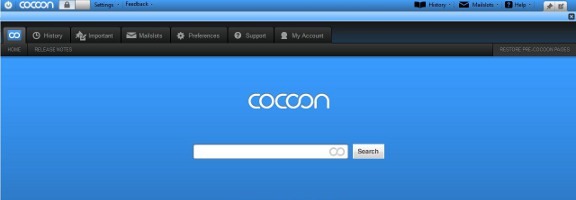
cocoon

We’ve previously talked about ways to protect your email, or your web surfing, from hackers. One of the surest ways to protect yourself when on a public WiFi hotspot is by accessing the Internet through an SSL-encryted tunnel. Most services that offer that, though, cost money. Enter Cocoon, a free Firefox add-on that sends all of your browser traffic through an SSL encrypted tunnel.

Read more