Menu Close

Archives (page 86 of 199)

How to enable Telnet on Windows 7

Telnet

Editor’s note: If you run a web server, or like to mess around with networking gear, then you might be familiar with Telnet and SSH. Only the truly geeky need apply. Today, 40Tech is pleased to present you with a guest post from James Sudbury of Netzen Solutions Ltd. James takes a look at how to get up and running with Telnet on Windows 7.

Telnet is an old outdated protocol that is used for remote command line administration on various devices such as Cisco routers. I would recommend the use of SSH over Telnet in any circumstance; however I still find the Telnet command useful for testing mail servers and for checking open TCP ports. The ability to use Telnet might not be obvious on Windows 7, but it can be done.

Follow these instructions to enable Telnet on Windows 7:
Read more


The Unofficial Guide to Capturing Everything and Getting Things Done in Evernote [eBook Review]

The Unofficial Guide to Capturing Everything and Getting Things Done in Evernote [eBook Review] | 40Tech

Just over two years ago, I wrote my first post for 40Tech. I had discovered the power of GTD while trying to manage life, new parenthood, and the crazy tech-startup marketing job I was working. I had also become an avid fan of Evernote. The mere idea that I could capture anything, anywhere, and put it in a searchable digital filing cabinet that I could carry in my pocket was mind-blowing for me. Naturally, I spent a large amount of time and effort in marrying together my two new obsessions. They seemed a great fit to me, and they lead to that fateful first post that is still one of the top articles on this blog: GTD in Evernote With Only One Notebook.

I say this post was fateful for two reasons: one, it set me on a path of productivity and tech that has, in many ways, defined my current career path; and two, it brought about a tremendous amount of great conversation and connections with people I likely would never have met, otherwise. One of those people was Daniel Gold, lifestyle and productivity blogger, and author of the eBook this post is really about — an eBook that would have made my life a lot easier if it had been around when I first considered implementing GTD in Evernote. 

Daniel’s book, The Unofficial Guide to Capturing Everything and Getting Things Done in Evernote, isn’t a step-by-step how-to manual. It’s not a mind-bending piece of literature, and it’s not going to cook you breakfast. What it is, wonderfully, is a straightforward, conversational look at why Evernote is a great tool for productivity in general, and how easily it can be used to apply GTD principles effectively. The book never talks down to you, and it never assumes you know too much or too little — it is simply honest and genuine; experienced, but uncomplicated. It doesn’t hurt that it’s a fun and easy read, either.

Daniel starts out by giving you a little background on his own experiences in searching for a productivity tool that would change it all for him. This is a conversation that he is very open about on his blog, and one that he has brought to 40Tech through several insightful and helpful comments. He openly admits that he was just as lost as the rest of us, and that it was his search and his failures in discovering or hacking together the perfect productivity system that ultimately led him back to Evernote. Evernote brought him back to basics — back to simplicity and a straight ahead means of getting things done. This eventually led him to the sense of “mind like water” that inspired his eBook.

He does a good job of breaking down his GTD implementation in Evernote, giving plenty of examples while keeping things light. As I mentioned earlier in the post, the book is not a GTD instruction manual. It does, however, work well as an introductory guide to a system that has been working out very well for him, and is easy to implement.

If I had to pick out a negative — and a review isn’t a review if you don’t — I would say that my only issue is that there are a few rough patches in grammar and a few missed words that might cause you to have to re-read a sentence or two. Even still, the author’s message is always clear, so don’t let the nit-picky things hold you back. Besides, Daniel has stated that his eBook is going to receive quarterly updates — for free — that will include new content and will likely add a few edits in as well.


Conclusion

The Unofficial Guide to Capturing Everything and Getting Things Done in Evernote is an easy, informative, and entertaining read of approximately 40 pages. If you are looking for a decent overview of how GTD can be effectively accomplished in Evernote, it’s definitely worth the $5 price tag, especially considering the free updates for life that you get with it.  [UPDATE: We now have an affiliate link that you can use to buy the book, which means we get a buck or two from each purchase if you purchase through that link.].


Springpad Mobile Clipper is the (Near) Seamless Content Clipper You’ve Been Waiting For

Springpad Mobile Clipper is the (Near) Seamless Content Clipper You've Been Waiting For | 40Tech

It’s been a long time coming. Since I got myself an iPhone, and especially since the iPad, I’ve joined the ranks of the millions of users out there who have been waiting for a simple and easy way to clip web content on my mobile device. I’ve used Read It Later and Instapaper, I’ve copied things into email and sent them to Evernote, Springpad, Producteev, and myself. I’ve even used the desktop clipper bookmarklets with reasonable — if time-consuming — success. That’s all in the past now: Springpad has hooked up the mobile world with a new and improved web clipper that is near to seamless.

The new Springpad mobile clipper doesn’t have the fancy bells and whistles of the Chrome extension, of course, but the updated bookmarklet is straightforward and easy on the eyes, and it works just as well in Mobile Safari and Atomic Web Browser as it does on desktop browsers. I used to use the old Springpad bookmarklet, and sometimes the Evernote and Memonic ones as well, but more often than not, they would load or function slowly — if they loaded at all. I’m presented with or stumble across a plethora of juicy things I want to follow upon in any given day – and most of it happens while I’m not at my computer. Now I can grab a bookmark for later, organize it, and move on within seconds. No fuss, no later processing, and no clutter in my email inbox.


Clipping Content is Great on iPad, a Bit Neutered on iPhone

Clipping bits of content from an article or page is a bit of a problem, though, at least on the iPhone. When using the iPad, I had no issues at all. Select a bit of the text or an entire article, fire the clipper, and it appears in the bookmark’s description area, complete with formatting — unless you want to edit it, of course. That strips the HTML. On the iPhone, however, no amount of selecting or even copying text to the clipboard will get the content you want to clip to show up. All you will get is the description write-up. I’m not sure why this is, and it definitely limits the iPhone to a quick link-grabber as opposed to a full-fledged clipper.

If you really want to clip that bit of content or entire article for later reading while on the iPhone, you can copy the text and edit it into the description field by doing a select-all-and-paste maneuver. Once again, though, you will lose all formatting, including any links and images.

The iPhone issue aside, the clipper rocks for getting those bookmarks into Springpad and organized in your notebooks and tag structure. Notebooks are an easy drop down, and tags auto-complete as you type. You can also change the type of save you want it to be. Bookmark is the default, but you can change it to Business, Restaurant, Recipe, Product, and all the rest with just a few touches. Almost all the rest, that is — Note is missing, and so is Task. Not a huge loss, I suppose, unless you want to save a bookmark to a task or a note, which could happen. If you really need that functionality, you can always go into Springpad and add a reminder or a note directly to the bookmark.

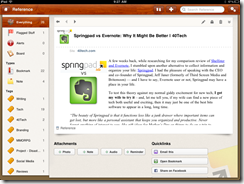
Springpad Mobile Web Clipper for Mobile Safari in Atomic Web Browser | 40Tech   Springpad Mobile Safari Web Clipper | 40Tech

Selecting Post Type in Mobile Safari Web Clipper, Springpad | 40Tech   Tagging Bookmarks in Springpad Web Clipper for iPad, iPhone | 40Tech

image   image


Installation is Easy

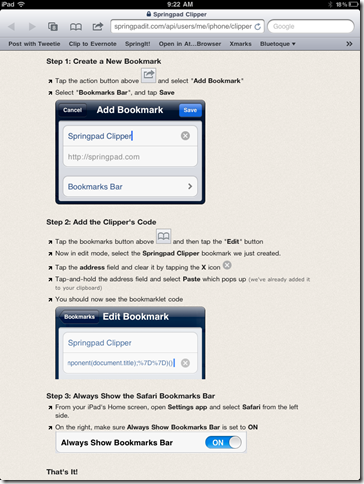
Springpad has made it easy to install the bookmarklet to Mobile Safari. They provide step-by-step instructions in the Settings area of the most recent versions of their iPhone and iPad apps. If you use another browser, just follow the instructions and let Springpad load up Mobile Safari, as it will automatically add the JavaScript to your clipboard. After that, open up your browser of choice and add a bookmark, pasting the JavaScript into the URL field. There is no guarantee your browser will work, but I can tell you that Atomic Web Browser does just fine.
image


Springpad Has a Few More Tricks Up Their Sleeves

The new mobile clipper isn’t the only thing Springpad’s been up to lately. They also released a Quick Add bookmark for your home screen that makes it faster for you to load up the Springpad app to add a note, photo, or whatever else you choose. This is nice for those of us without widgets like those Android folks.

I also have received word from Springpad CEO, Jeff Janer, that they have some big moves in the works that will differentiate them even more from Evernote. Having a mobile clipper that consistently works and works well is a good start though. They just need to fix that pesky iPhone issue…

What are your thoughts on the Springpad Mobile Clipper?


If You Haven’t Heard — or Noticed the Huge Sign — Google+ is Open for Business and More Awesomer than Ever

If You Haven't Heard -- or Noticed the Huge Sign -- Google+ is Open for Business and More Awesomer than Ever | 40Tech

So let’s get the dust out of the air right away: I am fully aware that “awesomer” is not a word. I am also fully aware that all of the big tech blogs and probably everybody else with a post up today (or yesterday, by the time you read this) has already talked about this. I don’t care. This is 40Tech dammit! And I want to talk about it. With you.

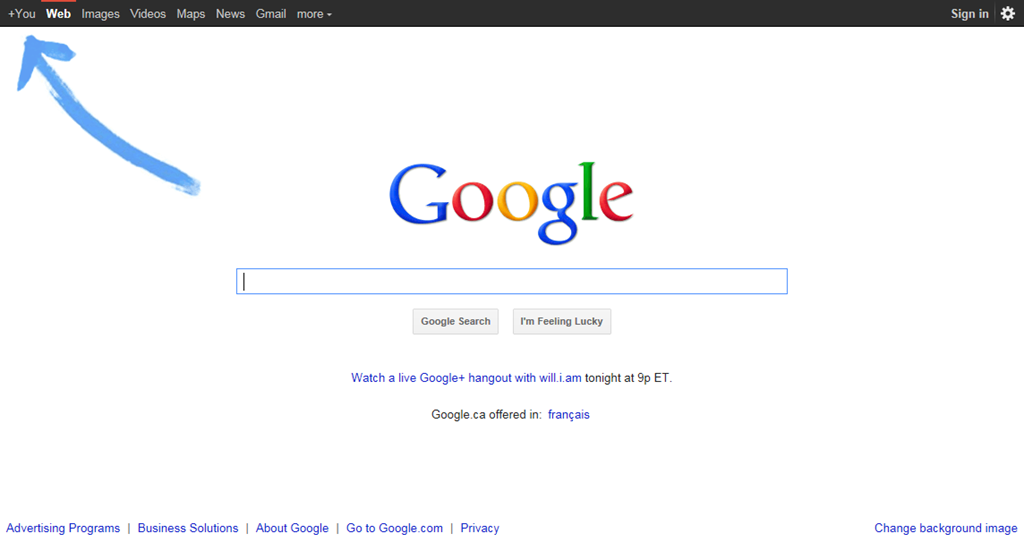
So here it is: Google+ dropped a ton of new goodness for their social network today, opened it up to the public (bye bye preview, hello open beta!), and worked with wil.i.am of the Black Eyed Peas (who also loves the tech) to put together the first publicly broadcast on YouTube video Hangout. Big day — and those are barely the highlights.


Here’s the Big Sign — Come One Come All!

Google+ is Open to the Public, has a Big Sign to Prove it | 40Tech


Here’s Just a Few of the New Features

Search!

It’s finally here. You can search for whatever in the Google+ search box and get back relevant people, posts, and web content. You get the public stuff and the items that only you can see.

Hangouts on Your Mobile Device

Available for Android first, of course, with iOS on the docket soon. Full-fledged multi-person video chat while on the go.

Hangouts On Air

Webinars, video broadcasts to large audiences (with up to nine other people to team up with), and session recording for those who miss it. The broadcasts are limited for the moment, but anyone can watch.

Hangouts with More Awesome!

Screensharing, sketchpad, Google Docs sharing, and the ability to name your Hangouts so you can focus your topic. These are still under construction, According to the Google Blog, but you can try them out by clicking “Hangouts with extras” in the green room.

Messenger for Mobile (Formerly Huddle) — Also More Awesome.

You can now share photos in your mobile chats!

APIs

And let’s not forget that they’ve dropped their first API for developers to play with. Klout has already jumped on board, adding Google+ to their social scoring platform, and you know that others are going to start coming out of the woodwork too, especially as the API improves and allows for more integration possibilities — for example, they are going to be releasing some Hangout APIs soon…


Here’s the Bottom Line

I’m not saying that Google+ doesn’t still have its work cut out for it, especially with social networking overload already frustrating the hell out of your average, or even super-social-geek, user. The kid gloves are off though. The most widely used tool for finding information has made Google+ its focal point. Google is creating a platform to personalize search, and give you a permanent home on the web — you can search for new information, search for things your friends are talking about, easily find and share and talk about whatever interests you, do all of that with only the people you care to, play games by yourself or socially, easily upload and share pictures, hangout with people via chat or video from your computer or your mobile device, broadcast yourself for the hell of it or for conferences or webinars, handle (or even throw away) your email, and more more more for the simple and effective cost of free.

Facebook may have the people, at the moment, but Google+ isn’t going away. Remember when Gmail came out? It didn’t look like a very likely competitor to Hotmail or any other webmail service at the time. Look at it now — especially since the rise of Google Apps. Google hasn’t even launched the business aspect of Google+ yet. What do you think will happen then?

What are your thoughts on the new, fancy, public Google+?


Quickly Check a Site for Safety – And Malware History – With Google’s Safe Browsing Diagnostic Tool

Google safe browsing diagnostic tool

If it seems like we’ve been focusing on security lately, it’s because we have been. After we got hacked a few weeks ago, we took extra steps to lock down the site. From plugging the initial vulnerability and removing the intrusion, to running scanners to make sure the site was clean, to installing a WordPress plugin to notify us if any file on the site is changed, to turning on two-factor authentication in Gmail so site passwords couldn’t be comprised via email, we’ve been extra-cautious. Perhaps no site is secure when faced with a determined hacker, but you can ever be too safe. One more tool that you can use on your own site, or to check the malware status and history of other sites, is Google’s Safe Browsing Diagnostic Tool.

Read more