Menu Close

Archives (page 160 of 199)

Glasscubes: A One-Stop Shop For Your Productivity, Collaboration, and CRM Needs

image

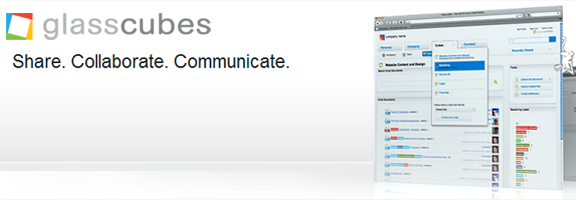
I admit it: I'm a productivity junkie. I am ever on the search for that elusive application that brings me just one step closer to organizational nirvana. Currently, I'm loving Producteev — but you're never to tied down too look… right? As debatable as that may be to some, when a business acquaintance introduced me to Glasscubes, I was wowed enough to dig in and give it a try. Glasscubes is pretty, smart and extremely well rounded! If you are looking for a really slick and functional service that allows you to collaborate on documents, share files,  manage tasks, projects, and calendars — and even use as a CRM and teleconferencing tool — then you'll want to check out Glasscubes.

Read more


How to Get All Your Mail Accounts into Gmail, With No POP3 Delay

gmail

Several months ago, we wrote about how to use Gmail to check your various email accounts from across the web, so that you have one single inbox to check.  That post contained handy tips on how to get other mail into Gmail, how to organize it, and how to send messages from within Gmail as if you were using the external account.  To get other mail into Gmail, that procedure used POP3 to periodically pull mail from those accounts.

One flaw in Gmail is that you can't specify how frequently your account will pull down that mail.  Gmail determines this frequency based on how often it discovers mail in those accounts when it checks.  Lifehacker recently had a tip on how to increase that frequency.  But what if you want to eliminate the delay entirely?

If you have the right kind of account, then eliminating the delay is easy.  The trick is to not use POP3 at all from within your main Gmail account.  Instead, forward mail from your old account into your main Gmail account.  All of the other tricks for using your Gmail account as your main account will still work.  Here are a few tricks to keep in mind.

Version of Gmail logo from velorowdy.


Option 1: Get All Mail From the Secondary Account

If you simply want to get all mail from the external account, check that account for a global forwarding option.  If your secondary account is also a Gmail account, that can be found under Forwarding and POP/IMAP.


Option 2: Use Filters to Get Only the Important Stuff (and to Keep Your Secondary Account Clean)

Maybe you don't want everything forwarded from your secondary account.  For example, I get various newsletters sent to my secondary Gmail account that I don't want clogging my main inbox.  Instead of using the global forwarding setting on the second account, I use a filter.  (Again, your secondary account must support filters and forwarding, like Gmail does).  This filter also keeps my secondary inbox clean, by deleting a message after it is forwarded.

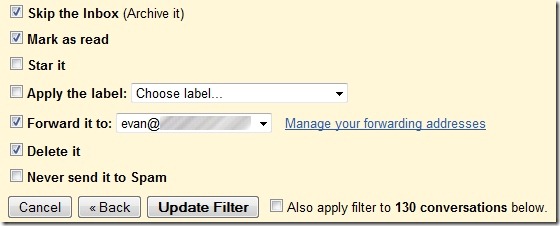
To use a filter to forward almost everything, put an asterisk (*) in the "From" box in the filter settings, and then carve out the undesirable senders by putting those domain in the "doesn't have" box.  On the next screen, check "Skip the Inbox," "Mark as read", "Forward it to:" (followed by your main email address), and "Delete it."  Screenshots of my filter are below.

gmail filter 1

gmail filter 2


Highlight and Organize Your Imported Emails

We touched upon this in our prior post on using Gmail as your only inbox.  We suggested that you use Gmail's label features to label incoming mail.  I set up custom labels, based on the "To" line in the message, along with a filter for each account.  This way, you will always know, at a glance, to which account the message was originally sent.  To make this even more effective and obvious, try adding a color to the label.


Send Mail As If You Were Using the Secondary Account

Another one of our prior tips that still holds true with this method concerns how to send mail from your main account, but make it look like you are sending it from the secondary account.  Check out the prior post for detailed instructions on how to add the new account to accomplish this (check out "To Use Your Server's SMTP settings" to make it truly transparent to your mail recipients).


Once you follow these tips, email will forward, almost instantly, from your secondary account to your main account.  If you try to reply to or forward a message, Gmail will automatically send it using the address to which the message was originally sent.

Do you have any more tips for making Gmail more effective as your main email hub?


Evernote Trunk: Less Than Hoped For, But A Nice Addition

Evernote Trunk: Less Than Hoped For, But A Nice Addition | 40Tech

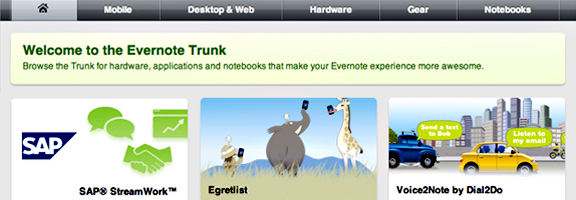
Last Wednesday, Evernote made the BIG ANNOUNCEMENT they had been marketing for July 14th — it came with a party and everything. Unfortunately, none of what I was hoping would be in the latest release has come about yet; namely the ability to share notebooks via the desktop and mobile apps (and social sharing!). What Evernote did announce was Evernote Trunk, a central repository for API-connected services and devices. While this is not exactly as awesome as what I felt the hype promised, it is a very useful way to find other great services to work into your workflow — and it may well be another revenue stream for Evernote.

Read more


Send E-Mail After You Die

tombstones Do you want to send a farewell message to a loved one after you die?  Perhaps you live alone, and want to make sure someone finds you if you die?  Death Switch might be what you need. Death Switch is a simple site.  After you register, Death Switch will start sending you e-mail messages (at a frequency of your choosing).  If you don’t respond to one of those messages, Death Switch assumes that you’re dead, and sends out an email message that you’ve created, to an email address of your choosing.

You also tell Death Switch how frequently to check in with you to make sure that you’re alive (from 1 day, to 240 days), and how long Death Switch should give you to respond before it sends out your email from beyond the grave, or goes into "Worry Mode."  With "Worry Mode," you specify how often and with what frequency Death Switch should re-prompt you.  In the Worry Mode settings, you can also enter a secondary email address, and the email of a trusted friend to contact if you don’t respond.  You "deathswitch" email then will be sent at the end of the worry period.

The obvious concern over a service like this has to do with using it to transmit personal information, such as account passwords or details (if, for example, you wanted to give someone else access to accounts after you die).  You could get around this, I suppose, by describing the password in a way that only the recipient would understand, such as "my password to the safe filled with $1 million is the name of that slope where we skied off the cliff, followed by the number of the interstate we took to get there."

The basic version of Death Switch is free, and allows you to create one message to be emailed to one recipient when you die.  A premium subscription costs $19.95 per year, and allows you to send 30 messages, with up to 10 recipients for each message, with file attachments.

Can you think of how you might use a service like Death Switch?


Giveaway! Win GTDagenda Premium: Free for Life – Just Read and Comment On Josh’s Take

Win a Premium Subscriptions to GTDagenda, Free for Life | 40Tech

A few weeks back we announced a writers’ contest. The folks at GTDagenda, a Getting Things Done app, offered us two free-for-life premium subscriptions to their task (and life) management service ($69.95/year value, each), and we decided to give one of those subscriptions away to the winning writer of an impartial review of the app. The winner of this phase of the contest is Josh, for his exuberant and well rounded take on GTDagenda as a service (congrats Josh!). Check out his review — and how you can win the second part of the giveaway — below!

Read more