Menu Close

Archives (page 143 of 199)

4 Ways to Backup Your WordPress Blog and Avoid Catastrophe


sinking ship

If you have a website or blog, you probably have the same worry that most blog owners share – what would happen if the unthinkable would happen, and all your data would be lost?  Would that be the end of your blog?  You can reduce the risk of disaster if you have a backup plan in place.  Here are a few methods for backing up your site, along with a few pointers as well.

Photo from Ibrahim Iujaz


What Are You Backing Up?

The first decision that you need to make involves figuring out exactly what you need to back up.  Your backup typically should involve two types of data: your site files, and your site database.

When I back up 40Tech’s site files, using the methods discussed below, I don’t take any chances.  I back up ALL site files.  Some files on the server, such as cache files, probably aren’t needed, but I’d rather be safe than sorry.

Your database typically will be backed up into one file, so there’s not much to think about there.  Again, I backup the entire database, and don’t omit any tables.  The only complicating factor is if you’re using a plugin or an outside service that creates its own database.  I don’t know of any WordPress examples, but in Drupal, the CiviCRM plugin requires its own database.  If you’re using something similar, make sure that you back up that database as well.


Redundancy, Redundancy, Redundancy

We’ll cover a few different methods below, but don’t rely upon just one backup method.  You don’t want to find yourself in the situation of needing your backup, and finding that your sole backup method wasn’t working as well as you thought.  Always have more than one backup method.


Backup Methods

As noted, you will want to use more than one backup method.  Here are a few possible ways to backup your files and databases:


1.  Pick a Host With a Reliable Backup Solution

Although you will want your own backup as well, many web hosts also have backup solutions of their own.  40Tech is hosted by Hawk Host, which uses a backup solution by R1Soft that allows me to browse a week’s worth of backups (1 for each day).  I can browse my site’s directory structure from within the backup, and selectively restore files.

Hawk Host also backs up my database, although restoring that requires me to contact the support team.  Hawk Host can restore any parts of my database, down to individual tables. Hawk Host has been a dream since I started using it as my primary host when 40Tech was born (after using a big name host for other sites for several years).  If you sign up with Hawk Host using the above link, you’ll be supporting 40Tech via our affiliate link (which, as always, we only use for products that we use ourselves, and recommend).

Given how long it can take to restore a backup from your local drive, it can be comforting to know that your host is looking out for you.


2.  Use a WordPress Plugin to Backup Your Database (and Maybe Your Files)

WordPress plugins make many actions easier, and backing up your database is no exception.  I use the WordPress Database Backup plugin to have a backup of my database emailed to me every day.  I have it sent to a Yahoo mail account, which has unlimited storage.  I make sure to periodically visit that account to clean out older backups.

Another promising solution is the Automatic WordPress Backup plugin, which I recently stumbled upon and haven’t installed yet.  AWB backs up everything – your entire site and your database – to the Amazon S3 servers, which provide cheap storage and bandwidth.


3.  Backup Your Files With a Backup Program

You’ll also want to have a local backup of all of your site files.  I use a program called SyncBack SE to perform nightly backups of 40Tech.  SyncBack SE is a commercial program, but there is a free version that loses some features compared to the paid versions. SyncBack allows you to input the FTP settings for your site, and set a schedule for the backup.  Every night at the same time, SyncBack starts up, logs in to 40Tech via FTP, and compares the files there with the files that I have hosted locally.  Any new or changed files are then downloaded.

The safest way to perform a backup like this would be to rotate backups, so that you’re not always overwriting your files.  For example, you could have a different backup for each day of the week, along with a different backup for each week, and each month.

If you want to get really technical, perform a Google search for backing up a  site via rsync. Rsync is a file transfer/mirroring program that some website owners use to mirror their sites to another site, in the event of an outage.  It also makes for a good backup solution, if you can figure it out.


4.  Backup Your Site Manually

Almost all web hosts give you the ability to backup your site files and database manually.  You should do this occasionally, so that you’re not at the mercy of the whims of an automated system.  I typically perform such a backup whenever I’m making changes to 40Tech, such as when we debuted our new theme several months ago.

A manual backup could be as simple as copying all of your files to your local drive, by using an FTP program like Filezilla.  If your host offers cPanel, you can also log in and get a compressed version of your site, in a single download.

With respect to your database, you can typically download that via cPanel as well.  phpMyAdmin is another service that most hosts offer.  With that, you can select all of the tables of your database, and export them into a zip file for download.


If you combine two or more of the above methods, so that you have more than one backup method for both your database and your site files, you should be in good shape in the event of any trouble.  How do you backup your site?


And They’re Off! Compare Website Loading Times With Whichloadsfaster

whichloadsfaster 576x200

If you’re a blog owner, or just curious by nature, you may be curious about how the loading time of one website stacks up against another.  You can see two sites square off at whichloadsfaster.  Whichloadsfaster couldn’t be easier – input one site in the box at the top left of the screen, and another site in the box at the top right, hit the “Go” button, and sit back to watch the results.

whichloadsfaster site speed comparison

The service has some other features as well, such as a repeat feature, which lets you specify how many times you want the faceoff to be run.  This can give you a better idea as to which site truly is faster, since load speeds on any given visit can vary due to traffic and other factors.  There is also a “race” feature, that allows you to list up to three sites in one column, three in another column, and have the two groups square off against each other.  It sounds silly . . . but don’t knock it until you try it, I guess.  That can be said for whichloadsfaster in general – it may sound whimsical, but it is oddly addicting.

What tools do you use to measure the speed of your site?  Coming soon, we’ll take a look at a tool we use here at 40Tech to help improve site speed.

Try out whichloadsfaster


Tron, Baby! New, Improved & Still Awesome

Tron - New, Improved, Still Awesome

Tron was one of the highlights of my youth, and it remains one of my favourite movies to this day — I even have the __ anniversary DVD. What’s not to like? It takes place in a video game for Pete’s sake! It was also one off the first movies to make serious use of 3D graphics, which adds just enough geek to make it worthy of a mention on 40Tech.

I’ve known that the sequel is coming out for several months now, and have seen a trailer or two, but this one *points below* has me ready to spend my money all willy nilly and actually looking forward to the coming of what is sure to be a 3D movie. I’m normally annoyed by the 3D craze – Justin Bieber 3D?? Come on, Seriously!?.

Check out the trailer/Daft-Punk-music-video, and note the highlighting of returning cast members. I don’t think you’ll be able to tell me that it doesn’t give you that geek-boy – geek-person – itch.


Uncluttered Visual Search for Craigslist and Other Online Shops With Spotli

Uncluttered Visual Search for Craigslist, Other Online Shops | 40Tech

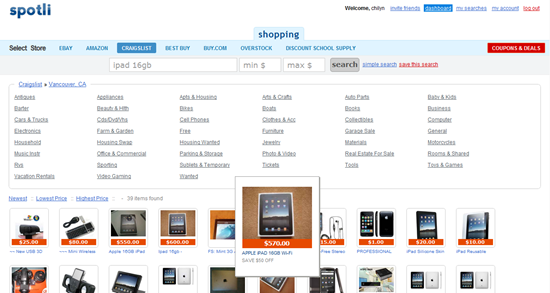
I don’t know about you, but I rarely even look at a Craigslist post that doesn’t have a photo of the product attached to it. I don’t see the point. If someone doesn’t take the time to take a photo of what they’re selling, I simply don’t trust it — and I really don’t want to drive to wherever that person lives for a first look at my potential purchase, you know? Spotli has made my life easier by providing a visual search tool for Craigslist and other places to buy online.

I know that you can already filter Craigslist to only show items with photos, but searching Craigslist is not a pretty experience. At all. It’s uglier than Google — and that’s saying something. Spotli will take your search, even narrowed down to city-level, and display an eye-pleasing grid of images, complete with title and pricing information. Hover over the image that catches your eye and it will expand to a slightly larger size for easier viewing. Click on the image and you will go directly to the listing.

Spotli Visual Craigslist Search | 40Tech

You might wonder what the point is of some of the other online shops (Ebay, Amazon, Best Buy, Buy.com, Overstock.com, Discount School Supply) — after all, they are already visual sites. I find that I like the interface of Spotli much better, however, and highly recommend that you give it a try. I would actually like to see even more stores added, as well as a Canadian option.

Spotli is fully usable without registration, even the Coupons & Deals section, but registering does give a little back, such as saved searches, minor Facebook Connect (to invite friends), and the possibility of more tools in future — maybe sharing functionality for found items?

My only wish for Spotli would be the ability to have my search term be persistent across all stores, so that I don’t need to type it in repeatedly when price-matching. If that were also integrated into the saved search functionality, Spotli could become the perfect shopping companion for me. How about you? What are your thoughts on Spotli? Know of any similar services?

Check out Spotli


Analyze Your RAM For Free

Today, 40Tech is pleased to present a guest post by Keith from Computer Repair Calgary.

Microsoft memory test

The modern computer workstation is made up of a wide variety of parts. Unfortunately,
when any one of these parts runs into problems you, the computer user, are likely to feel
the negative consequences.


When RAM Goes Bad

RAM, the shorthand for random access memory, (a form of computer short term
memory), is no exception. When your RAM starts misbehaving you will notice certain
signals. What are the likely signals, you may be asking yourself? Well, bad random
access memory generally causes a computer to become somewhat unstable. In other
words, you may be working on a word document, or loading up a picture when suddenly
your PC suddenly quits the application or decides to restart entirely (often giving you
some kind of error). The biggest problem here is that your computer is not wise enough
to tell you exactly what is happening. It doesn’t come right out and say, you know what;
your memory is no good. Rather, it will typically give you an archaic error message
which is generally of little help. As a result, it is up to you, the computer user, to figure
out where the problem truly lies. Consequently, you have two choices. You can either
attempt to determine the problem yourself, or you can send your machine into your local
computer repair shop.

If your system is becoming increasingly erratic, one way you can test your computer’ s
RAM is through the use of a free Microsoft designed product known as Microsoft
Memory Diagnostic. As its name suggests, this particular application is solely designed to
diagnose your RAM. In layman’s terms, it will tell you if it believes that your memory is
good or bad (and in need of replacement).


Testing your RAM with Memory Diagnostic

So how does one go about using Microsoft Memory Diagnostic then? Luckily, the
procedure is fairly easy; especially if you take your time to work through it.

1) Head over to the Microsoft Memory Diagnostic webpage and download the program.
2) Run the program and choose to create a CD Image
3) Burn this CD Image onto a CD (you can find a wide range of free programs online
which allow you to burn a CD Image – also known as an ISO – onto a CD)
4) Put the CD into your CD drive
5) Reboot your computer and choose to boot from your CD (take a look on Google if you
are unsure how to boot from a CD – trust us, it’s not that hard once you take the time to
learn how).
6) Let Microsoft Memory Diagnostic run for at least 1 pass
7) If there are error messages at the bottom of the screen then some of your memory is
likely bad. If there are no error messages then there is a reasonable chance that everything
is ok.
8) Restart your computer when done.


That’s all there is to it!

Bio: Computer Repair Calgary is a computer repair blog hosted by Keith. On his site, he gives various computer tips and tricks, including how to test RAM.