Menu Close

Archives (page 138 of 199)

The One Step You Should Take Today to Secure Your Gmail Account

gmail hacker large

Felicia Day, Internet celebrity and star of the original web series The Guild, recently had her Gmail account hacked.  She eventually recovered her account, although it isn’t clear whether her celebrity status played a role in the recovery.  What happens if your account gets hacked?  How can you get it back?

We’ve covered 7 Tips to Protect Your Email From Hackers, but what happens if your account has already been hacked? If you’re going to do nothing else, at least set up your Google account so that you can recover your account via text message.  Then, if your Gmail account is hacked, and if the hacker hasn’t dug into your settings too deeply, you can reset your password via a recovery code that Google will send to you in a text message.  Chances are, the hacker won’t have access to your cell phone (and, if he does, you’ve got bigger problems than just your hacked email).

To enable password recovery via text message, click on “Settings” in Gmail, and then on the “Account and Import” tab.  At the bottom of that tab, click the “Google Account settings” link.  On the page that loads, click the “Change password recovery options” link.  You’ll need to reenter your password and hit the “Verify” button.

Once you’re into the “Recovering your password” page, find the “SMS” section and click the “Add a mobile phone number” link.  Then, select your country and input your telephone number, and click the “Save” button.  If you entered your number correctly, you’re all set to recover your account via text message, in the even of catastrophe.

I haven’t tested to see if a Google Voice number would work as your recovery number, but, even if it does, you don’t want to use it.  If a hacker has your email password, he also has your Voice password, and may be checking that.

This system isn’t foolproof.  As best I can tell, there is no verification process to change the account recovery telephone number.  So, a hacker with your password could go in and change this number, and you’d be out of luck.  Still, an extra line of defense can’t hurt.

If you have any other tips for securing your Gmail account, let us know in the comments.
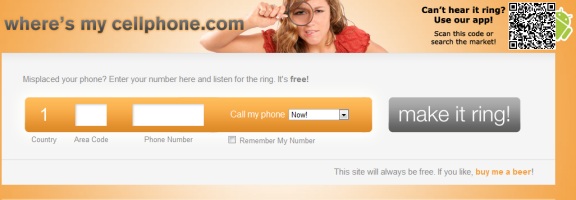

Test Your Phone Settings (or Find Your Phone) With Wheresmycellphone.com

wheresmycellphone

If you’re a Google Voice user, you’ve probably been there – you want to test out the forwarding on your phone, or see if the call presentation feature is working properly.  If you’ve tied all of your phones to Google Voice, though, and set those phones to have direct access to voicemail, you can’t call yourself to test out your settings.  Enter wheresmycellphone.com.

Whereismycellphone does one thing, and one thing only.  It calls your phone.  The site markets itself as a tool to ring your phone so that you can find it, but I’ve used it to test out my Google Voice settings.  You enter your number, specify when your phone should ring (immediately, or up to five minutes in the future), and hit the “Make it ring” button.

What tools do you use to ring your phone, or test out your forwarding settings?

Where’s my cellphone.com


[Sponsored Post] Blackberry 6

blackberry 6 full

This is a sponsored post written by the sponsor, Phones 4u.co.uk.  Please click here for more information on sponsored posts on 40Tech.

One of the biggest reasons for the excitement surrounding the release of the Blackberry Torch, not including its battle with the iPhone 4 and the Samsung Galaxy for the title of best smart phone, is the upgrade of the Blackberry operating system that came along with the handset’s release. The Blackberry 6 operating system was somewhat of a gamble for Research in Motion as they attempted to keep the familiar feel of previous operating systems to please regular Blackberry owners and also introduce a raft of new features to bring in new customers. The result was an interesting one and here are some of the changes made.


New home screen

At first the new interface looks very similar in essence to previous versions of the operating system but it actually holds a few integral differences. The usual grid of icons is there but the ability to scroll from left to right and add new icons to your homes screen makes Blackberry’s new offering more like other smart phone operating systems such as iOS4 and Android.


New notification bar

Rather than just having a red flashing light to indicate notifications as Blackberries have utilised in the past, a new notification bar at the top of the screen has been included. Give this a tap and specific notifications will be highlighted, without the need to open the right application. This is something that was a constant concern for Blackberry users and has seemingly been resolved.


Context sensitive action menus

Now users can click and hold the trackpad to activate a series of menus specifically related to where you are on the phone.


New Webkit Browser

This is something that Blackberry users have been waiting for a long time. Now users can surf the web whenever they want without the long loading times that have blighted some of RIM’s previous Blackberry handsets. The inclusion of multi tab browsing is also a welcome addition as you can now go off on a tangent in your web browsing! The new browser also utilises full HTML 5 and CSS support.

Check out Phones 4u.co.uk for the best mobile phone deals available on the web. Compare the latest handsets online now!


How to Avoid Scammy Android Apps

How to Avoid Scammy Android Apps | 40Tech

The beautiful thing about Android OS, over iOS,  is the open platform. The annoying (and potentially dangerous) thing about Android OS, over iOS, is… wait for it… the open platform. It’s a double-edged sword. Say what you want about Apple’s proprietary madness, but the likelihood of a scam or malware app making it through to the iOS App Store is pretty slim — at least in comparison to Google’s Android Market. Does this mean you should never buy Android and jump headfirst into Apple products? By no means! According to the learned fellows over at Tested.com, with a little common sense, some permissions checking, and a dose of healthy skepticism, you can avoid the sneaky apps. Here are the main points:

Check the user reviews on Android Market. Go deeper than the first page. Read them — if there are a ton of positive reviews and they have the same sort of feel to them (like they were written by the same person, for instance), there is probably something up. If there are a ton of negative reviews, there is probably a reason — no matter who wrote them.

View the other apps submitted to the Market by the developer. If there are a string of oddities and things that make you raise a brow or two, you might want to avoid the app you are researching.

Check the developer’s website and support site. If the sites leave you feeling uneasy or that the developer lacks professionalism, you may wish to think twice before purchasing anything by them.

Check the app permissions. This is the big one. If an app has the ability to modify/delete SD card contents, to send a text message or MMS, or to access the internet all willy-nilly and you don’t know why, treat it in the same way you would a Windows application that is trying to do things that don’t make sense: don’t install/remove it, research it, and find out exactly what it’s doing. If the developer isn’t completely clear and forthcoming, get rid of it.

You can research permissions before you install an app by going to the app’s Market page and selecting menu, then security. Once an app is installed, check the permissions in Manage Application Settings.

There are more details of what you can look for via the link below.

How do you keep yourself safe from malware apps and scams on the Android Market?

How to Spot Scams and Malware Apps on Android [Tested]


Techies Think 7 Inches of Samsung Will Work Just Fine

Samsung Galaxy Tab | 40Tech

The tech community seems to be almost overwhelmingly positive about the new Samsung Galaxy Tab. Some of that is because the tech community tends to love the openness of Android, and some of that is because the Tab is a shiny new toy — but much of it appears to be because Samsung’s new tablet is actually pretty cool.

Check out the video, below, from Stuff.tv. It’s one of many reviews and unboxings that I’ve come across that sings a balanced tune about the Tab’s goodness. Some highlights are as follows:

  • The smaller size of the Tab is a good thing, as it can fit in a (large) pocket and is easier to type on than an iPad (for people focused on thumb-typing).
  • Having Flash on a tablet is awesome and it appears to work pretty well, even on 3G.
  • Samsung and Carriers have pre-loaded “helpful” software (or bloatware) onto the device.
  • The interface, while infinitely more configurable, is not a slick as the iPad — but it does the job.
  • People will like it, no matter what Steve Jobs thinks.

My last two highlight points, above, were mentioned in every single positive review I read, watched, or skimmed, and though there are a few negative reviews out there, many of them come of as Apple fanboys doing what Apple fanboys love to do: trashing things that are not Apple. There are a some reasonable points to take away from the negative reviews, however, such as the difficulty that first time users of the Tab can have with finding the “on” button, and the fact that Android 2.2 was simply not built for tablets (just like Google said it wasn’t) and that leads to the occasional performance hiccup.

Overall, it seems that the Samsung Galaxy Tab will be a reasonable alternative to the iPad, even if it will never quite achieve the elitist notoriety of an Apple product. What do you think?

Samsung Galaxy Tab Video Review [Stuff.tv]