Menu Close

Archives (page 113 of 199)

102 Free Programs Worth the Download [Windows]

102 Free Programs Worth the Download [Windows] | 40Tech

There are a lot of free programs for Windows, and while many of them may have you running for the nearest anti-virus or spyware scanner, there are some that are not only useful and safe, but awesome beyond words. The trouble, of course, is sorting through the volumes of crap – I know it’s not a task I enjoy… Thankfully, neither you nor I will have to worry about it, because the good folks over at MakeUseOf have done the work for us! They have gathered, sorted, sifted, and otherwise separated the good freebies from the bad, and compiled them into a very well organized and easy to navigate list. Bless their gigantic hearts!

The list, which can be found here on their site, is broken down into 21 categories, each containing three to nine applications. They cover everything from free anti-virus software to CD/DVD tools, productivity tools, photo/image editors, file recovery software and more. Several on the list are ones I’ve heard of and tried, such as Microsoft Security Essentials, Evernote, LastPass, and Recuva — but there are a lot that I am not familiar with, and the stamp of approval MakeUseOf gives them makes them a lot easier to consider.

The list of the best 102 Free Windows programs is worth a view for any computer owner, and a look through is nearly a must for the geeky set. Check it out — I’d love to know what you think of it, and if there are any you think should or shouldn’t be there.

The Best Of: Windows Software [MakeUseOf]


Simplify Your Desktop for Peaceful Productivity

image

This post continues our Personalize Your Windows 7 Experience series, but much of what’s in here can be applied to any PC operating system.

Lately, I’ve been upping my productivity game. I love GTD, and I’ve been pretty successful at making tech like Evernote, Springpad, and Producteev work for me, but I still find that I have a tendency to get bogged down by clutter and distraction. A cluttered desktop doesn’t support a creative or efficient mindset very well, so I spent a little time sorting hiding the clutter with a tool Evan introduced to me called Fences. That helped, but something was missing — and I had absolutely no idea what that was. I tweaked, I fiddled, and messed about with different settings, but nothing seemed ring that proverbial gong for me. Nothing, that is, until I discovered Minimal Wall.

Minimal Wall is the ultimate place to begin simplifying your desktop experience. It’s  more than just a collection of minimalist wallpapers, though. They actually help you to get set up for the optimal desktop in just a few steps. You start out by losing the clutter and icons on your desktop, and you end by choosing a very cool background, but the most intriguing thing about their set up process is the Grid Wallpaper.

Minimal Wall | Simplify Your Desktop

The Grid Wallpaper uses simple graphic design principles to help you set up your windows for a better — and uncluttered — user experience. All you do is set the Grid as your desktop background, and then align your most commonly used windows to the yellow borders. When I first did it, I wasn’t quite sure what to expect, but I was surprised at how looking at my new desktop made me feel. It resonated with me. I was more relaxed, and I found it much easier to focus, even with several windows open at once.

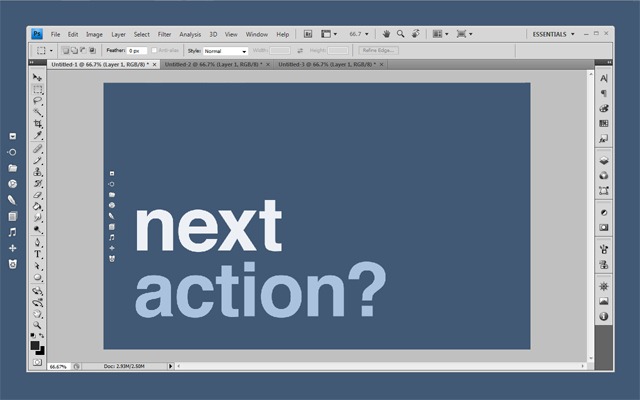
After your windows are aligned, start looking at Minimal Wall’s wallpapers. I have no doubt that you’ll find them very easy on the eyes. I chose some of the Mindful Words backgrounds; nice reminders to move on to my next action, and keep focused. I even created one of my own in Photoshop — my little girl’s name –using their work as a base. It reminds me why I am sitting at the computer in the first place, and why I need to get off it again as soon as I can.

Lifehacker has a great post featuring a Minimal Wall based desktop, combined with Rainmeter, Launchy, and Rocketdock with some nice icons. Personally, I find Rainmeter to be annoying to set up and modify, so I won’t put you all through that. I did use some of the other ideas, however, such as installing Launchy (which I find I rarely use) and Rocketdock. Rocketdock, especially with the nice iconset, provides an easy to look at quick-launch that fits the theme. I won’t go to far into customizing Rocketdock here, but if you try it out and have trouble getting it to do what you want, hit me up in the comments and I’ll do my best to help you out.

So here’s the process so far:

  • I gathered all of my clutter into Fences — then I double-clicked the desktop to make the Fences hide themselves. Another double-click brings them back when you need them.
  • I used the Grid Wallpaper to line up and size my windows (and the Fences as well).
  • I selected the four wallpapers I wanted to use and put them in a folder to create a desktop slideshow (go to Control Panel, choose “Change desktop background” under Appearance and Personalization, then browse to the folder and select the images, configuring how they should change — I shuffle them every hour).
  • I installed and configured RocketDock with the new icons (add the folder of new icons into the Icons folder in Program Files (x86), then right-click on the dock and choose Icon Settings, then the icon set).

I also moved my Windows taskbar to the top of the screen and set it to auto-hide. I had originally used a tool called Taskbar Eliminator to make the taskbar vanish altogether, but I found that it was unreliable, and discovered that — since I was now rarely working in full screen — having the taskbar hidden at the top was actually quite useful for quick access to its functions.

Finally, I right clicked on the desktop and went to Personalize and saved my wallpapers as a custom theme. Doing this makes it so you can reclaim your desktop slideshow with a click, should you change it to something else and find you want it back again. To round everything out, I changed my logon screen to match the theme. Here’s how you do that:

Here’s a Few Shots of the End Result

wall-actionwall-focuswall-windowswall-windows-2wall-fences

Since adopting this new look and feel for my desktop and workflow, I’ve found that I’m more focused, productive, and generally more relaxed while I work. The basic setup took me less than a half-hour to implement, and it’s paid that time back in spades. Hell, I was so inspired that I added a customized version of the wallpapers to my iPad, too, and then hunted down and killed my next big PC distraction: keeping Gmail open in my browser while I work. If you want a little more peace and productivity while you’re sitting in front of the multi-task machine, give this a try — I sincerely hope it helps you as much as it has me!

Let me know your thoughts in the comments!


App of the Week: Hitpad [iPad]

40Tech App of the Week | Hitpad for iPad

Our new App of the Week series covers apps that we find intriguing or exceptional, be they for iOS, Android, WM7, Blackberry, or the web. We’d also love some suggestions from you!

If you like at-a-glance trending topics and daily news info, and you like it from multiple sources and in myriad forms, you will really enjoy Hitpad. Hitpad for the iPad is a slick way to get all the latest from multiple search engines, Twitter, and more; and without feeling like you’ve been hit between the eyes with a mallet. A lot of thought went into the user interface, and the resulting app is definitely one of the more beautiful ways iPad users can consume information.

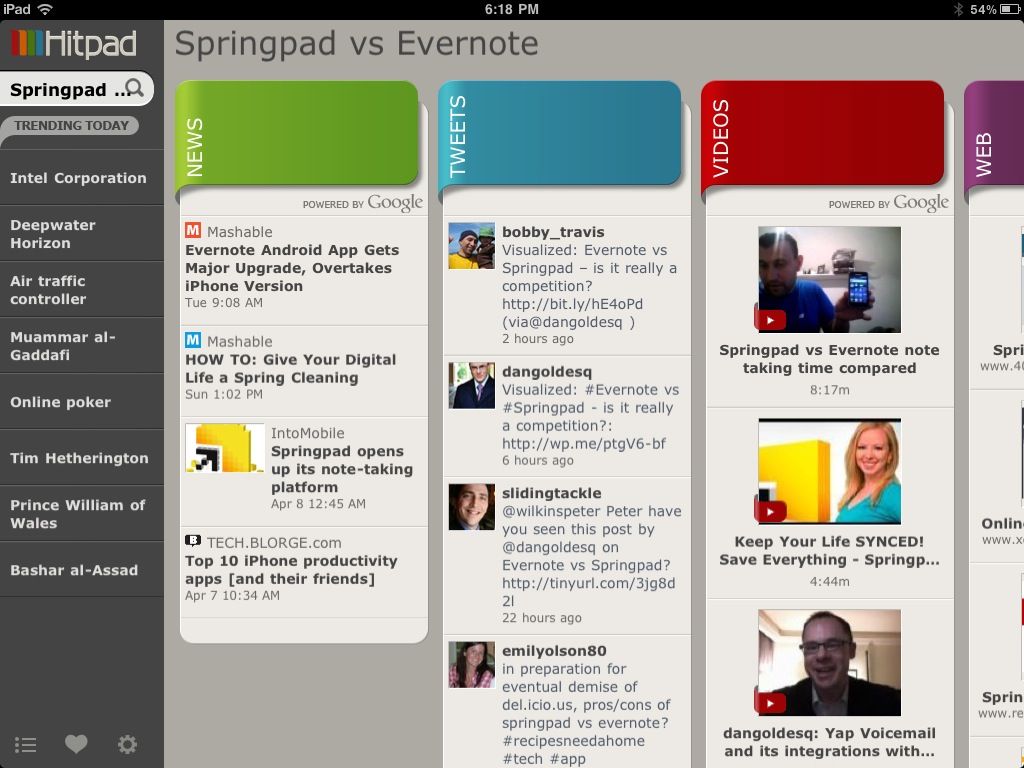
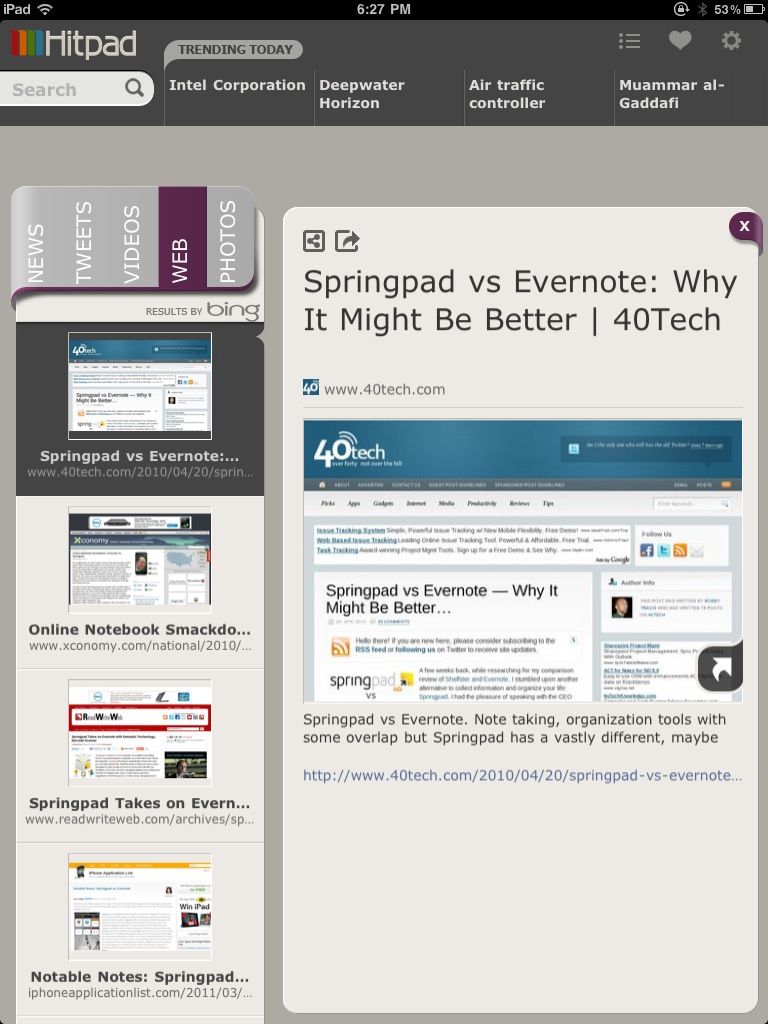
Hitpad also allows you to search for a single topic, delivering results from all across the web, which is handy if you are doing some quick research. For example, I did a search for Springpad vs Evernote, and as you can see in the images below, I received news, video, and image results from Google, and recent tweets from Twitter (yes, the most recent result happened to be me tweeting out a post by one of our readers, Daniel Gold, from his own blog). There is also a column for web page results, which comes from Bing. I found that odd, considering that most everything else was from Google — but it was nice to see that our own post on Springpad and Evernote was in the top spot with Microsoft, too.

Hitpad | Trending News at a Glance on the iPad


Hitpad for iPad

Hitpad feels like it might need a bit more in the feature department, especially if you are used to getting your information from an RSS reader. It does do what it is supposed to do, though, and it does it with flair and style, even if the thumbnails it clips of web pages sometimes load a bit slowly. Still, Hitpad would benefit from the addition of things like saved searches, the ability to choose news or search engine sources, and being able to choose multiple topics to search on. If you have an iPad, try it out! It’s free, and you can get it here.

Let us know what you think of Hitpad in the comments!


[Reader Survey] What Kind of Battery Life Does Your Smartphone Get?

battery life for smartphones

Smartphone battery life is a fickle thing, not only between different phone models, but among supposedly identical phones. After nearly two years with an iPhone, I started using my Android-based AT&T Captivate in December. One difference, among otherwise Android awesomeness: pathetic battery life. I installed Serendipity, a custom ROM, and saw some improvement, but I still can’t go from morning until bed time without plugging in the phone. The catch, though, is that other Captivate users who run Serendipity report battery life that is double what I get. Battery life seems to depend on an individual’s usage, the apps installed, and the condition of the battery in the device.

Let us know in the comments what kind of battery life you get. Make sure you let us know what phone you use, how heavily you use your phone, and any tips you’ve come across to increase your battery life.

To get the ball rolling on some tips, here is a very thorough thread from the xdadevelopers forum, for you users of Android custom ROMs, with several tips and links about how to improve battery life. The tips include deleting your battery stats, and doing a “bump charge,” among others. I’m running at about 13 hours now. How about you?


Use DropBox and Hazel to Bust the Scumbag Who Steals Your MacBook

hazel and dropbox to secure your mac

If someone stole your Mac, that would stink, to put it mildly. Not only would you be out an expensive piece of equipment, but your sensitive data might be accessible to the criminal who stole your gear. Using two free programs, you can not only remotely secure your Mac if it is stolen, but you can bust the loser who pilfered it. A combination of Hazel, Dropbox, and a bit of geek kung fu allows you to record the crook’s IP address, snap a screenshot of him, record his browsing history, disable automatic login, and lock the stolen machine.

Read more