Menu Close

Archives (page 106 of 199)

Free Stuff! Review, Giveaway of ScreenDr & SkipDr Products by Digital Innovations

Giveaway of ScreenDr & SkipDr Products by Digital Innovations | 40Tech

Every once in a while, we get the opportunity to offer you guys something for free. We don’t always do it, mind you — we get a lot of solicitations, and only care to post about the products we think will be most useful to you. Well, a few weeks ago I was contacted by a representative of Digital Innovations. They make products for cleaning LCD screens, repairing discs, that sort of thing. I’ve seen their products before, or others like them, but honestly never considered buying them. I tend to roll on the cheap, as you know, and didn’t want to spend money on things that I wasn’t sure would even work.

Read more


Why I Killed Angry Birds for Chrome [App of the Week]

Angry Birds for Google Chrome | 40Tech

I hated this app. Not because it wasn’t fun, and not because there was something wrong with it — no, no, none of that. It was because it called to me in the middle of the night, squawking at me softly, compellingly; demanding that I play it over and over again until the wee hours before the dawn. Even now, as I write this, the little red bird that promotes the game’s evil is peeking at me with his sinister cartoony eyes, poking his head around the left-most edge of my Evernote window.

I couldn’t allow it. Angry Birds for Chrome messed with my productivity mojo — and this is why the Birds had to die.

I had been avoiding the game for months. I’ve got an iPhone — and an iPad too. I follow these things. I pay attention. I know exactly how addictive Angry Birds has been for people, so I avoided it like the productivity plague that it was (and is!). But all of that ended on one fateful day when I was trolling the Chrome Web Store for new and exciting apps.

It was late, you see, and I was tired. I had been working my butt off on some freelance projects — a website redesign plan, a proposal for social media marketing, some blog posts for a new productivity blog I’m working on (ironic, I know) — and I needed to blow off some steam. That’s how they get you, see? There’s that moment of weakness, and you see their ad — and suddenly you’re installing, clicking, and watching those poor little birds get their eggs stolen by those bastard green (but cute!) pig heads. Don’t question the logic of it — it’s freaking mesmerizing!

So I tried the first level. It was easy. Too easy, like all gateway drugs are. Just a little taste, you know? A taste for free.

Free? Ha! I spent the next few hours of my life firing bird after crazy, utterly enraged bird into green-pig-head strongholds. Dozens and dozens died for the cause — it was a bleeding massacre! But I took those little piggies down, man. I got ’em one after the other, after the other. I giggled maniacally as I toppled their houses around their green little piggy ears. I shook my fist and roared after them as they ran away again and again with the eggs of my allies — and I followed them determinedly into battle after glorious battle. Who cared that I had to get up in an hour? I was rocking this game! Physics was my bitch! I — damn, was that my wife’s alarm clock? WTF time was it anyway??

So you see… It wasn’t my fault! I had to do it. I had to go back to my Google Chrome start page. I had to open the Apps section — and I had to kill that app with a single brutal blow to the head. No mercy. Damned thing was f*#^ing up my schedule.

Have you killed any angry birds lately? Tell us your story in the comments.


Microsoft’s 10 Biggest Flops

microsoft flops and failures

All companies swing and miss from time to time. Apple, which seemingly can do no wrong, had its Pippin and Lisa. Microsoft has had its share of flops, too. Money.co.uk recently took a look at 10 of them.

Some of the choices are obvious, like Windows ME and the Kin. Some are obscure, like ActiMates (a creepy children’s toy). Missing from the list is Windows Vista, which has been the object of much scorn.

What’s number 1 on the list? I’ll give you a hint. He had big bubble-shaped eyeballs, and was integrated into Microsoft Office. Remember Clippy?

For the rest of the list, head on over to the source.

Is there anything missing from the list? Do you see anything on the list that shouldn’t be?


Sign and Send Faxes and Emailed Documents . . . Without a Fax, Scanner, or Printer

hellofax page

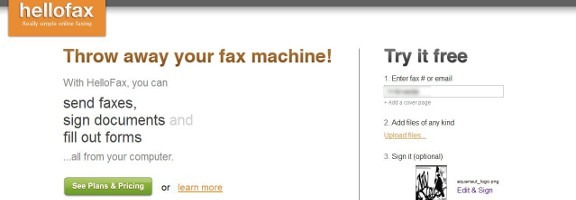
With the dominance of email and other forms of digital communications, the fax machine is dying a slow death. There are still times, though, where you’ll want to not only send a fax, but attach a signature to a faxed document. You can do so without a scanner, fax machine, or printer, using webapp HelloFax. HelloFax also supports the signing and sending of documents via email.

With HelloFax, you upload your document (so be forewarned if privacy is an issue) and enter the recipient’s fax number or email address. If you’d like, you can also add a signature or other marking to the document that you’re sending. The option box for this will appear after you’ve uploaded your document.

hellofax1

You have the choice of creating your signature with your mouse (probably quite difficult), uploading an image, or by taking a photo of your signature with your phone. HelloFax will process that, and isolate it for you. You can crop the signature image, as well as adjust the contrast. The background of this image will be transparent, so you don’t have to worry about it accidentally obscuring parts of your document. I found that my signature looked horrible by default, but I was able with to get it looking nice with just a bit of tweaking.

hellofax4

When you’re all done, just hit send, and your message will be sent. HelloFax allows you to send five faxed pages for free. After that, you need a paid account, which begins at $4.99 per month for 50 faxed pages. The sending of signed emails is unlimited.

How do you send faxed documents, if you don’t have a fax machine?

HelloFax [via MakeUseOf]


Do You Organize Your Emails With Labels, Folders, or Search? [Reader Feedback]

email organization

We’ve written a good bit about email overload, and given a few tips on how to deal with it. These tips include using Gmail to manage all of your accounts (and even how to avoid Gmail’s infamous delay in checking external accounts), and how to turn the managing of your inbox into a game. When it gets down to the nuts and bolts, how do you manage your account?

There are a few schools of thought out there:

  • Use labels, such as those offered by Gmail, to tag every message with one or more labels;
  • Use folders, as offered by traditional email clients and providers, to place each message into a single, distinct folder;
  • Archive all of your messages into one place, and just use the search functionality of your email client to find your messages; or
  • A combination of the above methods.

I’ve used labels ever since switching to Gmail years ago, and have several filters set up to automatically label a large percentage of incoming messages. Lately, though, I’ve been wondering if it is really necessary. Gmail’s search capabilities are very powerful, and taking the time to label every message can be time consuming. At the very least, I think I can slim my labels down to a few broad categories.

What method do you use to organize your email? Is it one of the methods listed above, or do you have your own way of doing things?