
When I got my iPad back in December, I mostly used it as a means to surf the web, watch Netflix, read, and play the occasional game. Oh, I blogged on it a bit, too, and I figured it would be great for taking notes and the like, but I quickly found that extended typing on the glass surface led to aching fingertips. Besides, when trying to work things out and get creative, there is something very powerful about the old fashioned pen and paper approach. Determined to see if I could get the same power out of my iPad, I started researching handwriting apps.
After going through several, I was largely disappointed by what was out there — until I discovered Noteshelf.
Now, to be fair, I originally went with Penultimate, which has an excellent natural feel when you write — and gets extra awesome points for it’s freeness. However, I still felt like I was missing something. So, when my friend and colleague Daniel Gold recommended Noteshelf to me, I grudgingly gave it a shot, despite it’s $4.99 price tag. I’m cheap when it comes to app purchases, but I figured I could hold him responsible if it sucked.
It didn’t.
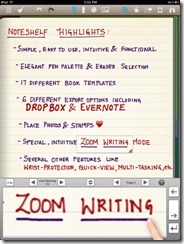
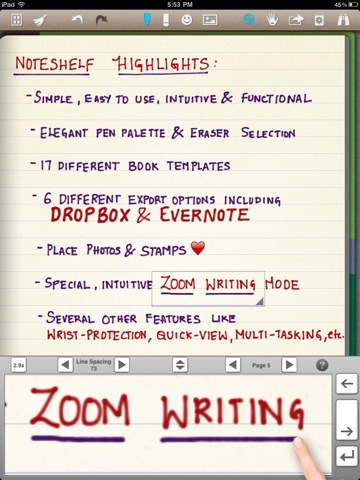
In fact, it rocked so much that I use it all the time, even though my handwriting is absolutely atrocious. Noteshelf has all of the features I could want or need:
- Excellent natural feel when writing
- Different pen sizes and colours
- Wrist protection that works
- Zoom writing
- Just as functional in landscape mode as portrait mode
- Unlimited undo and redo (until you leave the page, anyway)
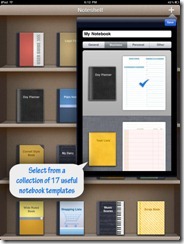
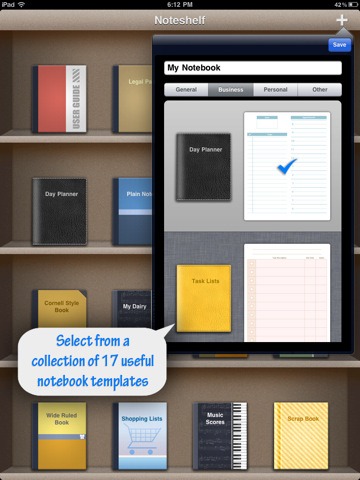
- Notebook templates for writing, drawing, task and day planning, meeting notes, shopping lists, journal writing, graphing, and music
- A bookshelf view to easily organize notebooks
- Dynamic line-sizing for easy and clean jumps to the next line on a page
- Photo embedding and annotation
- Backup and restore functionality
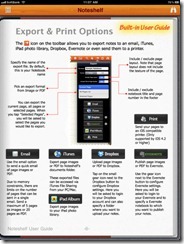
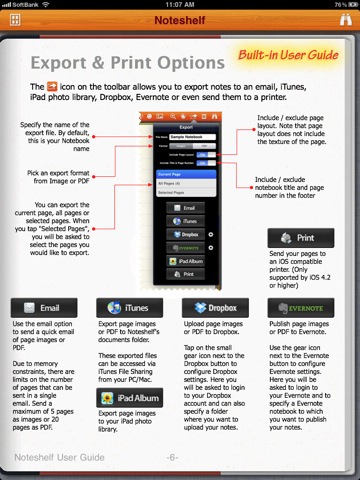
The kicker, though, is Noteshelf’s sharing capabilities. You can print and export notes as .jpegs and .pdfs, configuring by page or as an entire notebook — by email, iTunes, your iPad photo album, and (Yay!!) Dropbox and Evernote! That’s all kinds of awesome, right there! Nothing quite like being able to quickly scrawl down several pages worth of ideas, and then send them to your out-of-brain-brain for easy searching with Evernote’s OCR. Even writing as bad as mine gets picked up. Mostly…
I can’t say enough that’s good about Noteshelf. If you have an iPad, and have a want or need to use it as a notebook that will get you on the path to being well and truly paperless, you need to go and get it. Right now.
What’s your favourite handwriting app for tablets?



3 Reasons the IT Department (Still) Hates Your iPhone
Today, 40Tech is pleased to present you with a guest post by Jaelithe.
Everyone you know has one—everyone except for you. The mere mention of the shiny rectangle has your IT guy cussing under his breath. One look at the interface of this phone and it’s obvious it was designed for the consumer but that doesn’t mean it can’t do the heavy-lifting too. So what has your IT department so worked up?
Sensitive Corporate Data
In 2007 the iPhone stomped onto the cellular scene with huge technical advances and major curb appeal but it lacked some critical security features for IT departments to jump on the bandwagon. At first, the iPhone didn’t support the encryption of user data and didn’t have a solution to remotely wipe data clean in the event the phone was lost or stolen. Enterprise fraud management is a huge IT concern and becomes ever bigger if your IT department has to be concerned with you and the guy you left your iPhone next to on the bus. In addition, many IT departments achieve corporate goals with third-party applications and office suites (the iPhone wasn’t supporting them yet). Apple quickly responded, adding support for third-party apps and the ability to interact with Exchange servers. The memory of the first iPhone’s limited capabilities echoes in the minds of IT professionals everywhere—it could take a while for them to shake off the stigma.
Corporate Customization
Your company doesn’t want to pay for you to take photos in the bathroom of your abs (or other ridiculousness). The iPhone has a myriad of fun, snazzy features but companies don’t want to pay for you to take pictures for Facebook, play Angry Birds, or watch YouTube videos featuring cats jumping out of boxes. It’s critical to IT departments that they’re able to customize the features and define settings on the device in order to effectively manage compliance with the company’s acceptable-use policy. Apple is now delivering solutions to administrators.
Business Apps
In 2007 there were fewer apps that applied to serious business folks but now there’s a never-ending myriad of apps available specifically engineered to support business objectives. As Apple provides more and more solutions, it will be difficult for IT departments to hold their stance for long.
Does your IT department still hate the iPhone, or have they come around? How do they feel about Android?
Jaelithe is a freelance writer interested in all things tech. Jaelithe and her iPhone Irene live a very happy life together filled with technology and productivity. You can usually find Jaelithe writing about enterprise fraud prevention for Attachmate, and the ways that gadgets can enhance everyday life.