Computers are a constant source of fun and potential ulcer-creating stress. This is especially true — at least in the latter respect — when we find ourselves needing that oh-so-important file that we just deleted from the Recycle Bin. Or lost in a crash. Or from any other of the number of creative ways Windows can eat your work. There are several data recovery tools out there, and they come in varying degrees of complication and quality. If you are looking for something simple, though — something that you can take with you, and even use on a flash drive — check out Kickass Undelete.
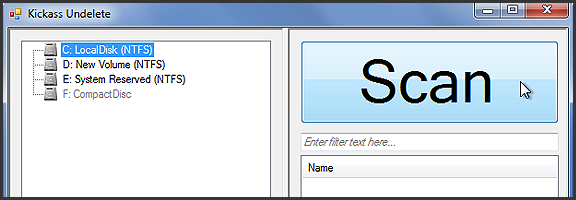
Kickass Undelete is more than just a fun name. It’s portable, it’s pretty effective, and it’s big-button easy. All you need to do is select the drive you want to scan for deleted files, hit the ginormous Scan button, wait a tick, and then sort through the list of deleted files for the one you’re looking for. To help you along, Kickass Undelete allows you to sort by Name, Type, Size, and Last Modified date. Select the files you want to restore, then hit the also-sizable Restore Files button, and you’re all good!
This is one time when downscaling technology isn’t a cliché. None of that “cell phone implanted in your tooth” malarkey– the mChip is serious business. Serious, potentially game (and life) changing business.
Once upon a time, getting tested for HIV involved a trip to the doctor, a bit of blood-letting, and a rather tense wait. It was months, at first, then weeks, then days, and eventually it worked its way down to minutes. That’s all fine and dandy if you live in a developed country, but if you happen to live in Africa, where HIV is running rampant, then visiting your local doctor’s office could involve something of a trek. A trek you may not be able to afford or, due to fear of results, lack of time, or whatever other reason, may not be inclined to make.
Researchers at Columbia University have found a way to help.
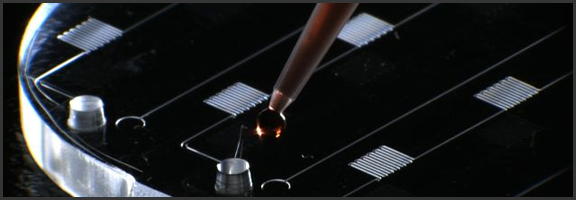
Using nanoparticles and microfluidics, they have taken an entire laboratory and miniaturized it in the mChip. All it takes is a drop of blood and a cheap optical sensor and the chip gives results in 15 minutes that are plain as day and require no interpretation. It can test for HIV and/or syphilis and has a 100% detection rate. There is a 4-6% chance of a false positive, as well, but that is the same margin in a traditional lab test. A false positive may be scary, but it beats the hell out of a false negative.
The best part about the mChip is the price. It only costs $1, which is amazing for a new piece of technology meant to help people. Or maybe I’m just a wee bit cynical… Either way, the price is fantastic.
The mChip also has the potential to be instantly actionable. If the user has a digital medical file, the mChip can reportedly use cellphone or satellite technology to interface with medical files and include the new record.
This is a fantastic step forward in the fight against HIV in undeveloped countries, but it’s possible technology like this will find its way into your local Wal-Mart pharmacy at some point. It would only make sense, wouldn’t it? And dating could get just a bit safer — if a bit awkward: “Just put a drop of your blood here, please. If all goes well, we can get started in about 15 minutes.”
Side Note: There is also an mChip that diagnoses prostate cancer that has been approved for use in Europe.
When I got my iPad back in December, I mostly used it as a means to surf the web, watch Netflix, read, and play the occasional game. Oh, I blogged on it a bit, too, and I figured it would be great for taking notes and the like, but I quickly found that extended typing on the glass surface led to aching fingertips. Besides, when trying to work things out and get creative, there is something very powerful about the old fashioned pen and paper approach. Determined to see if I could get the same power out of my iPad, I started researching handwriting apps.
After going through several, I was largely disappointed by what was out there — until I discovered Noteshelf.
Now, to be fair, I originally went with Penultimate, which has an excellent natural feel when you write — and gets extra awesome points for it’s freeness. However, I still felt like I was missing something. So, when my friend and colleague Daniel Gold recommended Noteshelf to me, I grudgingly gave it a shot, despite it’s $4.99 price tag. I’m cheap when it comes to app purchases, but I figured I could hold him responsible if it sucked.
It didn’t.
In fact, it rocked so much that I use it all the time, even though my handwriting is absolutely atrocious. Noteshelf has all of the features I could want or need:
Excellent natural feel when writing
Different pen sizes and colours
Wrist protection that works
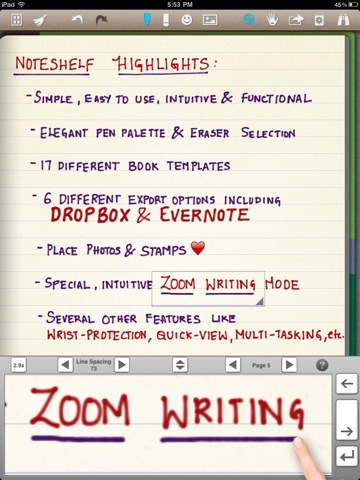
Zoom writing
Just as functional in landscape mode as portrait mode
Unlimited undo and redo (until you leave the page, anyway)
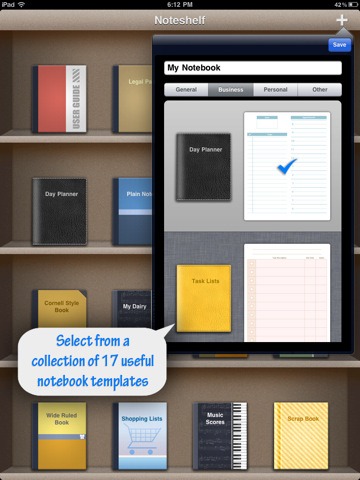
Notebook templates for writing, drawing, task and day planning, meeting notes, shopping lists, journal writing, graphing, and music
A bookshelf view to easily organize notebooks
Dynamic line-sizing for easy and clean jumps to the next line on a page
Photo embedding and annotation
Backup and restore functionality
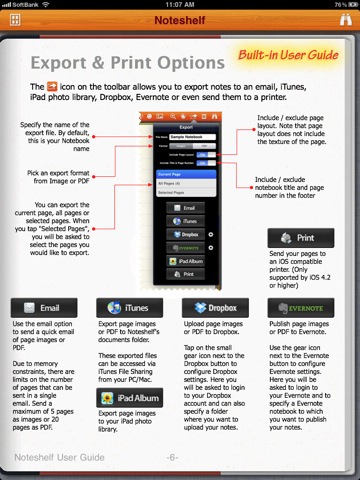
The kicker, though, is Noteshelf’s sharing capabilities. You can print and export notes as .jpegs and .pdfs, configuring by page or as an entire notebook — by email, iTunes, your iPad photo album, and (Yay!!) Dropbox and Evernote! That’s all kinds of awesome, right there! Nothing quite like being able to quickly scrawl down several pages worth of ideas, and then send them to your out-of-brain-brain for easy searching with Evernote’s OCR. Even writing as bad as mine gets picked up. Mostly…
I can’t say enough that’s good about Noteshelf. If you have an iPad, and have a want or need to use it as a notebook that will get you on the path to being well and truly paperless, you need to go and get it. Right now.
What’s your favourite handwriting app for tablets?
With all of the crazy outages and hacking going on in the digital world over the past week or two, the fact that LastPass has an issue (as of May 3rd), probably shouldn’t come as a surprise. Still, it is a bit of a shock to the system to be reminded that the “last password you’ll have to remember” is potentially as vulnerable as any other. Before panic sets in among LastPass users (of which I am one), know that the company is on it, and that those with strong, non-dictionary based passwords should be fine in any case. LastPass also admits that they may even be overreacting, but prefer to err on the side of caution when it comes to keeping your data safe — a policy that I am 100% behind.
Without getting into the technical aspects behind it all, what basically happened is that LastPass discovered at least two network traffic anomalies in their systems that they couldn’t explain. One occurred in a “non-critical machine” and the other came from one of their databases. The second matched with the first and involved information exiting the LastPass environment. The company reported in their blog post that the outgoing amount of data was large enough to have contained email addresses, password hashes, and “server salt,” but not enough to have “pulled many users’ encrypted data blobs.”
While LastPass doesn’t feel that the issue is a large one, they recognize the potential for brute force hacking on the passwords of any users that may have been compromised. This is most likely to affect those who have a master password that is lacking in strength and/or dictionary-based, which is still incredibly common, even today. To protect the integrity of their systems, and their users’ data, LastPass is requiring all users to change their master password. They are also looking for email validation from you if you happen to be logging in from an IP address that is outside your usual set. This is an added security measure, just in case your password does get compromised before it is changed.
Don’t rush off and change your password right away, however. The sheer volume of password change requests is slowing down LastPass as a whole, which is causing server connectivity problems across the board. The company has beefed up the email verification protection as a result, and are confident that there should be little risk in waiting a day or two before changing your master password. You will have to do it eventually, however.
Creating a Strong – But Easy to Remember – Password
When you do change your password, strength should be your primary focus — but there is no reason you have to put together something that is impossible for you to remember. That may seem a bold statement, considering that strong passwords need to have combinations of numbers, symbols, and both uppercase and lowercase letters — and should avoid dictionary words — but a great post by Gina Trapani (Lifehacker) back in 2006 essentially solves that problem.
Gina advises that you use a single rule set as the basis for all of your passwords. You start with a base password that you create from something like a favourite acronym, letter/number combination, or nonsense word that you will never forget. Pad that with some symbols for extra safety, if you want, and store it somewhere offline, just in case you forget it. Once the base of the password is set, the rest comes as a result of the service you are signing up for.
For example, you could set your base password using your initials (including middle) or even your favourite pet’s initials, combined with your favourite number. In this case, you are the proud owner of Fluffy Cattington, and have a love for the number 86. Your base password could be something like FC86, or FfyCt86, etc. Add a few things to that for extra strength and you could have this: &*FfyCt86!, or #(FC86)^^. Already, we are well on our way to a secure password.
The next step is to add a standard code for the service you are using. Initials or the first few letters of the service name are good here as well. If this were to be your LastPass master password, for example, you could have something like this: &*FfyCt86!LP, or #(FC86)^^Las. Just try to make sure your password is at least eight characters long and that you are using numbers and letters. Using symbols and uppercase/lowercase letters is even better, but not all services will allow this in their passwords, so you may have to adjust for that. LastPass does, so no worries there.
Check out the Lifehacker post for even more ideas on how to choose your base password.
If you are interested in alternatives to LastPass, check out Evan’s post on eWallet vs Keypass vs LastPass. I like LastPass, though, and am pleased by the lengths they go through to protect their service and users. Evan also makes a great case for LastPass here.
What are your thoughts on choosing and remembering strong passwords?
Have you ever tried looking backwards in Twitter or Facebook? It’s not easy. There was that funny conversation, link, or photo that one time that you suddenly feet the need to take a look at again, but when you tried to find it, you were faced with over a year’s worth of scrolling, waiting, scrolling, waiting, and then yet more scrolling? That’s one of the downsides of a world run by micro-updates — there are a lot of them. You could try using the built in search, or even Google, but it’ll probably be a chilly day down south before you find that elusive memory. That’s where Memolane comes in.
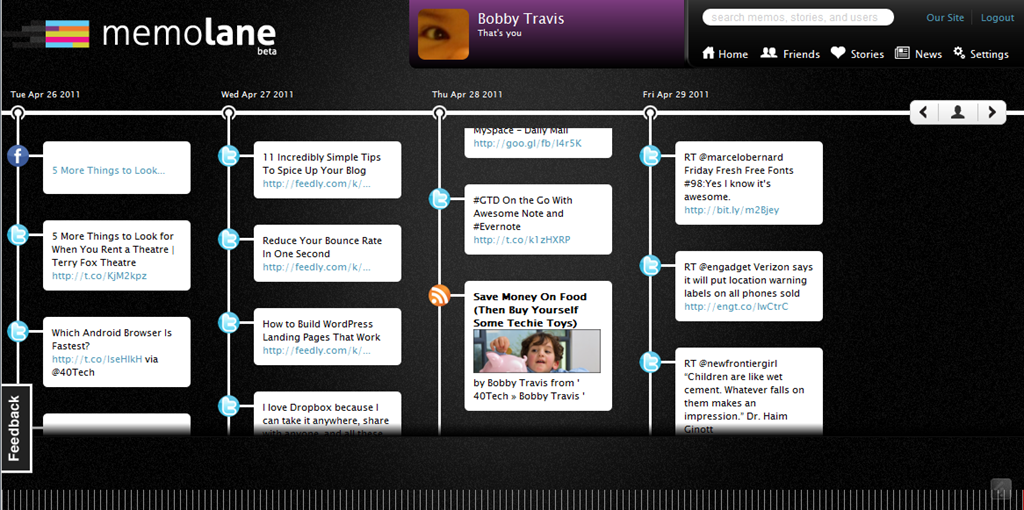
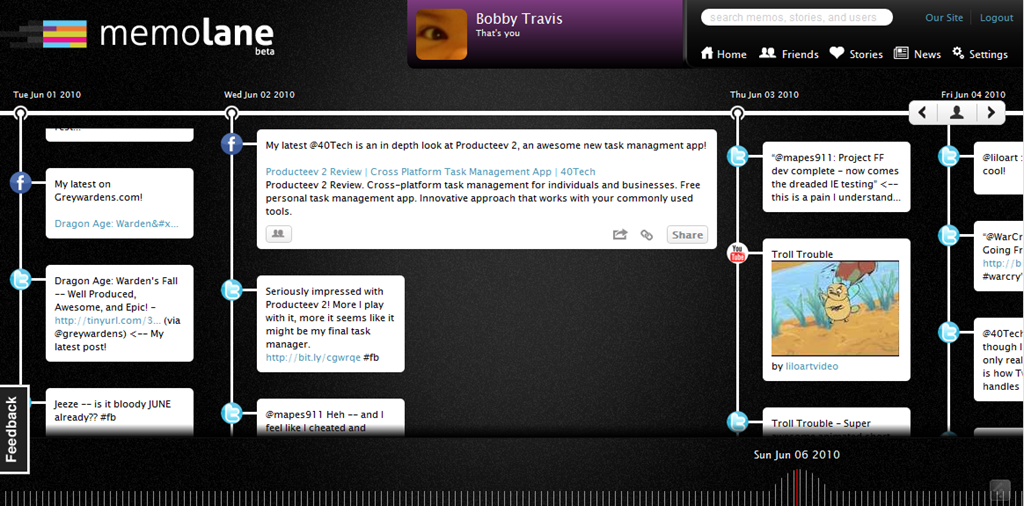
Memolane is a new web app that allows you to view content from multiple social media services in a single timeline that is easy on the eyes, and easy to search through. The timeline is scrollable and broken down into days, with the tweets, photos, updates, et al, that you posted online each day listed vertically in expandable memo bubbles. You can connect Facebook, Twitter, Flickr, YouTube, Last.fm, Trip.it, and more — and you can even add in RSS feeds to pull in custom content. I found that I was able to access Twitter updates as far back as February 2010, and Facebook updates, especially photos, all the way back to 2007. Clicking the timeline bar on the bottom of the window made for quick trips to the dates I was looking for, and the search is actually pretty powerful, so long as you don’t enter hash-tag symbols (#).
An easy way to find your old online memories isn’t all that Memolane is good for, however. You can also embed lanes into web pages (see it in action below), and connect with friends to create stories together around shared experiences. It’s a bit like an online scrapbook, really. In fact, Memolane may be adding a print aspect that will allow for real scrapbooking — digital life making it full circle back to the real world.
I like Memolane. It’s easy to set up and use, it allows me to find things that I may have never found otherwise, and it has per-memo and per-service privacy settings that make the sharing bit worry-free. I did find that, the further I went back in time, the more sparse the updates became, but it is entirely possible that that has more to do with the connected services than with Memolane itself. Also, it’s free — and awesome. That’s a good combination in my books.