Menu Close

Category: iPad (page 8 of 12)

A Short Memoriam to Steve Jobs

A Short Memoriam to Steve Jobs | 40Tech

Steve Jobs was an innovator, a forward thinker, and an incredible entrepreneur. He took no prisoners in the battle with his competition and wasn’t afraid to make fun of them, belittle them, or otherwise express his opinion. He used that persona to help create a sense of elitism and superior quality around Apple products that catapulted the brand to wild success – a success only strengthened by the fact that the quality of Apple products often was superior.

Steve Jobs used all of his forceful personality to do what forceful personalities should do: change the world. Love him or hate him, without Steve Jobs the world as we know it would be a very different place. The man is responsible, on some level, for the computer, tablet, or smartphone you’re reading this on, for the mouse that you use to navigate your PC, and for changing the face of the music industry. And that’s just for starters.

I’m not going to bore you by reiterating what thousands of other blogs have already said. I just wanted to take a moment to express my respect for the man who helped define how I spend my life. He was no angel, and he might well have been a little crazy — but as he himself said:

Here’s to the crazy ones, the misfits, the rebels, the troublemakers, the round pegs in the square holes… the ones who see things differently — they’re not fond of rules… You can quote them, disagree with them, glorify or vilify them, but the only thing you can’t do is ignore them because they change things… they push the human race forward, and while some may see them as the crazy ones, we see genius, because the ones who are crazy enough to think that they can change the world, are the ones who do.

Rest in peace, Steve. You did big things.


Springpad Mobile Clipper is the (Near) Seamless Content Clipper You’ve Been Waiting For

Springpad Mobile Clipper is the (Near) Seamless Content Clipper You've Been Waiting For | 40Tech

It’s been a long time coming. Since I got myself an iPhone, and especially since the iPad, I’ve joined the ranks of the millions of users out there who have been waiting for a simple and easy way to clip web content on my mobile device. I’ve used Read It Later and Instapaper, I’ve copied things into email and sent them to Evernote, Springpad, Producteev, and myself. I’ve even used the desktop clipper bookmarklets with reasonable — if time-consuming — success. That’s all in the past now: Springpad has hooked up the mobile world with a new and improved web clipper that is near to seamless.

The new Springpad mobile clipper doesn’t have the fancy bells and whistles of the Chrome extension, of course, but the updated bookmarklet is straightforward and easy on the eyes, and it works just as well in Mobile Safari and Atomic Web Browser as it does on desktop browsers. I used to use the old Springpad bookmarklet, and sometimes the Evernote and Memonic ones as well, but more often than not, they would load or function slowly — if they loaded at all. I’m presented with or stumble across a plethora of juicy things I want to follow upon in any given day – and most of it happens while I’m not at my computer. Now I can grab a bookmark for later, organize it, and move on within seconds. No fuss, no later processing, and no clutter in my email inbox.


Clipping Content is Great on iPad, a Bit Neutered on iPhone

Clipping bits of content from an article or page is a bit of a problem, though, at least on the iPhone. When using the iPad, I had no issues at all. Select a bit of the text or an entire article, fire the clipper, and it appears in the bookmark’s description area, complete with formatting — unless you want to edit it, of course. That strips the HTML. On the iPhone, however, no amount of selecting or even copying text to the clipboard will get the content you want to clip to show up. All you will get is the description write-up. I’m not sure why this is, and it definitely limits the iPhone to a quick link-grabber as opposed to a full-fledged clipper.

If you really want to clip that bit of content or entire article for later reading while on the iPhone, you can copy the text and edit it into the description field by doing a select-all-and-paste maneuver. Once again, though, you will lose all formatting, including any links and images.

The iPhone issue aside, the clipper rocks for getting those bookmarks into Springpad and organized in your notebooks and tag structure. Notebooks are an easy drop down, and tags auto-complete as you type. You can also change the type of save you want it to be. Bookmark is the default, but you can change it to Business, Restaurant, Recipe, Product, and all the rest with just a few touches. Almost all the rest, that is — Note is missing, and so is Task. Not a huge loss, I suppose, unless you want to save a bookmark to a task or a note, which could happen. If you really need that functionality, you can always go into Springpad and add a reminder or a note directly to the bookmark.

Springpad Mobile Web Clipper for Mobile Safari in Atomic Web Browser | 40Tech   Springpad Mobile Safari Web Clipper | 40Tech

Selecting Post Type in Mobile Safari Web Clipper, Springpad | 40Tech   Tagging Bookmarks in Springpad Web Clipper for iPad, iPhone | 40Tech

image   image


Installation is Easy

Springpad has made it easy to install the bookmarklet to Mobile Safari. They provide step-by-step instructions in the Settings area of the most recent versions of their iPhone and iPad apps. If you use another browser, just follow the instructions and let Springpad load up Mobile Safari, as it will automatically add the JavaScript to your clipboard. After that, open up your browser of choice and add a bookmark, pasting the JavaScript into the URL field. There is no guarantee your browser will work, but I can tell you that Atomic Web Browser does just fine.

image


Springpad Has a Few More Tricks Up Their Sleeves

The new mobile clipper isn’t the only thing Springpad’s been up to lately. They also released a Quick Add bookmark for your home screen that makes it faster for you to load up the Springpad app to add a note, photo, or whatever else you choose. This is nice for those of us without widgets like those Android folks.

I also have received word from Springpad CEO, Jeff Janer, that they have some big moves in the works that will differentiate them even more from Evernote. Having a mobile clipper that consistently works and works well is a good start though. They just need to fix that pesky iPhone issue…

What are your thoughts on the Springpad Mobile Clipper?


Evernote for iOS Update Brings Rich Text Support, Shared Notebooks, and Other Goodies

Evernote for iOS Update Brings Rich Text Support, Shared Notebooks, and Other Goodies | 40Tech

Last week, when it was still August (where the hell did the summer go?), Evernote released the mother of all iOS updates. There was a lot to it — a cool redesign, a lock feature for premium users — but the big deal was the inclusion of a rich text editor and the ability to access notes in shared notebooks.

The new features aren’t as robust as the desktop version of Evernote, of course, but are nonetheless dripping with the sort of awesome that makes you want to find your Irish roots and dance a merry jig.

Here are the highlights:

Rich Text Editor

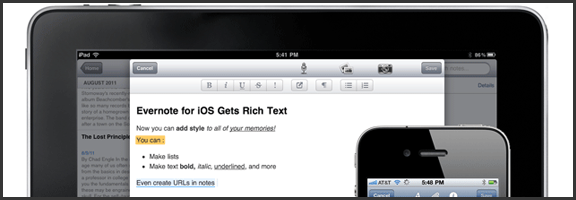
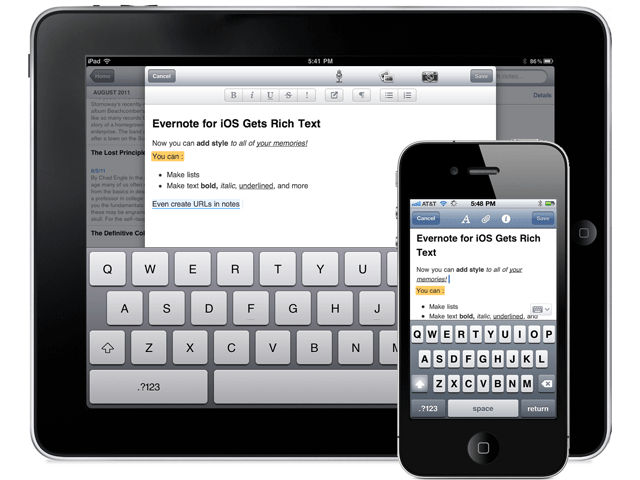
The new editor allows for basic bold, italics, underline, bullets and the like, as well as strike-through, header text, highlighting and linking. You can also edit notes that were already created with rich text, which is great, but don’t think the append prompt is gone for good. If the note has too much fancy in it, even the new editor may not like it. There is a new option, though, that saves at least a bit of headache: the ability to simplify the formatting to be workable in the iOS apps. This way, you only lose some of the formatting, instead of everything.

Evernote for iOS (iPhone, iPod Touch, iPad) Now Has a Rich Text Editor | From Evernote Blog

Note: Checkboxes are still not able to be created in Evernote for iOS. You can check them, but not make them.


Shared Notebooks

Tired of not being able to access a note or notebook that someone shared with you? Now that Evernote has added shared notebooks into iPhone, iPad, and iPod Touch, you can breathe easy. Note that I said access, however. You can only read them, not create new ones. Yet.


Another handy feature is the new ability to search within notes. Want to find a word or turn of phrase from your note? Now you can, quickly and easily. It’s no desktop search, but it’s definitely a good start.

This is only the tip of the update-iceberg. There’s a lot more going on under the hood and in the form of a new look and feel for Evernote’s iOS apps. If you haven’t updated yet, you should. Get the full list of new features here.

New Evenrote Design for iPad | From Evernote Blog

Thoughts on Evernote’s new iOS features? Head down to the comments!


How to Watch US Netflix on Your iPad/iPhone When Outside of the US

How to Watch US Netflix on Your iPad/iPhone When Outside of the US | 40Tech

If you have Netflix, you have the ability to stream a wide array of movies and television shows for less than $10 per month. The digital streaming library isn’t as impressive as their mail-out catalogue, but any way you look at it, that’s a pretty decent price for what you get. And what you get is a lot. Old shows, new shows, crazy amounts of anime, and even some favourites like Glee, the now (sadly) cancelled Stargate Universe, and 2009’s Star Trek movie are on there. Unless you live in or visit a country other than the United States, of course.

If you do happen to be on the other side of that imaginary border line, however, and you have an iOS device, you can use a VPN to access the US Netflix streaming library — and you can do it without spending a dime if you use Hotspot Shield.

Note: Please note that, while this is a fun workaround, and can be useful in certain situations, the inability to access Netflix or any other media site mentioned in this post outside of the United States is due to international licensing agreements. These sites and services may prohibit broadcasting or accessing certain content from outside of the United States in their terms of use. As such, this post’s workaround is used solely at the device owner’s and account holder’s own risk and is for educational purposes only.

UPDATE: Hotspot Shield’s iOS configuration page is currently down. I’ll keep checking to see if and when it comes back up and will update you here. You could also try other VPN options, such as Witopia, but that one comes with a $40/year price tag.

UPDATE 2: I’ve been in touch with Anchorfree support (they are the purveyors of Hotspot Shield), and have been told that they are working on the issue. Apparently, they are re-launching the iPhone version of the VPN. I will update again when I know more.

UPDATE 3: The iOS app for Hotspot Shield is officially here! Check this post for more info.

We’ve talked about Hotspot Shield before, and even though the free version forces ads down your throat, it’s pretty handy when you want to access Hulu, Pandora, or US-only website content from across the border. It’s also handy for surfing securely at public WiFi locations, and all of the other fancy things you can do with a VPN.

So why bother with an additional post just for Netflix? Because Netflix isn’t a US-only site, but it does have US-only content. This content is accessible depending on where you are, as I found out by accident when visiting a friend in Washington state a couple weeks ago. I pulled out the iPad for my kid, loaded up Netflix to keep her busy, and was immediately boggled by the amount of new content I found staring back at me. I was hoping that we Canadians had suddenly gotten a slew of new titles, but was sadly disappointed when I returned home that evening.

Out of curiosity, I tried out Netflix on my laptop with Hotspot Shield enabled. That didn’t work. Generally (unless launched via the Chrome app, oddly enough) Netflix thought that I was trying to access the US site with a Canadian account. No dice, there. Then I remembered that Hotspot Shield was also configured on my iPad… and I was pleasantly surprised that it worked!

Here’s how you can try it out

Go to the iPhone configuration page on Hotspot Shield’s website, and follow the instructions there. You’ll want to be on a separate device for this, for simplicity’s sake.

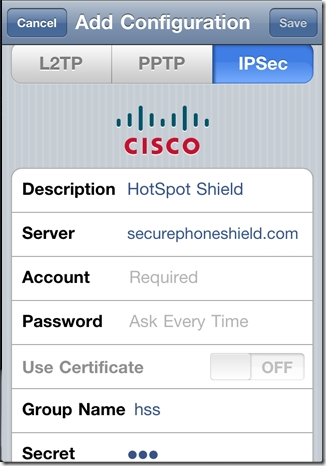
Basically, they will have you turn off your iPad’s (or iPhone’s) WiFi, and then head to Settings > General > Network > VPN > Add VPN Configuration. From there, you do the following:

  • Select the IPSec tab/pane
  • In Description, type HotspotShield
  • In the Server field, type 68.68.107.101
  • Go back to the website and click the “Get Account ID” button
  • Type the code that the button generated into the Account field
  • Type the same code into the Password field
  • Make sure that Use Certificate is set to OFF
  • In Group Name, type hss
  • In Secret, type hss
  • SAVE and then turn your WiFi back on

Hotspot Shield iPhone Configuration

Once you are set up, turn on the VPN. I’ve noticed that, if you try and turn it on from the iPad’s Settings dashboard, it will fail to connect. No idea why that is, but, if you turn it on from the Settings > General > Network > VPN switch, it connects just fine. Once the VPN says it’s connected, load up Netflix and watch in wonder as the app believes that you are in the United States and loads up the US Netflix library!

Things to note

  • The VPN will slow you down a little bit, but not enough to affect video playback. Netflix technology is very good at figuring out how to play videos optimally, even at slower speeds.
  • The VPN will disconnect periodically. This is annoying, but if you are already playing a video it will not affect it. The movie or TV show will play through to the end unless you pause it and let the iPad time out. If you find that you are having difficulty launching a show, check to see if the little VPN icon is in the upper left corner of the iPad’s notification bar. If it is, then you may need to restart the app. If it isn’t, then head back into the VPN settings and turn it on again. You may want to close Netflix out completely, first to make sure that the VPN takes with the app (double-tap the iPad’s hardware button to see the running/recently running programs, press and hold Netflix till it shakes and gets an X in the corner, then tap the X to close it).

There you have it! Access to US Netflix on your iPad whether you have a non-US account, or just happen to be visiting another country. It is important to note that this trick may only last until Netflix figures a way to block it out, but HotSpot Shield is versatile. They have managed to get people back into Hulu every time they’ve been locked out so far, so it will probably be the same with Netflix.

Thoughts?


App of the Week: Noteshelf Handwriting App for iPad

App of the Week: Noteshelf Handwriting App for iPad | 40Tech

When I got my iPad back in December, I mostly used it as a means to surf the web, watch Netflix, read, and play the occasional game. Oh, I blogged on it a bit, too, and I figured it would be great for taking notes and the like, but I quickly found that extended typing on the glass surface led to aching fingertips. Besides, when trying to work things out and get creative, there is something very powerful about the old fashioned pen and paper approach. Determined to see if I could get the same power out of my iPad, I started researching handwriting apps.

After going through several, I was largely disappointed by what was out there — until I discovered Noteshelf.

Now, to be fair, I originally went with Penultimate, which has an excellent natural feel when you write — and gets extra awesome points for it’s freeness. However, I still felt like I was missing something. So, when my friend and colleague Daniel Gold recommended Noteshelf to me, I grudgingly gave it a shot, despite it’s $4.99 price tag. I’m cheap when it comes to app purchases, but I figured I could hold him responsible if it sucked.

It didn’t.

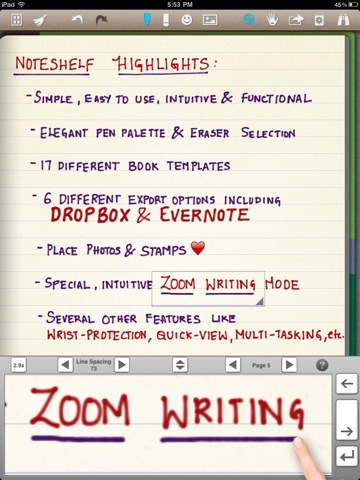
In fact, it rocked so much that I use it all the time, even though my handwriting is absolutely atrocious. Noteshelf has all of the features I could want or need:

  • Excellent natural feel when writing
  • Different pen sizes and colours
  • Wrist protection that works
  • Zoom writing
  • Just as functional in landscape mode as portrait mode
  • Unlimited undo and redo (until you leave the page, anyway)
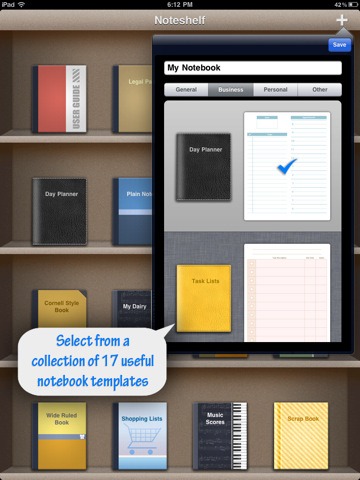
  • Notebook templates for writing, drawing, task and day planning, meeting notes, shopping lists, journal writing, graphing, and music
  • A bookshelf view to easily organize notebooks
  • Dynamic line-sizing for easy and clean jumps to the next line on a page
  • Photo embedding and annotation
  • Backup and restore functionality

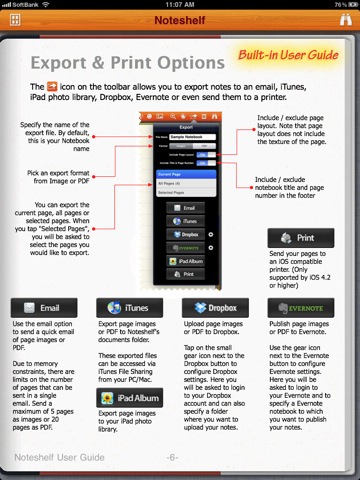
The kicker, though, is Noteshelf’s sharing capabilities. You can print and export notes as .jpegs and .pdfs, configuring by page or as an entire notebook — by email, iTunes, your iPad photo album, and (Yay!!) Dropbox and Evernote! That’s all kinds of awesome, right there! Nothing quite like being able to quickly scrawl down several pages worth of ideas, and then send them to your out-of-brain-brain for easy searching with Evernote’s OCR. Even writing as bad as mine gets picked up. Mostly…

Noteshelf Natural Handwriting App for iPadNoteshelf Notebook Templates Noteshelf Export to Dropbox, Evernote

I can’t say enough that’s good about Noteshelf. If you have an iPad, and have a want or need to use it as a notebook that will get you on the path to being well and truly paperless, you need to go and get it. Right now.

What’s your favourite handwriting app for tablets?