If you were a fan of Google Wave’s integrated gadgets, or just need a place to set up some easy real-time collaboration, then check out Google Labs’ new Shared Spaces. Shared Spaces uses Wave’s technology to provide private collaboration spaces that you can invite others to via a provided short link. There are about 50 gadgets already available, such as the Map Gadget, Draw Board, WaveTube, yourBrainStormer, Napkin Gadget, and a few games. Once you choose the gadget that suits your needs, you simply click Create a Space and your window will open, complete with a chat area, link, and buttons to invite others via Email, Buzz, or Twitter. Once you’re finished, spaces can be deleted simply by selecting the Delete this Space button.
Each gadget on the list has a short description, and can be opened in its own page, where users can leave comments via Disqus, which will help others decide if the gadget will work well or not. This will be especially good if Shared Spaces catches on with the JavaScript programming community, and a ton of new gadgets start appearing.
You need to be logged in to your Google Account to use Shared Spaces, and authorize it for access. It should also be noted that, as of yet, it doesn’t appear to be working in Internet Explorer.
EDIT: According to the Google Blog, you can also log in via Twitter and Yahoo accounts.
In case you missed the announcements last week, Google Wave will live on, and quite likely prosper, in the open source development hands of Apache. In November, Google made a proposal to the Apache Software Foundation to take over development of Wave, hoping to keep the potential of the project alive and bring new blood to its development. The proposal mentioned several weighty companies (including the US Navy) that are still actively using Wave, which was originally set to shut down at the end of 2010, and listed people willing to commit to the project from both within and outside of Google.
Prior to talks with Apache, Google had already made a standalone version of Wave available to interested developers. The end product was named “Wave in a Box” and maintained much of Wave’s functionality. It was even able to import Wave data and communicate with other Wave in a Box installations through a federated protocol. Apache is essentially installing Wave in a Box to their servers and adding it to their Incubator projects as a means to gather a community that will continue active development. I’m not sure whether all existing Wave data will come with it, or not, but it is always possible that the new Apache Wave will offer importing of your Wave data at some point. If you want to act now, there is already a button in each single Wave that allows for exporting to HTML, or PDF with attachments, and Google is apparently working on a tool to export large amounts of Waves at one time, as well as a way to access your Waves in Google Docs.
At any rate, for those of you who were following our Wave Alternatives posts, there is definite hope on the horizon for a better, stronger, and ultimately more useful Wave in the near future.
While Evernote is great if you take lots of notes that you want to save, it can be a bit cumbersome for quick notes. Dropbox is great, too, but doesn’t allow for quick editing of files unless you’re on a computer that has Dropbox installed. If you are a frequent user of Windows’ native Notepad app, and want to have your notes accessible on any computer, check out Nocs. Nocs looks much like Windows’ Notepad app, but with the option to save your text files to Google Docs.
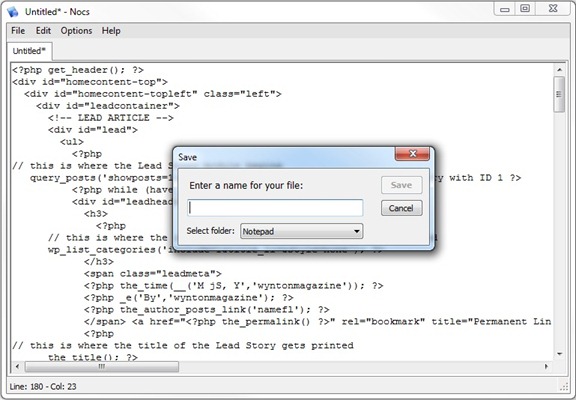
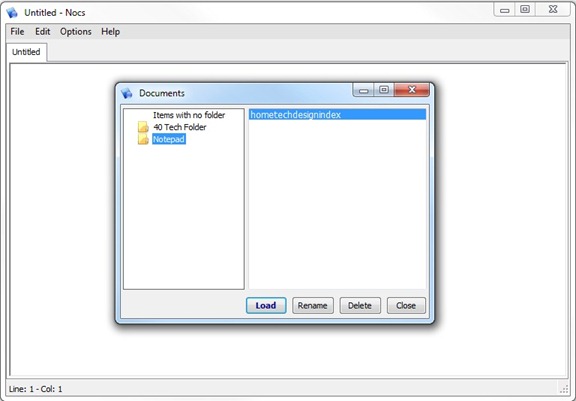
When you first start Nocs, you need to input your Google credentials. Then, when you save a text document, you can choose to save it locally, or to your Google Docs account. When you save to your Google Account, you can designate a folder into which you can place your document. In the future, when you want to load your document, you choose the “Browse Google Docs” option in the File menu. From there, you’re presented with a list of your Google Docs folders on the left of the popup screen, and the documents within each folder on the right.
Nocs loads fast, and also autosaves in the background (if you enable that feature in the preferences). It also supports multiple tabs. The best part? It is free. Nocs is Windows only.
There’s been a lot of buzz surrounding Springpad lately, both here at 40Tech and around the web. For good reason, too. The app’s new features and interface improvements have put it strongly in the running for one of the best save-everything-and-get-organized apps out there. People are loving it! According to CEO Jeff Janer, the new Springpad has seen a huge spike in usage. After playing with it for a while, I can see why.
When I first reviewed Springpad, back in April of this year, I compared it directly to Evernote, and pointed out why some of Springpad’s features were actually superior to our favorite note-taking app. The downside of Springpad was that there was simply too much going on, and that some of the different functions, like the internal apps, didn’t always play seamlessly with one another. Springpad’s development team listened to their users, and the new interface appears to have brought about feelings of peace, harmony, and general bliss amongst the Springpadians.
There have been several major updates to Springpad in the past months, the most notable taking place in September, November, and on Tuesday.
If you’re new to Springpad and don’t want to read my (very large) previous post, or just want a quick overview of some of the new features, watch the video at the bottom of this post.
September: Mobile Alerts, Chrome Extension
September brought about custom reminders and mobile alerts that helped to keep you aware of things on the go, like price drops and coupons for items you saved to your Springpad. It also brought about their most excellent Google Chrome extension.
November: All New Interface, Notebooks and the Board
November saw a huge shift in the interface, paring it down, making it easier to navigate, and generally making it prettier. Along with the new look and feel, better tagging functionality, and bulk editing capability, a lot of potential clutter and confusion was removed by taking all of the internal apps (for GTD, blog planning, and many other things) and giving them their own playground. Users that really wanted to keep the information stored in those apps tied in a neat bundle in the main Springpad app were given the option to port the notes into what is likely the most significant improvement to the service: new, easy to add and use notebooks.
Adding notebooks to Springpad has done a marvelous job of giving you control over how you organize your information. It used to be in one big list, that could be broken down over the large lot of internal apps — which was good in theory, but overwhelming in practice. Now, you have full control over what buckets you want to dump your saved information into, and it is nicely black-boxed in a very clean new interface that looks and feels like a desktop app. To make things even better, each notebook can have it’s own theme, which you can customize with personal images and photos, if you like.
The final hurrah for November was the introduction of the Board. The Board is an awesome use of HTML5, and there is one in every notebook. It gives you a visual approach to organizing your information that works like an old fashioned cork board, or laying out flashcards and sticky notes on a table. For the visual among us, myself included, this was a sweet miracle! The gift that keeps on giving, the Board also automatically adds items with address information to a handy, interactive Google map that can also be moved about. The Board is especially cool on the iPad, which allows you to move the items about with a finger, adding a tactile element that only improves upon the experience.
December: Chrome Web Store, Drag & Drop File Attachments, Keyboard Shortcuts and More
As if all that wasn’t enough, December’s updates brought about several more nice additions to Springpad, including the ability to drag and drop outside files onto the Board as file attachments. This is a fantastic improvement to on the other way to add files to Springpad which is to add a note, then add a ‘note to the note’ that has an attachment. You can even add multiple files at once (10mb/file).
The file-dropping feature only works in Google Chrome, which Springpad has entered into a nice marriage with. The web app was even featured in the launch of the Google Chrome Web Store on Tuesday. Chrome users can now install a shortcut of the Springpad app right into their start page, as well as sign up or login with Google’s OpenID, which allows easy access to the app. Once installed, you can open Springpad in a new tab, as a pinned tab, in full screen (which really makes it feel like a desktop app), and — if you use a Google Chrome developer version — as it’s own application. When combined with the Chrome extension, the installed Springpad is an information saving and organizing powerhouse. In my installation, and I’m not sure if it is a result of the extension or using a developer version of Chrome, I can even save a page to Springpad simply by right clicking and selecting the option from my context menu (if you happen to know which is the proper reason, let me know in the comments).
The final additions in the barrage of new features are keyboard shortcuts, like the ability to Shift+Tab between notebooks (see the complete list below), a search box and alert notifications on the home-screen, and the ability to share private items via a link (public items can already be shared to a gazillion services).
What’s to Come
The single thing that most longtime Springpad users were hoping for would be a desktop app. Unfortunately, that’s still a ways out, but I give Springpad credit for focusing on making their service a hell of a lot more functional on the web side of things first, before committing themselves to a desktop undertaking. According to Jeff, the desktop app will probably come in a windows flavour, first, but he didn’t have a date for me. What he could tell me, thought, was that the web version will make use of HTML5 to enable offline access to Springpad in and around the first quarter of next year. This is something the mobile versions of Springpad already do, and with the new web interface it will likely be almost as good as a desktop app by itself.
Some other pending features include the Board on the iPhone, as well as on Android OS (once it supports tables), and some interesting Facebook and other integrations that will enable you to do things like pull friends’ likes into the recommendation engine and filter them by subject. They are also looking into the possibility of a universal app for Facebook, and potentially, .doc and .PDF scanning.
In just a few months, Springpad has moved in leaps and bounds that blue tights-wearing, red-underwear-on-the-outside super beings might be jealous of. I am thoroughly impressed and actively considering new ways to implement the service into my day to day workflows. I actually did research and planned this post in Springpad. It was a good process. I’m also using it to track potential Christmas gift ideas for family members, and I can see the Board and me becoming great friends — especially if Springpad adds some connectors and other customization features to it in the near future. To be perfectly honest, though, they had me at “HTML5 offline access!”
What do you think of Springpad’s new features? How Will they affect how you use the app?
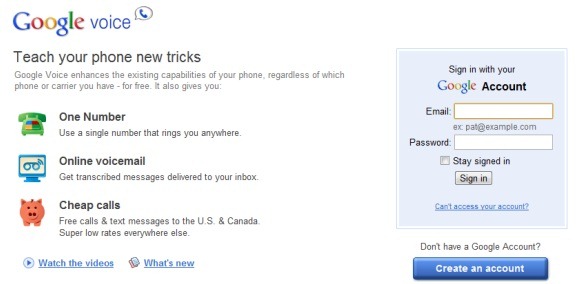
Google Voice has been touted as the one number to use in place of your others, since a call to your Voice number will ring all of your phones. Indeed, between that feature and several others, Voice is handy. For full details on Voice, check out our Google Voice Primer. Google Voice isn’t without shortcomings, though. We covered five of them last year (a couple of those have since been fixed). Somehow, though, we missed Voice’s biggest shortcoming, that will prevent it from ever being a replacement telephone number for many people.
Voice’s biggest shortcoming is that it doesn’t support the sending of photos by text message (MMS). Did you know that? I didn’t, until recently. I finally ordered an Android phone, and was excited to start telling everyone that I had a new phone number – my Google Voice number. A day before my new phone arrived, someone tried to send me an MMS message, so that I could open it at my computer via the Voice web interface. That message never arrived. Worse, neither I nor the sender were alerted to the fact that it had failed. The message fell off into a black hole, never to be seen again. Sure enough, a quick look online revealed that Voice doesn’t support MMS.
MMS? Isn’t that what those kids use today? Why would I ever need that? That’s probably what many of you are thinking. I fall into that category, too – about 98% of the time. I only receive a handful of MMS messages a year. When I do receive them, though, they tend to be important, and not just for kicks.
My recourse is to not use Voice as my primary number, or to tell people that I have one number for calls and normal text messages, and another for picture texts. I’m still undecided, primarily because I love Voice’s other features so much. The risk is that I then need to trust that other users will remember that I have a separate MMS number. If they forget, they’ll never know that I’m not getting their messages, and I won’t even know they’ve been sending them.