
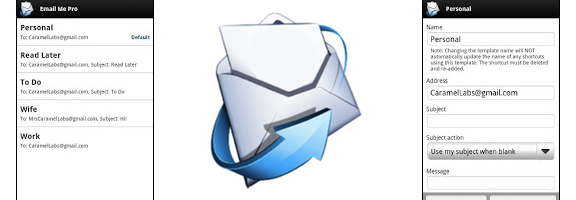
There are any number of reasons why you might want to send yourself an email message. You may want to email yourself a reminder, or send yourself a link from a website. Perhaps you frequently send items into Evernote via your Evernote email address, or maybe you send tasks into your task manager via a dedicated email address. If you want to streamline the process of sending messages to yourself, or to any frequent recipient, check out Email Me Pro, or its free version, Email Me.
With Email Me Pro, you start by setting up templates. You give each template a name and specify a recipient’s email address (such as your own, your spouse’s, or your Evernote account). You can also set up a subject and message content, or tell the app what to do for those fields, such as to use the subject of a shared item. If you want to get more geeky, you can set up a schedule for the app to send a message at a regular interval.


Once you’ve set up a template, then you can click on the Email Me Pro icon via Android’s Share menu, and you’ll be presented with a list of your templates. Choose one, and your message will be filled out for you. I use the app frequently to get information into my task manager. For example, if I see a Tweet that I want to write about on 40Tech, I’ll click the share option in my Twitter client, then click the Email Me Pro icon, and then select my task manager. A new email message is created with a link to the Tweet, and my task manager’s email address already filled in. All that I need to do is hit the send button. If you don’t mind not reviewing your message before sending it, you can even eliminate this step if you fill out your email server information in advance (I haven’t tried this feature yet, so I can’t comment on how it works).
You can also create widgets with the app. I keep a widget on my home screen for my task manager. If I think of an item that I need to dump into my task management system, I tap the widget, type out the task, and hit send. The widget saves me the step of opening my email client, tapping the “compose” button, and typing in a recipient address.
If you’re a Tasker fan, Email Me Pro is enabled as a Tasker plugin. This means that you can send emails automatically using the numerous triggers in Tasker.
If you’d like a free version, take Email Me for a test drive. This allows you to set up one pre-populated template for your messages, using one account.
Email Me Pro is currently $1.99 in the Android Market.
Email Me Pro [Android Market]

Jack Martin says:
I like the idea behind this app. I thinking setting up all the templates might not be worth the time for some people, but I end up emailing myself quite a bit so I might check it out. Thanks.
March 17, 2012 — 12:41 pm
Seren says:
You can also the simple method by creating a webpage or homescreen icons with links of the format:
mailto:test@example.com?subject=todo&body=test
August 15, 2013 — 2:31 am
Evan Kline says:
Great tip. Thanks! I’m back on an iPhone now, though, so can’t try this. Can you call this from the action menu?
August 15, 2013 — 8:12 pm
Seren says:
You can create bookmarks on your home screen from the Safari action menu, but I don’t know of an easy way to create bookmarks with a mailto url.
There are 2 ways, a hard way, and a work-around (as long as you have internet access):
Easy workaround: https://discussions.apple.com/thread/1403502
Hard real method: http://ricrichardson.blogspot.com/2011/08/customize-your-iphone-home-screen-with.html
August 19, 2013 — 7:31 pm
Evan Kline says:
Thanks, Seren. I had never heard of the iPhone Configuration Utility mentioned in the second link. It sounds like something worth playing with.
August 19, 2013 — 7:40 pm